

If you don’t know how to restart a Windows 11 PC or if you are looking for different methods, we are going to help you out in our tutorial. Sometimes after installing a program, you might need to restart your computer, some bugs are instantly solved with a fresh reboot too.
How to restart a Windows 11 PC?
Restart a Windows 11 PC from the Start menu
This is probably the most traditional method. Just follow these steps:
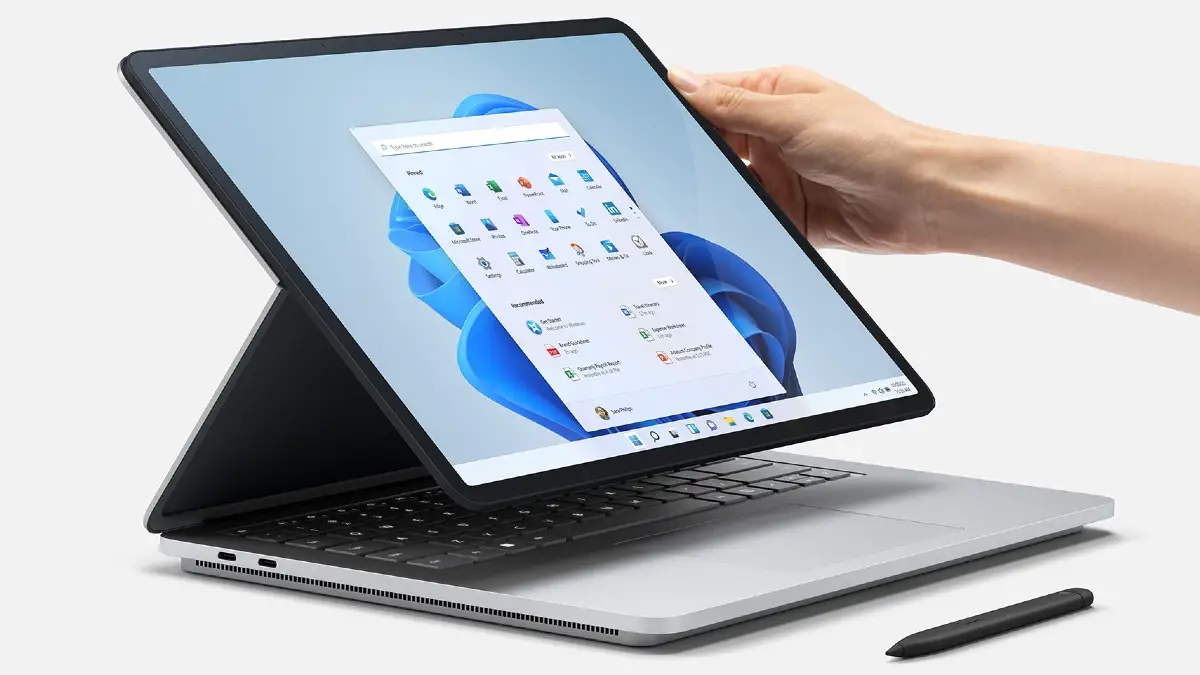
- Enter the “Start” menu by clicking on the Windows icon on the taskbar or directly hit the Windows button on your keyboard.
- Click the power button.
- Select “Restart” from the pop-up menu.
Your computer will reboot. But there’s a second method involving the Start menu. Follow these steps:



- Hit the Windows+x hotkey or right-click on the “Start” icon.
- Click on “Shut down or sign out.”
- Next, choose “Restart.”
Restart a Windows 11 PC with the Alt+F4 hotkey
Make sure you’ve closed all the applications. Go to your desktop and hit the Alt+F4 button. You will see a menu you can choose “Restart” to be able to complete the task.
Restart a Windows 11 PC using a command
You can access Command Prompt or PowerShell to restart your PC. Enter Windows Terminal, you can access this section by typing “terminal” in the Start menu. Type “shutdown -r” into the command prompt and hit Enter. If you see an alert, choose “Close.”
Your Windows 11 PC will restart in a moment.
Restart a Windows 11 PC after an update
If you have pending updates you can go into Settings (Windows+i) and choose Windows Update. Then, click on “Check for Updates.” Then if you have an available update, install it and click on “Restart Now.”
Restart a Windows 11 PC from the Login Screen
You can hit Ctrl+Alt+Delete to reach the Login Screen. Then you can click on the power button which is located in the lower-right part of the screen. Select “Restart.” Your Windows 11 PC will be restarted.




