


Is your PC monitor too bright or too dim? You can easily adjust the screen brightness of your Windows 10 computer in the Settings menu. You can also change the screen brightness in the Action Center in the taskbar. This guide will show you how to adjust the screen brightness in Windows 10.

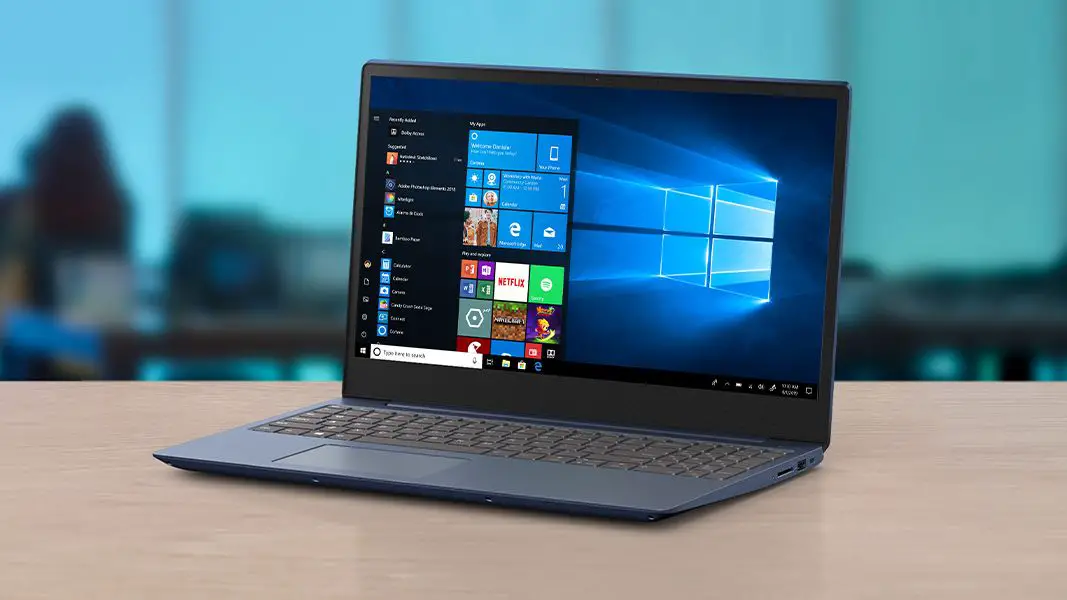
A guide to adjusting screen brightness on Windows 10
Follow the steps below to adjust the screen brightness on your Windows 10 computer using two different methods.
Using Action Center
- Click the message icon to the right of the clock in the taskbar to open the Action Center.
- Drag the brightness slider at the bottom of the screen to adjust screen brightness. Drag it to the left to lower brightness and to the right to raise it.
- Note that the brightness slider only appears in versions 1903 and later of Windows 10. If you are using an earlier version, refer to the Settings method.
- If using a desktop PC with an external monitor, adjust brightness using the monitor’s control buttons instead.
Using Settings
- Click the Start menu (Windows logo) in the lower-left corner of the taskbar.
- Click System in the Settings menu.
- Click Display in the sidebar to open display settings.
- Drag the Change brightness slider at the top to adjust brightness.
- Optionally, check the box labeled Change brightness automatically when lighting changes to enable automatic adjustments.
Now that you know how to adjust your screen brightness on Windows 10, consider exploring other settings for optimizing your display. Adjusting other display settings can also improve your overall viewing experience.
Additionally, maintaining the right brightness can prolong your battery life. If you’re using a laptop, find that sweet spot that balances visibility with power conservation.




