
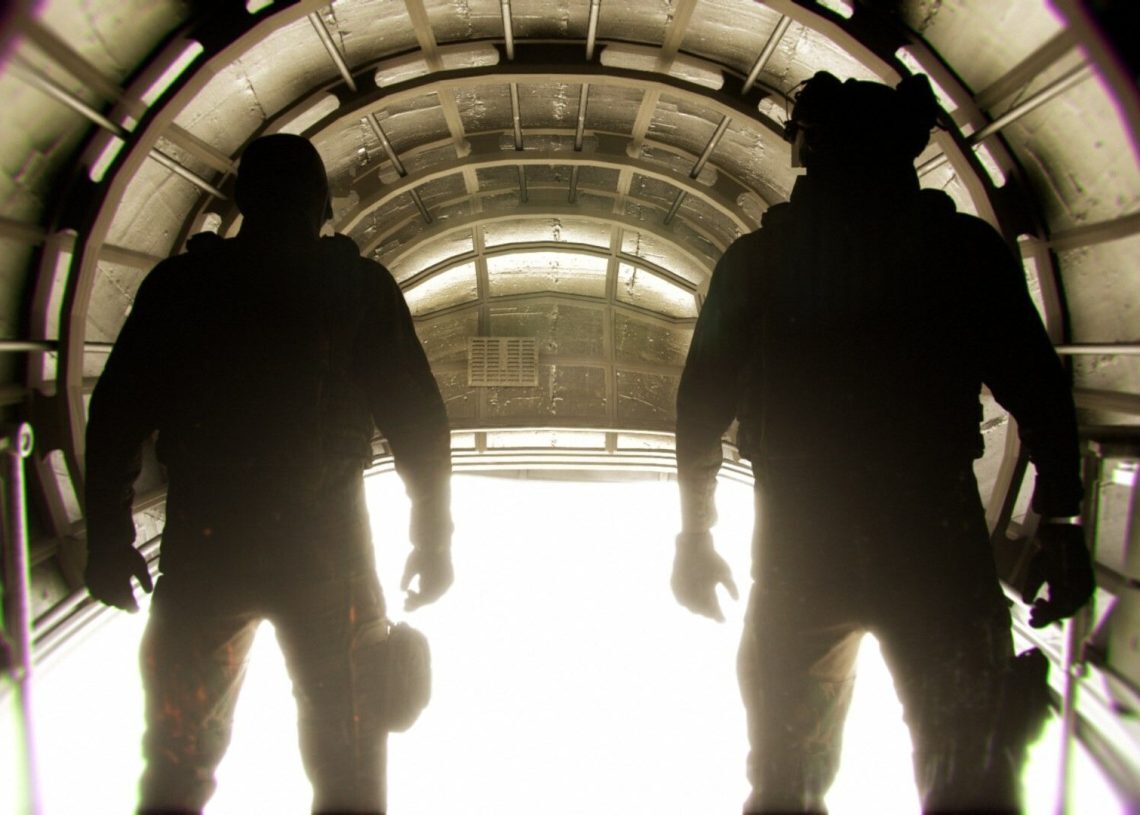

The game is out with some hiccups and users are seeking for the best Bodycam game settings as the graphics of the game are highly demanding.
Bodycam, the highly anticipated first-person shooter that promises ultra-realistic gameplay, has recently hit the Steam platform. While many players are eager to dive into its immersive world featuring the world’s fastest shooting camera, some have encountered performance issues such as low FPS, lag, and stutters. If you’re one of those players seeking the best Bodycam game settings to optimize performance, you’ve come to the right place.
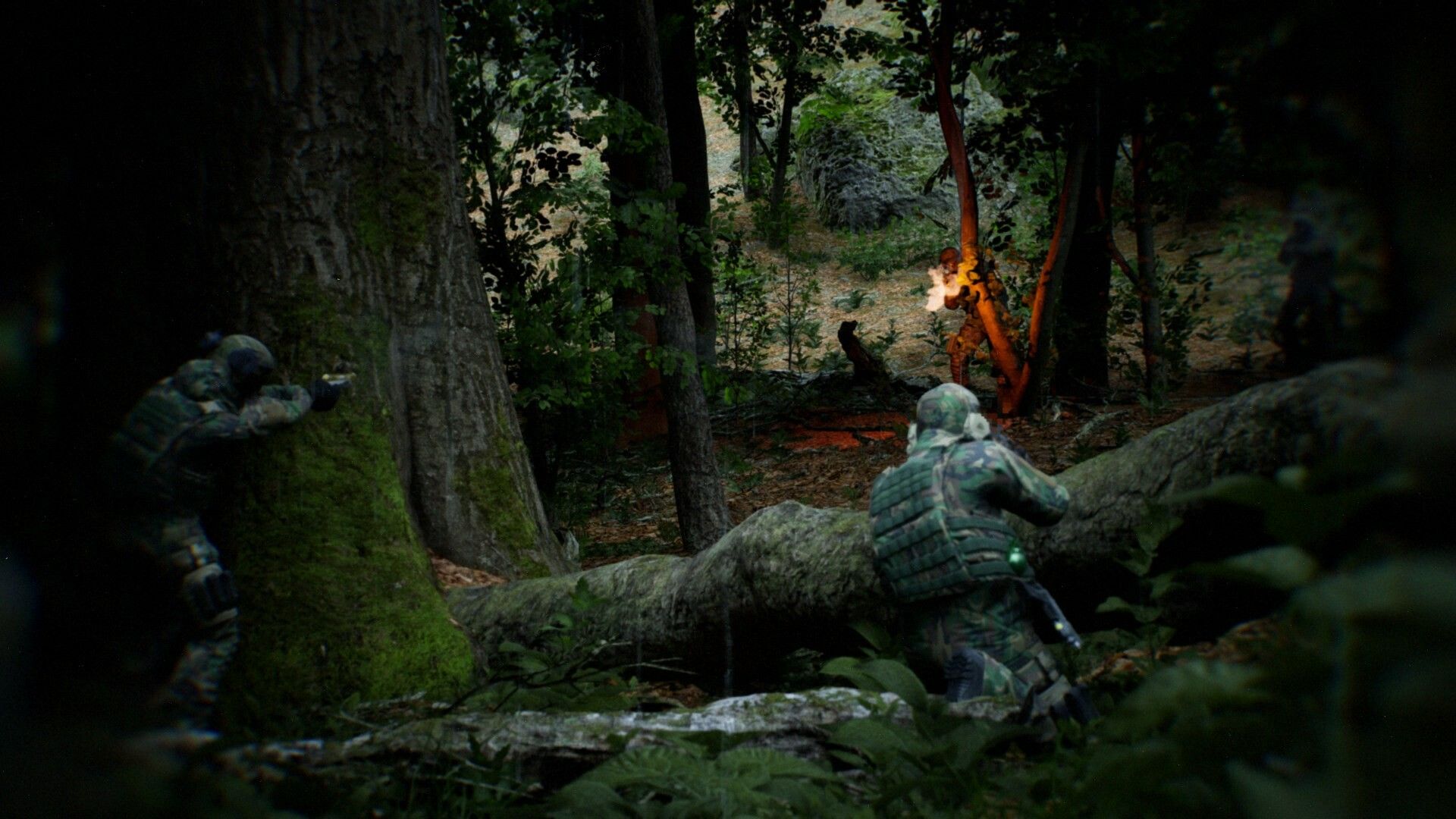
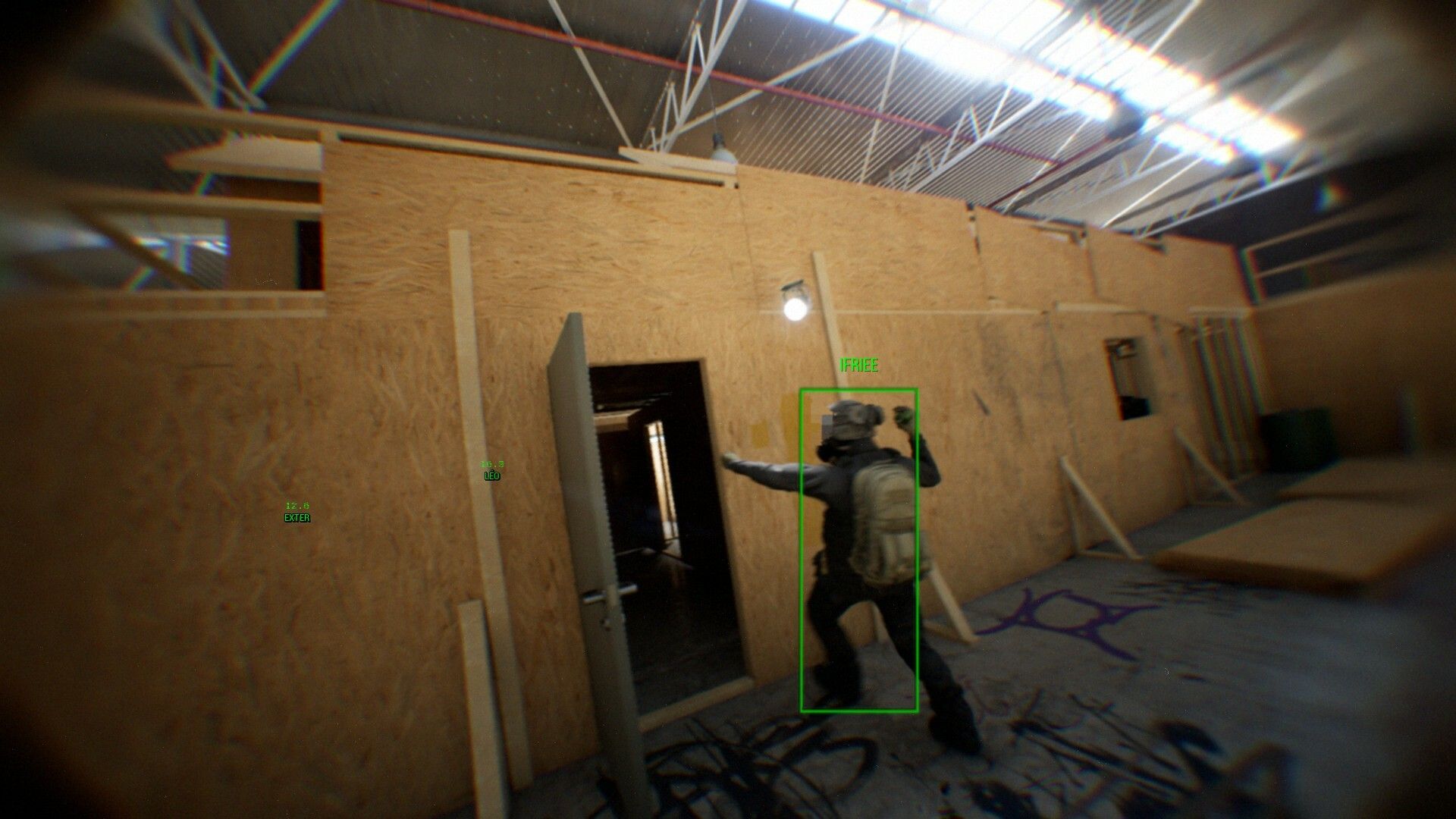
First and foremost, it’s important to understand that Bodycam is built on Unreal Engine 5, a powerful but demanding game engine. This means that even high-end systems might struggle to maintain consistently high frame rates, especially with all settings maxed out. However, by tweaking game’s graphics by applying the best Bodycam game settings, you can significantly improve your experience.


What are the best Bodycam game settings?
Before we delve into the best Bodycam game settings, let’s briefly discuss the various graphics options available in the game. Bodycam offers a wide range of settings, each impacting visual fidelity and performance differently.
- Resolution: Determines the number of pixels rendered on your screen. Higher resolutions like 4K offer sharper visuals but require more processing power.
- Anti-Aliasing: Smooths out jagged edges, improving overall image quality. However, higher anti-aliasing levels can impact performance.
- Global illumination: Simulates realistic lighting and shadows, but it can be computationally expensive.
- View distance: Controls the rendering distance of objects in the game world. Higher view distances can strain your system.
- Textures: Determine the quality of textures used for objects and environments. High-quality textures demand more video memory.
The best Bodycam game settings will vary depending on your hardware configuration. However, here are some general tips to optimize performance:
Lower the resolution
If you’re experiencing low FPS, consider reducing the resolution from 4K to 1440p or even 1080p. This can significantly boost your frame rates.
Adjust Anti-Aliasing
Experiment with different anti-aliasing levels. You might find that lower settings like FXAA or TAA offer a good balance between visuals and performance.
Optimize global illumination
If your system struggles with this setting, try lowering it to Medium or even Low. Alternatively, you can disable it altogether for a significant performance boost.
Manage view distance
Reducing the view distance can help improve FPS, especially in open-world environments. Start with Medium or High and adjust based on your experience.
Texture quality
If you have limited video memory, consider lowering the texture quality. This can free up resources and improve performance.
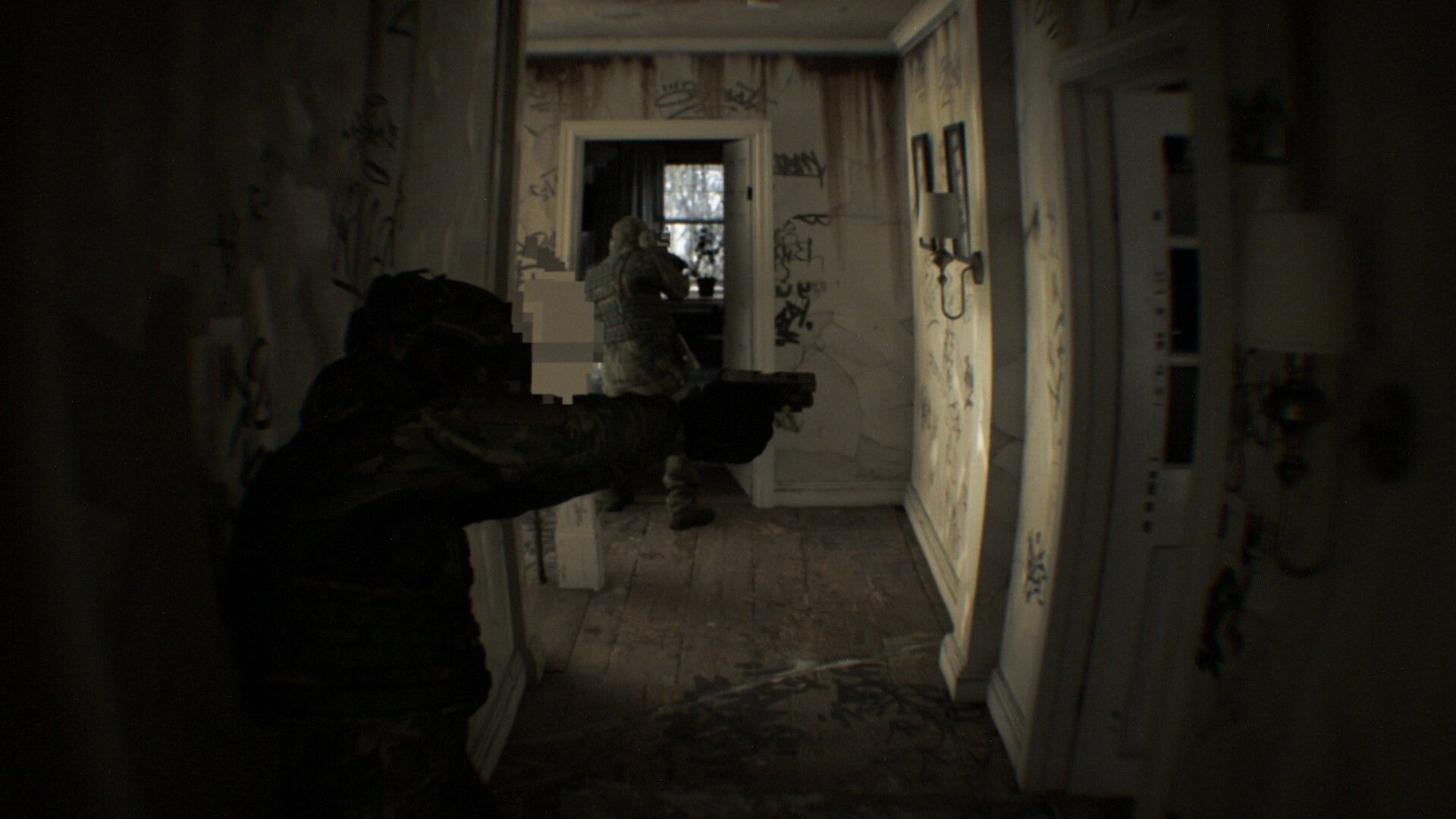
How to improve FPS in Bodycam game?
Bodycam’s realistic visuals and immersive gameplay can be demanding on even the most powerful systems and just applying the best Bodycam game settings might not be always enough.
Here are some additional performance tips apart from the best Bodycam game settings:
- Update graphics drivers: Ensure that you have the latest graphics drivers installed for your GPU. This can often resolve compatibility issues and improve performance.
- Close background applications: Close any unnecessary applications running in the background to free up system resources for Bodycam.
- Monitor temperatures: Keep an eye on your CPU and GPU temperatures while playing. Overheating can lead to performance throttling and lower FPS.
Remember, the best Bodycam game settings are not one-size-fits-all. It’s about finding the right balance between visual quality and performance that suits your specific hardware and preferences. Therefore, it’s best to check if your system is capable of running the game smoothly:
| Spec | Minimum | Recommended |
| OS | Windows 10/11 | Windows 10/11 |
| Processor | AMD Ryzen 7 3700X, Intel Core i7-9700K | AMD Ryzen 7 3800X, Intel Core i7-10700K |
| Memory | 8 GB RAM | 16 GB RAM |
| Graphics | AMD Radeon RX 5700 (8 GB), NVIDIA GeForce RTX 2070 (8 GB) | AMD Radeon RX 6600 XT (8 GB), NVIDIA GeForce RTX 3060 (12 GB) |
| Network | Broadband Internet connection | Broadband Internet connection |
| Storage | 50 GB available space | 50 GB available space |
| Additional Notes | SSD Recommended | SSD Recommended |
Featured image credit: Bodycam/Steam




