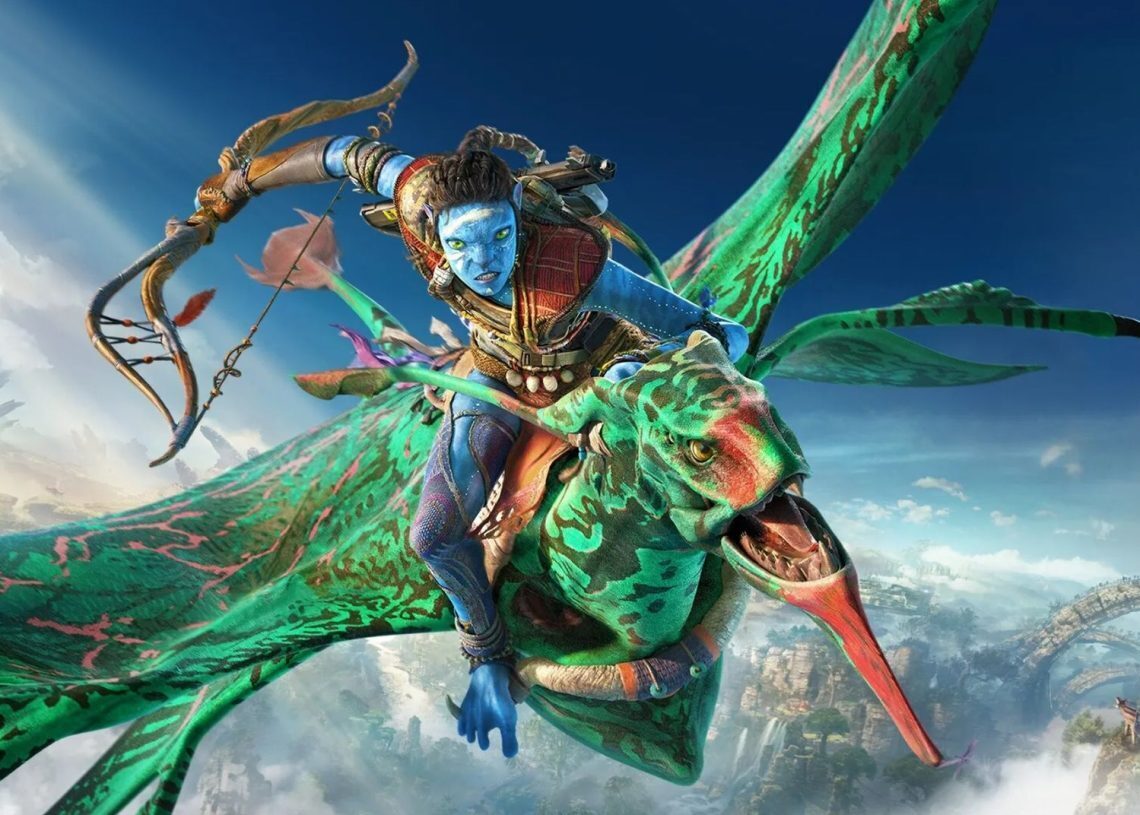
Is Avatar Frontiers of Pandora not working on your computer? Well, the game just released, and many players from all around the globe are facing similar issues. Luckily, there are some easy fixes that you can try to continue enjoying this brand-new game!

Ubisoft’s latest blockbuster, Avatar Frontiers of Pandora, has taken the gaming world by storm. As a devoted fan of the Avatar series, we understand the anticipation that preceded this long-awaited release. However, the excitement has been somewhat dampened by reports of the game crashing persistently, leaving players frustrated. The good news? There are solutions to these issues, and we’ve got you covered.

Why is Avatar Frontiers of Pandora not working?

Before we jump into solutions to the Avatar Frontiers of Pandora not working problem, let’s figure out why the game is acting up. Crashes can come from different things, like old or broken game files, outdated graphics card drivers, or issues with your computer’s hardware.


Avatar Frontiers of Pandora not working
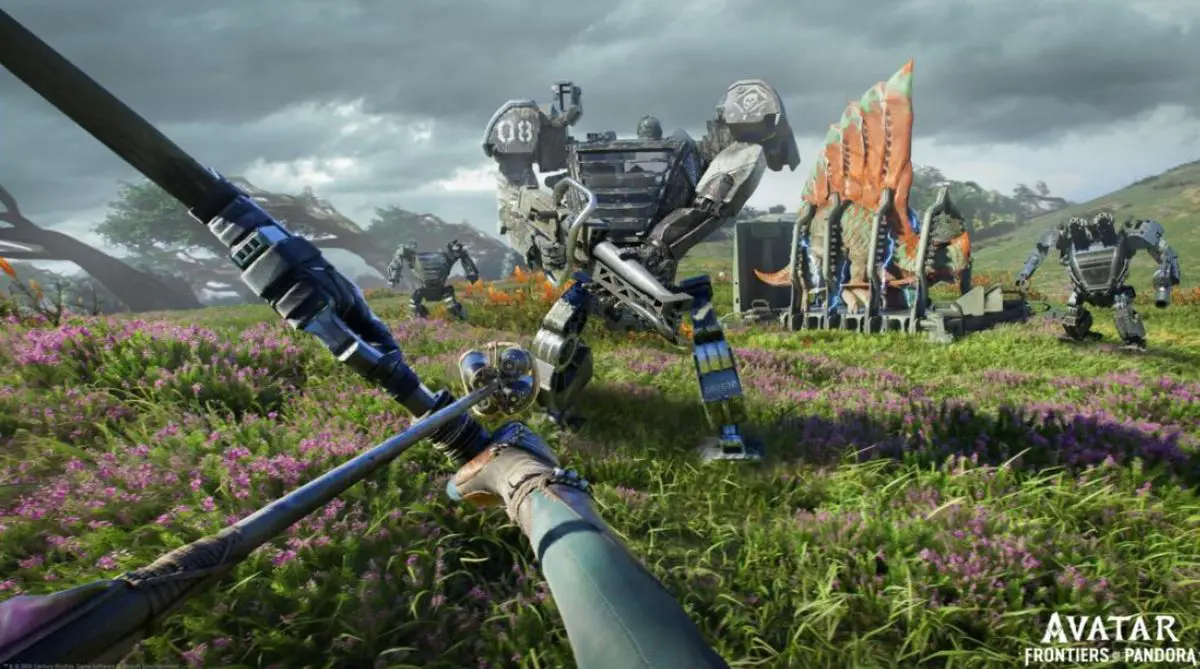
Is Avatar Frontiers of Pandora not working for you? Try out the fixes below (Image Credit)

Is Avatar Fronties of Pandora crashing? Probably not your fault

If the game is crashing on your computer and causing the Avatar Frontiers of Pandora not working issue, you are definitely not alone. Lots of users online are having similar issues. Considering it is a brand-new game, these kinds of problems and errors are not strangers.

Avatar Frontiers of Pandora bugs: Still a work in progress

Ubisoft’s latest sensation, Avatar Frontiers of Pandora, maybe hitting some bumps, but don’t let that dim your excitement. This game is fresh off the development table, and the dev team is hard at work addressing bugs. Expect smoother gameplay with upcoming patches and releases, promising an enhanced experience. As they fine-tune the game, your patience will likely be rewarded with a more polished and enjoyable journey through the mesmerizing world of Pandora. Keep the enthusiasm alive – the best is yet to come!

Let’s get to the fixes that can make your gaming smoother.

Fortnite split screen not working: How to play 2 player on Fortnite?
Check Your Game Files

Think of game files as the backbone of your game. If they’re broken or missing, your game might crash. Luckily, both Ubisoft Connect and Epic Games Launcher let you check and fix this. Here’s how:

For Ubisoft Connect Users:

  1. Open Ubisoft Connect.
  2. Click on Library.
  3. Find Avatar Frontiers of Pandora.
  4. Click on the three dots by the play button.
  5. Select Verify Files.

For Epic Games Launcher Users:

  1. Open your Library.
  2. Click on the three dots by Avatar Frontiers of Pandora.
  3. Select Manage.
  4. Click on Verify Files.
Avatar Frontiers of Pandora not working
If you are facing the Avatar Frontiers of Pandora not working issue and none of these solve your problem, you better contact Ubisoft support (Image Credit)

Update Your Graphics Card

Your graphics card is like the engine of your gaming. Keep it running smoothly by updating its drivers. Avatar Frontiers of Pandora uses new fancy features, and updating your drivers will help avoid problems. Don’t miss out – get the latest drivers now! If you are looking for the latest driver of your GPU, visit the websites below, according to your GPU brand:

Run as Administrator

Ubisoft suggests giving the game a little more power to avoid issues. It might not be a massive change, but it’s worth trying. Here’s what you do:

  1. Go to where Avatar Frontiers of Pandora is installed.
  2. Right-click on the game’s icon and choose Properties.
  3. Click on Compatibility.
  4. Check the box that says “Run this program as an administrator.”

Turn Off Extra Features

Some extra features you might be using can clash with Avatar Frontiers of Pandora and cause crashes. Here are a few to watch out for:

  1. Discord Overlay: If you talk with friends while gaming.
  2. NVIDIA GeForce Experience Overlay: For recording gameplay and checking performance.
  3. AMD Radeon Software Overlay: Similar to NVIDIA’s overlay.

Turning these off can often solve crashing problems. Keep these fixes in mind, and let’s get back to enjoying the game without interruptions!

Featured image credit:Ubisoft