
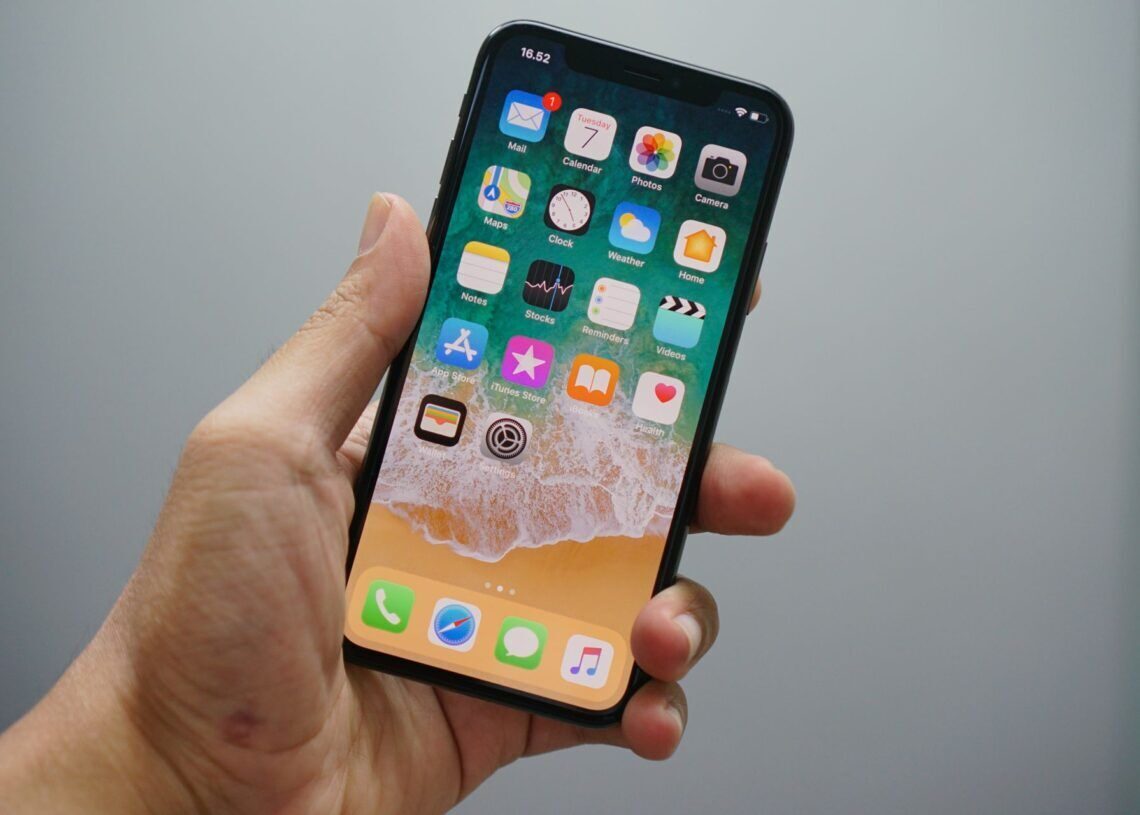

If you are facing the iPhone randomly vibrating” issue like thousands of other users worldwide, you are at the right place. There might be different causes and fixes for this issue; today, we will delve into every one of them!
It can be quite perplexing when your iPhone vibrates unexpectedly without any apparent reason. To assist you, we’ve compiled some valuable tips to stop your iPhone from vibrating randomly. So, let’s dive right into it without delay.
What is the cause behind the “iPhone randomly vibrating” issue?
There can be various reasons why the “iPhone randomly vibrating” issue persists. Most of these reasons are related to software, but it’s a good idea to rule out a simple hardware issue before you start troubleshooting. If your phone vibrates only when you plug it into a charging cable, the problem might be with the cable itself. In that case, try using a different cable. Apple also has an official answer to this question.


iPhone screen time bug raises concerns over parental control
Force restart your iPhone
A hard reset, also called a force restart, is a method to make your iPhone shut down and restart forcefully. It clears the phone’s memory and can resolve minor software problems that might be causing your phone to freeze, crash, or behave strangely. The process varies depending on your iPhone model.
- For iPhone 6 and earlier: Hold down the Power and Home buttons simultaneously until the Apple logo appears on the screen. Keep holding both buttons until you see the logo.
- For iPhone 7/7 Plus: Hold down the Volume Down and Power buttons simultaneously until the Apple logo appears. Continue holding both buttons until the logo shows up.
- For iPhone 8 and newer models: Quickly press and release the Volume Up button, then do the same with the Volume Down button. After that, press and hold the Power button until the Apple logo reappears on your screen.
Check notification settings
If force restarting didn’t help you with the “iPhone randomly vibrating” problem, you might want to check your notification settings. Here is a step-by-step guide on how to do it:
- Go to Settings.
- Tap on Notifications.
- Scroll down and look at all the apps that can send you notifications.
- Analyze and see if there is a suspicious one that causes the issue. (Messaging and mail apps are mostly the cause.)
- When you find the app, click on it.
- Toggle off “Allow Notifications.”
Turn off vibration
If you are still facing the “iPhone vibrating randomly” issue, you might want to get rid of the vibration feature. Here is how to do it:
- Open the Settings app on your iPhone.
- Scroll down and select “Sounds.”
- Turn off the “Vibrate on Silent” option.
If you wish to turn off all vibrations on your iPhone completely, follow these steps:
- Go to Settings.
- Tap on “General.”
- Scroll down and select “Accessibility.”
- Locate and toggle off the “Vibration” feature to disable all vibrations on your iPhone.
Are you getting the iPhone unable to check for update error? Check out these fixes
Update your apps
A glitchy app might also cause the issue. To get rid of the “iPhone vibrating randomly” issue, we recommend updating all the apps on your phone. Here is how to do it:
- Open App Store on your iPhone.
- Tap on your profile picture at the top right of your screen.
- Update all the apps you see at the bottom of your screen.
Featured image credit:Bagus Hernawan/Unsplash




