
Let’s explain how to find out who is logged into your Facebook account. If you have noticed that someone has entered your Facebook account, you will be able to find out a lot of information about that person and even log them out. We explain how you can do it.
If you suspect that someone is logged into your Facebook account, today we will see everything we can know about that person, both by computer and by cell phone.
How to find out who is logged into your Facebook account?
We will know data from where exactly that individual is to be able to close the session remotely, to immediately change the Facebook password, and prevent them from logging in again.



This process can be done both on the computer and the mobile phone, so everyone will know who has entered and prevented them from doing it again.
We achieve this, since, in the Facebook settings, whether computer or smartphone, there is a section where we can know who has entered our account, in addition to knowing what type of device and even from where they have done it. Now let’s learn how to find out who is logged into your Facebook account!

Learn who has logged into your Facebook account from your PC
The first thing we are going to see is how we can access and see who has entered our Facebook account using our computer.
To do this we are going to use an option that has the social network itself by which we can see all the recent connections.
To achieve this you only have to do the following:
- We must press the button on the right side of the screen which is an arrow pointing down.
- Once this is done, we press where it says Settings and privacy, right next to the icon of a cogwheel.
- In the next window that appears, click on Settings, which is again next to the gear icon.
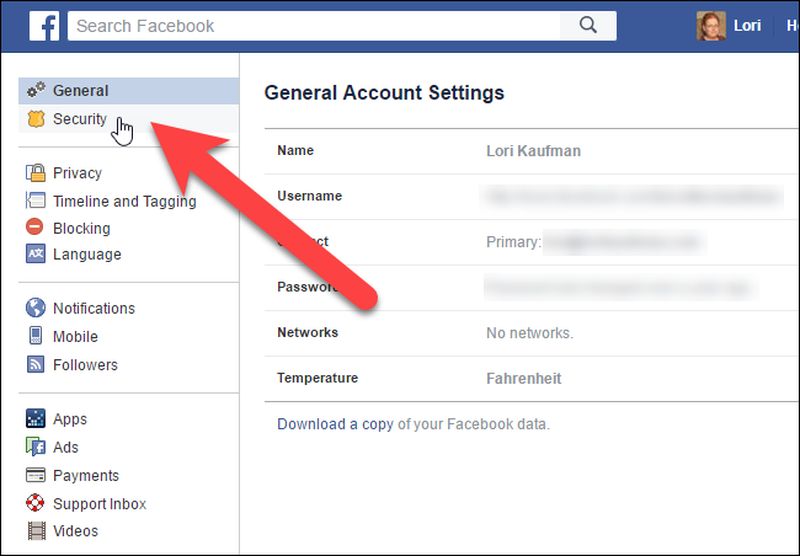
- Now we go to a menu where we will see several options on the left of the image. Well, in that part is where we have to click on Security and login.
- At that point on the right side, you will see an option that says Where you are logged in, the place where we have to click on See more to display the complete list.
- At this point, you will see the devices that have logged in, from where, the country, and when they have done it. Note that the location is not always completely reliable, as there are quite a few errors in this regard.
- If you now hover your mouse over them you will see the IP address of each of them.
- If you do not recognize a device and you clearly believe that it is not you, you will see that next to each of the locations there are three vertical dots, well, if you click you will see two options such as Are not you? or Exit.
- If we click on Exit what we do is close the session of that device.
If you click on Not you?, it will show you a sign where it will give you the option to Protect the account, that is to say, to change the password, in addition to the closing session.
Learn who has logged in to your Facebook from your smartphone
As usual, from the application of our cell phone, we will also know who has entered the Facebook account in the same way as we have seen in the previous case.
The way to achieve this is very easy and you just have to follow a few steps that we tell you below:
- We open the Facebook application inside our smartphone.
- Then we will see three vertical stripes at the top right of the device screen, which we must press to display several options.
- Now we must open the Settings and privacy menu.
- In the options that are presented to us in the drop-down, we will click on Settings.
- Now that we are inside this Settings option, we must look at all the sections and click where it says Password and security (with a shield icon), which is located inside Account.
- At this point, we must look for a section that says Where you are logged in.
- Once you have found it you will have to click on View all to get the list to expand and show everything in full.
- At that moment we will see how the information that appears is the same as in the previous case, that is, it shows us the devices that have logged in, from where, the country, and when they have done it.
- If we click on three vertical dots that appear in each of the places of entry to Facebook, we will see how it gives us the option to Protect account or Logout.
- These two options do the same as we saw in the case of the computer, that is, one leads you to change the password and the other to log out of that particular device.
Change the password on Facebook
Once we have discovered that someone has entered our Facebook account, the normal thing to do is to change the password, since, if we do not do it, they will be able to enter again whenever they want.
We can use the option Protect account that we have seen before or change it ourselves, once we have logged out of all devices suspected of being in our account without permission.
If we do it with the computer we must make the following:
- Click on the icon with an arrow pointing down from the top right of Facebook.
- Select Settings and Privacy and then click on Settings.
- Then click on Security and Login.
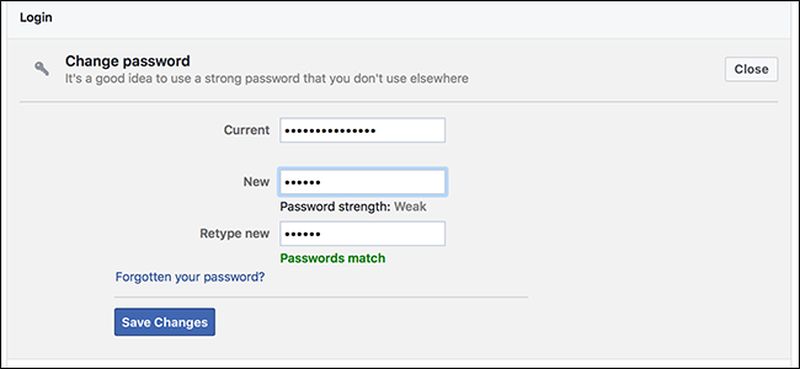
- Now we must click on Edit next to Change password.
- We type the one we are currently using and then the new one.
- The last thing left to do is click on Save changes and be clear that we will have to change the password on all devices we have with Facebook.
If what we want is to perform this same task, but from our mobile phone, we can also do it in a very simple and easy way.
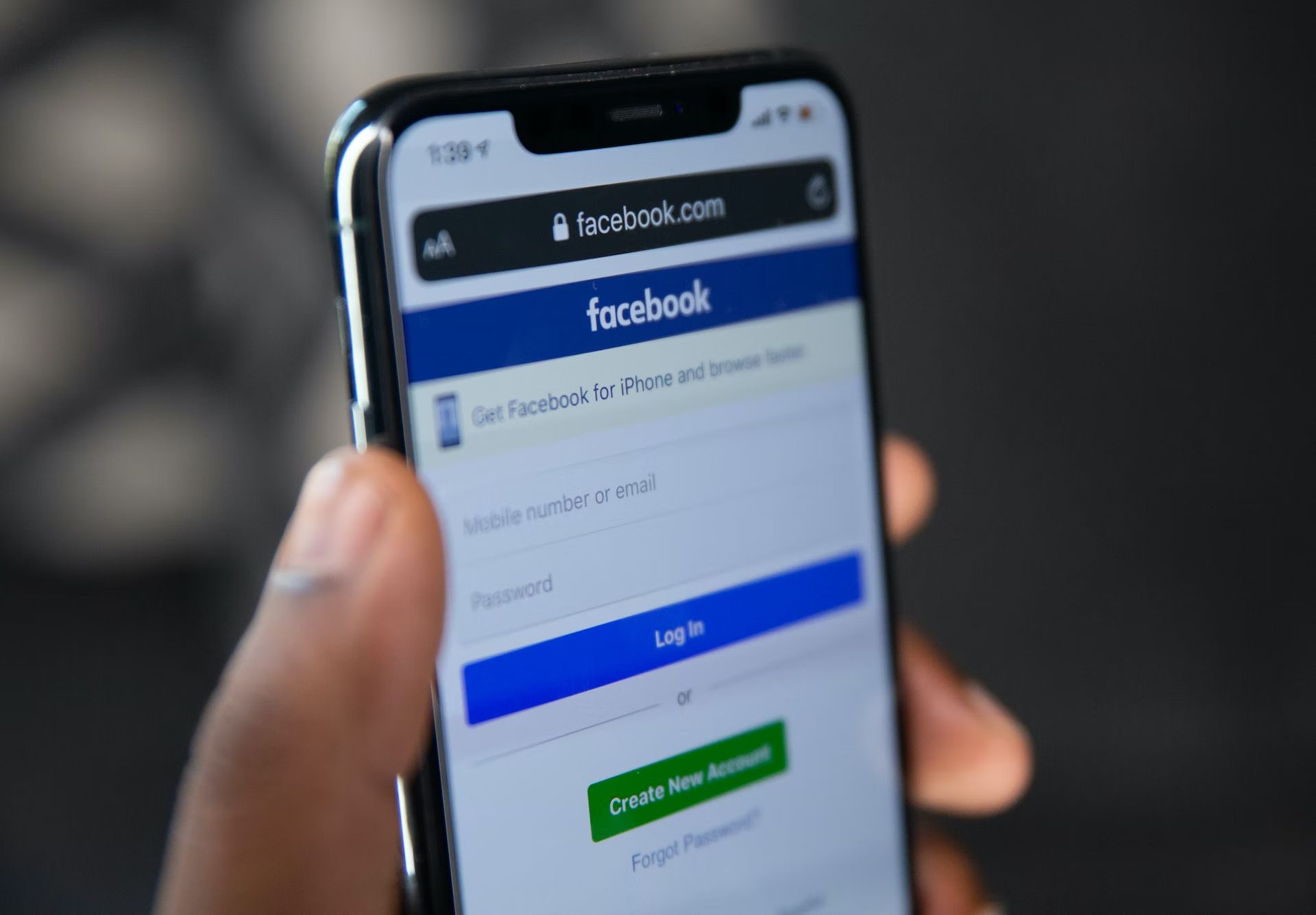
This is how to do it:
- We open the Facebook application.
- Tap on the three vertical stripes that appear at the top right.
- We scroll down, to tap on Settings and privacy.
- After that, we go to Settings.
- Then we go to Password and security.
- Click on Change password, which is under Login.
- Enter the current password and the new one.
- In the end, we cannot forget to click on Save changes.
Now that you know how to find out who is logged into your Facebook account, your personal information will be safer. Just limit their access and change the password as we have told you. You can also learn how to view old stories on Facebook by visiting our guide!