
Skip to content
TechBriefly
  • Tech
  • AI
  • Crypto
  • Business
  • Gaming
  • How to
  • About
    • About TechBriefly
    • Terms and Conditions
    • Privacy Policy
    • Contact Us
    • Languages ›
      • 中文 (Chinese)
      • Dansk
      • Deutsch
      • Español
      • English
      • Français
      • Nederlands
      • Italiano
      • 日本语 (Japanese)
      • 한국인 (Korean)
      • Norsk
      • Polski
      • Português
      • Pусский (Russian)
      • Suomalainen
      • Svenska
  • Tech
  • AI
  • Crypto
  • Business
  • Gaming
  • How to
  • About
    • About TechBriefly
    • Terms and Conditions
    • Privacy Policy
    • Contact Us
    • Languages
      • 中文 (Chinese)
      • Dansk
      • Deutsch
      • Español
      • English
      • Français
      • Nederlands
      • Italiano
      • 日本语 (Japanese)
      • 한국인 (Korean)
      • Norsk
      • Polski
      • Português
      • Pусский (Russian)
      • Suomalainen
      • Svenska
  • Home/How to/How to activate two-factor authentication (2FA) in PayPal?

    How to activate two-factor authentication (2FA) in PayPal?

    How to activate two-factor authentication (2FA) in PayPal?
    Florian Maximiliano Florian Maximiliano · October 27, 2020, 15:32 ·2 min read

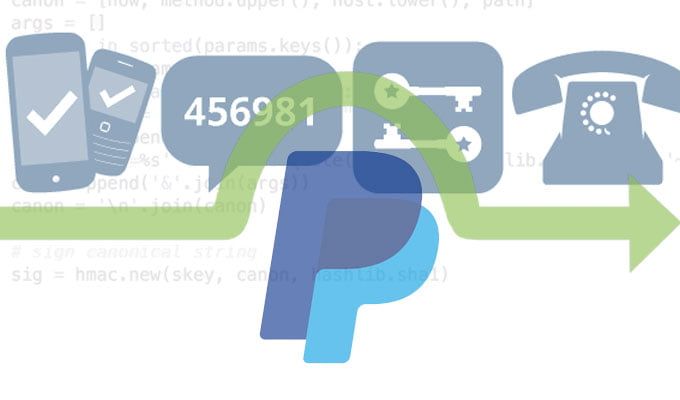
    The two-factor authentication (2FA) at PayPal ensures more security when logging in and in this article, we will show you how to activate it.

    PayPal: How to setup and activate two-factor authentication (2FA)?

    • First you have to activate the two-factor authentication or “2FA” for short in your account. To do this, log in to PayPal .
    • Now click on the gear symbol in the upper right corner, then switch to the “Security” area and then select the “Two-step verification” item.
    • You can now choose between two-factor authentication via SMS or authentication app. Then click on “Next”.
    • If you have decided on the option “Send code by SMS” , enter your mobile phone number in the form and confirm again with “Next”.
    • You will now receive an authentication code on the specified mobile phone number. Enter this in the corresponding field and click on the button. The two-factor authentication is now active.
      With the option “Use authentication app” an authentication app like the Google Authenticator must be installed on your smartphone .
    • The exact procedure is a little different depending on the app used. Basically, the following applies: A QR code is displayed on the PayPal page that you have to scan with the authentication app using the smartphone camera. You will then see a six-digit code on your smartphone display that you enter into PayPal.

    PayPal: Log in with two-factor authentication

    • When authenticating by SMS , you will receive an SMS code after entering your username and password when logging in. Enter this to complete the registration in your PayPal account.
    • The authentication app is similar: When logging a six-digit security code to the authentication sends your app, you need to enter at PayPal.

    Here is how you can setup and activate two-factor authentication and log in with it in PayPal.

    • Zoom improves your security with two factor authentication
    • Visa acquired Plaid for 5.3 million dollars
    login PayPal two factor authentication
    Share:
    Florian Maximiliano
    Written by
    Florian Maximiliano
    View all posts →

    Latest Posts

    1. 1
      Sony announces God of War: Laufey for PlayStation 5 3 June 2026
    2. 2
      Google lets websites opt out of AI-generated search results 3 June 2026
    3. 3
      Poland approves bill to ban phones in schools for students under 16 3 June 2026
    4. 4
      OpenAI unveils enterprise tools and new Sites feature to grow Codex users 3 June 2026
    5. 5
      Google rolls out June Android update with new safety and sharing features 3 June 2026

    Popular Posts

    1. 1
      Anthropic’s Project Glasswing flags 10,000 critical software flaws 130 views
    2. 2
      Oura files for IPO with an estimated $11 billion valuation 41 views
    3. 3
      How to enable “Double-Tap to Wake” on Android 21 views
    4. 4
      Why cyber insurers now check your defenses first 19 views
    5. 5
      Nvidia launches open-source software stack for enterprise AI agents 18 views

    Stay Updated

    Related Stories

    How to manage group chat settings and customize conversation photos on iOS
    How to

    How to manage group chat settings and customize conversation photos on iOS

    Learn how to enable group messaging on iPhone using iMessage, MMS, or RCS so you can easily chat...

    May 29, 2026, 08:25
    How to enable “Double-Tap to Wake” on Android
    How to

    How to enable “Double-Tap to Wake” on Android

    Learn how to enable the double-tap gesture to wake up your Samsung, LG, or Huawei phone or tablet...

    May 28, 2026, 07:10
    How to enable and use raise to listen on your iPhone
    How to

    How to enable and use raise to listen on your iPhone

    Learn how to enable the Raise to Listen feature on your iPhone to play and reply to audio...

    May 28, 2026, 07:05
    How to share and forward voicemail messages on iPhone
    How to

    How to share and forward voicemail messages on iPhone

    Learn how to send a voicemail from your iPhone with simple steps for sharing, forwarding, or messaging voice...

    May 27, 2026, 08:00
    TechBriefly
    © 2026 TechBriefly. All rights reserved.


