
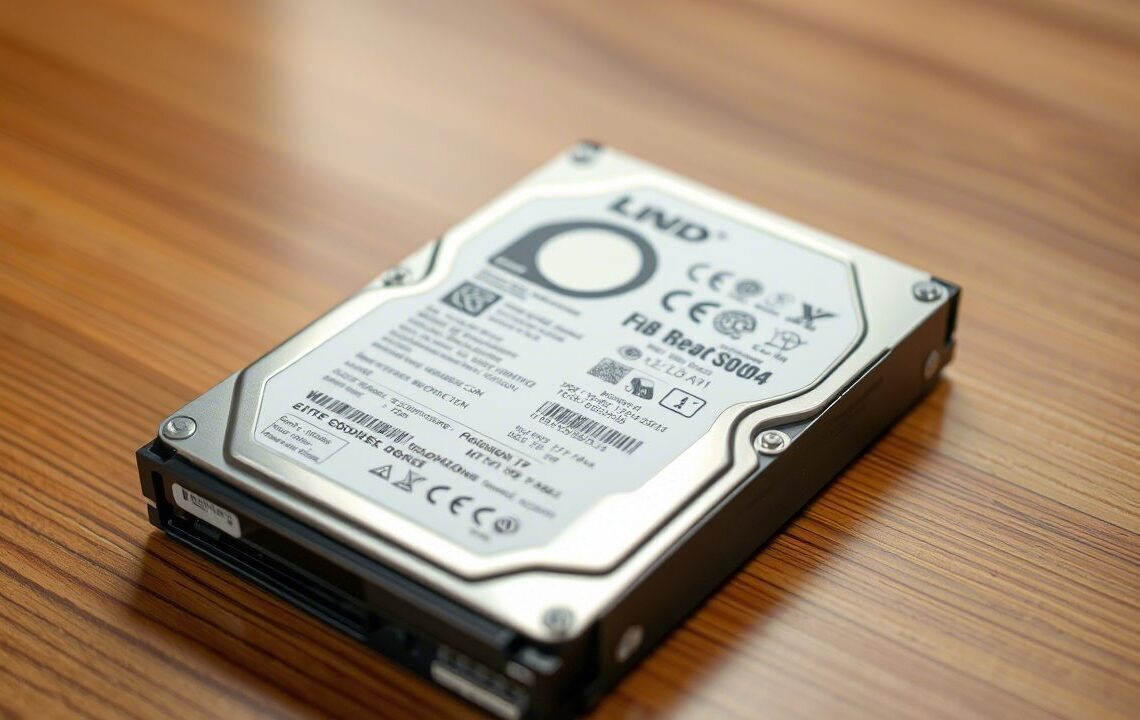

Choosing the right partitioning scheme for your computer’s storage drive is essential for optimal performance and compatibility. Master Boot Record (MBR) and GUID Partition Table (GPT) are two widely used partitioning schemes, each with its own advantages and disadvantages. This guide explores the differences between MBR and GPT to help you make an informed decision for your computer.
What is Master Boot Record (MBR)?
The MBR partitioning scheme is a legacy method dating back to the early 1980s, becoming the standard for IBM-compatible PCs. MBR stores partitioning information in a single 512-byte sector at the beginning of the drive, known as the Master Boot Record. It supports up to four primary partitions, or three primary and one extended partition (further divided into logical partitions).
Advantages of MBR:
- Compatibility: MBR offers broad compatibility with older systems, legacy operating systems, and disk utilities. It works well with legacy BIOS (Basic Input/Output System) firmware commonly found in older computers.
- Familiarity: As the long-standing standard, MBR is familiar to many system administrators and users, making setup and management straightforward for those accustomed to it.
- Simplicity and lightweight: MBR is simple and lightweight, occupying only a small 512-byte sector, resulting in a straightforward structure that is easy to manipulate and repair.
Disadvantages of MBR:
- Limited partition size: MBR has a significant limitation, supporting drives only up to 2 terabytes (TB). It cannot fully utilize the capacity of larger modern storage drives.
- Partition limitations: MBR restricts the number of primary partitions to a maximum of four, which can be restrictive for users needing more partitions.
- Lack of data redundancy: MBR lacks built-in data redundancy or integrity checks. Corruption of the MBR or partition table can lead to data loss or boot issues.
What is GUID Partition Table (GPT)?
GPT, or GUID Partition Table, is a modern partitioning scheme developed in the late 1990s as part of the Unified Extensible Firmware Interface (UEFI) specification. GPT utilizes a 64-bit scheme and stores partition information across the drive in a series of data structures. It includes a protective MBR for backward compatibility but primarily relies on GPT data structures.


Advantages of GPT:
- Large partition size: GPT supports vastly larger partition sizes, accommodating drives up to 9.4 zettabytes (ZB). This is ideal for today’s high-capacity storage drives.
- Increased partition numbers: GPT allows for up to 128 primary partitions, significantly exceeding MBR limits. The practical limit is virtually unlimited, depending on the operating system and disk size, offering greater flexibility for multi-boot systems and complex partitioning needs.
- Data redundancy and integrity: GPT incorporates redundant copies of critical data structures across the drive, enhancing data integrity and making error recovery more robust. It also uses CRC32 checksums to verify data structure integrity, adding an extra layer of protection.
Disadvantages of GPT:
- Compatibility with legacy systems: GPT requires UEFI firmware to fully utilize its features. Older systems with legacy BIOS may have limited or no GPT support.
- Operating system and software support: While most modern operating systems support GPT, older OS versions, like Windows XP 32-bit, may have compatibility limitations. OS compatibility is crucial to consider.
- Learning curve: GPT introduces a more complex partitioning scheme compared to MBR, potentially requiring users to learn new setup and management procedures, which might be a minor inconvenience.
MBR vs GPT: choosing the best partitioning scheme for you
When choosing between MBR and GPT, consider these factors:
- System age and compatibility: For older computers with legacy BIOS, MBR is likely the only option. MBR is compatible with legacy and older operating systems. For newer UEFI-based computers, GPT is generally recommended for better compatibility and modern features.
- Example: A Windows 7 PC with traditional BIOS is best suited for MBR.
- Storage requirements: If your drive is larger than 2TB, GPT is necessary due to MBR’s 2TB partition size limit.
- Example: A 4TB hard drive requires GPT to utilize its full capacity.
- Partitioning needs: If you need more than four partitions, GPT is essential. MBR limits you to four primary partitions (or fewer if using extended partitions).
- Example: For separate partitions for Windows, Linux, data, and recovery, GPT provides the needed flexibility.
- Operating system and software support: Modern operating systems generally support both MBR and GPT. However, older OS versions might have limitations. UEFI-based Windows installations typically require GPT for optimal compatibility and features.
- Example: Latest macOS or Linux versions work with both. Windows with UEFI is best with GPT.
Choosing between MBR and GPT depends on your specific needs and computer setup. MBR offers legacy compatibility and simplicity, while GPT provides larger capacity support, increased partition flexibility, and improved data integrity for modern systems. Evaluate your system’s age, storage size, partitioning needs, and operating system compatibility to make the best choice for your situation.




