
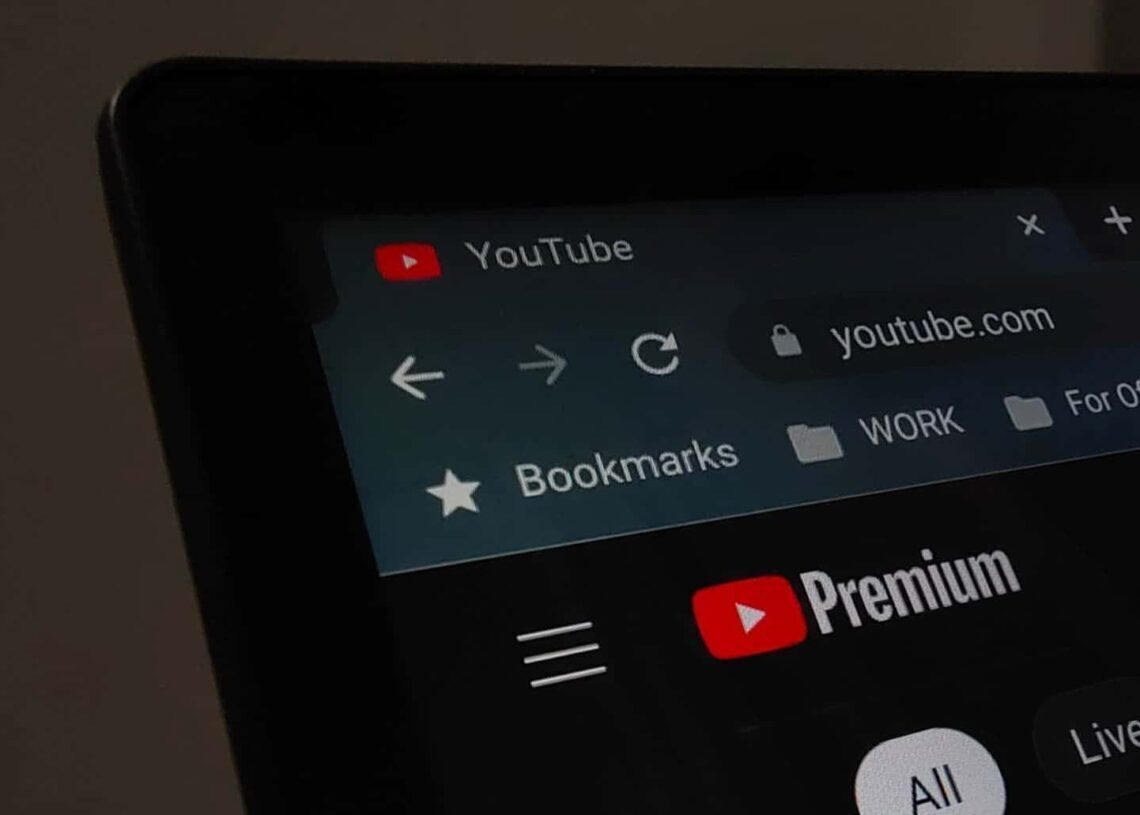

YouTube’s dark mode provides an easier-on-the-eyes viewing experience, especially when watching videos in dark environments or at night. This feature is available on the YouTube website and in the YouTube mobile apps for iPhone, iPad, and Android devices. This guide will show you how to enable it on each platform.
Enable dark mode on the web
On YouTube’s desktop website, enabling dark mode is a simple process.
- Click your profile icon: locate and click your profile icon in the top-right corner of the YouTube page.
- Open appearance settings: in the dropdown menu, select “Appearance: Device Theme”. If you are not signed in, click the menu button (three vertical dots) in the same top-right area and find the “Appearance: Device Theme” option there.
- Choose dark theme: on the “Appearance” menu that appears, select “Dark theme”.
By default, YouTube is set to “Use device theme,” which means it will follow your computer’s system-wide theme settings. Choosing “Dark theme” in YouTube applies the dark mode setting only to your current web browser. You will need to enable dark theme separately on each computer you use as this setting does not synchronize across devices via your Google account.

To revert back to the light theme, simply repeat these steps and in the final “Appearance” menu, choose either “Use device theme” (if your computer is using a light mode) or “Light theme”.
For a completely dark experience on your desktop, consider enabling dark mode in your web browser itself, such as Google Chrome, Mozilla Firefox, or Microsoft Edge. You can also enable a dark theme in Gmail and activate Windows 10’s built-in dark mode for a system-wide dark theme.
Enable dark mode on iPhone and iPad
The YouTube app for iPhone and iPad also offers a dedicated dark mode option.
- Tap your profile icon: open the YouTube app on your iPhone or iPad and tap your profile icon located in the top-right corner of the screen.
- Open settings: from the menu that appears, tap “Settings” at the bottom.
- Go to general settings: on the “Settings” screen, choose the “General” option.
- Toggle on dark theme: in the “General” settings, toggle the “Dark theme” slider to the “on” position.
To switch back to YouTube’s light theme, revisit this “General” submenu and toggle the “Dark theme” slider back to the “off” position.
Enable dark mode on Android
Similar to other platforms, the YouTube app for Android can follow your device’s system-wide theme settings. However, you can also independently set the dark theme within the YouTube app, regardless of your overall Android theme.
- Tap your profile picture: launch the YouTube app on your Android device and tap your profile picture in the top-right corner of the screen.
- Select settings: tap the “Settings” option from the menu.
- Go to general settings: from the settings list, choose “General”.
- Open appearance menu: select “Appearance” from the “General” options.
- Choose dark theme: in the “Appearance” menu, select “Dark theme” to apply it. The “Use device theme” option is typically highlighted by default.
To revert to the light theme on Android, simply return to the “Appearance” menu and select “Light theme”.




