

Do you copy and paste text, links, or images frequently on your Android phone or tablet? Android has a built-in clipboard feature, but accessing it isn’t always obvious. This guide will show you how to access your Android clipboard, view your clipboard history, and effectively use the clipboard for seamless copy-pasting.
Understanding the Android Clipboard
The Android clipboard is a temporary storage area where your recently copied items are saved. It goes beyond just the last thing you copied! Your Android clipboard can hold multiple items like:
- Text: Snippets of text, paragraphs, messages
- URLs: Website addresses and links
- Images: Pictures and screenshots (depending on the app and Android version)
Instead of being limited to pasting only the most recent copy, accessing your Android clipboard lets you choose from a history of copied items, saving you time and effort by eliminating constant switching between apps.



How to access the clipboard on Android: Step-by-step guide
The most common and universal way to access your clipboard on Android is through your keyboard app. Most popular keyboard apps include a built-in clipboard manager. We’ll focus on using Gboard (Google Keyboard), as it’s widely used and often the default keyboard on Android devices. The process is similar with other keyboard apps like SwiftKey.
Here’s how to access your clipboard using Gboard:
- Copy something to your clipboard: First, copy any text, URL, or image. You can do this by long-pressing on the item you want to copy and selecting “Copy” from the menu.
- Open a text input area: Go to any app where you can type text, like a messaging app, note-taking app, or even a web browser address bar. Tap on the text input field to bring up your keyboard.
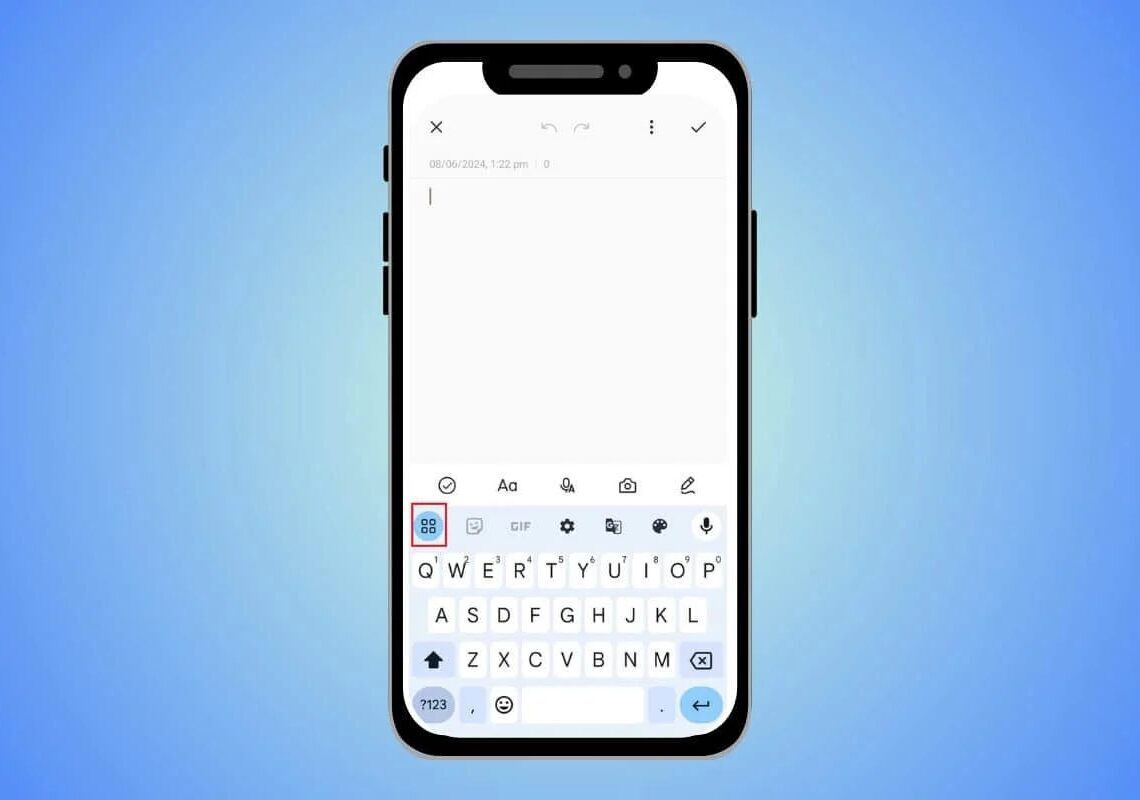
- Find the clipboard icon: Look for the clipboard icon in the top toolbar of your Gboard keyboard. It usually looks like a clipboard or a small document with a paperclip. Tap the clipboard icon.
- If you don’t see the clipboard icon: Sometimes it might be hidden. Look for a three-dot menu icon (
...) in the toolbar. Tap it, and you should find the clipboard icon within the extended menu. You might be able to drag the clipboard icon to the main toolbar for easier access in the future.
- If you don’t see the clipboard icon: Sometimes it might be hidden. Look for a three-dot menu icon (
- View your clipboard history: Tapping the clipboard icon will open your Android clipboard history. Here, you’ll see a list of your recently copied items.
- Paste from the clipboard: To paste an item from your clipboard, simply tap on the item in your clipboard history. It will be inserted into the text input area.
Managing your Android clipboard
- Clipboard storage limits: Android clipboards have limited storage, and older items will be automatically removed after a certain time.
- Pinning items: To keep important items from being deleted, you can “pin” them to your clipboard. In Gboard and SwiftKey, long-press on an item in your clipboard history and select “Pin.” Pinned items will remain in your clipboard until you manually unpin them.
- Clearing your clipboard: You can clear your clipboard history if you want to remove sensitive information or start fresh. The method for clearing the clipboard may vary slightly depending on your keyboard app. Typically, you can find a “Clear Clipboard” or “Delete” option within the clipboard manager itself (often accessible through the three-dot menu or settings within the clipboard view).
Tips for using the Android clipboard effectively
- Copy multiple items at once: The clipboard allows you to copy several pieces of text, links, or images consecutively and then paste them in any order you need. This is great for gathering information from different sources.
- Pin frequently used text: If you often type the same phrases, addresses, or email templates, copy and pin them to your clipboard for quick access.
- Explore your keyboard app’s clipboard settings: Keyboard apps like Gboard often have settings to customize clipboard behavior, such as storage duration and syncing across devices (if you use the same Google account on multiple Android devices).
Mastering the Android clipboard is a simple yet powerful way to boost your productivity on your Android device. By knowing how to access your clipboard history, pin important items, and manage your copied content, you can streamline your copy-pasting workflow and get more done faster. Start using your clipboard today to unlock this handy Android feature!




