


Encountering a Snap loading stuck screen issue on Snapchat can be frustrating, especially when you’re eager to check out new Snaps or send one of your own. If you find yourself staring at the Snapchat loading screen with no progress, here’s a detailed guide on how to resolve the issue:
Snap loading stuck: How to fix it?
Follow these steps to get rid of the Snap loading screen:
- Update Snapchat
- Check your Internet connection
- Clear Snapchat cache
- Log out and log back in
- Restart your device
- Reinstall Snapchat
- Check for Snapchat outages
- Contact Snapchat support
Here is a closer look at each Snapchat workaround.




Check for app updates
Outdated app versions can sometimes cause loading issues. To ensure you have the latest features and bug fixes:
- iOS Users:
- Open the App Store.
- Tap on your profile icon in the upper right corner.
- Scroll down to check for available updates.
- If Snapchat appears, tap ‘Update’ next to it.
- Android Users:
- Open the Google Play Store.
- Tap on your profile icon in the upper right corner.
- Select ‘Manage apps & devices’.
- Tap on ‘Updates available’.
- If Snapchat is listed, tap ‘Update’.
Verify your Internet connection
A slow or unstable internet connection can prevent Snapchat from loading properly. Here’s what you can do:
- Switch between Cellular Data and Wi-Fi: Sometimes, switching from one network to another can improve connectivity.
- Move to a Better Signal Area: If you’re in an area with poor cellular reception or weak Wi-Fi, try moving to a location with a stronger signal.
- Reset Your Router: If you’re on Wi-Fi, try restarting your router by unplugging it for 30 seconds and then plugging it back in.
Clear Snapchat Cache
Clearing the cache can resolve issues with loading and performance. Here’s how to do it:
- On iOS:
- Open Snapchat and tap ⚙️ in My Profile to access Settings.
- Scroll down and tap ‘Clear Data’.
- Tap ‘Clear Cache’.
- Confirm by tapping ‘Clear’.
- On Android:
- Open Snapchat and tap ⚙️ in My Profile to access Settings.
- Scroll down and tap ‘Clear Cache’.
- Confirm by tapping ‘Continue’.
Log out and log back in
Logging out and back in can refresh your session and potentially resolve loading issues. To do this:
- Tap ⚙️ in My Profile to open Settings.
- Scroll down and tap ‘Log Out’.
- Close the Snapchat app completely.
- Reopen Snapchat and log back in using your credentials.
Restart your device
Sometimes a simple restart can fix issues related to app performance:
- Fully turn off your device.
- Wait for about one minute.
- Turn your device back on.
Reinstall Snapchat
If all else fails, reinstalling the app can resolve persistent problems:
- Uninstall Snapchat:
- iOS: Press and hold the Snapchat icon until it wiggles, then tap the ‘X’ to delete it.
- Android: Tap and hold the Snapchat icon, then select ‘Uninstall’ from the options.
- Reinstall Snapchat:
- Go to the App Store (iOS) or Google Play Store (Android).
- Search for Snapchat and tap ‘Install’ or ‘Get’.
Check for Snapchat Outages
Occasionally, Snapchat may be experiencing server issues. You can check:
- Visit websites like Down Detector to see if others are reporting similar issues.
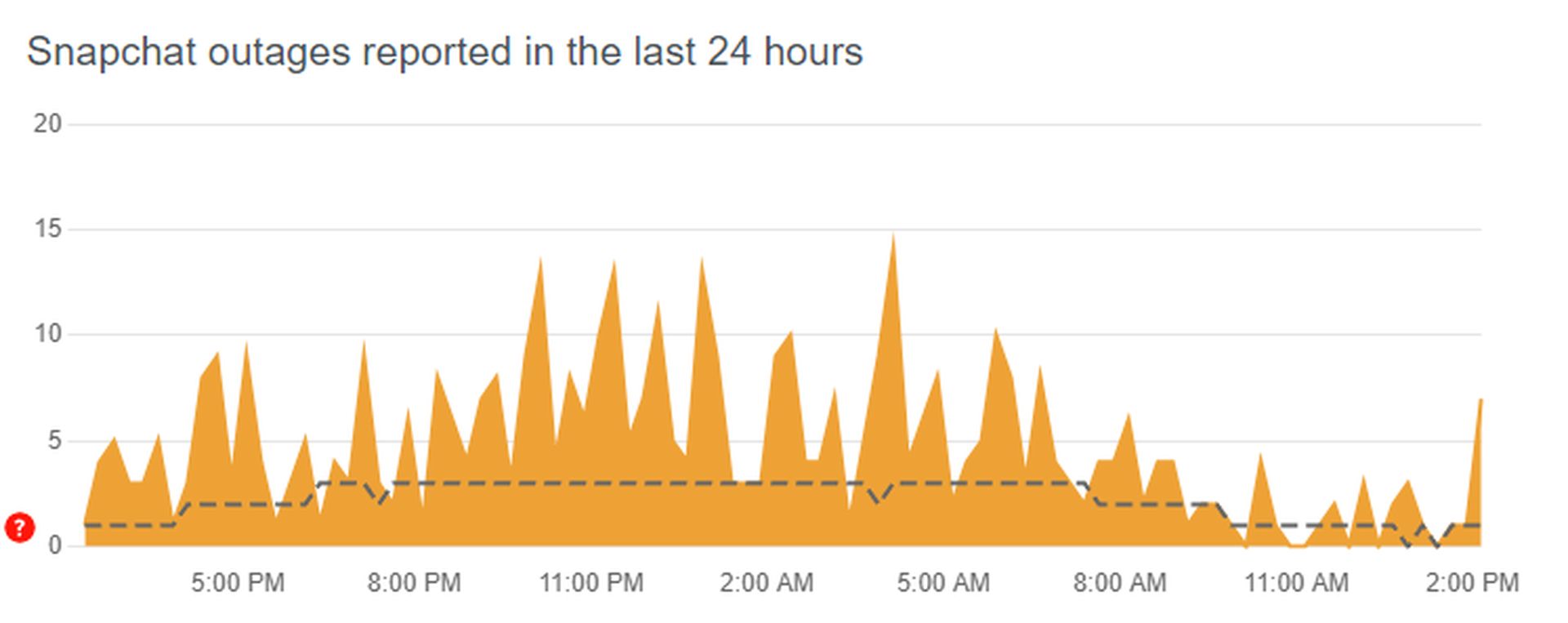
- Look for updates from Snapchat’s official X/Twitter or other social media accounts.
Contact Snapchat support
If none of the above solutions work, you may need to reach out to Snapchat support for assistance:
- Open Snapchat and go to Settings (⚙️).
- Scroll down and tap ‘I Need Help’.
- Follow the prompts to report the issue or find additional support options.
Featured image credit: Snapchat




