


Starfield, the highly anticipated game from Bethesda, has taken the gaming world by storm. However, some players have reported a Starfield audio cutting out issue, which reportedly can be quite frustrating.
It is quite normal even for AAA games to come out with such bugs, and if you find yourself among those facing these issues, there is absolutely no need to worry. In this article, we’ll guide you through some practical troubleshooting steps to get your audio back on track and fully enjoy the Starfield experience.

Here’s a list of the fixes we’ll be explaining:


- Switching to a 3.5 mm wired headphone
- Checking your sound output
- Disabling Windows Sonic feature
- Audio enhancements
- Updating audio drivers
- Contacting Bethesda Support
You might want to jump to the one that you view the most effective, but let’s begin taking individual looks at each of them right below.
How can you fix the Starfield audio cutting out issue?
If you’re one of the many players who are currently experiencing the dreaded Starfield audio cutting out bug, here are the steps you can take to address the issue in detail:
Switch to a 3.5 mm wired headphone
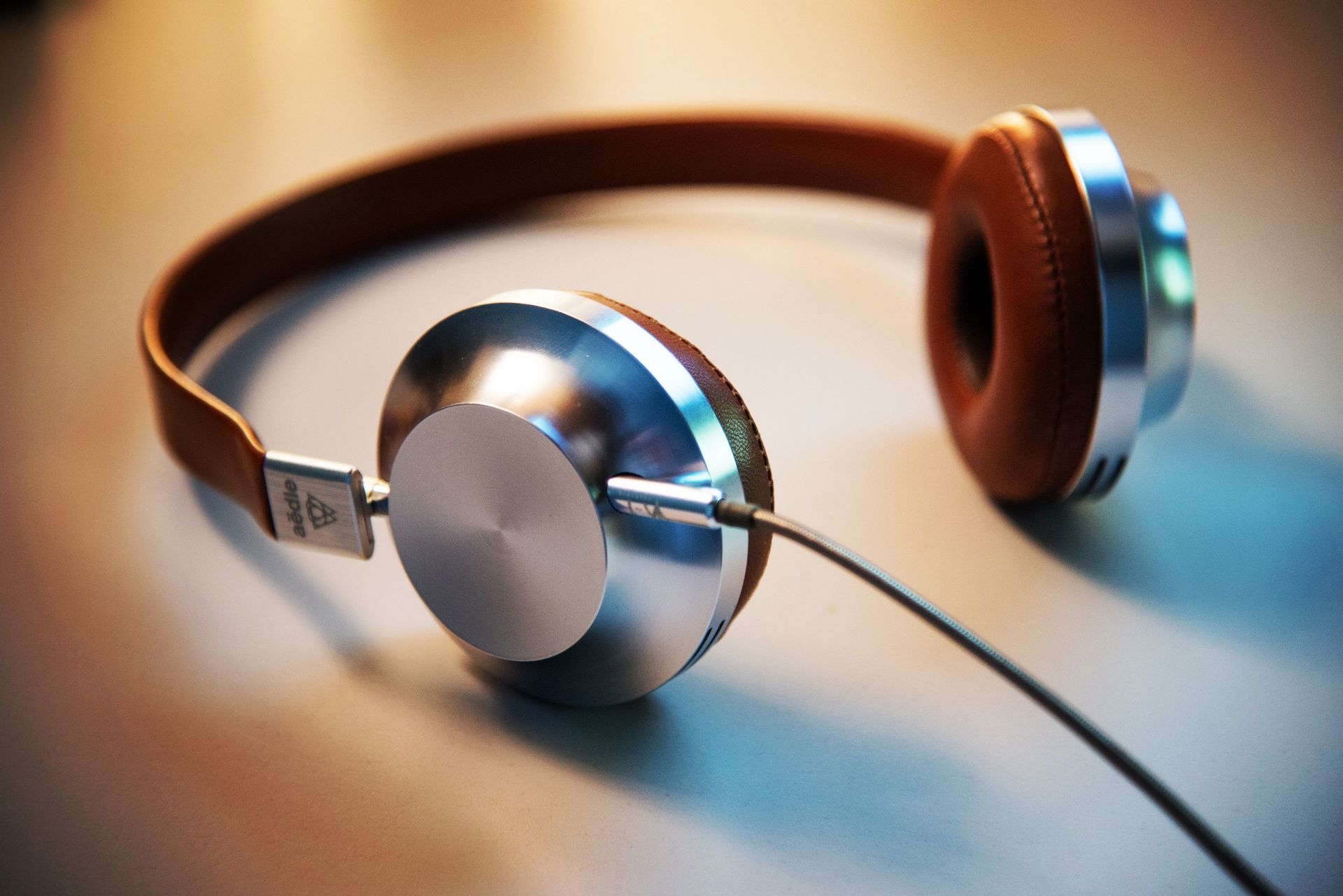
While wireless headphones are fantastic for gaming, some users have reported issues with them in Starfield. If you’re not getting any audio, try switching to a trusty 3.5 mm wired headphone.
Personal experience: One player shared that they resolved the problem by switching from their Razer BlackShark V2 Pro Wireless Headphones to a Logitech G Pro X, a wired headphone.
Check your sound output
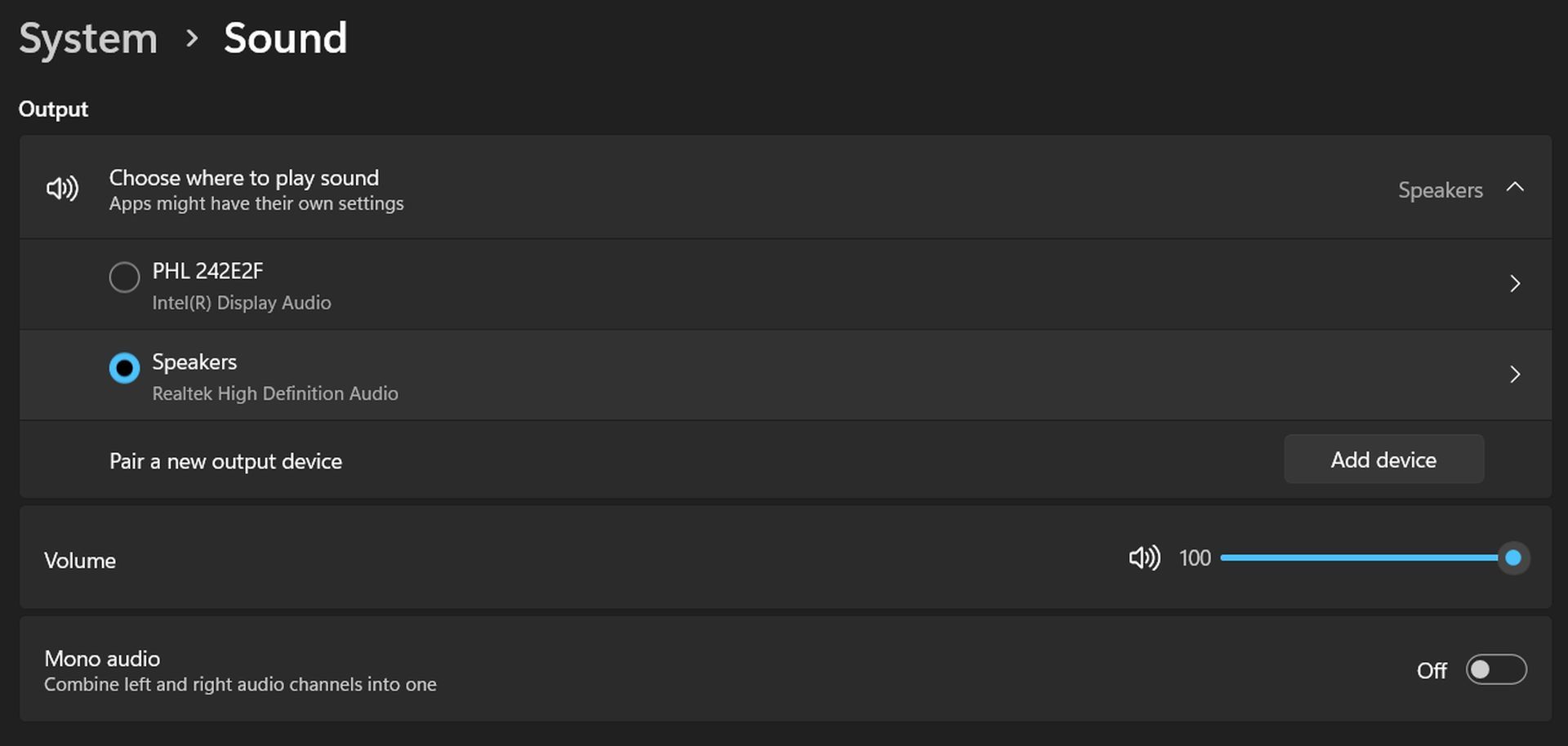
Sometimes, the default audio output can change when you plug in a new audio device, such as headphones. This can lead to audio not routing through the headphones as expected.
To resolve this, follow these steps:
- Locate the speaker icon in the lower right corner of your screen.
- Right-click on it and select “Sound Settings.”
- Choose the appropriate output device from the list of connected audio devices.
- Adjust the volume settings if necessary, then click “OK” and exit.
- Restart Starfield, and your audio should be working correctly.
Disable Windows Sonic feature
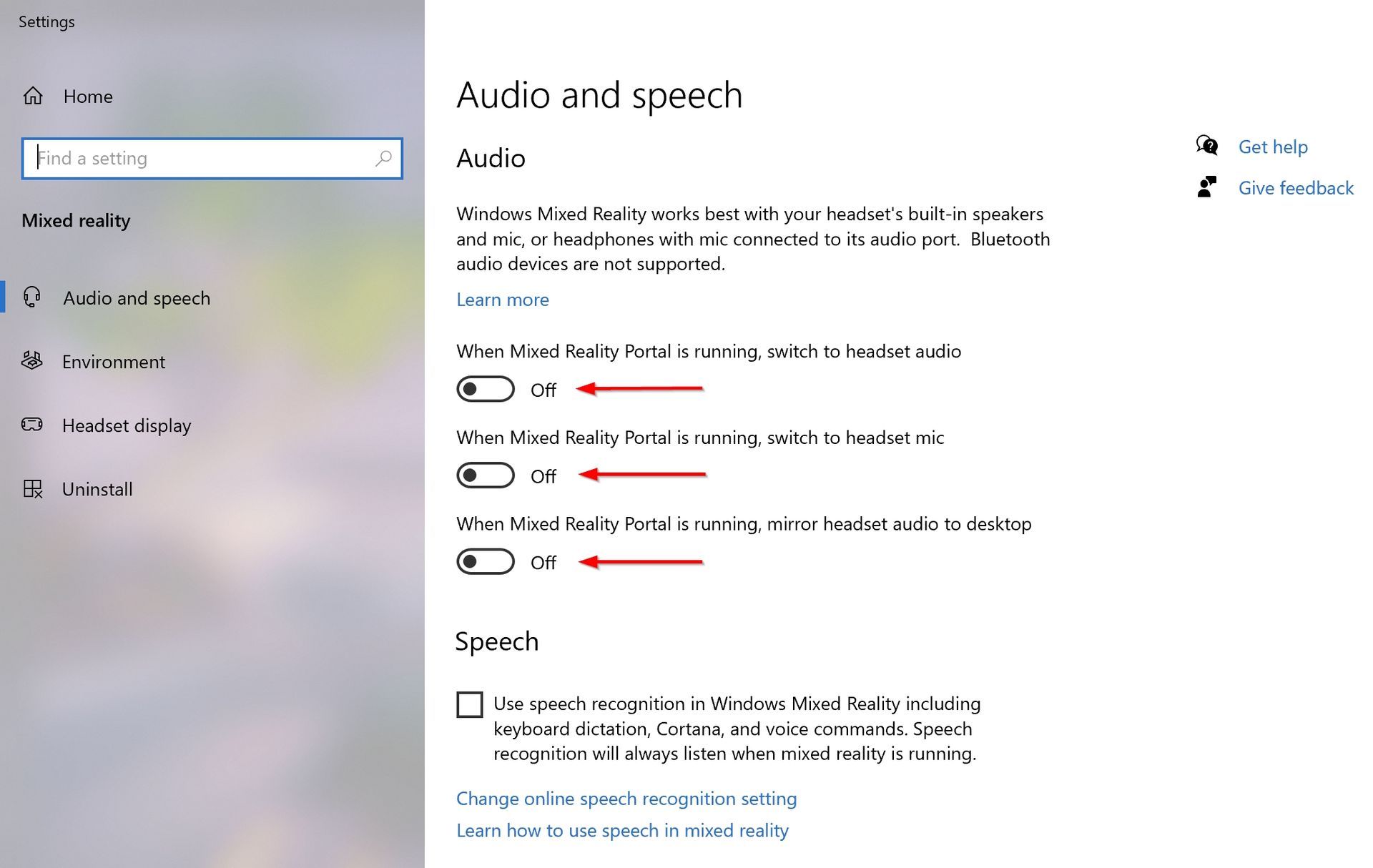
Disable Windows audio features like Spatial Sound and Sonic, as they can sometimes introduce unnecessary complications without providing significant benefits.
To disable these features:
- Select “Start” > “Settings” > “System” > “Sound” > “Related settings” > “Sound Control Panel.”
- In the Playback Devices window, select your playback device and click “Properties.”
- Under Spatial sound format, select “Off,” then click “Apply.”
Audio enhancements
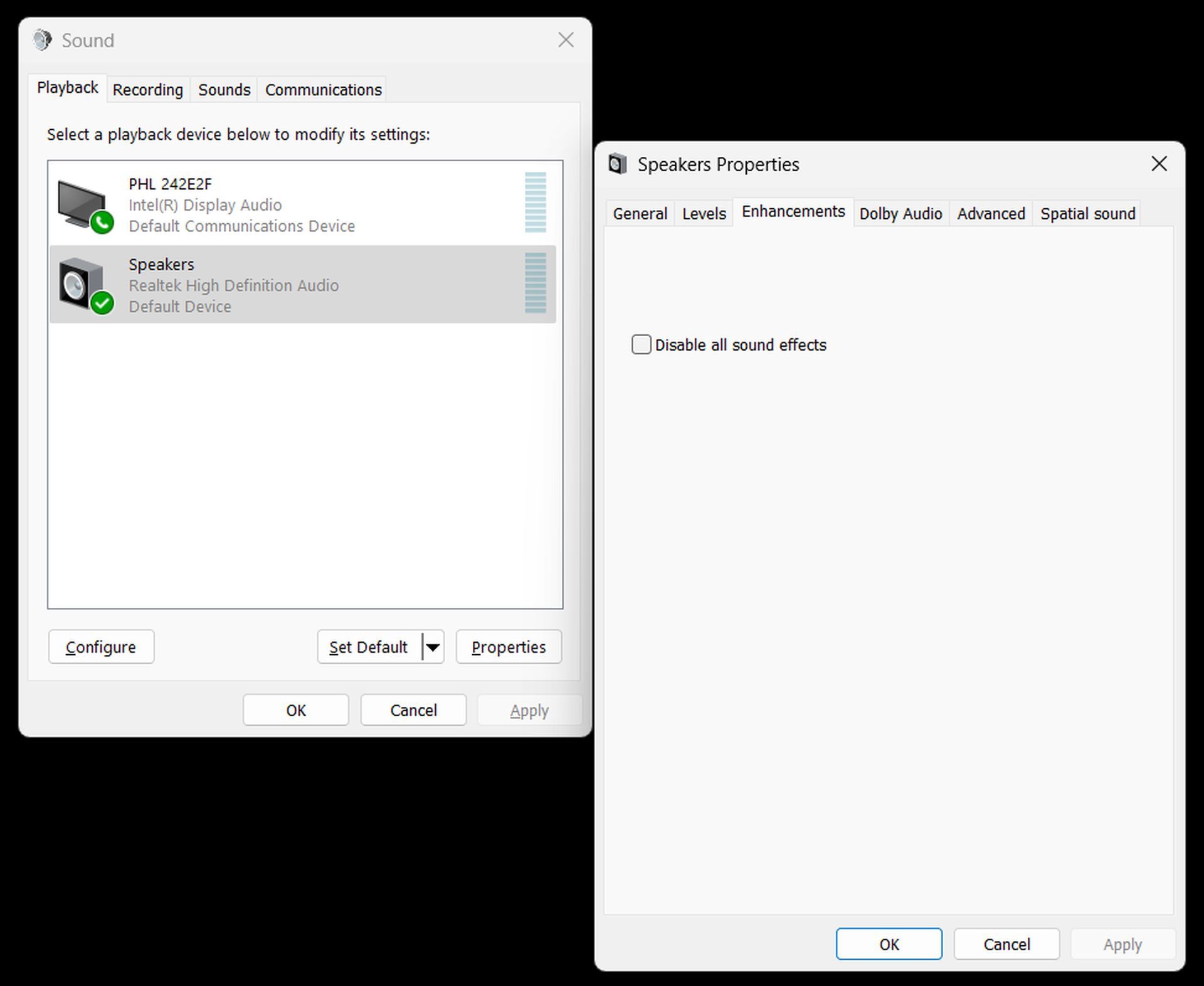
You can also try enabling audio enhancements, in case they were accidentally disabled. Follow these steps:
- Click on the “Sound Settings” and go to the “Playback” tab.
- Right-click on “Playback Devices” and select “Properties.”
- Navigate to the “Enhancements” tab and make sure audio enhancements are enabled.
Update audio drivers
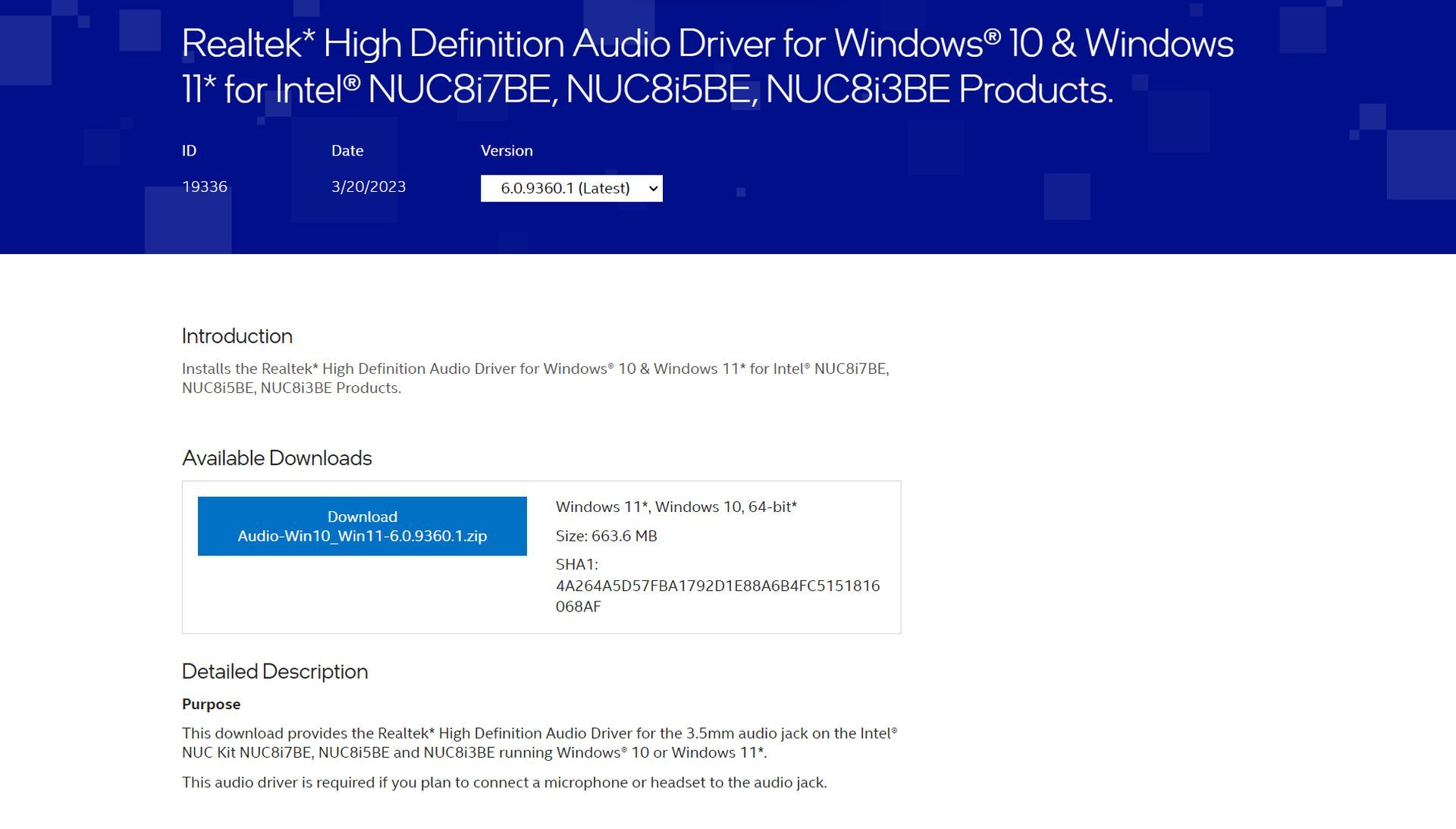
If none of the previous steps work, consider updating your audio drivers. However, be cautious about uninstalling or reinstalling audio drivers without necessity. It’s recommended to obtain audio driver updates from your motherboard’s official website to avoid potential security risks associated with third-party sources.
Contact Bethesda Support

If the problem persists and you’ve exhausted all troubleshooting options, consider reaching out to Bethesda Support for assistance. They may be able to provide specific solutions or insights tailored to your issue.
Experiencing sound and audio issues can be frustrating, but with these troubleshooting steps, you should be well on your way to enjoying a seamless gaming experience in Starfield. Whether it’s switching headphones, adjusting settings, or seeking support from Bethesda, there are solutions to get your audio back in action and dive back into the immersive world of Starfield.
Meanwhile, if you are having other issues with the game, make sure to check out our article on how to fix performance issues in Starfield.
Featured image credit: Bethesda




