


Some gamers reported that their Steam CAPTCHA not working, making them unable to log in or sign up for the popular gaming platform.
Steam is a popular digital distribution platform for video games and software. It allows users to purchase, download, and play games, as well as communicate with other users.
Steam uses CAPTCHAs to prevent bots from creating accounts or accessing the platform. CAPTCHAs are challenges that are designed to be easy for humans to solve but difficult for bots. However, sometimes CAPTCHAs can fail to work properly, which can prevent users from accessing Steam.



Why is Steam CAPTCHA not working?
Before we head over to explain how to fix Steam CAPTCHA not working problem, we would like to explain to you the reasons behind it.
There are a number of factors that can cause the Steam CAPTCHA error, including:
Internet issues: If your internet connection is not working properly, you may not be able to complete the CAPTCHA challenge
IP blockage: Steam may be blocked in your region or country
Browser issues: If your browser is not up to date or has extensions that are interfering with the CAPTCHA, you may experience problems
DNS cache problems: If your DNS cache is corrupted, it can prevent you from completing the CAPTCHA challenge
In addition to all of these reasons, Steam servers can also fail on rare occasions. You can use our link to check this.
How to fix Steam CAPTCHA not working issue?
The solution to Steam captcha not working issue is quite simple if the problem is on your side. Here is what you can apply to solve this annoying error:
- Check your internet connection
- Try a different browser
- Clear your browser’s cache and cookies
- Flush your DNS cache
- Reset Winsock
- Switch to IPv4
- Create a Steam account from a different device
Check your internet connection
The first step is to make sure that your internet connection is working properly. You can do this by trying to access other websites or by running a speed test using the link here.
If your internet connection is not working as intended, you will not be able to complete the CAPTCHA.
Try a different browser
If you are using a browser that is not up to date or has extensions that are interfering with the CAPTCHA, try using a different browser.
Some popular browsers that you can try include:
Clear your browser’s cache and cookies
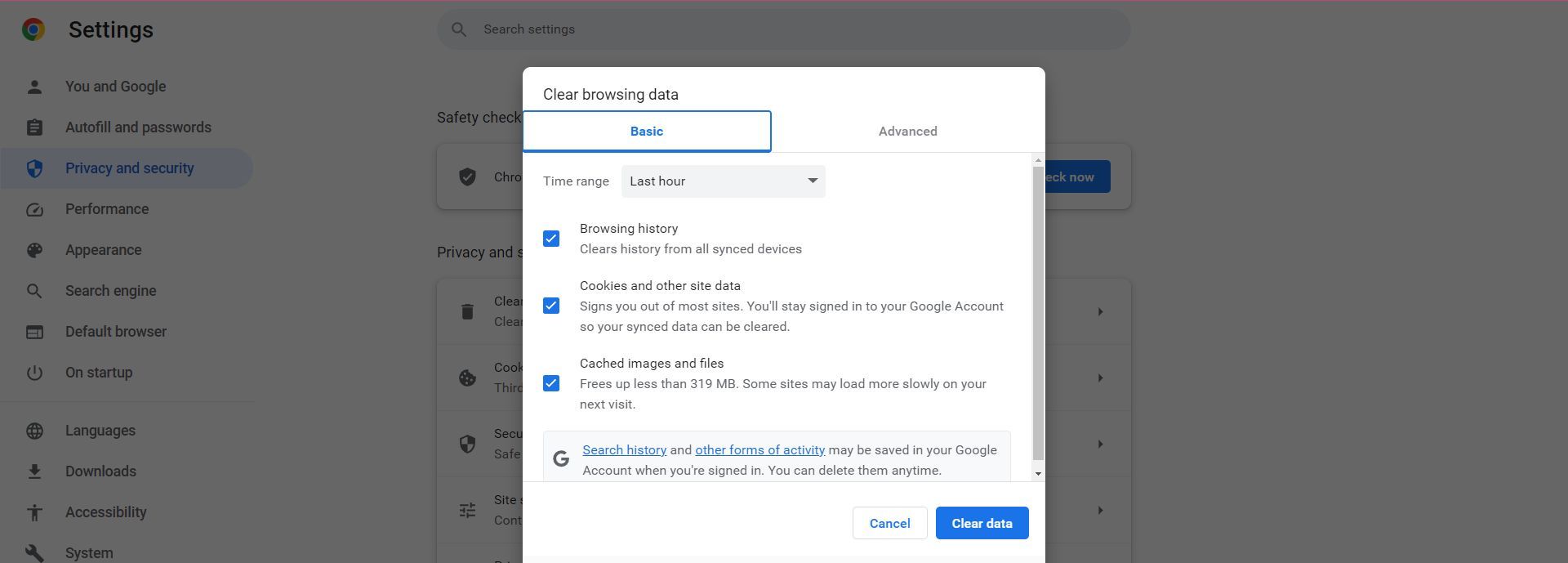
Clearing your browser’s cache and cookies can help to resolve connectivity issues that may be preventing CAPTCHA verification.
To do this:
- Open your browser and go to the “Settings“
- Click the “Clear browsing data” button and select the “Cache” and “Cookies” options
After doing so try to sign up for Steam again and confirm that the Steam CAPTCHA not working issue has been resolved.
Flush your DNS cache
The DNS cache is a database of IP addresses that your computer uses to resolve domain names. If your DNS cache is corrupted, it can prevent you from completing the CAPTCHA challenge.
To flush your DNS cache, open a command prompt on your PC and type the following command:
ipconfig /flushdns
Doing so will cause you to clear your DNS cache and potentially resolve the Steam CAPTCHA not working error.
Reset Winsock
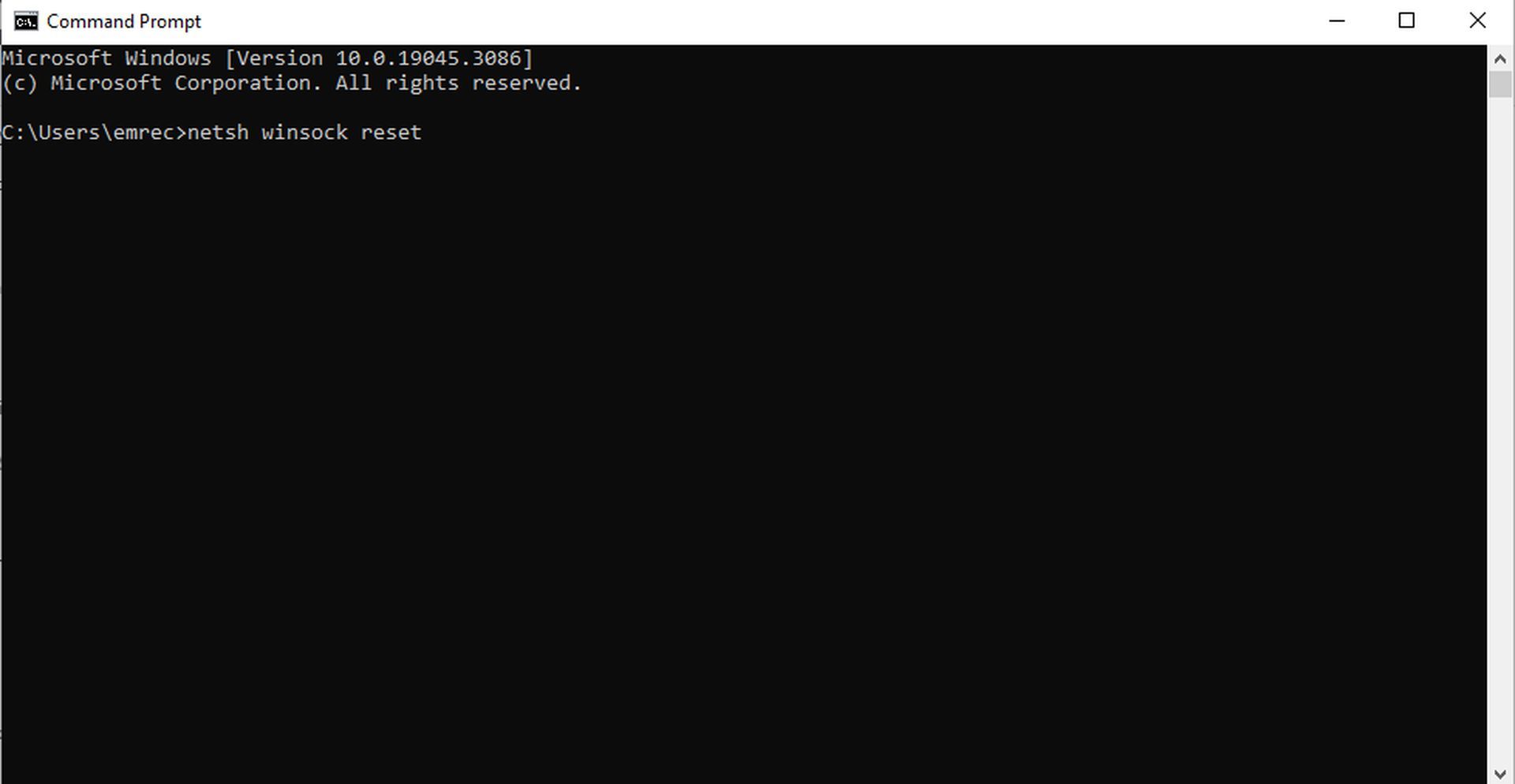
Winsock is a Windows component that is responsible for managing network connections. If Winsock is corrupted, it can prevent you from completing the CAPTCHA challenge.
To reset Winsock, open a command prompt and type the following command:
netsh winsock reset
If your network connection has been previously changed by you or an application, doing this will revert those settings and lets you access Steam’s new user interface.
Switch to IPv4
Some internet connections do not support IPv6, so switching to IPv4 may resolve the Steam CAPTCHA not working issue.
To do this:
- Open the “Network Connections” window and right-click on your network adapter
- Select the “Properties” option
- Uncheck the “Internet Protocol Version 6 (TCP/IPv6)” option
Try accessing Steam again after switching to an IPv4 connection.
Create a Steam account from a different device
If you have tried all of the above and are still receiving the error, try creating a Steam account from a different device.
This will help to rule out any problems with your computer or internet connection. If you can access Steam via another computer then that means your computer is the source of the Steam CAPTCHA not working issue and it is time to reset your computer entirely.
We hope that the workarounds mentioned in our guide were able to help you resolve the Steam CAPTCHA not working error. If you are still unable to fix your problem, we encourage you to reach out to Steam Support using this link.
Featured image: Steam




