
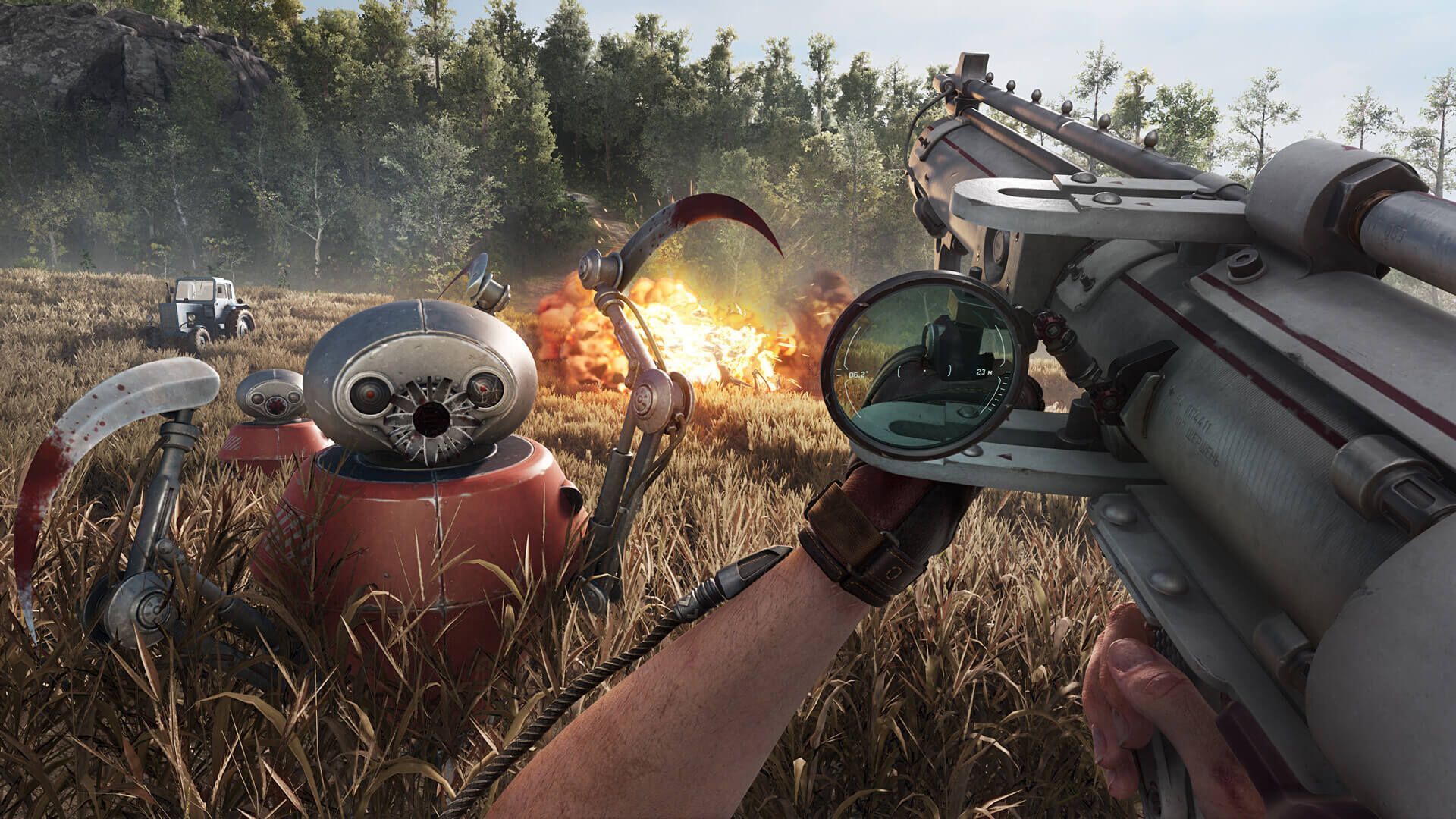

The Atomic Heart Vsync not working error is a bug that will make your game experience annoyingly unstable. If you are also facing this error, then you are on your lucky day because we will be looking deeply into Atomic Heart Vsync not working error in a moment.
If you are an avid gamer, you know the importance of having a smooth and seamless gaming experience. Atomic Heart is an action-packed game that requires excellent graphics and smooth gameplay. One of the critical factors in achieving this is by enabling Vsync.
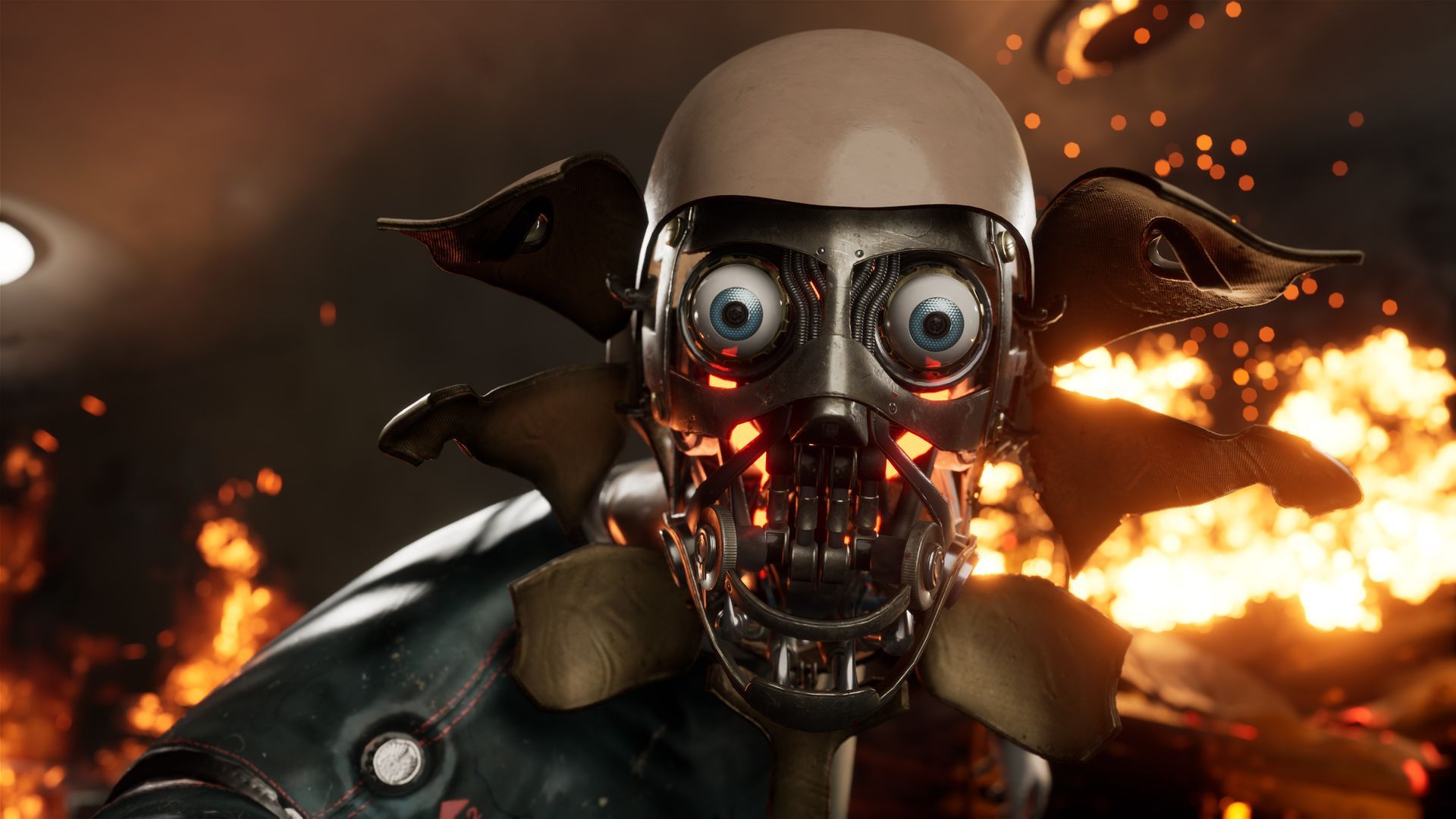
Vsync, also known as Vertical Sync, is a graphics technology that syncs the frame rate of a game with the refresh rate of the display. By doing so, it eliminates screen tearing, a phenomenon where the screen displays multiple frames at the same time, causing a disjointed image. With Vsync enabled, gamers can enjoy a more fluid and consistent gameplay experience.

How to fix Atomic Heart Vsync not working issue?
Unfortunately, some users have reported issues with Atomic Heart Vsync not working. Below, we will provide a step-by-step process on how to enable Vsync in Atomic Heart and how to fix the Atomic Heart Vsync not working issue.
Here is the thing you should do if you experience the Atomic Heart Vsync not working issue:
- Update your graphics drivers
- Disable third-party software
- Change graphics settings
- Edit configuration file
Update your graphics drivers
The Atomic Heart Vsync not working issue may be caused by outdated graphics drivers. To fix this issue, update your graphics drivers to the latest version. You can do this by visiting your graphics card manufacturer’s website and downloading the latest drivers.
You may get the latest drivers of popular GPU manufacturers from the link below.
Disable third-party software
If you have any third-party software running in the background, it may interfere with Atomic Heart’s Vsync settings. To fix this issue, disable any third-party software, such as antivirus software, firewall, or game boosters, and then try enabling Vsync again.
Change graphics settings
If Atomic Heart Vsync not working, try changing the game’s graphics settings. Lowering the graphics settings may help fix the issue. Follow the steps below to change the graphics settings:
- Launch Atomic Heart and wait for it to load
- Click on the Options menu in the main menu
- Click on the Video tab to access the game’s graphics settings
- Change the graphics settings to a lower value and then try enabling Vsync again
Edit configuration file
If the above steps don’t work, you can try editing the configuration file to force Vsync. Follow the steps below to edit the configuration file:
- Go to the Atomic Heart installation directory
- Find the configuration file, which should be located in the game’s installation directory
- Open the configuration file in a text editor
- Find the line that says “Vsync” and change the value to “1” to force Vsync
Save the changes and then start the game to see if Atomic Heart Vsync not working problem has been fixed or not.
How to Enable Vsync in Atomic Heart
Enabling Vsync in Atomic Heart is a simple process that can be done through the in-game settings menu. Follow the steps below to enable Vsync:
- Launch Atomic Heart and wait for it to load
- Click on the Options menu in the main menu
- Click on the Video tab to access the game’s graphics settings
- Scroll down to the Vsync option and toggle it on
- Click on Apply to save the changes and exit the settings menu
After enabling Vsync, you should notice a significant improvement in the game’s visual performance, with smoother animations and no screen tearing. If you cannot access your control panel check out our article titled NVIDIA Control Panel not opening: How to fix it.




