

Is Wild Hearts not working on your PC? For EA Play and Game Pass Ultimate subscribers, the Wild Hearts trial is now accessible on PC. Although the entire game won’t be released for a few days, interested players can currently play a demo.
On the PC, Wild Hearts plays rather smoothly, however, there are a few technical difficulties. Here are a few solutions that we suggest if you are experiencing Wild Hearts not working issue when you launch it.

Fixing the Wild Hearts not working issue
When trying to open the game, some users have encountered crashes, which is usual for brand-new PC releases. You should be able to get Wild Hearts up and running successfully if you follow the steps listed below.


Verifying game files
Game files can encounter problems during the downloading or installation process and become corrupted as a result. To solve this problem, virtually every PC client allows you to scan and verify these files and download again those that are corrupted or missing. If your Wild Hearts not working issue is caused by faulty or missing files, verifying your files should be able to fix the problem.
You should check this first, and for the majority of users, the game should start up when the verification is finished.
Steam
- Open Steam and go to your library
- Right-click on Wild Hearts in your library
- Choose Properties
- Select LOCAL FILES
- Click on Verify Integrity of local files
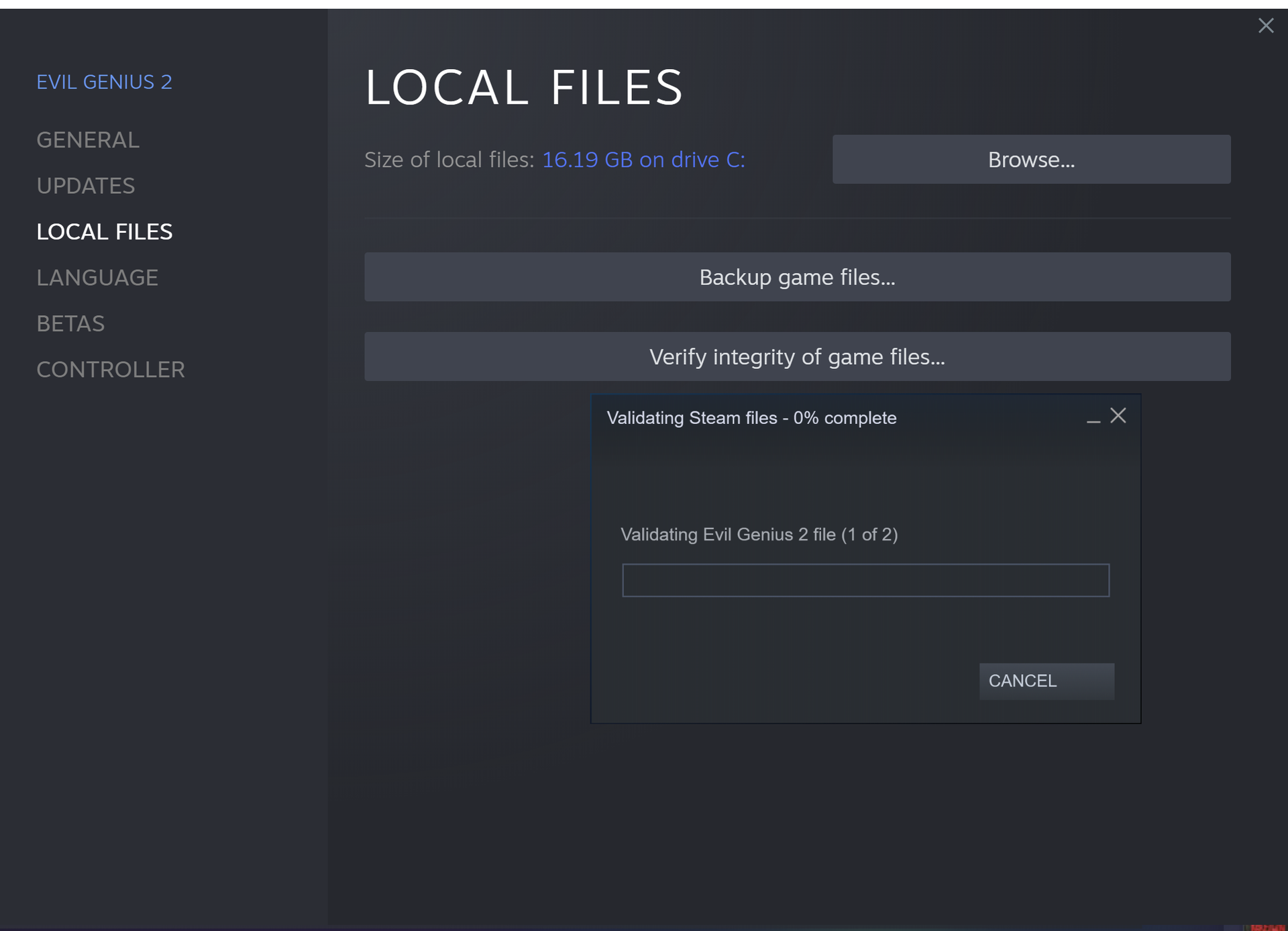
If your Wild Hearts not working issue is caused by faulty or missing files, verifying your files should be able to fix the problem
EA App
You can also verify the game files in the EA
- Launch the EA App
- Select My Collection at the left
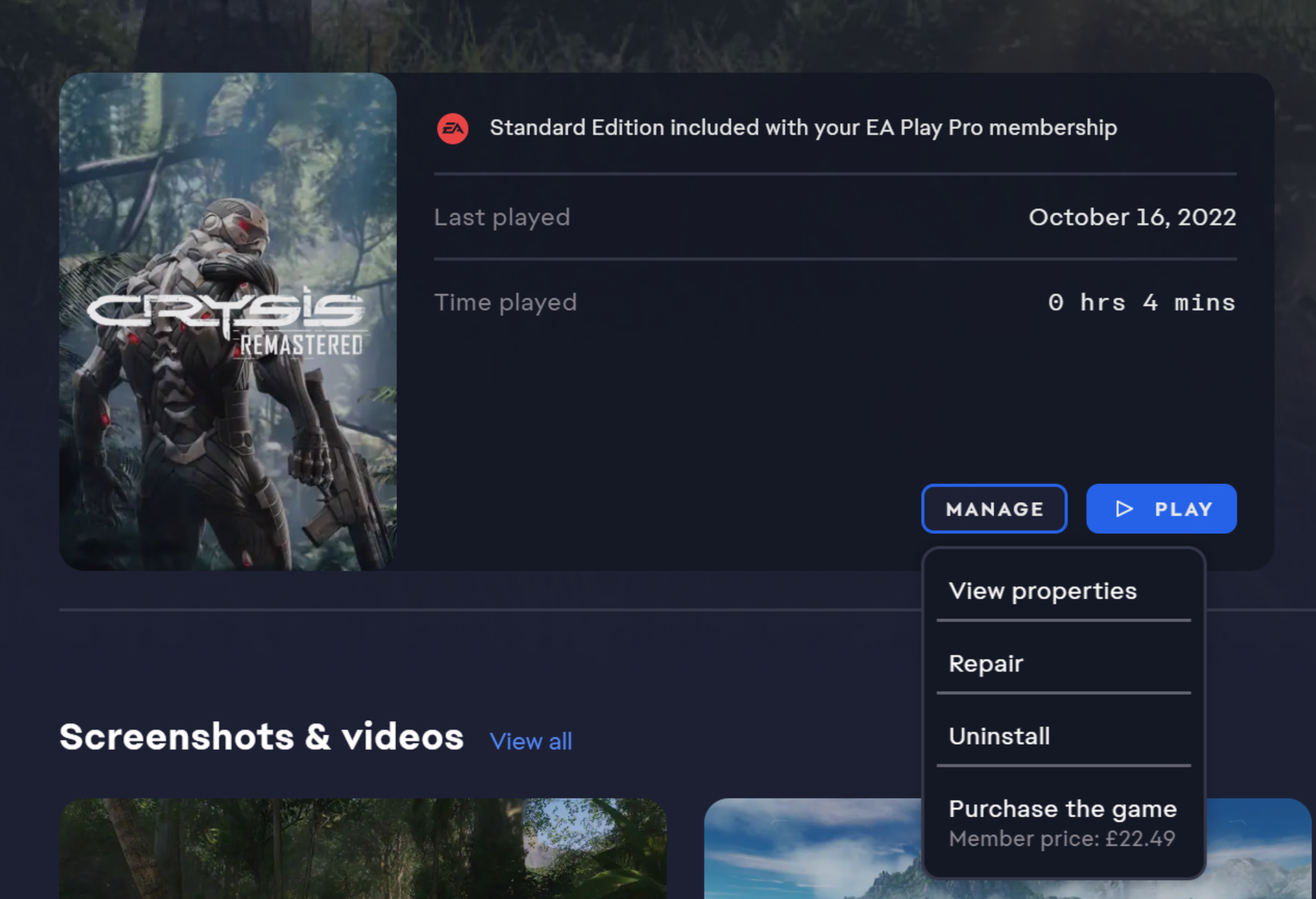
- Click on the three dots on Wild Hearts under Installed
- Choose the Repair option
- This will start a repair scan and will download or repair anything that might be out of order.
Epic Games Launcher
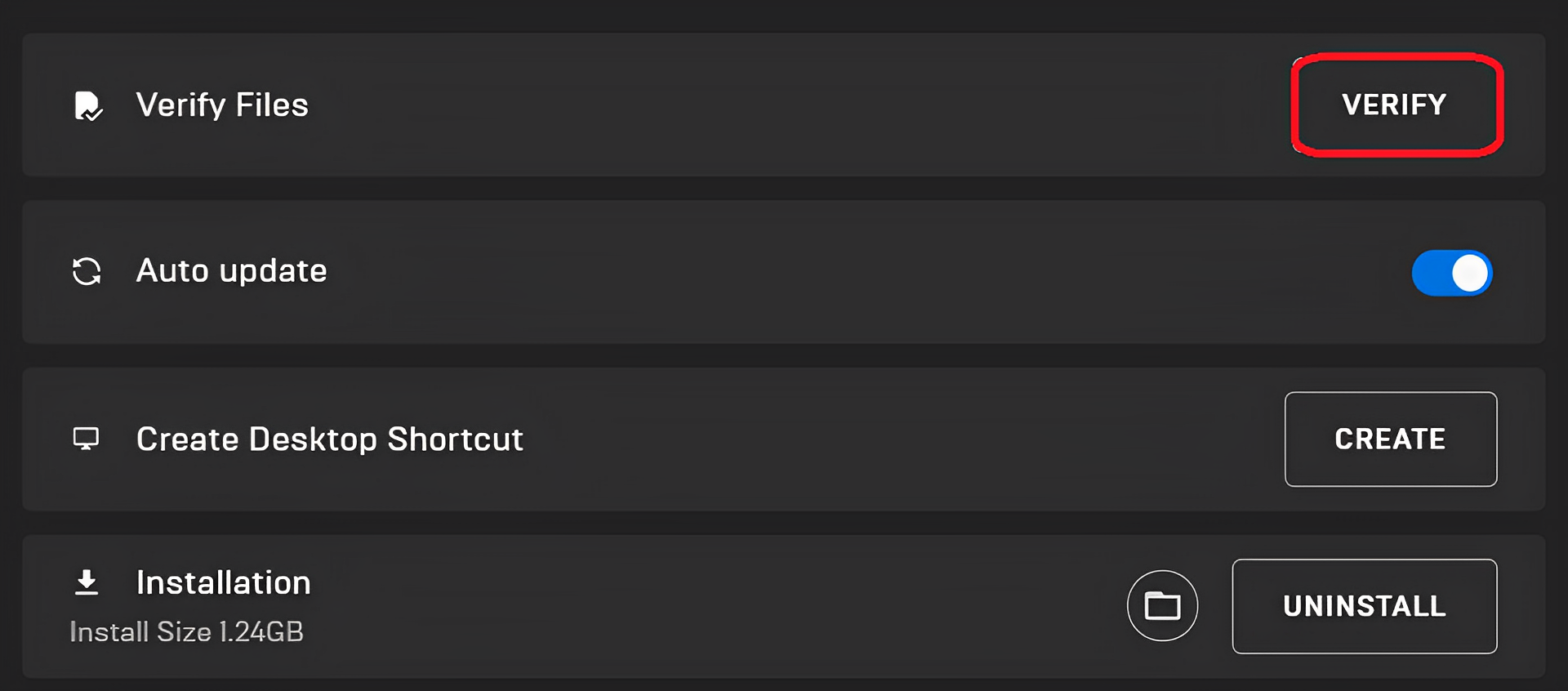
- Open your Library in the Epic Games Launcher
- Next, click on the three dots next to Wild Hearts
- On this screen, choose Manage
- Click on the Verify button next to Verify Files
- Like Steam, this will scan the game files and download or repair any required files.
This will check the game files on your computer and re-download any missing or damaged ones. If your Wild Hearts not working issue is caused by a faulty or missing file, this method should be able to fix your problem.
Updating GPU drivers
Make sure your GPU is running on the most recent drivers. The links below will let you access the most recent versions.
Running the game as an Administrator
Giving a game admin rights might occasionally enhance stability in PC games. In Windows, running apps as administrators grant them additional rights. They can use it to alter system files, the registry, and other normally restricted directories. Therefore, if the Wild Hearts not working issue is caused by a Windows-related error, running the game as an administrator should be able to offer a fix.
- Go to the file location where the game is set up
- Select Properties after a right-click on WILD HEARTS.exe
- Select the Compatibility tab
- Choose “Run this program as an administrator“
Switching to dedicated GPU on laptops
Make sure that your dedicated GPU is being used rather than the integrated one. A dedicated graphics card is an external graphics card with its own memory, as opposed to an integrated graphics card, which is mounted on the motherboard and uses the system’s memory. If you’re unknowingly using the integrated GPU, you might be facing other issues in addition to the Wild Hearts not working issue. However, if that is the case, you can apply the steps below and switch to a dedicated GPU on your laptop.
Switching to the Dedicated Nvidia GPU
- Open the Nvidia Control Panel (If you can’t, refer to NVIDIA Control Panel not opening: How to fix it?)
- Go to 3D Settings and then Manage 3D Settings
- Open the tab Program Settings and choose WILD HEARTS
- Next, choose the preferred graphics processor for this program
- Your Nvidia GPU should be chosen as High performance Nvidia processor
- Save the changes
Switching to the Dedicated AMD GPU
- Open Radeon Settings
- Go to Preferences, followed by Additional Settings
- Select Power and then Switchable Graphics Application Settings
- Choose WILD HEARTS from the list of applications
- If WILD HEARTS can’t be seen in the list, click the Add Application button, and from the installation directory, pick the executable.
- In the Graphics Settings, assign the High Performance profile to the game.
Wild Hearts is a fresh game, and such bugs and problems are, although we sometimes don’t want to admit it, normal. Wild Hearts not working issue is expected to be fixed in the coming updates and currently, it runs smoothly for many players. If these methods do not solve your problem, go to EA Games’ website page about Wild Heart’s system requirements.




