
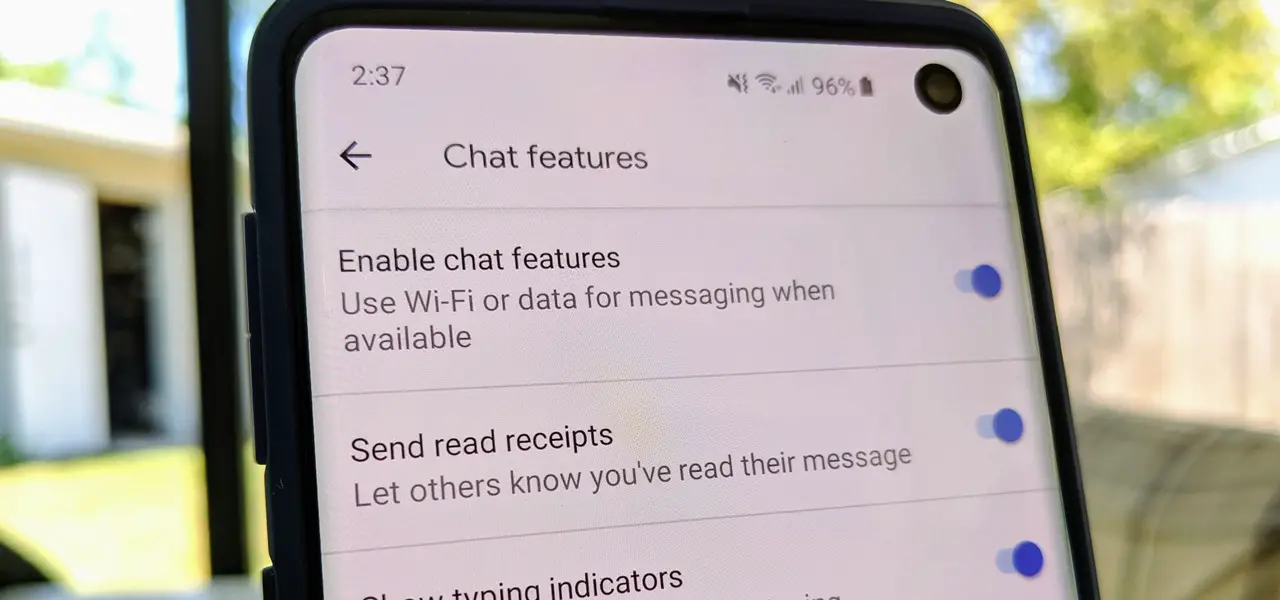

If you want to learn how to enable, disable, and use RCS Chat in Google Messages, you’ve come to the right place. Texting has been a part of our daily routines for decades with regular cell phones, but the SMS we still use hasn’t stood the test of time. Because SMS is inherently limited, it has few security measures and is therefore no longer adequate in today’s technology age.
What is RCS Chat?
The new RCS messaging standard, which was developed by Google in collaboration with the GSMA to unify around the Universal Profile, has now arrived to replace SMS/MMS everywhere. RCS also contains a number of modern security tools, like end-to-end encryption that may be beneficial to all of us.
Google has incorporated all of the RCS chat features into its own Messages app. Google Messages is installed almost on all Android phones, so you could be using it right now for both SMS/MMS. You may use this guide’s easy procedures to turn on RCS chats on your phone, allowing you to improve your smartphone messaging experience considerably.



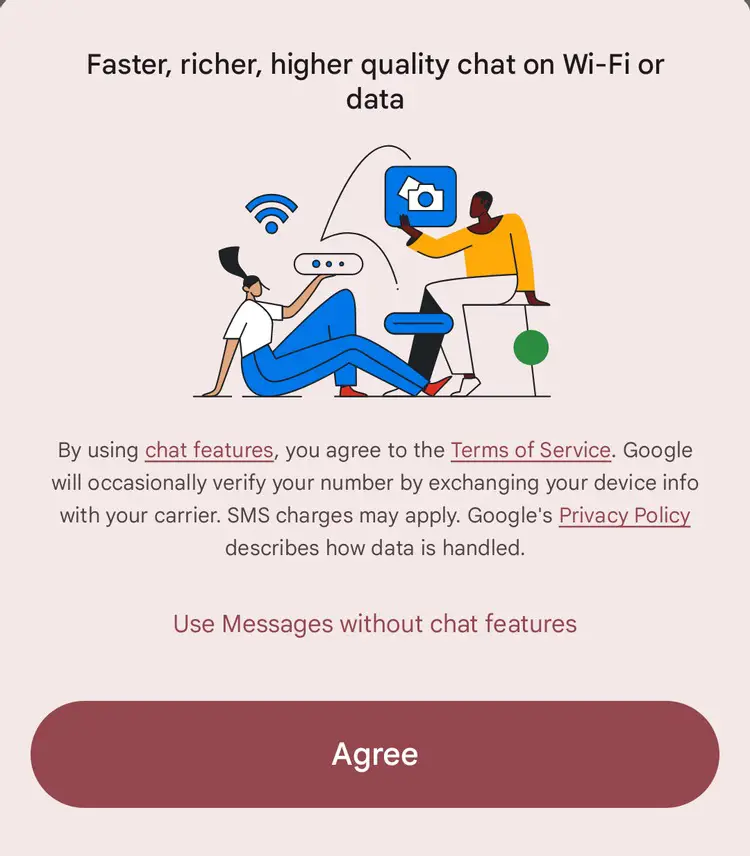
If your area supports RCS, Google Messages will usually prompt you a message to enable the feature. If the message below appears, you’re ready to go:
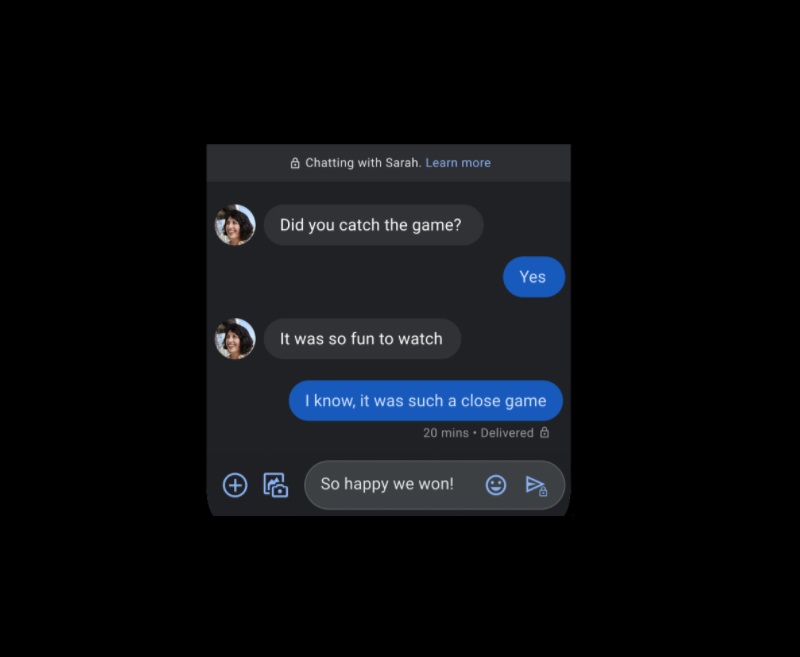
If you’re sending RCS Chat messages, the input box will say “Chat message,” and they’ll have read receipts. If you’re talking with someone who has the Messages app on an Android device and Google thinks both ends support it, your messages will be sent end-to-end encrypted, with a little “lock” symbol displayed.
Follow these steps below to manually enable RCS Chat or to disable it, if it is already enabled.
How to enable RCS Chat in Google Messages?
If your phone does not enable RCS Chat by default, you may follow these steps to turn it on:
- Open the Google Messages application
- Open the three-dot menu and enter Settings.
- Look for the Chat features.
- Choose the Enable chat features button.
- Now the tool will establish your device automatically as long as you have service from your mobile carrier.
How to disable RCS Chat in Google Messages?
If you want to turn off RCS chat features in the Messages app, it’s not really too hard. If you’re having connection problems and they aren’t resolving, turning the option off and then back on might be a good idea. When it comes to disabling the RCS chat capabilities on your device, follow these steps:
- Open the Google Messages application
- Open the three-dot menu and enter Settings.
- Enter “Chat features.”
- Now you need to tap on the “Enable chat features” button in order to disable RCS chats.
- Next, tap on “Turn off” to confirm your choice.
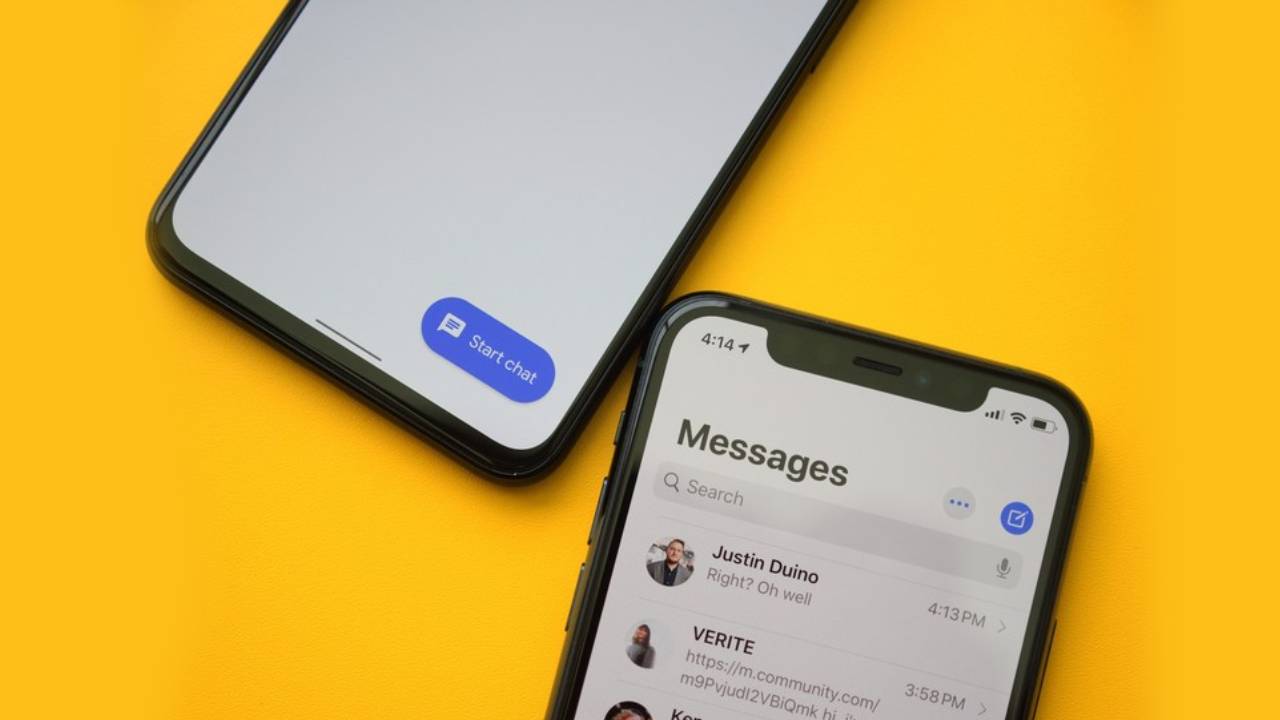
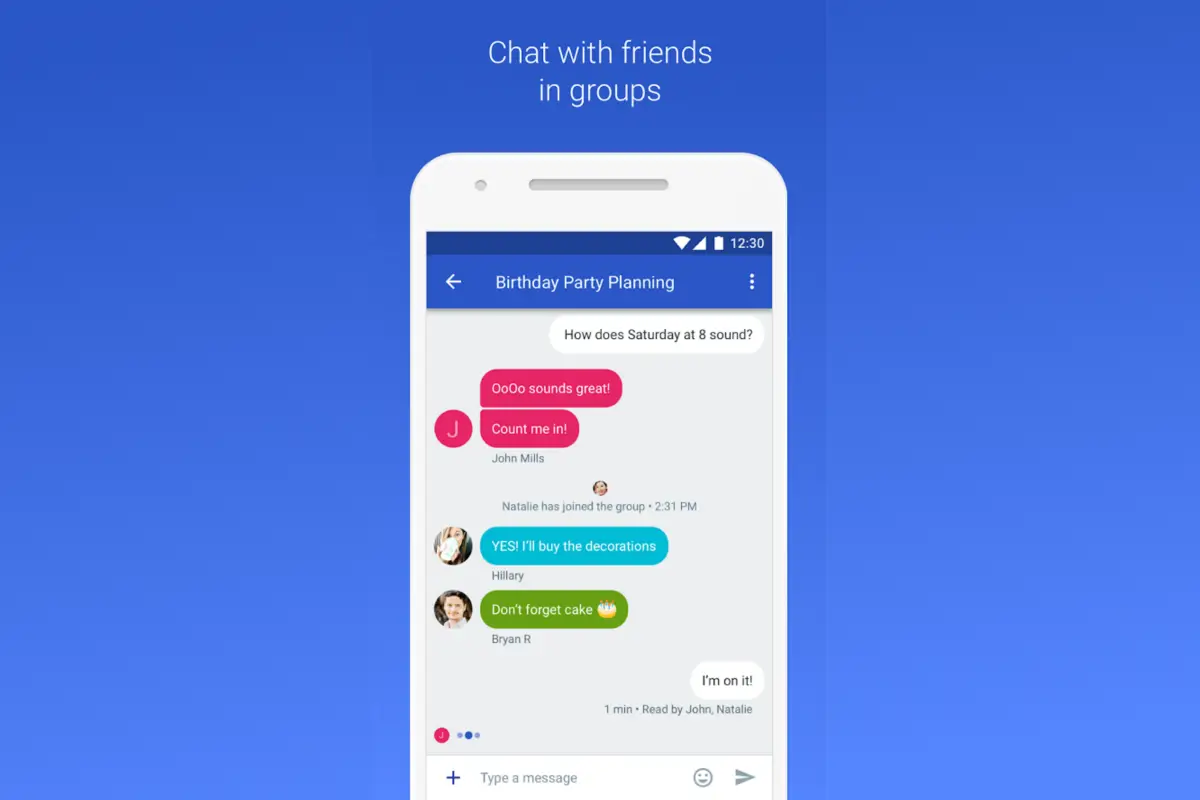
When you disable chat features, you’ll be removed from your already existing RCS chat groups. All of your communications from this point forward will be reverted to SMS/MMS until you re-enable RCS chats. It’s also a good idea to turn off RCS before upgrading your phone so that you don’t encounter any compatibility problems as a result of the old device. If you still have access to your old phone, it’s simple to remove these settings; however, if you no longer have access to it, Google has a form where you can unregister your phone number.
Although SMS/MMS is still around, for the time being, RCS (Rich Communication Services) is the next-generation messaging technology that we should all be using right now; however, we’ll have to replace SMS/MMS gradually. Google’s ambitions are huge, but it’s entirely feasible to connect the world through a single global communication standard.
This way you’ve learned how to enable, disable, and use RCS Chat in Google Messages by following a series of simple steps! Why don’t you try it out now?




