Skip to content
TechBriefly
  • Tech
  • AI
  • Crypto
  • Business
  • Gaming
  • How to
  • About
    • About TechBriefly
    • Terms and Conditions
    • Privacy Policy
    • Contact Us
    • Languages ›
      • 中文 (Chinese)
      • Dansk
      • Deutsch
      • Español
      • English
      • Français
      • Nederlands
      • Italiano
      • 日本语 (Japanese)
      • 한국인 (Korean)
      • Norsk
      • Polski
      • Português
      • Pусский (Russian)
      • Suomalainen
      • Svenska
  • Tech
  • AI
  • Crypto
  • Business
  • Gaming
  • How to
  • About
    • About TechBriefly
    • Terms and Conditions
    • Privacy Policy
    • Contact Us
    • Languages
      • 中文 (Chinese)
      • Dansk
      • Deutsch
      • Español
      • English
      • Français
      • Nederlands
      • Italiano
      • 日本语 (Japanese)
      • 한국인 (Korean)
      • Norsk
      • Polski
      • Português
      • Pусский (Russian)
      • Suomalainen
      • Svenska
  • Home/How to/How to schedule Instagram posts?

    How to schedule Instagram posts?

    How to schedule Instagram posts?
    Barış Selman Barış Selman · January 27, 2022, 16:03 ·3 min read

    You can learn How to schedule Instagram posts from your smartphone. It’s pretty hard to find a person these days who doesn’t have Instagram. Nowadays it is used for practically everything, such as to check the latest news, meet people, and also to promote one’s brand. For the latter, it is of vital importance to schedule posts.

    How to schedule Instagram posts from smartphones?

    However, many users do not know how to perform this practice in this application. If you are a person who is dedicated to uploading publications of interest or you have created an informative account on a certain topic, it is a mandatory requirement to have automatic publications. This option can be carried out from the app itself, but it is hidden and you may not have detected it previously.

    How to schedule Instagram posts?
    How to schedule Instagram posts?

    With a business account

    Scheduling posts on Instagram is an effective way to keep your account permanently active. It doesn’t matter if you’re sick or traveling, your followers will think you’re working to show new content.


    You Might Also Like
    How to change the region in the Huawei AppGallery?
    How to change the region in the Huawei AppGallery?
    1 February 2021
    How to preload games on Steam
    How to preload games on Steam explained
    19 March 2023
    Overwatch 2 game server connection failed retrying
    Fix: Overwatch 2 game server connection failed error
    25 January 2023

    There are several ways to do this. For the first one, you need a business account. For this, you don’t need to meet certain requirements. Just open the social network and tap on your profile icon. Then click on the three horizontal lines at the top right and go to ‘Settings’.

    If you scroll down to the bottom of the ‘Account’ section you will find sections called ‘Switch to professional account’ or ‘Add new professional account’. Tap on one of these depending on your preferences and follow the steps below.

    Please note that the simple fact of converting your account into a professional account means that your profile can only be public. This means that anyone can access it without your permission.

    If you have this clear, the only thing left to do is to visit the link facebook.com/creatorstudio. Once inside tap on the Instagram icon to link your profile. After clicking on the ‘Create post’ button tap on ‘Instagram Feed’. It is at this point that you can include the photo, as well as select the time and date the post should be uploaded.

    SEE ALSO
    How to upload photos to Instagram with Windows 11?

    Use an app

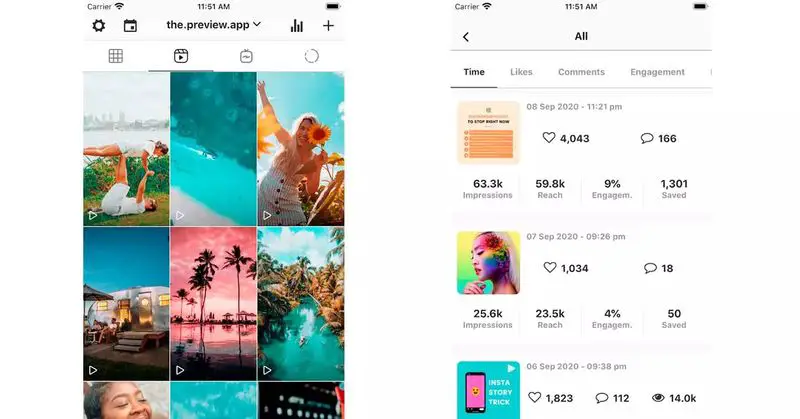
    Creating a professional account is not entirely necessary, you can also turn to third-party apps to schedule posts on Instagram. One of the most used for this application is PREVIEW, which you can download for your iPhone or Android phone.

    Its operation is quite simple and does not hide many complications. Once you have installed the program, follow the instructions to configure it.
    How to schedule Instagram posts from your cell phone?
    How to schedule Instagram posts from your cell phone?

    After linking the corresponding account, you can see how the home screen shows the most basic settings. By simply clicking on the ‘+’ symbol you can upload a photo or a video. In both cases, you can choose to edit certain elements.

    Once you have completed this step, click on the button to enter aspects of interest, such as a caption, hashtags, and most importantly: The date and time of the post. Choose to your liking and select ‘Done’ to complete the process. That’s it and you can prepare your account for the future.


    Android Business account how to Instagram iOS iPhone schedule smartphones social media software technology
    Share:
    Barış Selman
    Written by
    Barış Selman

    A technology and gaming enthusiast by day, Barış is a passionate composer and black/death metal guitarist by night. He keeps his finger on the pulse of the intersection of art and technology whenever he can from his tours worldwide.

    View all posts →

    Latest Posts

    1. 1
      Sony announces God of War: Laufey for PlayStation 5 3 June 2026
    2. 2
      Google lets websites opt out of AI-generated search results 3 June 2026
    3. 3
      Poland approves bill to ban phones in schools for students under 16 3 June 2026
    4. 4
      OpenAI unveils enterprise tools and new Sites feature to grow Codex users 3 June 2026
    5. 5
      Google rolls out June Android update with new safety and sharing features 3 June 2026

    Popular Posts

    1. 1
      Anthropic’s Project Glasswing flags 10,000 critical software flaws 130 views
    2. 2
      Oura files for IPO with an estimated $11 billion valuation 41 views
    3. 3
      Jensen Huang says Nvidia found a new $200 billion AI market 43 views
    4. 4
      How to enable “Double-Tap to Wake” on Android 21 views
    5. 5
      Why cyber insurers now check your defenses first 19 views

    Stay Updated

    Related Stories

    How to manage group chat settings and customize conversation photos on iOS
    How to

    How to manage group chat settings and customize conversation photos on iOS

    Learn how to enable group messaging on iPhone using iMessage, MMS, or RCS so you can easily chat...

    May 29, 2026, 08:25
    How to enable “Double-Tap to Wake” on Android
    How to

    How to enable “Double-Tap to Wake” on Android

    Learn how to enable the double-tap gesture to wake up your Samsung, LG, or Huawei phone or tablet...

    May 28, 2026, 07:10
    How to enable and use raise to listen on your iPhone
    How to

    How to enable and use raise to listen on your iPhone

    Learn how to enable the Raise to Listen feature on your iPhone to play and reply to audio...

    May 28, 2026, 07:05
    How to share and forward voicemail messages on iPhone
    How to

    How to share and forward voicemail messages on iPhone

    Learn how to send a voicemail from your iPhone with simple steps for sharing, forwarding, or messaging voice...

    May 27, 2026, 08:00
    TechBriefly
    © 2026 TechBriefly. All rights reserved.