

This guide teaches you how to add a widget to the Home screen of your Android phone. Widgets are extensions of installed apps that provide quick shortcuts or at-a-glance views of information on your desktop, allowing you to access important information without opening the app.
Before you start: Ensure you have an Android phone with an updated operating system and installed apps that offer widgets.
How to easily add a widget to your Android Home screen
Follow these simple steps to add a widget to your Home screen.

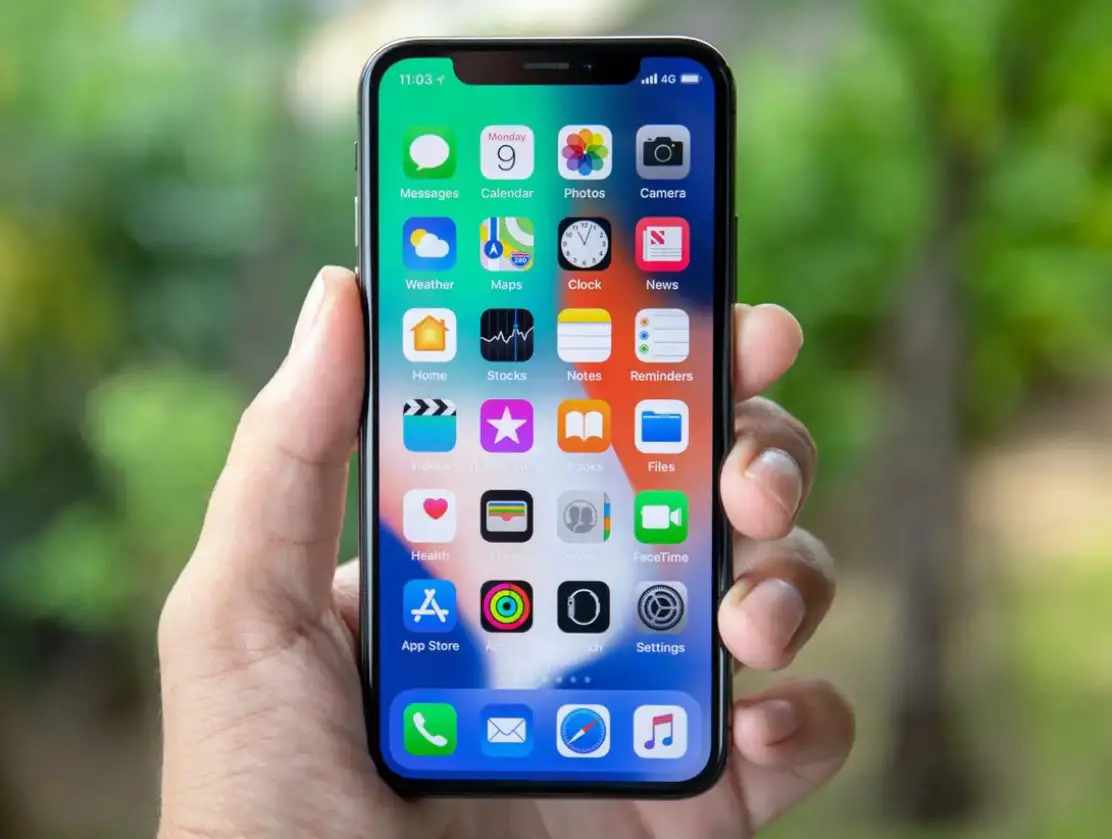

- First, go to the Home screen. Swipe up from the bottom of the screen, or press the home button located at the bottom center of the display.
- Next, press and hold an empty space on the Home screen. This action will open a menu of additional options for the Home screen.
- On some devices, you may need to tap the plus “+” sign or Add to move to the next screen.
- Then, tap and hold a widget. There are often multiple pages of widgets you can choose from, so swipe through the available widgets until you find one you want to place on your desktop.
- Finally, drag the widget to your Home screen. Keep your finger on the screen, drag the widget to the area you want to place it in, and then release your finger to place the widget.
Pro tip: Experiment with different widgets to customize your Home screen effectively. You can remove or rearrange widgets anytime to suit your preferences.
Adding widgets to your Home screen can significantly enhance your device’s functionality. It allows easy access to apps and information without navigating through multiple tabs. Try adding various widgets to see which ones best serve your daily needs and improve your user experience. Adjusting your Home screen layout is a great way to personalize your device and make it more efficient for your usage.




