

If you don’t know how to check your BIOS version and update it, we are going to help you out. It’s a good idea not to update your BIOS, but you may need to sometimes. Here’s how to determine what BIOS version your computer is running and install it as quickly and safely as possible onto the motherboard.
It’s critical to exercise caution when upgrading your BIOS! If your computer freezes, crashes, or loses power during the update, the BIOS or UEFI firmware may be damaged. Your computer will be unbootable as a result of this. Let’s start learning how to check your BIOS version and update it
What is BIOS?
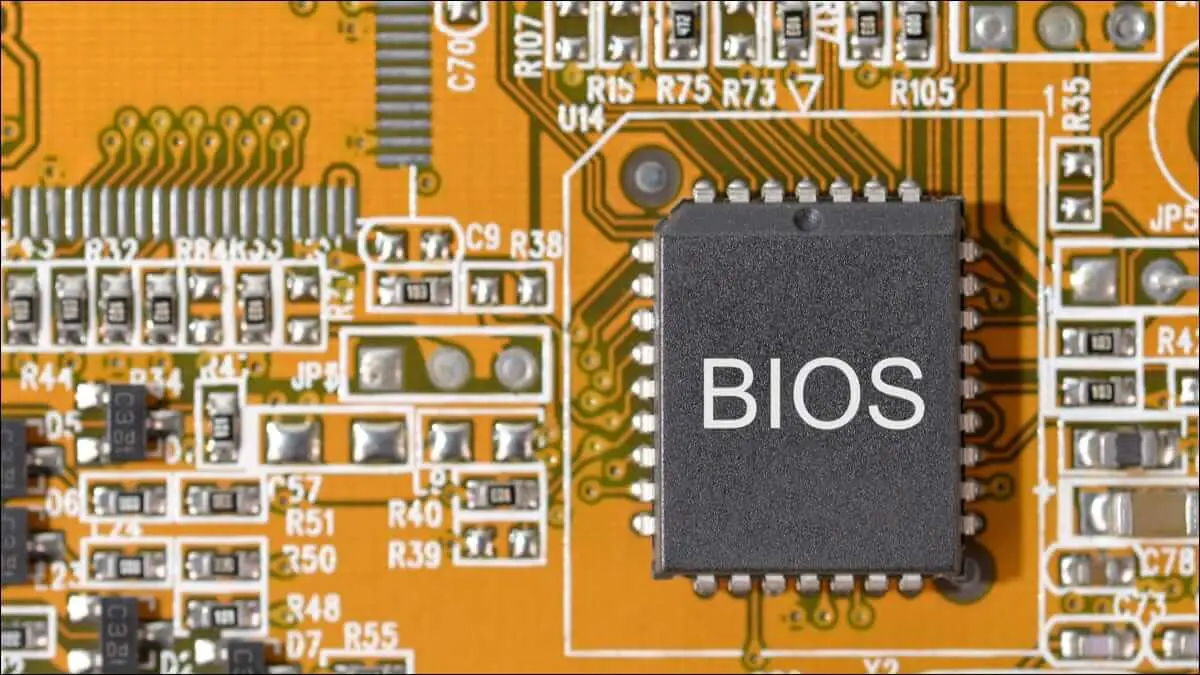
The first thing you should know is that BIOS stands for Binary Input-Output System. It is software that comes pre-installed on a chip on the motherboard of your computer. It is responsible for managing the most basic tasks. For example, it defines how the motherboard should behave or manage the boot devices. Obviously, this makes it the first program to run on the computer.
How to check your BIOS version in Windows?
The BIOS version of your computer is displayed in the BIOS setup menu, but you don’t have to restart to see it. There are several methods for viewing your BIOS version from within Windows, and they all work with both a traditional BIOS and an UEFI firmware.
How to check your BIOS version using Command Prompt?
Hit Start, type “cmd” in the search box, and then click the “Command Prompt” result to verify your BIOS version from the Command Prompt.
Enter the following command into the Command Prompt, and hit Enter:
The version number of the BIOS or UEFI firmware will be prompted.
How to check your BIOS version using the System Information Panel?
In the System Information window, you should be able to see your motherboard’s BIOS version number. To do so on Windows 7, 8, or 10, type “msinfo32” into the Run box and then press Enter.
On the System Summary pane, the BIOS version number is displayed. You’ll see it on the “BIOS Version/Date” field.
How to update your BIOS version in Windows?
Because different motherboard manufacturers use various utilities and methods, there’s no one method to rule them all. However, all motherboards require the same basic procedure.
Start by going to the motherboard maker’s website and looking for a Download or Support area for your particular model of the motherboard. You should see a list of current BIOS versions, along with any modifications/bugs fixes, as well as release dates. Download the latest version.
If you bought a pre-built PC rather than building your own, go to the computer maker’s website, search for the computer model, and check out its downloads page. There you’ll find any new BIOS updates available.
The download is probably an archive like ZIP or RAR. Unzip the file’s contents. There should be a BIOS file within. The archive should also include a README file that will walk you through updating to the new BIOS. This document should contain instructions that are tailored to your specific hardware, but we’ll try to cover the major points that apply to all hardware here.
Depending on your motherboard and what it supports, you’ll have to pick between several different types of BIOS-flashing tools. The included README file for the BIOS update should point you in the direction of the best solution for your hardware.
Some companies provide a BIOS-flashing option right within the BIOS, or as a separate keystroke mode when you start up your PC. You may launch the system using a USB drive with the BIOS file on it. You can then select the BIOS updating choice, followed on to find and select the correct BIOS file.
You can generally access the BIOS screen by pressing a specific key as your computer boots—it’s often shown on the screen during the boot process and should be mentioned in your motherboard or PC’s user manual. The Delete key and F2 are two common BIOS keys. The manner in which to enter a UEFI setup interface may differ somewhat.
How to flash BIOS from USB?
There are also more traditional BIOS-flashing tools. You can use those tools to make a DOS live USB drive, then transfer the BIOS-flashing program and BIOS file to it. After restarting your PC, you may boot from the USB drive in the minimal DOS environment that appears. The correct command—typically flash.bat BIOS3245.bin —is entered in the minimal DOS environment that appears after the restart, and the software flashes the new version of the BIOS into your firmware.
The flashing software that comes with the motherboard is usually DOS-based. It’s possible you’ll have to download it separately, as it may be included in the BIOS package from the manufacturer’s website. Look for a file with the .bat or .exe extension.
Many companies offer Windows-based flashing tools that you run on your Windows desktop to flash your BIOS and then reboot. We don’t recommend them, and even some manufacturers who provide them advise against using them. Flashing the BIOS from within Windows might cause more issues.
Many programs running in the background can cause the process to fail and corrupt your BIOS. Any system crash or freeze might result in a damaged BIOS. It’s safer to be sure, so we recommend using a BIOS-based flashing program or booting into a minimal DOS environment to flash your BIOS.
If you’re having problems with the new BIOS version, you may be able to downgrade it by visiting the manufacturer’s website and downloading an old version. This way you’ve learned how to check your BIOS version and update it.


