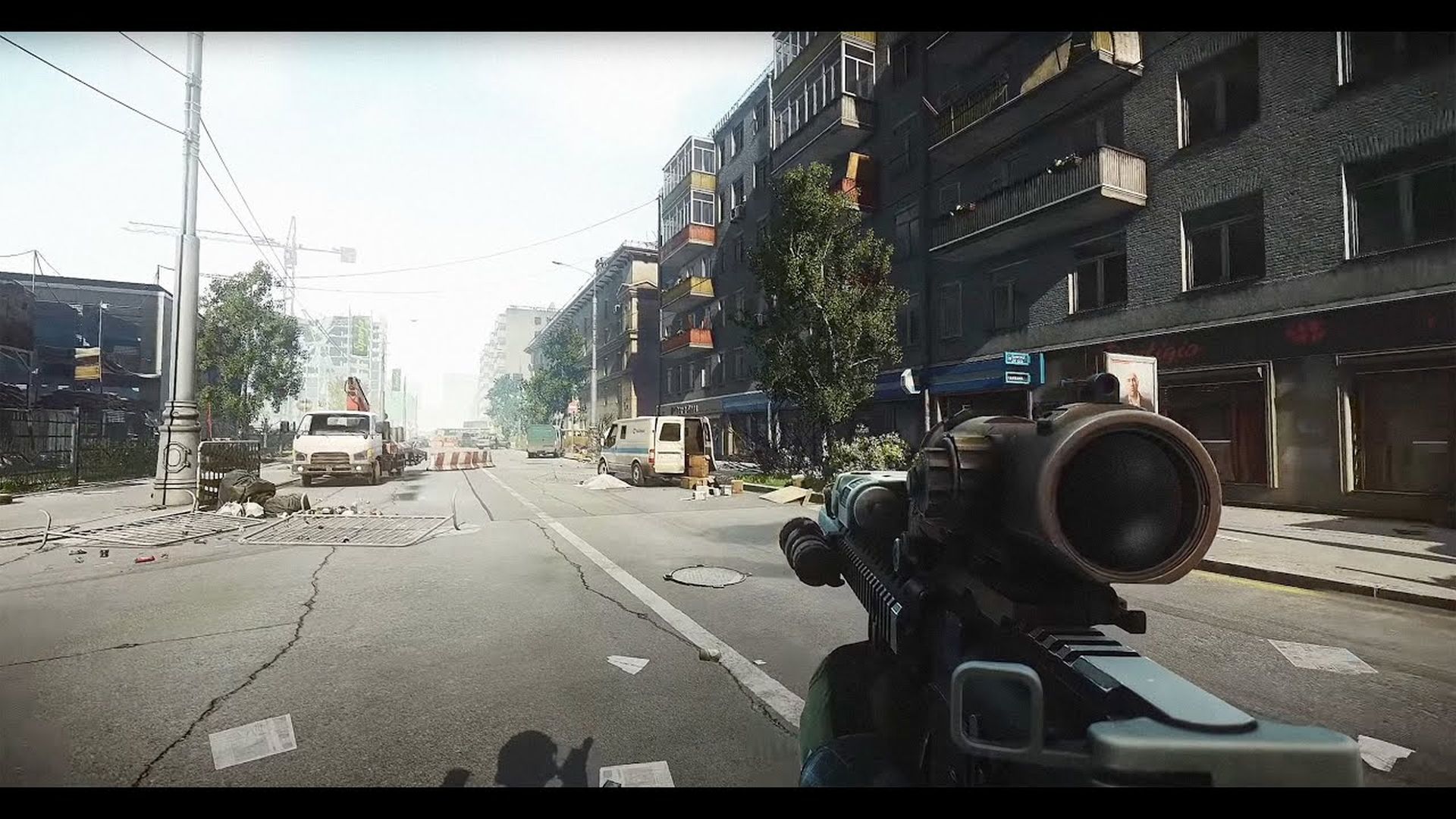

Is Escape From Tarkov Launcher not working for you too? Yes, “too,” because you are not alone in this matter. There are countless players trying to find a solution to it, and the problem is most probably a global thing and not limited to your computer. It has good and bad sides to it, let’s take a closer look at why the launcher is not working and how to fix it.
Escape From Tarkov first came on the scene in closed beta on July 27, 2017, courtesy of Battlestate Games. This multiplayer shooter drops players into a made-up Russian conflict, choosing sides between two military factions, USEC and BEAR. The game revolves around tactical raids, where you face off against both real players and computer-controlled enemies, all while aiming to gather loot and survive.
Fans of Escape From Tarkov recently ran into a snag when the game’s launcher had issues downloading an important update. If you’re stuck in this situation, don’t worry – we’ve got a detailed guide to help you sort things out and get back to the action in Tarkov.
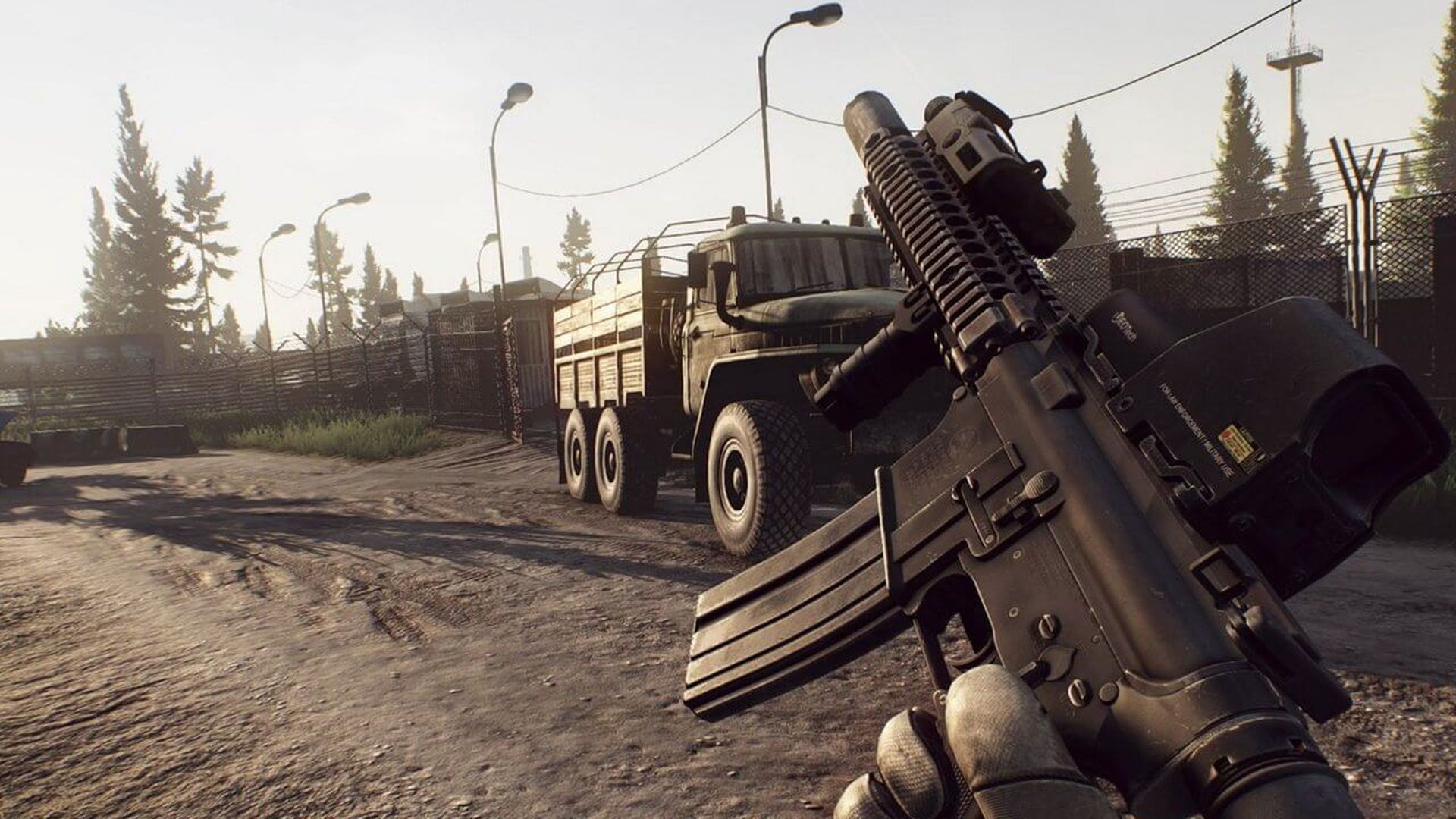
Why is the Escape from Tarkov launcher not working?
The recent trouble with the Escape From Tarkov launcher happened because of a glitch during a new update download. Players had a tough time launching the game for a bit. The good news is, the folks at Battlestate Games fixed the issue within four hours and expressed their thanks for players’ patience. They also assured everyone that they’re committed to keeping the launcher and in-game features stable.
How to Fix Escape From Tarkov launcher not working?
Is the Escape From Tarkov launcher not working on your computer? Fear not; detailed solutions are at your disposal. Here’s an in-depth guide to banish those technical gremlins:
1. Run as Administrator
Navigate to the game’s properties:
- Right-click on the game’s shortcut or executable.
- Select “Properties” from the context menu.
- In the “Compatibility” tab, check the box that says “Run this program as an administrator.”
- Click “Apply” and then “OK.”
2. Clear Cache
Eliminate potential glitches by purging the game’s cache:
- Locate the game’s installation folder on your system.
- Delete the contents of the “Cache” folder.
3. Clear Temp Folder
Sweep away temporary files from your device’s Temp folder:
- Press the Windows key + R to open the Run dialog.
- Type “%temp%” and hit Enter.
- Delete all files and folders in the Temp directory.
4. Disable Antivirus
Temporarily disable antivirus software to avoid conflicts:
- Access your antivirus settings.
- Look for an option to temporarily disable protection or turn off real-time scanning.
5. Reinstall Launcher
Bid farewell to troubles by uninstalling and reinstalling the Battlestate Games launcher:
- Uninstall the launcher through the Control Panel or Settings.
- Download the latest launcher version from the official website.
- Install the launcher and launch the game.
6. Check Game Files
Ensure the integrity of game files using the launcher’s built-in feature:
- Open the launcher.
- Click on the game settings (gear icon).
- Select “Check integrity of game files.”
7. Reinstall Escape From Tarkov
Embrace a fresh start by uninstalling and reinstalling the game:
- Uninstall Escape From Tarkov through the Control Panel or Settings.
- Download the latest game version from the official website.
- Install the game and launch it.
8. Update
Keep your system shipshape by installing all pending updates:
- Update graphics drivers, Windows, and the game itself to the latest versions.
If the launcher troubles stick around and seem to be a server issue, keep an eye on Battlestate Games’ social media for updates. And if you’re still having problems after an update, don’t hesitate to get in touch with the support team.
We hope these fixes will help you get rid of the Escape From Tarkov launcher not working issue!
Featured image credit: Escape From Tarkov