
TechBriefly
  • Tech
  • Business
  • Crypto
  • Science
  • Geek
  • How to
  • About
    • About TechBriefly
    • Terms and Conditions
    • Privacy Policy
    • Contact Us
    • Languages
      • 中文 (Chinese)
      • Dansk
      • Deutsch
      • Español
      • English
      • Français
      • Nederlands
      • Italiano
      • 日本语 (Japanese)
      • 한국인 (Korean)
      • Norsk
      • Polski
      • Português
      • Pусский (Russian)
      • Suomalainen
      • Svenska
No Result
View All Result
TechBriefly
Home How to
How to change the default browser and email client on iOS 14?

How to change the default browser and email on iOS 14?

How to change the default browser and email client on iOS 14?

Kerem GülenbyKerem Gülen
21 September 2020
in How to
Reading Time: 2 mins read
Share on FacebookShare on Twitter

How to change the default browser and email on iOS 14? With iOS 14 Apple slightly released the tight control of its system by allowing the user to choose other applications as default. For example, you can choose Google Chrome or Firefox as the default browser rather than Safari, also you can choose Outlook as the default e-mail application instead of iCloud Mail.

  • How to use the new iPhone home screen widgets on iOS 14?
  • How to use iPhone Back Tap custom controls? [iOS 14]
  • What does the green and orange dot on iPhone mean? [iOS 14]

Installing several web browsers on an iPhone or iPad does not involve complications since the App Store has a good collection of these apps. But of course, until now there was a drawback. If you open a link you were automatically directed to Safari. With iOS 14 changes you are allowed to choose your default browser, so you don’t have to open the app itself to use it.

How to change the default browser and email client on iOS 14?

So, once you update your iPhone, iPod, or iPad to the latest version of the operating system, you will have the option to choose an application other than Safari and iCloud Mail.
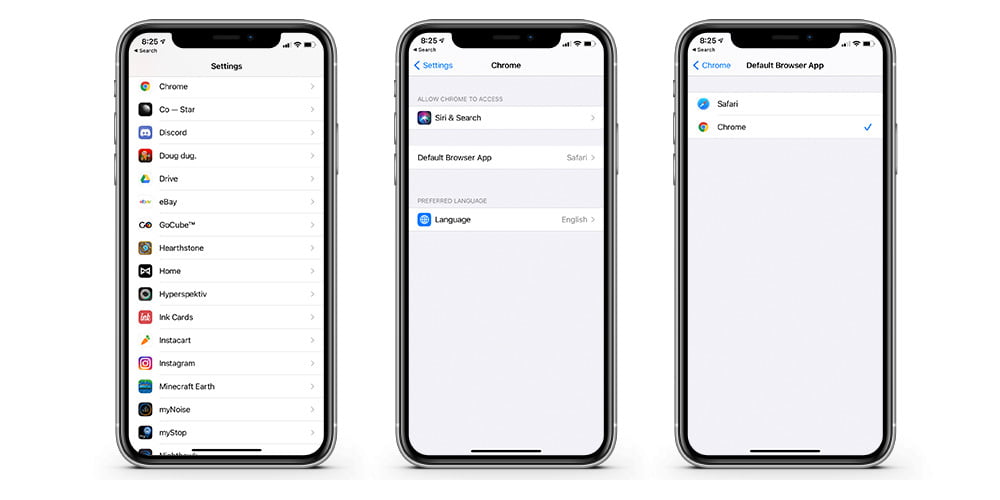
How to change the default browser and email on iOS 14?

Not all the applications have the optimization completed yet. For example you won’t be able to use Gmail as default email app. You should check applications before you try to do these settings.

To change the default app in iOS 14 you must do the following:

  • Go to the iOS 14 settings and scroll down to the application you want to use as default (Chrome, Edge, Outlook etc.).
  • In the app options menu you will see ‘Default mail app’ or ‘Default browser app’ options available, depending on what you are searching for. Click on either one.
  • Choose the application you want to use as default.

In general, there will be no problems and the application will always open by default. In this article you learned how to change the default browser and email on iOS 14?

Tags: defaultdefault browserhow toiOS 14iPadipad airiPhoneiPhone 12ipodstep by steptutorial
ShareTweet
Kerem Gülen

Kerem Gülen

Kerem from Turkey has an insatiable curiosity for the latest advancements in tech gadgets and a knack for innovative thinking. With 3 years of experience in editorship and a childhood dream of becoming a journalist, Kerem has always been curious about the latest tech gadgets and is constantly seeking new ways to create. As a Master's student in Strategic Communications, Kerem is eager to learn more about the ever-evolving world of technology. His primary focuses are artificial intelligence and digital inclusion, and he delves into the most current and accurate information on these topics.

Related Posts

How to connect a PS4 controller to Steam via USB or Bluetooth

How to connect a PS4 controller to Steam via USB or Bluetooth

24 December 2025
How to connect your phone to Wi-Fi and fix connection issues

How to connect your phone to Wi-Fi and fix connection issues

24 December 2025
The comprehensive guide to resolving Steam account sign-in errors

The comprehensive guide to resolving Steam account sign-in errors

23 December 2025
Simple ways to pair and set up smartwatches with Android devices

Simple ways to pair and set up smartwatches with Android devices

23 December 2025
Please login to join discussion

LATEST

How to connect a PS4 controller to Steam via USB or Bluetooth

How to connect your phone to Wi-Fi and fix connection issues

Apple begins iPhone 18 series production testing in January

EA investigates AI claims in Battlefield 6 cosmetics

Amazon Alexa+ will book your hotels and salons starting in 2026

OpenAI launches Skills in Codex

The comprehensive guide to resolving Steam account sign-in errors

Simple ways to pair and set up smartwatches with Android devices

How to zoom out quickly with shortcuts and gestures on your Mac

Viewing browsing history across Safari, Chrome and Firefox on Mac

TechBriefly

© 2021 TechBriefly is a Linkmedya brand.

  • Tech
  • Business
  • Science
  • Geek
  • How to
  • About
  • Privacy
  • Terms
  • Contact
  • | Network Sites |
  • Digital Report
  • LeaderGamer

Follow Us

No Result
View All Result
  • Tech
  • Business
  • Crypto
  • Science
  • Geek
  • How to
  • About
    • About TechBriefly
    • Terms and Conditions
    • Privacy Policy
    • Contact Us
    • Languages
      • 中文 (Chinese)
      • Dansk
      • Deutsch
      • Español
      • English
      • Français
      • Nederlands
      • Italiano
      • 日本语 (Japanese)
      • 한국인 (Korean)
      • Norsk
      • Polski
      • Português
      • Pусский (Russian)
      • Suomalainen
      • Svenska