
TechBriefly
  • Tech
  • Business
  • Crypto
  • Science
  • Geek
  • How to
  • About
    • About TechBriefly
    • Terms and Conditions
    • Privacy Policy
    • Contact Us
    • Languages
      • 中文 (Chinese)
      • Dansk
      • Deutsch
      • Español
      • English
      • Français
      • Nederlands
      • Italiano
      • 日本语 (Japanese)
      • 한국인 (Korean)
      • Norsk
      • Polski
      • Português
      • Pусский (Russian)
      • Suomalainen
      • Svenska
No Result
View All Result
TechBriefly
Home How to
How to show screen refresh rate in real-time on Android?

How to show screen refresh rate in real-time on Android?

Kerem GülenbyKerem Gülen
30 March 2021
in How to
Reading Time: 2 mins read
Share on FacebookShare on Twitter

If you don’t know How to show screen refresh rate in real-time on Android, we are going to help you out. With the arrival of gaming smartphones, we are seeing the arrival of new forms of cooling systems, specific software modes to get the best gaming experience. There are even triggers located onto the phone on some models.

And of course, we are witnessing an escalation in terms of the refresh rate of smartphone screens. Now we’ll show you how to check, in real-time, the screen refresh rate of your Android smartphone.

How to show screen refresh rate in real-time on Android?

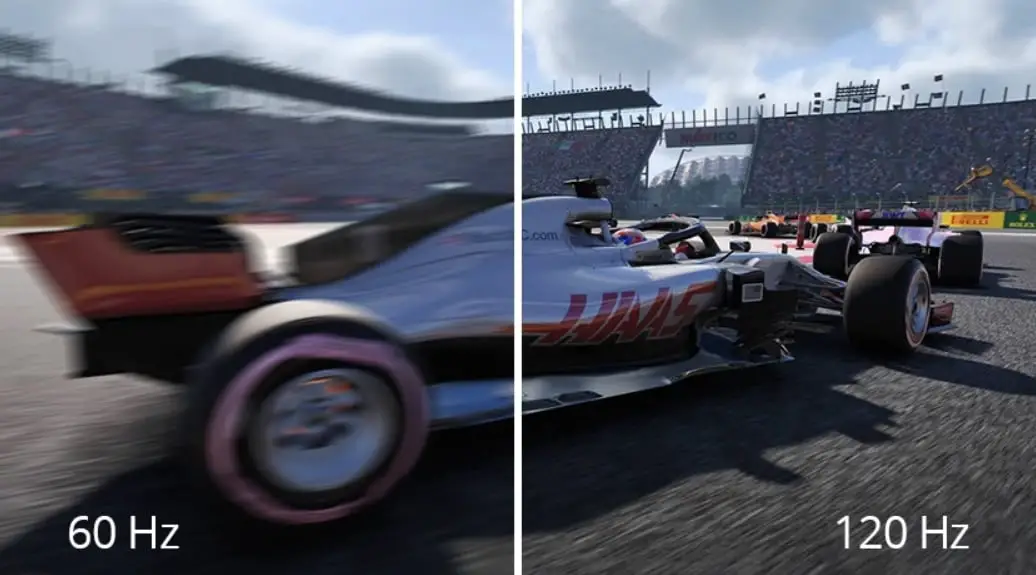
The refresh rate of a smartphone specifies the number of times the screen turns on and off to show you the images you see on it. Each time the screen turns on and off is called a ‘hertz’, so a 60Hz panel turns off and on 60 times every second.
How to show screen refresh rate in real-time on Android?

The higher the refresh rate, the more fluid we see the image on the screen, especially when there are complex animations, so we are going to show you a simple tutorial so you can check the screen refresh rate in real-time, and thus check, incidentally, how your phone behaves in front of apps and games in case of having a dynamic frequency.

In order to activate this refresh rate in real-time, we have to go to the developer options of the smartphone:

  • We go to the ‘Settings‘ of the phone.
  • Within ‘Settings’, go to ‘Phone Info’ at the bottom.
  • Now find ‘Build number’ and click on it ten times in a row.
  • This way we have activated the ‘Developer options’
How to show screen refresh rate in real-time on Android?

These developer options are hidden on Android phones, hence we have to enable them before we can access them. After you activate the developer options follow this process:

  • We go to the ‘Settings’ of the phone again.
  • Go to ‘System’
  • Inside, we find the ‘Advanced’ tab.
  • We enter the ‘Developer options’
  • We look for the ‘Debugging’ section and then ‘Show update frequency’.
  • We activate the switch and we see that the screen displays an overlay number indicating the real-time refresh rate.

As you can see the process is really simple, why don’t you try it out now?

Tags: Androidguidehow toreal timestep by steptutorial
ShareTweet
Kerem Gülen

Kerem Gülen

Kerem from Turkey has an insatiable curiosity for the latest advancements in tech gadgets and a knack for innovative thinking.With 3 years of experience in editorship and a childhood dream of becoming a journalist, Kerem has always been curious about the latest tech gadgets and is constantly seeking new ways to create.As a Master's student in Strategic Communications, Kerem is eager to learn more about the ever-evolving world of technology. His primary focuses are artificial intelligence and digital inclusion, and he delves into the most current and accurate information on these topics.

Related Posts

How to use the exit command in Windows Command Prompt

How to use the exit command in Windows Command Prompt

7 January 2026
How to view your TikTok watch history

How to view your TikTok watch history

7 January 2026
How to play the classic game of cribbage for beginners

How to play the classic game of cribbage for beginners

7 January 2026
Simple steps to create a stop-motion film using Photoshop

Simple steps to create a stop-motion film using Photoshop

7 January 2026
Please login to join discussion

LATEST

Announcements made by Samsung Display at CES 2026

Bluetti unveils dual-input Charger 2 at CES 2026

Whisper Aero unveils T1 leaf blower at CES 2026

OpenAI announces ChatGPT Health feature

Google Classroom turns lessons into podcasts with Gemini

Roblox users must scan faces to unlock chat features

Caterpillar partners with Nvidia to bring AI to the construction site

WhatsApp adds member tags and text stickers to group chats

Spotify brings live listening activity to Messages

How to use the exit command in Windows Command Prompt

TechBriefly

© 2021 TechBriefly is a Linkmedya brand.

  • Tech
  • Business
  • Science
  • Geek
  • How to
  • About
  • Privacy
  • Terms
  • Contact
  • | Network Sites |
  • Digital Report
  • LeaderGamer

Follow Us

No Result
View All Result
  • Tech
  • Business
  • Crypto
  • Science
  • Geek
  • How to
  • About
    • About TechBriefly
    • Terms and Conditions
    • Privacy Policy
    • Contact Us
    • Languages
      • 中文 (Chinese)
      • Dansk
      • Deutsch
      • Español
      • English
      • Français
      • Nederlands
      • Italiano
      • 日本语 (Japanese)
      • 한국인 (Korean)
      • Norsk
      • Polski
      • Português
      • Pусский (Russian)
      • Suomalainen
      • Svenska