
TechBriefly
  • Tech
  • Business
  • Crypto
  • Science
  • Geek
  • How to
  • About
    • About TechBriefly
    • Terms and Conditions
    • Privacy Policy
    • Contact Us
    • Languages
      • 中文 (Chinese)
      • Dansk
      • Deutsch
      • Español
      • English
      • Français
      • Nederlands
      • Italiano
      • 日本语 (Japanese)
      • 한국인 (Korean)
      • Norsk
      • Polski
      • Português
      • Pусский (Russian)
      • Suomalainen
      • Svenska
No Result
View All Result
TechBriefly
Home Tech AI
Opera One users can now use LLMs locally. Here is how

Opera One users can now use LLMs locally. Here is how

Opera has introduced a groundbreaking feature allowing users to download and run Large Language Models (LLMs) directly on their personal computers, ushering in a potential new age of browser-based AI integration

Emre ÇıtakbyEmre Çıtak
3 April 2024
in AI, How to, Software
Reading Time: 2 mins read
Share on FacebookShare on Twitter

Opera, the innovative web browser, has just introduced a groundbreaking feature.

The browser now has the ability to download and run Large Language Models (LLMs) directly on your personal computer.

This exciting development opens up a whole new dimension of possibilities for users, ushering in a potential new age of browser-based AI integration.

What are LLMs and why do they matter?

LLMs are complex AI models trained on massive amounts of text data. They have the ability to generate remarkably human-like text, translate languages, write different kinds of creative content, and answer your questions comprehensively.

Some popular examples include:

  • LLama (Meta AI)
  • ChatGPT (OpenAI)
  • PaLM (Google AI)

Opera’s local LLM initiative

Opera is now roviding access to a vast selection of third-party LLMs directly within the browser. Users can explore a library of over 150 models across more than 50 families. The availability of popular options such as Meta’s Llama, Google’s Gemma, and Vicuna places significant AI power within the hands of everyday users.

Downloading and using LLMs in Opera is a three-step process:

  1. Ensure you’re on the right Opera version: Downloading LLMs locally requires either the “Opera One” version (for developers) or a browser that gives you access to Opera’s experimental “AI Feature Drops Program.”
  2. Discover your LLM: Navigate to Opera’s LLM library and browse the available models. There’s something for everyone, with models specializing in different tasks.
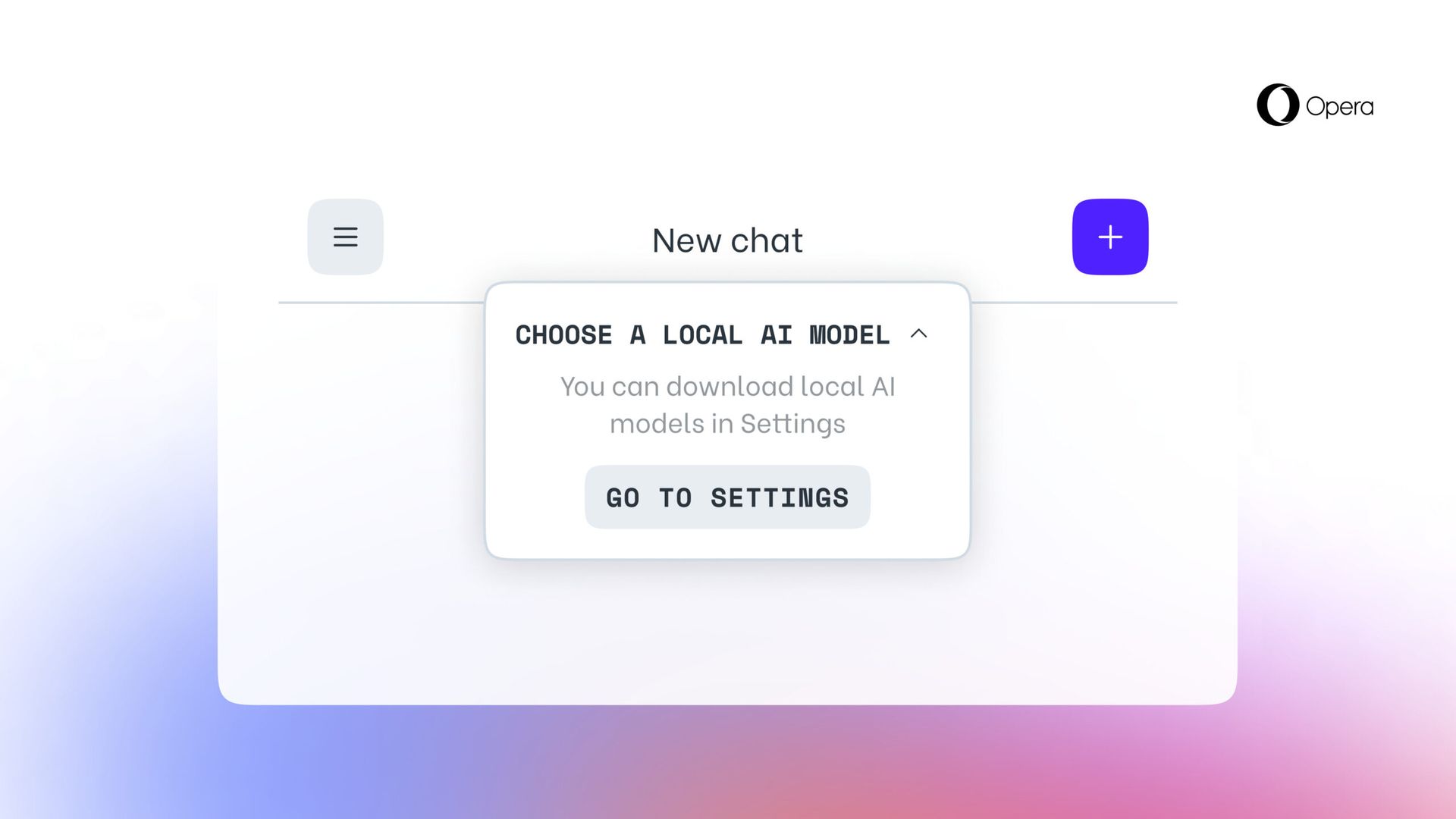
  3. Download and activate: Once you’ve selected your desired LLM, initiate the download process. Keep in mind that these models can take up several gigabytes of hard drive space. Once downloaded, activate your chosen LLM within the browser.
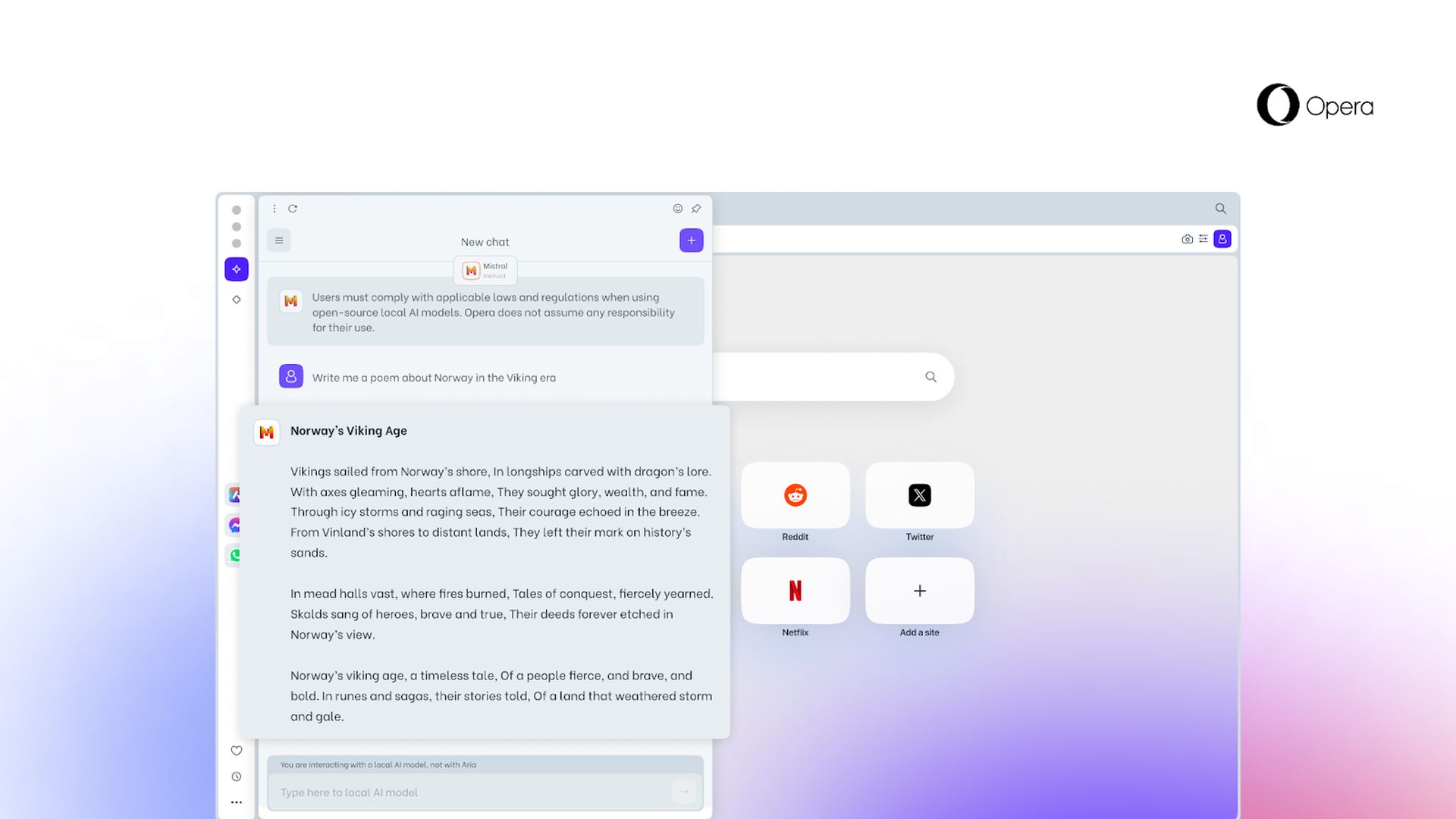
How to run LLMs locally with Opera One
Running LLMs locally offers multiple benefits to users (Image credit)

By running an LLM locally, you get:

  • Enhanced privacy: Running the model locally means your data and interactions don’t leave your device, offering greater security.
  • Offline functionality: Use the LLM even when an internet connection is unavailable.
  • Customization options: Experiment with different models that suit your specific needs and preferences.

Opera’s ability to run LLMs locally opens a world of new possibilities in AI-powered browsing experiences. As these models continue to evolve, we can expect even more creative and useful integrations that augment the way we interact with the web.

Stay tuned for further developments in this exciting space as Opera continues to push the limits.


Featured image credit: Opera

Tags: AIfeaturedhow toOpera one
ShareTweet
Emre Çıtak

Emre Çıtak

Emre’s love for animals made him a veterinarian, and his passion for technology made him an editor. Making new discoveries in the field of editorial and journalism, Emre enjoys conveying information to a wide audience, which has always been a dream for him.

Related Posts

Amazon expands healthcare portfolio with new generative Health AI tool

Amazon expands healthcare portfolio with new generative Health AI tool

22 January 2026
YouTube enables creators to generate AI likenesses for Shorts

YouTube enables creators to generate AI likenesses for Shorts

22 January 2026
Apple overhauls Siri for iOS 27 WWDC plans AI chatbot reveal

Apple overhauls Siri for iOS 27 WWDC plans AI chatbot reveal

22 January 2026
Apple targets 20M AI pin units by 2027 battles OpenAI hardware

Apple targets 20M AI pin units by 2027 battles OpenAI hardware

22 January 2026

LATEST

Amazon expands healthcare portfolio with new generative Health AI tool

What to expect at Samsung Galaxy Unpacked 2026

SpaceX targets $1.5 trillion valuation with potential July 2026 IPO

YouTube enables creators to generate AI likenesses for Shorts

Meta unleashes Threads ads globally across 400 million users

Apple overhauls Siri for iOS 27 WWDC plans AI chatbot reveal

X copies Bluesky’s Starterpacks, rolls out curated account lists

Apple targets 20M AI pin units by 2027 battles OpenAI hardware

Microsoft launches Xbox app on all Arm-based Windows 11 PCs

Adobe supercharges Acrobat packs with 12 new AI editing tools

TechBriefly

© 2021 TechBriefly is a Linkmedya brand.

  • Tech
  • Business
  • Science
  • Geek
  • How to
  • About
  • Privacy
  • Terms
  • Contact
  • | Network Sites |
  • Digital Report
  • LeaderGamer

Follow Us

No Result
View All Result
  • Tech
  • Business
  • Crypto
  • Science
  • Geek
  • How to
  • About
    • About TechBriefly
    • Terms and Conditions
    • Privacy Policy
    • Contact Us
    • Languages
      • 中文 (Chinese)
      • Dansk
      • Deutsch
      • Español
      • English
      • Français
      • Nederlands
      • Italiano
      • 日本语 (Japanese)
      • 한국인 (Korean)
      • Norsk
      • Polski
      • Português
      • Pусский (Russian)
      • Suomalainen
      • Svenska