


With this article, you learn how to fix the Pixel 7 fingerprint sensor not working error. Many users of the Pixel 7 and Pixel 7 Pro have expressed dissatisfaction with the fingerprint sensor in Reddit forums.
If you’re experiencing a similar problem, read the post to find out how to fix the Pixel 7’s broken fingerprint sensor.
Check out Google Pixel 7 and Pixel 7 Pro: Price, specs, and more
How to fix the Pixel 7 fingerprint sensor not working error?
Try these solutions to the fix the Pixel 7 fingerprint sensor not working error:
- Clean Pixel 7’s display
- Press firmly
- Cover sensor with hand
- Enable Always-on Display
- Moisturize hands
- Check screen protector
- Enable increased touch sensitivity
- Update Phone OS
- Re-register fingerprint
- Add additional copies of the same finger
Let’s take a closer look at the fixes.
Clean Pixel 7’s display
If the fingerprint is unclean or has smudges, the Pixel 7 frequently won’t be able to detect it. Use the fingerprint sensor after wiping the phone’s display with a soft cloth.
Press firmly
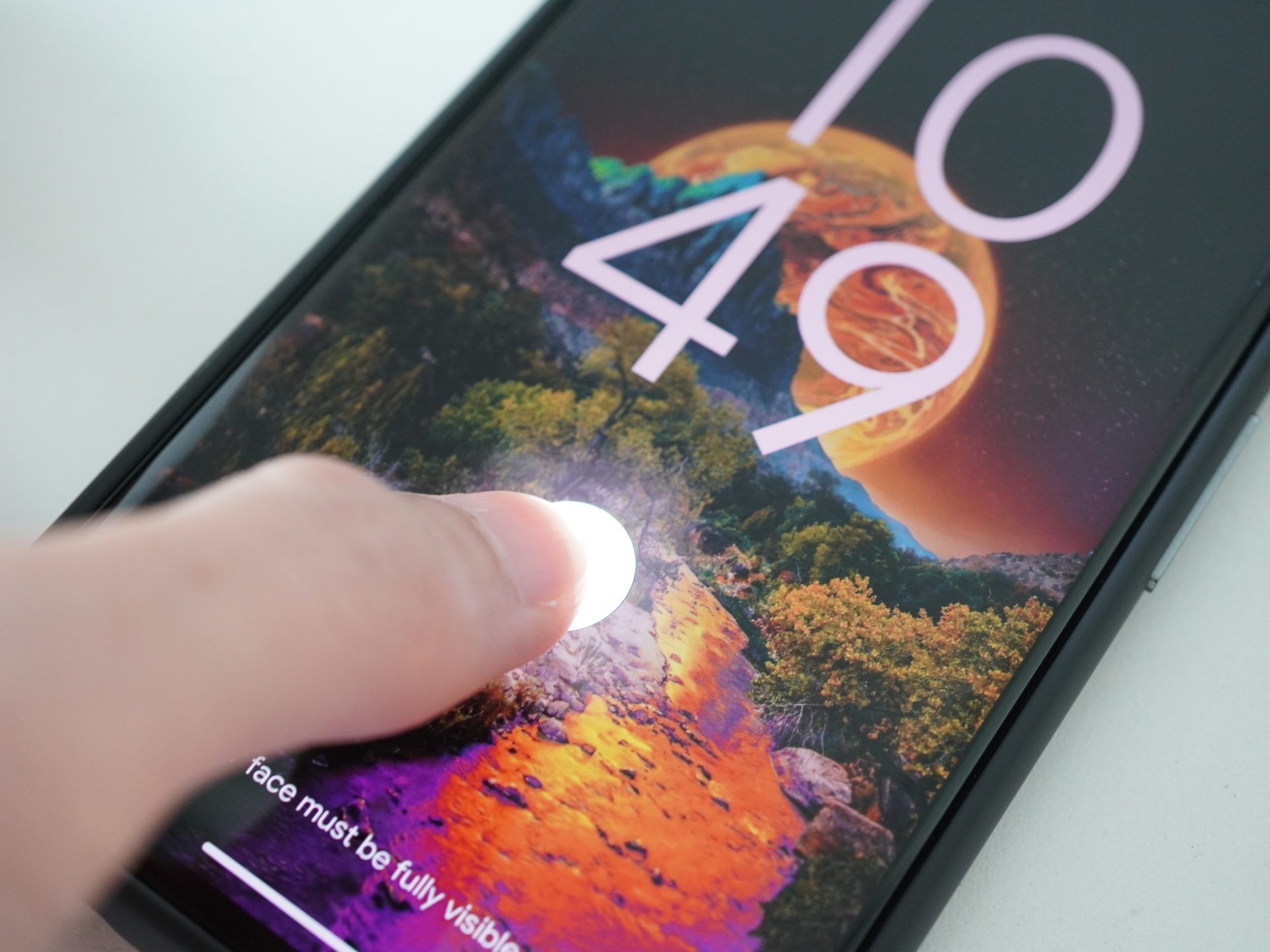
Do not just touch the screen with your finger to unlock your Pixel 7 with your fingerprint. The fingerprint is not going to be recognized. Press firmly on the sensor and hold it there for a few seconds to unlock the device properly.
Cover sensor with hand
If the fingerprint sensor on the Pixel 7 malfunctions in bright or outside light, try covering it slightly with one hand while firmly placing the finger on the sensor with the other. This is done to prevent additional light from obscuring your fingerprint.
Enable always-on display
The always-on display makes fingerprint unlocking your Pixel 7 a little quicker. This is because the fingerprint reader icon won’t take a second longer to appear on the always-on display than it would on the lock screen.
How to enable always-on display on Pixel 7?
Navigate to Settings > Display > Lock screen to turn on the always-on display.
Moisturize hands
Google has mentioned this odd patch on its own support website, even though it may seem strange. You should moisturize your hands, especially the fingertips, according to Google. This makes sense because the optical in-display fingerprint scanner, which is essentially a camera that lights up a small piece of the screen to match the fingerprint with an existing copy on your phone, may not be able to identify your fingertips adequately if they are dry or cracked.

Check screen protector
Removing screen protectors from their phones immediately resolved the fingerprint sensor not working issue, according to many Pixel 7 customers. Try switching to a screen protector that is thinner or Made for Google approved if you wish to use one. The following companies have earned the Made for Google certificate:
- Case-Mate
- InvisibleShield
- Otterbox
- Panzerglass
- Tech21
Enable increased touch sensitivity
Although this setting shouldn’t have any effect on the fingerprint sensor, some users—especially those who were using screen protectors—claim that it did. There is no harm in giving it a shot
How to enable increased touch sensitivity on Pixel 7?
Select Display under Settings. Select the Increase touch sensitivity toggle.
Update Phone OS
An operating system problem caused problems with the fingerprint scanner on the Pixel 7. Fortunately, Google’s updates made those corrections.
How to update Pixel 7?
To update your software, go to Settings > Security. Hit the Check for Update button.
Re-register fingerprint
You should try repeating the fingerprint setup procedure again if the Pixel 7 isn’t registering your fingerprint. When unlocking your phone, be careful to hold it in the same manner as you normally would.
How to re-register fingerprint on Pixel 7?
- On your Google Pixel phone, tap Settings.
- Security > Fingerprint unlock.
- Type in the backup PIN or pattern.
- The registered fingerprints will greet you. The Delete icon is located next to each of the accessible fingerprints. You’ll see a confirmation pop-up. Select Yes to remove.
- Tap the Add fingerprint option after removing the current fingerprints. You may also add a fingerprint by returning to Settings > Security > Fingerprint unlock.
- To configure the fingerprint, adhere to the on-screen instructions. To accurately register the fingerprint, you will need to repeatedly touch the sensor, hold it there, and lift your finger.
Add additional copies of the same finger
The Pixel 7 sometimes struggles to recognize the fingerprint in various lighting situations. Try adding multiple copies of the same fingerprint if one fingerprint doesn’t work. Try to add them in a variety of lighting situations, such as complete darkness, extreme brightness, and inside with standard lighting.
How to add multiple fingerprints on Pixel 7?
Go to Settings > Security > Fingerprint > Add Fingerprint to add more fingerprints.


