
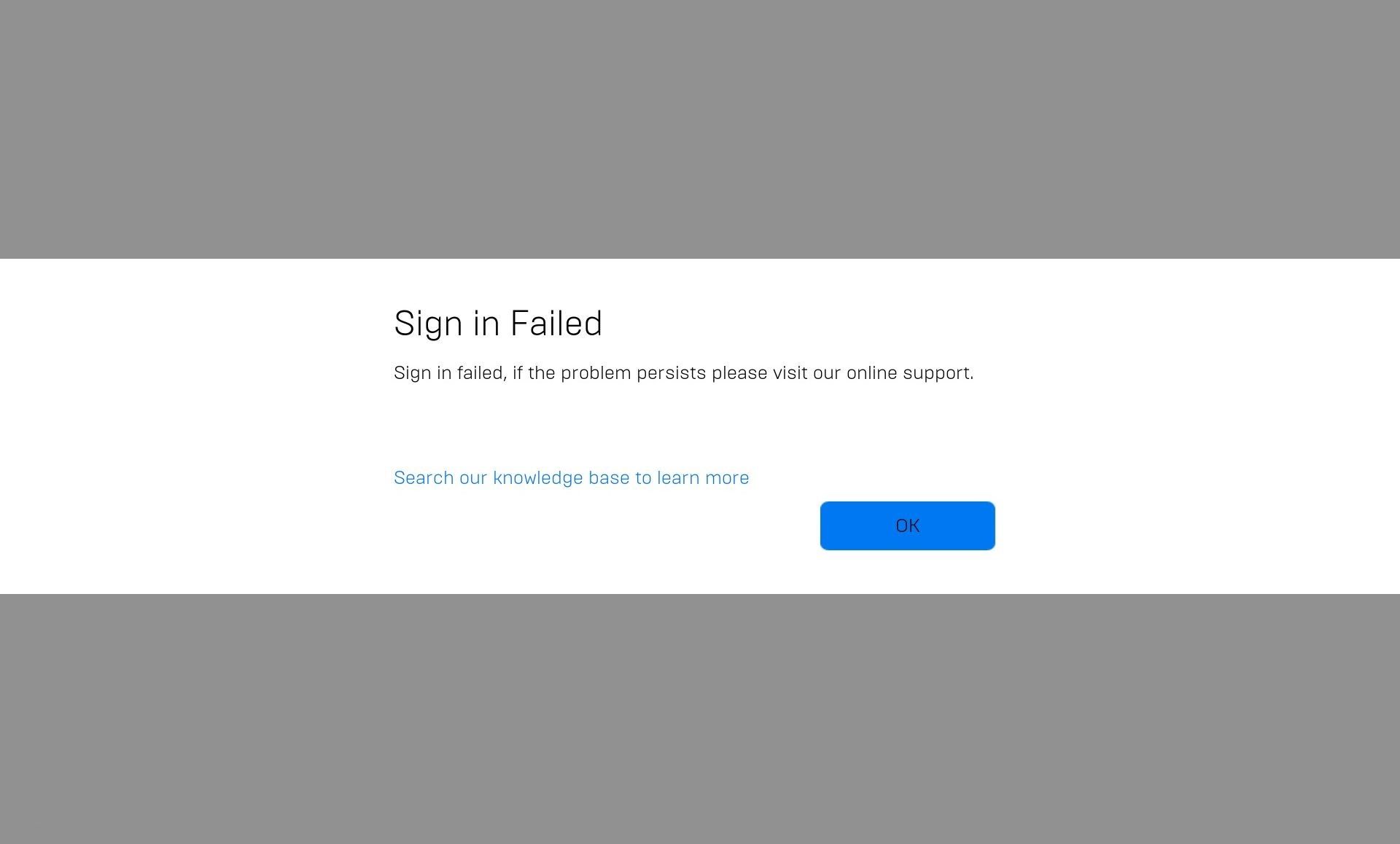

In this article, we are going to be covering how to fix Epic Games Launcher sign in failed, so you can continue gaming without any more problems.
Epic Games is a major game distribution platform, competing with services such as Steam and GOG. As a result, it should come as no surprise that the owners created their own client, dubbed the Epic Games Launcher. The Epic Games launcher allows you to buy and download games as well as interact with other users. You may also manage your game collection and stay up to date on the newest Epic Store news. Logging in using an account and password that you must first create secures your information. However, some users have reported having issues with the procedure.

There are several causes for this difficulty, and understanding them requires a look at related issues:
- If your Epic Games account is not discovered, you may have entered your credentials incorrectly.
- It is also possible that your account was hacked.
- Check your network connection and login details if you use Google or Facebook to log in.
- Many customers have reported being locked in offline mode because they are unable to connect to Epic Games. This is most certainly due to server problems.

How to fix Epic Games Launcher sign in failed?
If you are having this issue, here are some of the solutions that might fix it for you.
Check Epic Games servers
- Visit the Epic Games Public status page for further information.
- Check to see if any of the services are having issues.
- If there is a problem with any of them, you will have to wait for it to be resolved.
The Epic servers in your region may be unavailable, but this does not imply that they are unavailable globally. You can find out if this is the case by utilizing a VPN service like PIA.

Make sure that your credentials are valid
- Go to the login portion of your Epic Games Launcher.
- Sign in using Epic Games.
- Then click the Forgot Your Password link.
- Then, in the Email Address section, enter the email address connected with your account.
- Click the Send Email button.
- To reset your password, follow the instructions in the email.
If you are unable to log in to your Epic Games account, it is possible that you have forgotten your password or that your credentials have been changed. When you get the following error notice, you know this is the case:
Sorry, the credentials you are using are invalid

If you haven’t used your Epic Games account in a while, you could have forgotten your login information. A data breach that resulted in a compromised account is also a possibility. In any case, if you have access to the email address you used to establish the account, you may quickly retrieve your password. If you recently reset or changed your password, it may take some time for the changes to take effect. As a result, wait a little longer before attempting to log in again.
Make sure you’re not logged in on another PC
Check that you are not logged in with your Epic Games account on another PC/device. Log out and try again if you are. Logging out of your account is usually a good idea, so be sure you do so to avoid situations like these.
Delete the launcher’s webcache
- The Epic Games Launcher is the first.
- Press Windows key + R, then type %localappdata% and press Enter.
- Navigate to the Epic Games Launcher folder.
- Then, navigate to the Saved folder.
- Then, right-click on the webcache folder and choose Delete.
- Delete any folders named webcache 4147 that you detect.
- After that, restart your device.

Repair your Epic Games launcher
- Press the Windows key + R at the same time.
- Enter appwiz.cpl.
- Choose Epic Store Launcher.
- Select Repair from the context menu.
- Follow the directions.
- Restart your device after that.
We hope that you enjoyed this article on how to fix Epic Games Launcher sign in failed. If you did, we are sure that you will also enjoy reading some of our other articles, such as Epic Games Store free games of 2022, or FIFA 23 Epic Games glitch made the game almost free.


