

How to use watch together function in Plex? Digital streaming services are getting even more popular each passing day because of the COVID-19 pandemic. People don’t go to the movies anymore. If you want to experience watching a movie with your friends or family online, keep reading this article.
Fortunately, it is possible to watch Plex with your friends. The functionality is available directly within the application called Watch Together. Also, there’s another tool that we are going to talk about called SyncLounge.
What is Plex Watch Together function?
First, let’s take a look at Plex’s tool for watching videos with friends. It is called Watch Together, and it’s still in an experimental stage. However, the feature seems to work flawlessly and the interface is easy to use.
- How to add subtitles automatically in Plex?
- Comparison: Plex vs Kodi, which one is better?
- Best ways to use Plex: Tricks for a better streaming experience
Is Plex watch together free?
Although Plex’s Watch Together feature is still in beta, it is free for all Plex users. However, this may change when it is officially released. Plex’s documentation seems to suggest that Watch Together will remain free if you only want to stream content from Plex’s ad-supported, internal, free streaming service. However, if you want to stream content from your library, you will likely need to sign up for Plex Pass.
Right now, you will need to have an Android, Android TV, Apple TV, iOS, or Roku device in order to use Watch Together. Watch Together cannot be used from the web application.

How many people can tune in to Watch Together?
Officially, Plex has not indicated a limit on the number of users. However, in practice, the limit will depend on your Plex Media Server hardware, network connection, disk speed, and video quality.
Be careful, trying to add too many users might cause playback problems.
How to use Watch Together function?
Assuming you’re using one of the supported devices, you’ll need to press the More button (three horizontal dots) on a video’s pre-play screen, then select Watch Together from the list of options.
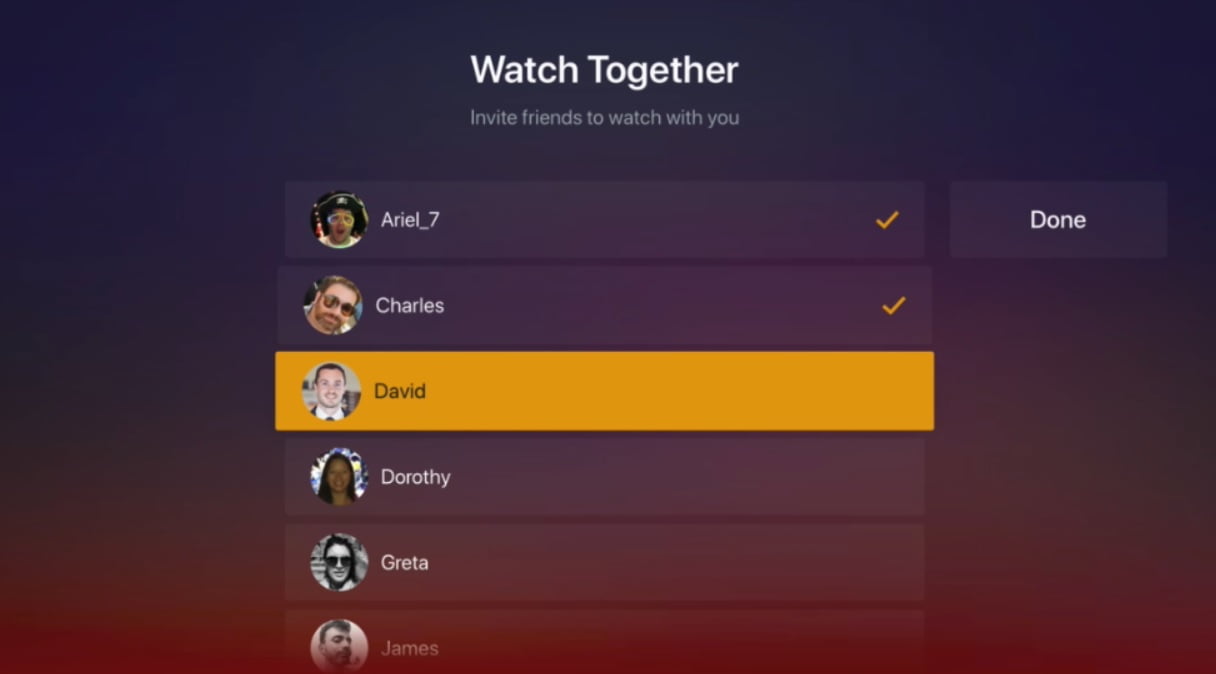
Next, you need to add people to your Watch Together session. You can only invite Plex users that you added as a friend. When you’re ready, click on the names of the friends that you want to add and click Done. To add a new friend, go to Settings> Users & Sharing> Library Sharing and enter the username or email address of the person you want to connect with.
Important note: If you just added a new friends and you don’t see them listed, you’ll need to restart the app to refresh your friend list.
If you’ve been invited to someone else’s Plex Watch Together session, you’ll see a Watch Together line appear at the top of the app’s home screen, along with the video uploaded by the host.
When users accept invitations, they will all appear together in one lobby. Once everyone is arrived, the host can start playing. Only the host can control the play/pause function once the video starts. Hosts also have exclusive control over different audio streams and subtitles.
SyncLounge
Formerly called Plex Together, SyncLounge is another great way to watch Plex together with friends. Like Plex’s official Watch Together tool, SyncLounge will sync your individual Plex apps so everyone will be watching the same movie at the same time.
SyncLounge has some functions that are not available in the official application yet. For example, you can hide your Plex username when you log into a room, you can re-enter recent rooms, and you can automatically play subsequent episodes when you watch TV with friends.
We also really like the app’s user status indicators. Each user has a colored ring around their profile photo to indicate the sync distance, and you can even see the type of Plex client they are using.
How to use SyncLounge?
To get started, click the Get Started link on the SyncLounge website and log in with your Plex account. If you don’t want to hand over your information, you can download the app from GitHub and run it directly on your server.
Hosts will need to create a virtual room and invite other people to join them. Guests only need to accept the invitation.
Like Watch Together, only hosts can play and pause videos, change subtitles etc.
Plex vs SyncLounge
SyncLounge has some advantages over the official Watch Together tool from Plex.
First, you don’t need to be “Plex friends” to watch together. Second, all the people connected to the room will be able to use each other’s content (Plex Media Server content).
In the long term, we assume that Plex’s official tool will get better, but for now SyncLoung is a good option too. The decision is yours. In this article you learned how to use Watch Together function in Plex.


