

TechBriefly
  • Tech
  • Business
  • Crypto
  • Science
  • Geek
  • How to
  • About
    • About TechBriefly
    • Terms and Conditions
    • Privacy Policy
    • Contact Us
    • Languages
      • 中文 (Chinese)
      • Dansk
      • Deutsch
      • Español
      • English
      • Français
      • Nederlands
      • Italiano
      • 日本语 (Japanese)
      • 한국인 (Korean)
      • Norsk
      • Polski
      • Português
      • Pусский (Russian)
      • Suomalainen
      • Svenska
No Result
View All Result
TechBriefly
Home How to
How to add subtitles automatically in Plex?

How to add subtitles automatically in Plex?

How to add subtitles automatically in Plex?

Kerem GülenbyKerem Gülen
24 September 2020
in How to
Reading Time: 2 mins read
Share on FacebookShare on Twitter

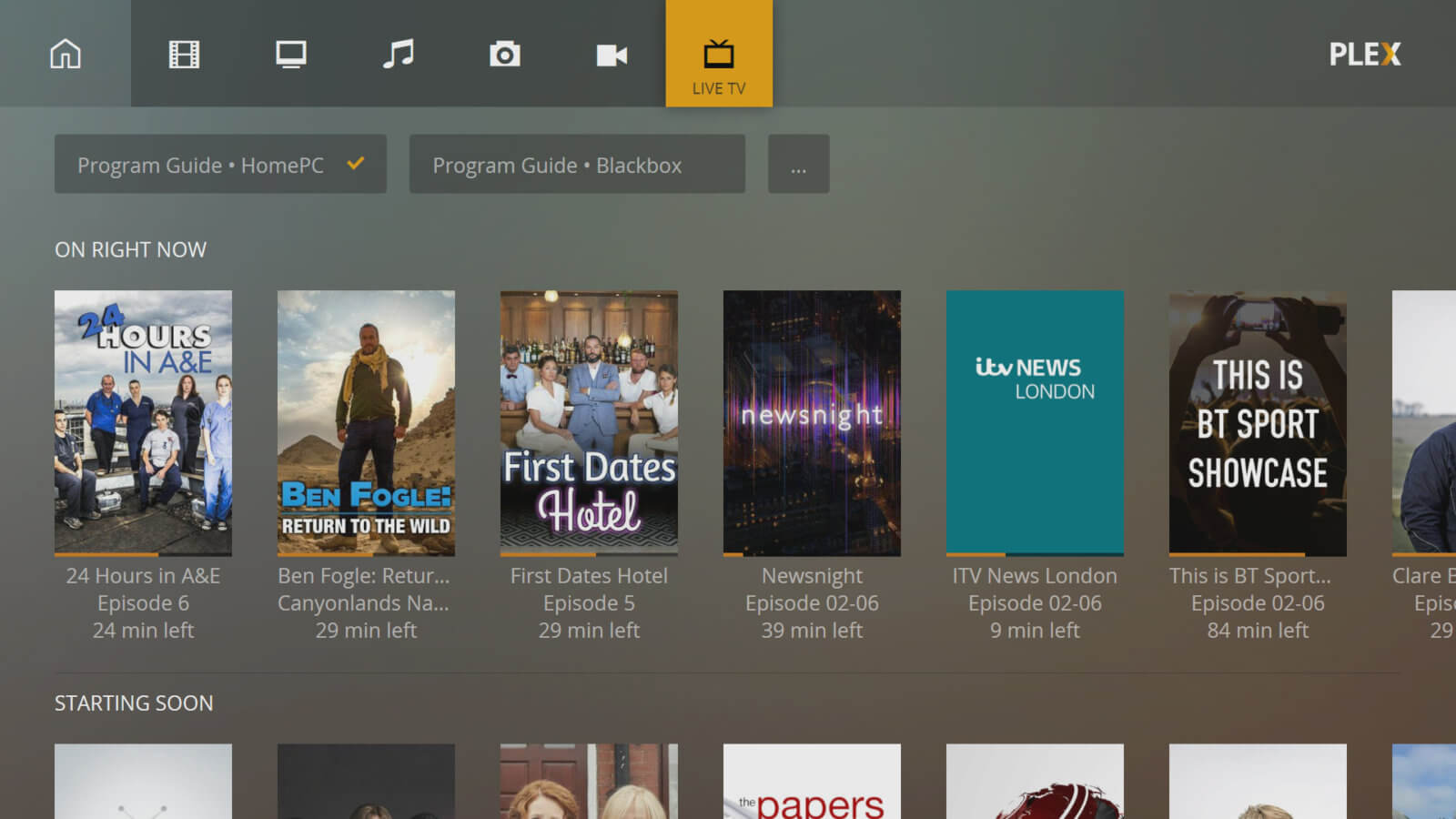
How to add subtitles automatically in Plex? The arrival of Plex to Apple TV has been a revolution for those who use Plex. Thanks to the application that we already have in the App Store of the new 4th generation Apple TV, it could not be easier to watch our favorite movies and series comfortably from the living room sofa. Plex not only organizes our library with great details, covers, actors, synopses and even movie trailers, it also allows us to add interesting functions like having the subtitles of the series and movies automatically downloaded. You should follow these steps to do so.

How to add subtitles automatically in Plex?

  • Best ways to use Plex: Tricks for a better streaming experience
  • Free TV on Plex, now available to all users
  • Best alternatives to Plex media center

Create an account at OpenSubtitles.org

It is the first step, it only costs a few seconds of your time and it is free. Go to the official website and create a free account. Plex will download subtitles from that page. Once this is done you can continue with the next step.
How to add subtitles automatically in Plex?

Activate the OpenSubtitles plugin in Plex

Obviously you must have the Plex Media Server application installed on your computer and have your multimedia library already added, which is quite simple. Let Plex download all the content from the internet (covers, titles, cast etc.) then continue. After these settings are done proceed to the following steps. This way you will learn how to add subtitles automatically in Plex.

  1. Open «Media Manager» in Plex and click on the gear wheel on the left (arrow), then choose the option «Settings» and under «Server > Agents» select «TV Series > The TVDB», check the option “OpenSubtitles.org” to activate it. Click on the three horizontal stripes on the left of Opensubtitles and place it in the first position of the list. Now click on the gear wheel on the right.
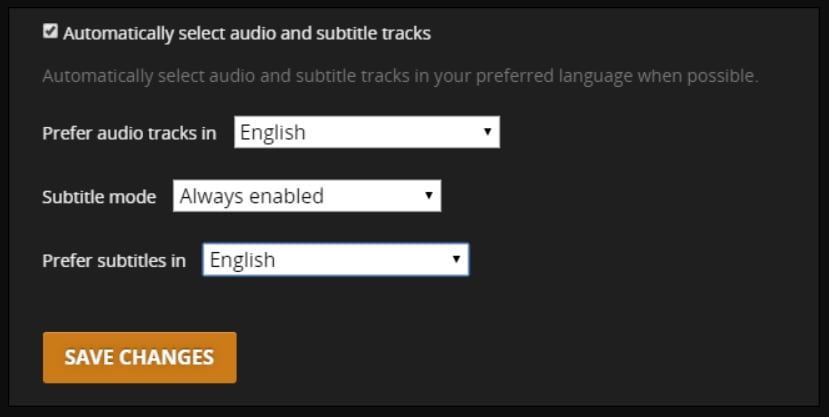
  2. You will then have to enter your access data to the account that you created in the first step of this tutorial and choose the subtitles that you want to be downloaded automatically.
  3. Click Save when everything is properly set and close the browser. Reopen the “Media Manager” and update the contents of the library. Depending on the size of the library, it may take longer or shorter to download all the subtitles. If you want to do it also for movies, repeat the same steps but do it in the “Movies” menu.
  4. You will no longer have to worry about searching for websites to download subtitles, or having to rename them to match the video file or add them to your library. Plex will take care of all this for you and you can also view them on your iPhone, iPad, or Apple TV without problems.

Thanks to these simple steps, in this article you learned how to add subtitles automatically in Plex.

Tags: Appleapple tvhow toiOSiPadiPhoneNetflixPlexstep by step
ShareTweet
Kerem Gülen

Kerem Gülen

Kerem from Turkey has an insatiable curiosity for the latest advancements in tech gadgets and a knack for innovative thinking.With 3 years of experience in editorship and a childhood dream of becoming a journalist, Kerem has always been curious about the latest tech gadgets and is constantly seeking new ways to create.As a Master's student in Strategic Communications, Kerem is eager to learn more about the ever-evolving world of technology. His primary focuses are artificial intelligence and digital inclusion, and he delves into the most current and accurate information on these topics.

Related Posts

How to install mods and custom content in The Sims 2

How to install mods and custom content in The Sims 2

26 December 2025
Running Python files and fixing path errors on Windows

Running Python files and fixing path errors on Windows

26 December 2025
How to boot your PC into Command Prompt for troubleshooting

How to boot your PC into Command Prompt for troubleshooting

26 December 2025
How to delete a virus using Command Prompt

How to delete a virus using Command Prompt

26 December 2025
Please login to join discussion

LATEST

New WhatsApp update brings 2026 stickers and video call effects

Leaker reveals Xiaomi plans for high end eSIM device in 2026

HP prepares OMEN OLED monitor reveal for CES 2026

High RAM costs from AI boom could delay next Xbox and PlayStation

LG to unveil its Gallery TV at CES 2026

Bitcoin drops 3% to $87,300 as altcoins decline

How to install mods and custom content in The Sims 2

Running Python files and fixing path errors on Windows

How to boot your PC into Command Prompt for troubleshooting

How to delete a virus using Command Prompt

TechBriefly

© 2021 TechBriefly is a Linkmedya brand.

  • Tech
  • Business
  • Science
  • Geek
  • How to
  • About
  • Privacy
  • Terms
  • Contact
  • | Network Sites |
  • Digital Report
  • LeaderGamer

Follow Us

No Result
View All Result
  • Tech
  • Business
  • Crypto
  • Science
  • Geek
  • How to
  • About
    • About TechBriefly
    • Terms and Conditions
    • Privacy Policy
    • Contact Us
    • Languages
      • 中文 (Chinese)
      • Dansk
      • Deutsch
      • Español
      • English
      • Français
      • Nederlands
      • Italiano
      • 日本语 (Japanese)
      • 한국인 (Korean)
      • Norsk
      • Polski
      • Português
      • Pусский (Russian)
      • Suomalainen
      • Svenska