
TechBriefly
  • Tech
  • Business
  • Crypto
  • Science
  • Geek
  • How to
  • About
    • About TechBriefly
    • Terms and Conditions
    • Privacy Policy
    • Contact Us
    • Languages
      • 中文 (Chinese)
      • Dansk
      • Deutsch
      • Español
      • English
      • Français
      • Nederlands
      • Italiano
      • 日本语 (Japanese)
      • 한국인 (Korean)
      • Norsk
      • Polski
      • Português
      • Pусский (Russian)
      • Suomalainen
      • Svenska
No Result
View All Result
TechBriefly
Home How to
How to change iOS 16 Notifications display?

How to change iOS 16 Notifications display?

If you are wondering how to change iOS 16 Notifications display, we've got you covered.

Önder ErdinebyÖnder Erdine
16 September 2022
in How to
Reading Time: 3 mins read
Share on FacebookShare on Twitter

In this article, we are going to be covering how to change iOS 16 Notifications display, so you don’t miss out on any of your notifications.

Yes, the new mobile operating system of Apple is now out. Check out iOS 16 supported devices list to see if your iPhone can receive the new update. Apple brought some interesting tools with this update, discoved iOS 16 top features here! You might be asking yourself like: “Should I update to iOS 16 now or wait?” Well, we need to tell you that there are 9 hidden iOS 16 features you shouldn’t miss.
In this article, we are going to be covering how to change iOS 16 Notifications display, so you don't miss out on any of your notifications.
How to change iOS 16 Notifications display?

You can also learn how to add widgets to the lock screen check out the best iOS 16 lock sceen widgets by visiting our guides. This way you will learn how to customize lock screen on iOS 16. If you don’t like the search button, find out how to remove home screen search button in iOS 16.
In this article, we are going to be covering how to change iOS 16 Notifications display, so you don't miss out on any of your notifications.
How to change iOS 16 Notifications display?

How to change iOS 16 Notifications display?

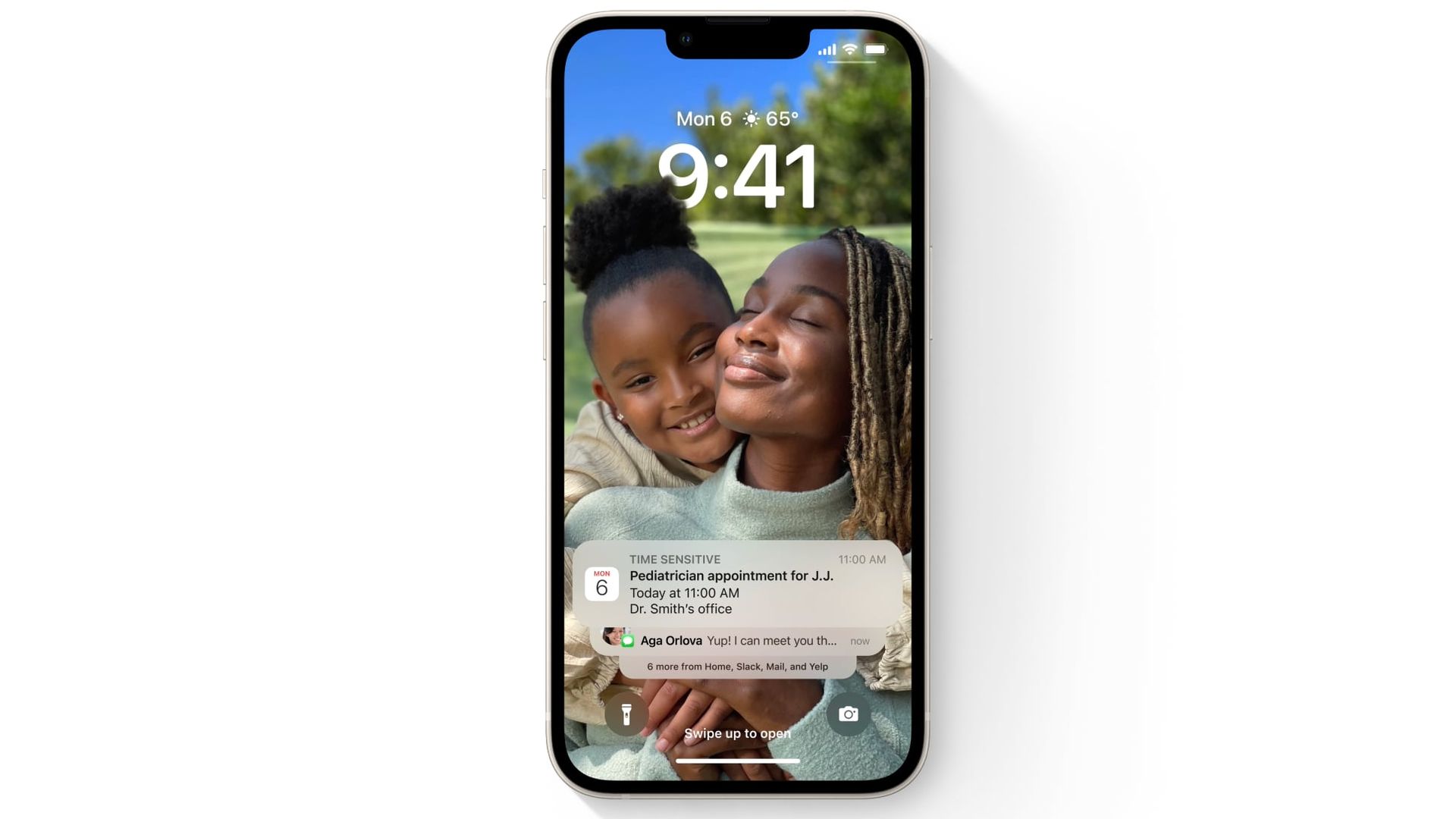
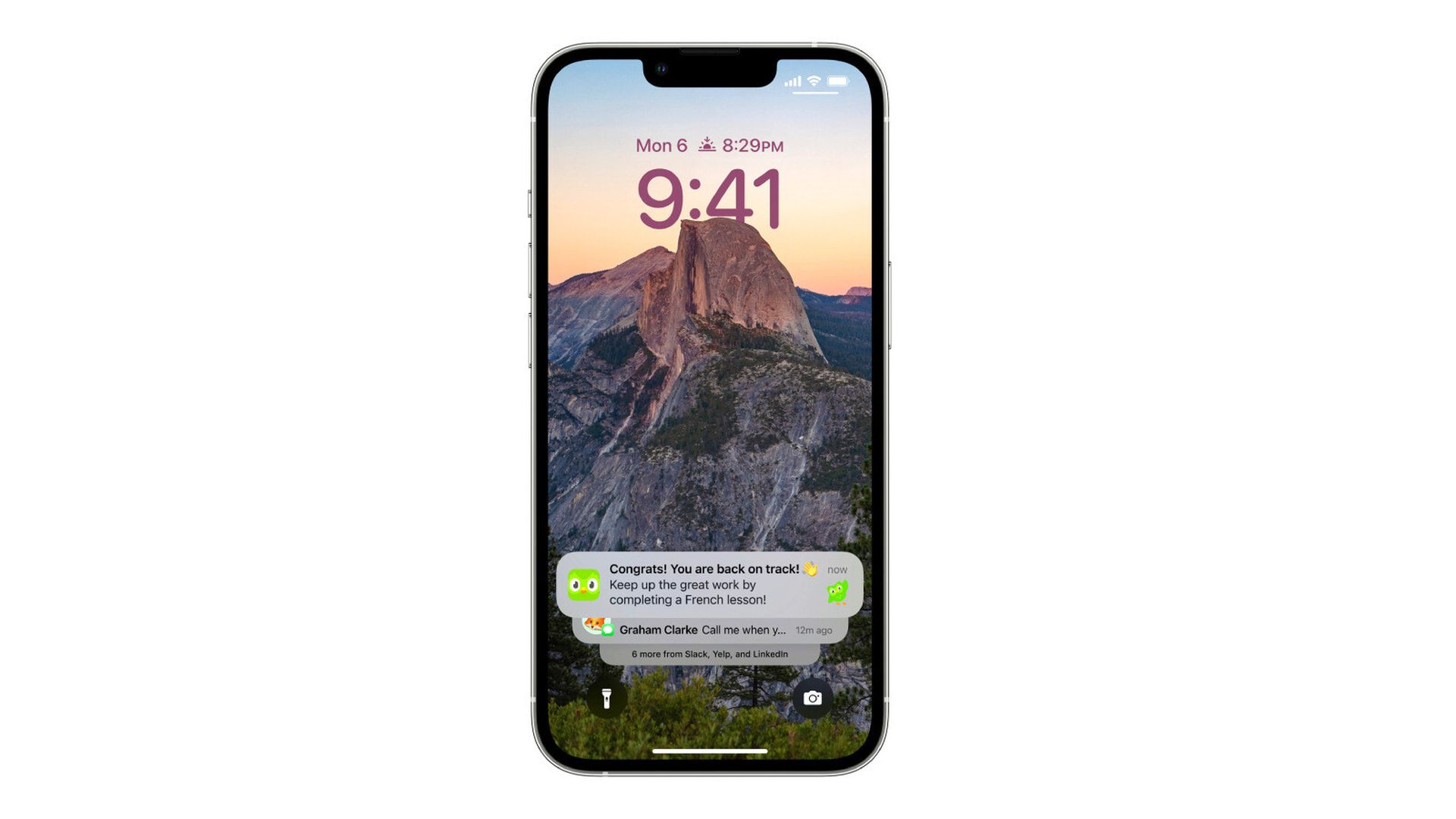
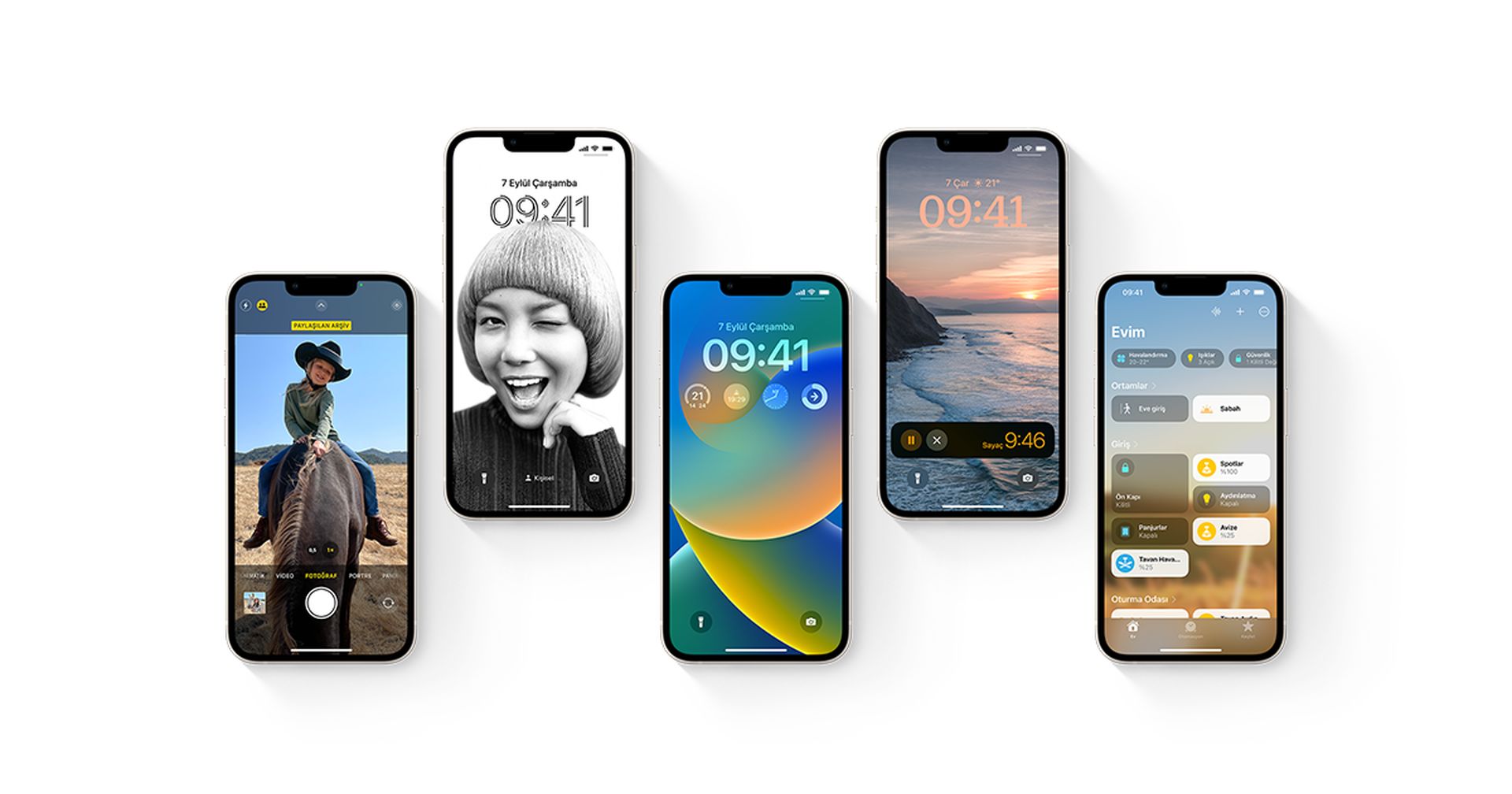
Apple made significant modifications to the iPhone Lock Screen in iOS 16, including numerous layers of customization and the ability to add widgets. Apple modified the way alerts appear and introduced choices for how they should be shown as part of its design makeover. Notifications now appear at the bottom of the screen rather than the top due to the new Lock Screen design. This results in a more modest notice that does not interfere with any widgets you have put up. You can see the alerts by swiping up from the bottom of the screen, then down to conceal them.

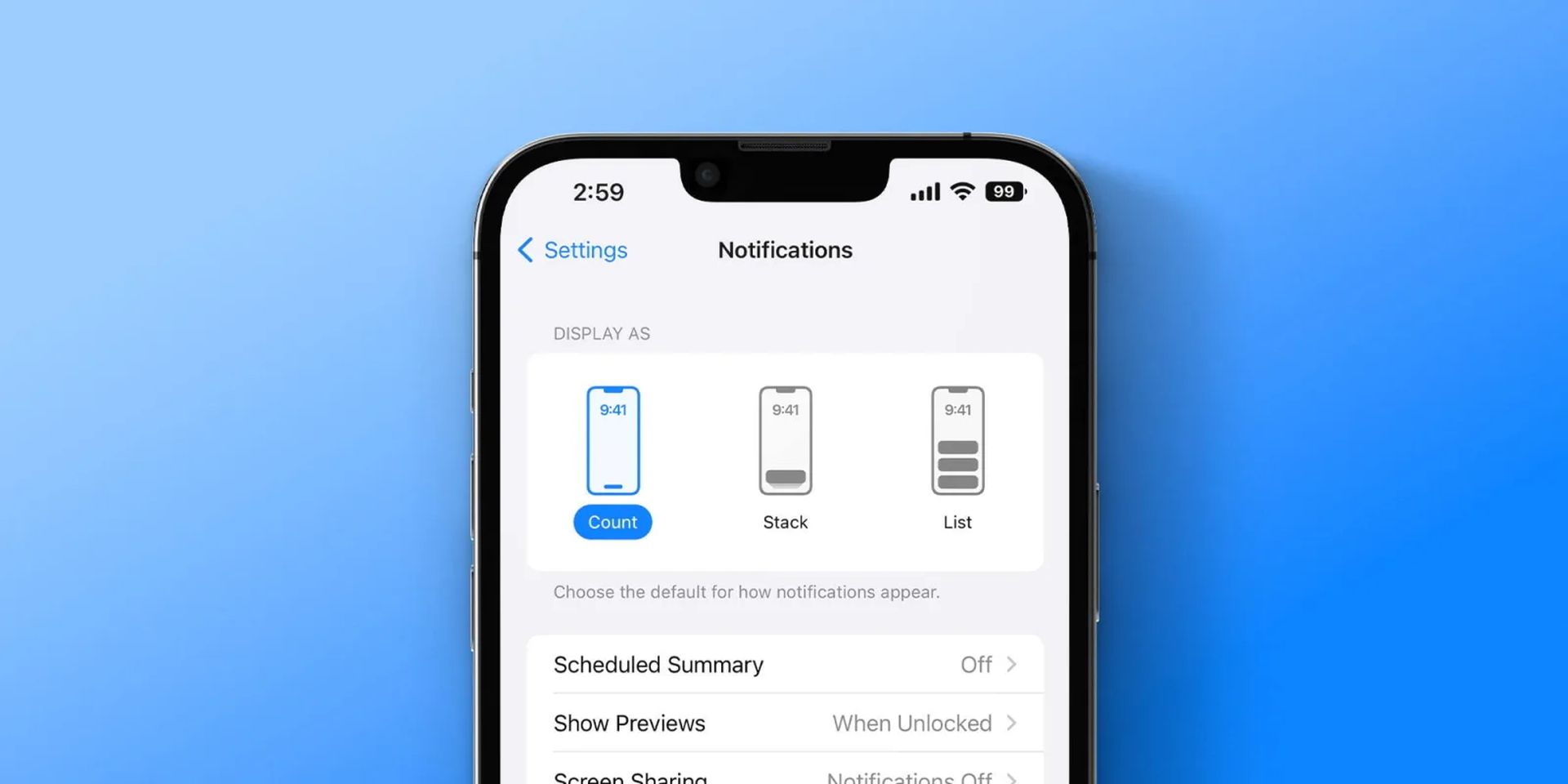
You can also adjust the arrangement of the notifications list on the Lock Screen by pinching it. Alerts can be shown as a conventional list, a stack, or a numerical count indicating the amount of notifications needing your attention. You may also choose one of these layouts as your Lock Screen’s default via a new option in Settings.
In this article, we are going to be covering how to change iOS 16 Notifications display, so you don't miss out on any of your notifications.
How to change iOS 16 Notifications display?
  1. On your iPhone, open the Settings app.
  2. Select Notifications.
  3. Select Display As.
  4. Choose from the following options: Count, Stack, or List.
In this article, we are going to be covering how to change iOS 16 Notifications display, so you don't miss out on any of your notifications.
How to change iOS 16 Notifications display?

That is all there is to know on how to change iOS 16 Notifications display. The adjustment will be made instantly, and all future alerts should appear on the Lock Screen based on your chosen configuration.

Should I update to iOS 16?

Although iOS 16 has some great new features, you’re better off waiting for iOS 16.1, iPadOS 16.1, and possibly macOS Ventura, all of which will be out in October. New features are offered, as well as a more stable experience. Even if you want to upgrade to iOS 16 right away, waiting until after the first release is frequently a wise choice. You may at least give Apple one or two weeks until the iOS 16.0.1 bug-fix update is made available. If you want to learn more, make sure to check out should I update to iOS 16 now or wait.
In this article, we are going to be covering how to change iOS 16 Notifications display, so you don't miss out on any of your notifications.
How to change iOS 16 Notifications display?

We hope that you enjoyed this article on how to change iOS 16 Notifications display. If you did, we are sure that you will also enjoy reading some of our other articles, such as how to create Stranger Things wallpaper in iOS 16, iOS 16: How to make Safari tab groups or new iOS 16.1 features and changes.

Tags: Appleguidehow toiOS 16
ShareTweet
Önder Erdine

Önder Erdine

Related Posts

How to install mods and custom content in The Sims 2

How to install mods and custom content in The Sims 2

26 December 2025
Running Python files and fixing path errors on Windows

Running Python files and fixing path errors on Windows

26 December 2025
How to boot your PC into Command Prompt for troubleshooting

How to boot your PC into Command Prompt for troubleshooting

26 December 2025
How to delete a virus using Command Prompt

How to delete a virus using Command Prompt

26 December 2025

LATEST

New WhatsApp update brings 2026 stickers and video call effects

Leaker reveals Xiaomi plans for high end eSIM device in 2026

HP prepares OMEN OLED monitor reveal for CES 2026

High RAM costs from AI boom could delay next Xbox and PlayStation

LG to unveil its Gallery TV at CES 2026

Bitcoin drops 3% to $87,300 as altcoins decline

How to install mods and custom content in The Sims 2

Running Python files and fixing path errors on Windows

How to boot your PC into Command Prompt for troubleshooting

How to delete a virus using Command Prompt

TechBriefly

© 2021 TechBriefly is a Linkmedya brand.

  • Tech
  • Business
  • Science
  • Geek
  • How to
  • About
  • Privacy
  • Terms
  • Contact
  • | Network Sites |
  • Digital Report
  • LeaderGamer

Follow Us

No Result
View All Result
  • Tech
  • Business
  • Crypto
  • Science
  • Geek
  • How to
  • About
    • About TechBriefly
    • Terms and Conditions
    • Privacy Policy
    • Contact Us
    • Languages
      • 中文 (Chinese)
      • Dansk
      • Deutsch
      • Español
      • English
      • Français
      • Nederlands
      • Italiano
      • 日本语 (Japanese)
      • 한국인 (Korean)
      • Norsk
      • Polski
      • Português
      • Pусский (Russian)
      • Suomalainen
      • Svenska