


TechBriefly
  • Tech
  • Business
  • Crypto
  • Science
  • Geek
  • How to
  • About
    • About TechBriefly
    • Terms and Conditions
    • Privacy Policy
    • Contact Us
    • Languages
      • 中文 (Chinese)
      • Dansk
      • Deutsch
      • Español
      • English
      • Français
      • Nederlands
      • Italiano
      • 日本语 (Japanese)
      • 한국인 (Korean)
      • Norsk
      • Polski
      • Português
      • Pусский (Russian)
      • Suomalainen
      • Svenska
No Result
View All Result
TechBriefly
Home How to
How to save Instagram posts and create collections?

How to save Instagram posts and create collections?

How to save Instagram posts and create collections?

Kerem GülenbyKerem Gülen
17 September 2020
in How to
Reading Time: 2 mins read
Share on FacebookShare on Twitter

Here’s what you can do to save Instagram posts and organize them into collections to see later.

When you follow interesting hashtags on Instagram, you will come across many posts that you might want to save and see later.

How to save Instagram posts and create collections?

Saving a post on Instagram and adding it to a collection is an extremely simple task, but let’s also say, finding saved posts is a completely different story.

  • When you come across an Instagram post you want to bookmark, simply tap the “Save” button in the lower right corner of the post (it appears as a Bookmark icon).
  • When you tap the button, Instagram will save it in the “All Posts” section. You will also see an “Add to Collection” button appearing for a short period.

There is also a second and better way to add posts to the collection.

  • Tap and hold the Save button to open the “Add to Collection” box.
  • Here you will see all available Collections you created before.
  • If you are using this feature for the first time, you will need to create a new Collection. Tap the “Plus (+)” button.
  • Next, give the Collection a name and tap the “Done” button. The post will be saved into the  Collection you created.
  • The next time you want to save a post to an existing Collection, tap and hold the “Save” button and then select the Collection.
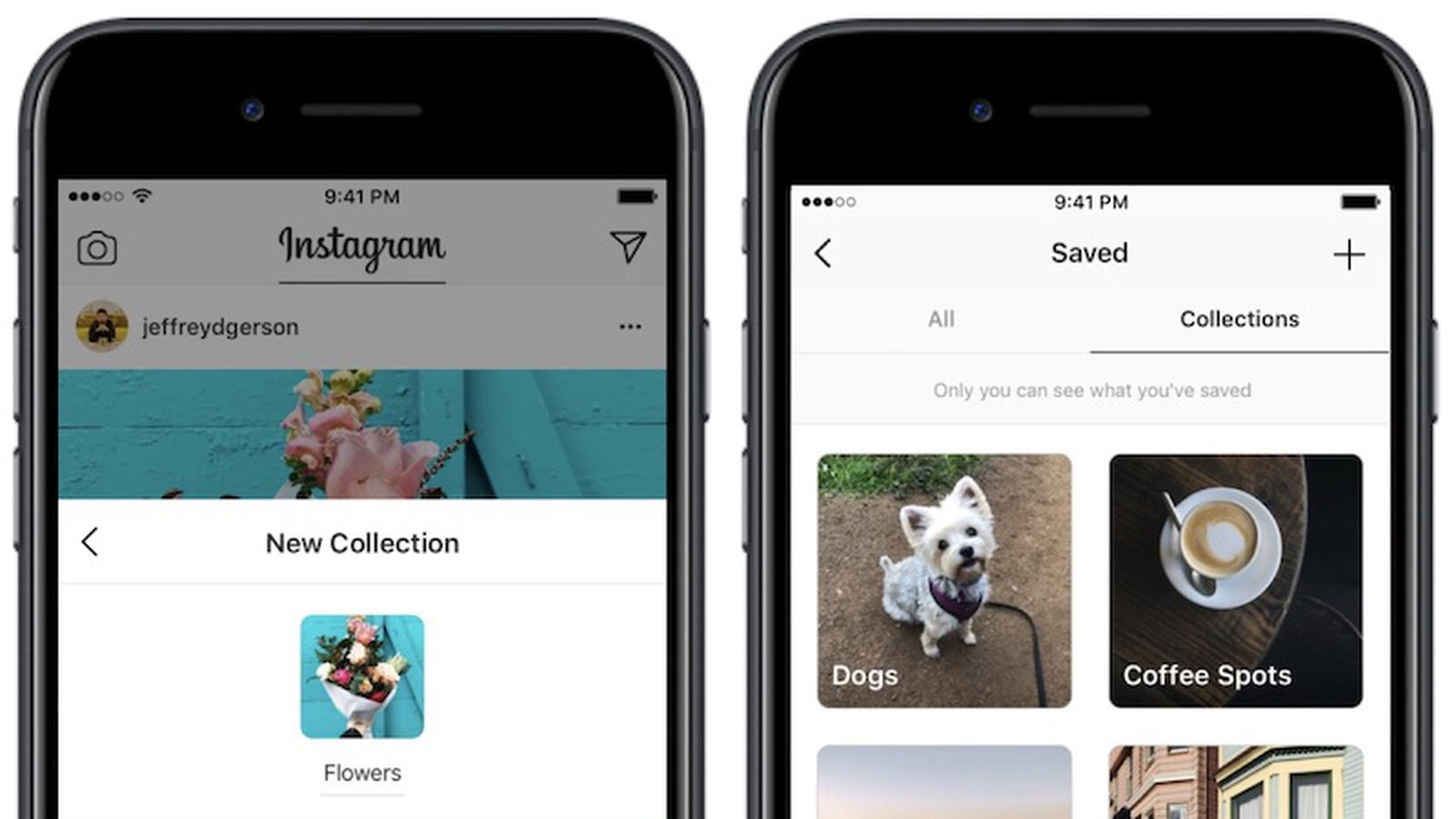
How to save Instagram posts and create collections?
  • How to download an Instagram Reels video?
  • How to get the most out of Instagram Reels: 20 tricks
  • How to upload a video to Instagram TV?

How to find saved posts in Instagram?

Instagram has moved the Recorded feature behind a menu. Follow the steps below to find it.

  • Tap your “Profile” button from the bottom toolbar of the social media application.
  • Select the three-line button on the upper right corner.
  • Now select the “Saved” option from the list.
  • You should now see all your Collections.
  • If you want to discover all your saved posts, tap on “All Posts”.

Organizing Instagram posts and collections

  • As you use the Save feature to select your collections, you may sometimes want to remove posts or delete Collections entirely.
  • Go to the “Saved” section of your profile and tap a Collection.
  • Here, tap the three-line button in the upper right corner of the screen.
  • If you want, you can tap the “Delete Collection” button to permanently delete the Collection.
  • From the next screen, tap the “Delete” button to confirm the action.
  • If you want to edit the collection, tap the “Edit Collection” option. From here you can change the name and cover art of the Collection.
  • Instagram also has a batch save option. Tap “Select” from the menu. From there, select all the posts you want to remove.
  • Tap the “Uninstall” button. If you are in the “All Posts” section, the label will appear as “Unregister”.
Tags: deletehow toigtvInstagramlikephotopostsavestep by stepvideo
ShareTweet
Kerem Gülen

Kerem Gülen

Kerem from Turkey has an insatiable curiosity for the latest advancements in tech gadgets and a knack for innovative thinking.With 3 years of experience in editorship and a childhood dream of becoming a journalist, Kerem has always been curious about the latest tech gadgets and is constantly seeking new ways to create.As a Master's student in Strategic Communications, Kerem is eager to learn more about the ever-evolving world of technology. His primary focuses are artificial intelligence and digital inclusion, and he delves into the most current and accurate information on these topics.

Related Posts

How to install mods and custom content in The Sims 2

How to install mods and custom content in The Sims 2

26 December 2025
Running Python files and fixing path errors on Windows

Running Python files and fixing path errors on Windows

26 December 2025
How to boot your PC into Command Prompt for troubleshooting

How to boot your PC into Command Prompt for troubleshooting

26 December 2025
How to delete a virus using Command Prompt

How to delete a virus using Command Prompt

26 December 2025
Please login to join discussion

LATEST

New WhatsApp update brings 2026 stickers and video call effects

Leaker reveals Xiaomi plans for high end eSIM device in 2026

HP prepares OMEN OLED monitor reveal for CES 2026

High RAM costs from AI boom could delay next Xbox and PlayStation

LG to unveil its Gallery TV at CES 2026

Bitcoin drops 3% to $87,300 as altcoins decline

How to install mods and custom content in The Sims 2

Running Python files and fixing path errors on Windows

How to boot your PC into Command Prompt for troubleshooting

How to delete a virus using Command Prompt

TechBriefly

© 2021 TechBriefly is a Linkmedya brand.

  • Tech
  • Business
  • Science
  • Geek
  • How to
  • About
  • Privacy
  • Terms
  • Contact
  • | Network Sites |
  • Digital Report
  • LeaderGamer

Follow Us

No Result
View All Result
  • Tech
  • Business
  • Crypto
  • Science
  • Geek
  • How to
  • About
    • About TechBriefly
    • Terms and Conditions
    • Privacy Policy
    • Contact Us
    • Languages
      • 中文 (Chinese)
      • Dansk
      • Deutsch
      • Español
      • English
      • Français
      • Nederlands
      • Italiano
      • 日本语 (Japanese)
      • 한국인 (Korean)
      • Norsk
      • Polski
      • Português
      • Pусский (Russian)
      • Suomalainen
      • Svenska