

TechBriefly
  • Tech
  • Business
  • Crypto
  • Science
  • Geek
  • How to
  • About
    • About TechBriefly
    • Terms and Conditions
    • Privacy Policy
    • Contact Us
    • Languages
      • 中文 (Chinese)
      • Dansk
      • Deutsch
      • Español
      • English
      • Français
      • Nederlands
      • Italiano
      • 日本语 (Japanese)
      • 한국인 (Korean)
      • Norsk
      • Polski
      • Português
      • Pусский (Russian)
      • Suomalainen
      • Svenska
No Result
View All Result
TechBriefly
Home How to
How to install Fortnite on an Android mobile phone?

How to install Fortnite on an Android mobile phone?

How to install Fortnite on an Android mobile phone?

Kerem GülenbyKerem Gülen
15 September 2020
in How to
Reading Time: 2 mins read
Share on FacebookShare on Twitter

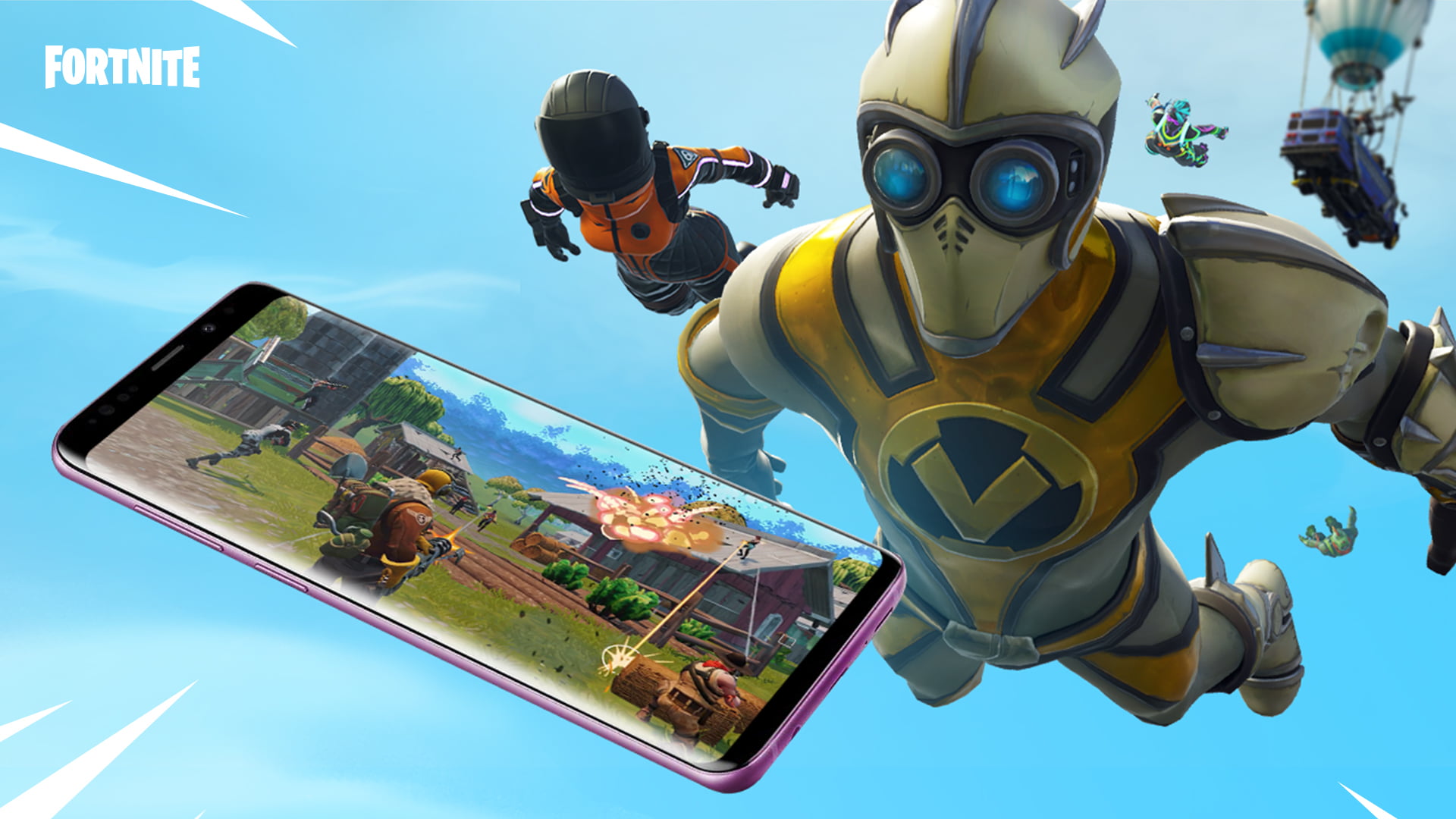
How to install Fortnite on an Android mobile phone? Fortnite is no longer on Google Play, so you can not download it from the Google store. If you have it installed you can continue playing, but you will not receive any more updates. Luckily there is an alternative and official way to install it from outside that works 100%, and it is very simple to do.

Android is a bit more open than iOS, because in this operating system it is possible to install apps from outside of Google Play. In fact, it is the same system that Epic used when it launched Fortnite on Android, in order to not pay the 30% commission to Google Play. But it was forced to join Google Play because many users could not find the game.

How to install Fortnite on an Android mobile phone?

To install it directly from Epic Games, open your mobile browser and type: fortnite.com. If you have a Samsung mobile you can skip this step, because the Epic Games app is already in the Samsung Galaxy Store.

When you are into the Fortnite website click on the yellow button in the upper right corner. Tap Download and the Epic Games app will download the game for you.

  • Apple takes legal action against Epic Games
  • Epic Games case against Apple: Fortnite is removed from App Store
  • AMD confirms Radeon RX 6000 series through Fortnite

During the download process, an Android message will appear to scare you, indicating that the file may damage your device. But it is the standard Android prompt when you install an app from outside of Google Play. Don’t worry, it is a completely safe app

Click OK, and the Epic Games app will appear on the mobile home screen or in the Installed Apps section. Start it up and thanks to this application you can download and install Fortnite, if your mobile is compatible.
How to install Fortnite on an Android mobile phone?

Special permissions

After you download Fortnite from the Epic Games app Android might tell you that you do not have the permissions to complete this step. Activating this permission might change in each version of Android, so you should check it yourself.

In older versions you must enter Android Settings, Security, Device Administration and Activate Unknown sources.

In the newer versions, normally you have to enter Settings, Applications and notifications, Advanced settings, Special application access and Install unknown applications. Here you will have to give permission to Chrome (or whatever browser you use) and Epic Games to authorize downloads from them

Now you can download Fortnite from the Epic Games app, and enjoy the game 100% updated.

Tags: AndroidAPKEpic GamesfortniteGoogleGoogle Playhow toinstallstep by steptricks
ShareTweet
Kerem Gülen

Kerem Gülen

Kerem from Turkey has an insatiable curiosity for the latest advancements in tech gadgets and a knack for innovative thinking.With 3 years of experience in editorship and a childhood dream of becoming a journalist, Kerem has always been curious about the latest tech gadgets and is constantly seeking new ways to create.As a Master's student in Strategic Communications, Kerem is eager to learn more about the ever-evolving world of technology. His primary focuses are artificial intelligence and digital inclusion, and he delves into the most current and accurate information on these topics.

Related Posts

How to install mods and custom content in The Sims 2

How to install mods and custom content in The Sims 2

26 December 2025
Running Python files and fixing path errors on Windows

Running Python files and fixing path errors on Windows

26 December 2025
How to boot your PC into Command Prompt for troubleshooting

How to boot your PC into Command Prompt for troubleshooting

26 December 2025
How to delete a virus using Command Prompt

How to delete a virus using Command Prompt

26 December 2025
Please login to join discussion

LATEST

New WhatsApp update brings 2026 stickers and video call effects

Leaker reveals Xiaomi plans for high end eSIM device in 2026

HP prepares OMEN OLED monitor reveal for CES 2026

High RAM costs from AI boom could delay next Xbox and PlayStation

LG to unveil its Gallery TV at CES 2026

Bitcoin drops 3% to $87,300 as altcoins decline

How to install mods and custom content in The Sims 2

Running Python files and fixing path errors on Windows

How to boot your PC into Command Prompt for troubleshooting

How to delete a virus using Command Prompt

TechBriefly

© 2021 TechBriefly is a Linkmedya brand.

  • Tech
  • Business
  • Science
  • Geek
  • How to
  • About
  • Privacy
  • Terms
  • Contact
  • | Network Sites |
  • Digital Report
  • LeaderGamer

Follow Us

No Result
View All Result
  • Tech
  • Business
  • Crypto
  • Science
  • Geek
  • How to
  • About
    • About TechBriefly
    • Terms and Conditions
    • Privacy Policy
    • Contact Us
    • Languages
      • 中文 (Chinese)
      • Dansk
      • Deutsch
      • Español
      • English
      • Français
      • Nederlands
      • Italiano
      • 日本语 (Japanese)
      • 한국인 (Korean)
      • Norsk
      • Polski
      • Português
      • Pусский (Russian)
      • Suomalainen
      • Svenska