

In this post we are going to show you how to use Discord on PlayStation. Sony acquired a minority investment in Discord last year and announced a partnership with the messaging giant to integrate the Discord and PlayStation experiences. Discord began rolling out an opportunity to connect your PlayStation Network (PSN) account to Discord for rich presence as part of this initiative.
[toc]
How to use Discord on PlayStation?
We’ve covered how to connect your PlayStation account to Discord and display your PlayStation 4 (PS4) or PlayStation 5 (PS5) game activity on your Discord profile in this article. But you’ve come to find out if you can install the Discord app for PS4 and PS5. The answer will disappoint you, but keep reading to learn everything you need to know about Discord on PlayStation platforms.
Use Discord on PS4 and PS5 (2022)
We won’t go around in circles in this article, but we will inform you right away that there is no native Discord app for the PS4 or PS5 consoles. You cannot yet install Discord on your console. However, there is a way to read your Discord messages on your PlayStation console, as well as some time-consuming workarounds to get voice chat to operate on PS4 and PS5. So check out the table below to see how it all works.

Read Discord messages on Your PS4 and PS5
While the PlayStation 4 and 5 lack a native Discord client, there is a workaround that allows you to access Discord in read-only mode on your console. We were unable to send messages or join voice chats when we tried this strategy. However, if you want to check your messages using Discord on PlayStation, follow these steps:
- Launch PlayStation Party and start a conversation with your friend.
- Enter ” www.discord.com” in the chatbox and send the message to a friend on your PS5. Because the PS4 has an in-built browser, you don’t need to send a message to your friend. You can access Discord Web from your PS4 console’s browser.
- Now, choose the link and wait for PlayStation to open it in a new browser window.
- Sign in to your Discord account with your credentials and then click “Open Discord in your browser” to launch the chat software on your PlayStation.
And there you have it! Discord chats may now be read directly on your PlayStation 4 or PlayStation 5. While not as convenient as a native client, this solution allows you to rapidly read through messages from your Discord gaming mates.

Tricks to use Discord on PlayStation
We discovered two solutions when looking for a way to combine Discord talk channel audio with game audio from your PS4/PS5. If you are adamant about using Discord on your PlayStation console and are willing to go to any extent to do it, then these two techniques should suffice. We won’t go into too much detail regarding these strategies because they are time-consuming and exhausting. Instead, we recommend waiting for the native Discord app to become available for PS4 and PS5, which should arrive within the next 4-5 months.
Here’s how to forcefully launch Discord to communicate with friends on your Playstation console:
- One of the most common uses of Discord, particularly for joining voice channels while listening to game audio on your PS4/PS5, necessitates the purchase of an Astro MixAmp Pro TR. You will also need a compatible pair of headphones that can be connected via USB, as well as a PC with Discord installed.
- Once you’ve gathered all of these items, you’ll need to establish a cross-platform connection between your PS5 and PC. You can communicate with your friends while playing your favorite game on your PlayStation console in this manner.
The other trick is less expensive but still inconvenient. To access your games on your Android or iOS smartphone, you must use PS Remote Play. Create a secondary PS account, configure it as your default, and log into the PS Remote Play software with this account, as described in a video by creator Octorious. Then, connect your headset to your phone, join a Discord voice channel, and use the Remote Play software to connect to your PS4/PS5.
You should now be able to hear both Discord and console audio on your phone, however there may be some lag. To reduce delay, the designer recommends utilizing the lowest video quality possible to free up bandwidth. You can then pick up your PS controller and jump into the action while conversing with your Discord mates.
Connect PlayStation Network account to Discord
If you want to connect your PlayStation Network to Discord and highlight your PS4/PS5 game status in the chat app for others to view, follow the steps below:
- To access the Discord Settings page, open the app and click on the Settings gear icon in the bottom-left corner of the screen.
- Click “Connections” in the left sidebar of the Settings page to see a list of all available Discord integrations.
- Next, under the “Connect Your Accounts” area, click on the PlayStation Network emblem to link your Sony account with Discord.
- Log in with your PlayStation account credentials and click “Sign In” on the sign-in page that displays.
- Your PlayStation account information is now visible on Discord’s Connections page. You can choose whether to show your PSN account on your profile and your game activity as your Discord status.
PlayStation status on Discord not working
If you are not seeing your PlayStation activity on Discord despite attaching your PSN account, it is likely due to your PSN privacy settings. Here’s how to alter your PlayStation Network privacy settings:
- In a browser, navigate to Sony’s account management website and select “Privacy Settings” from the left sidebar.
- Under privacy settings, expand the “Personal Info | Messaging” section and click the “Edit” option next to “Online Status and Now Playing.”
- Change the privacy setting from “Friends Only” to “Anyone,” click “Save,” and you’re done! Discord users can now see your PS5/PS4 game activity.
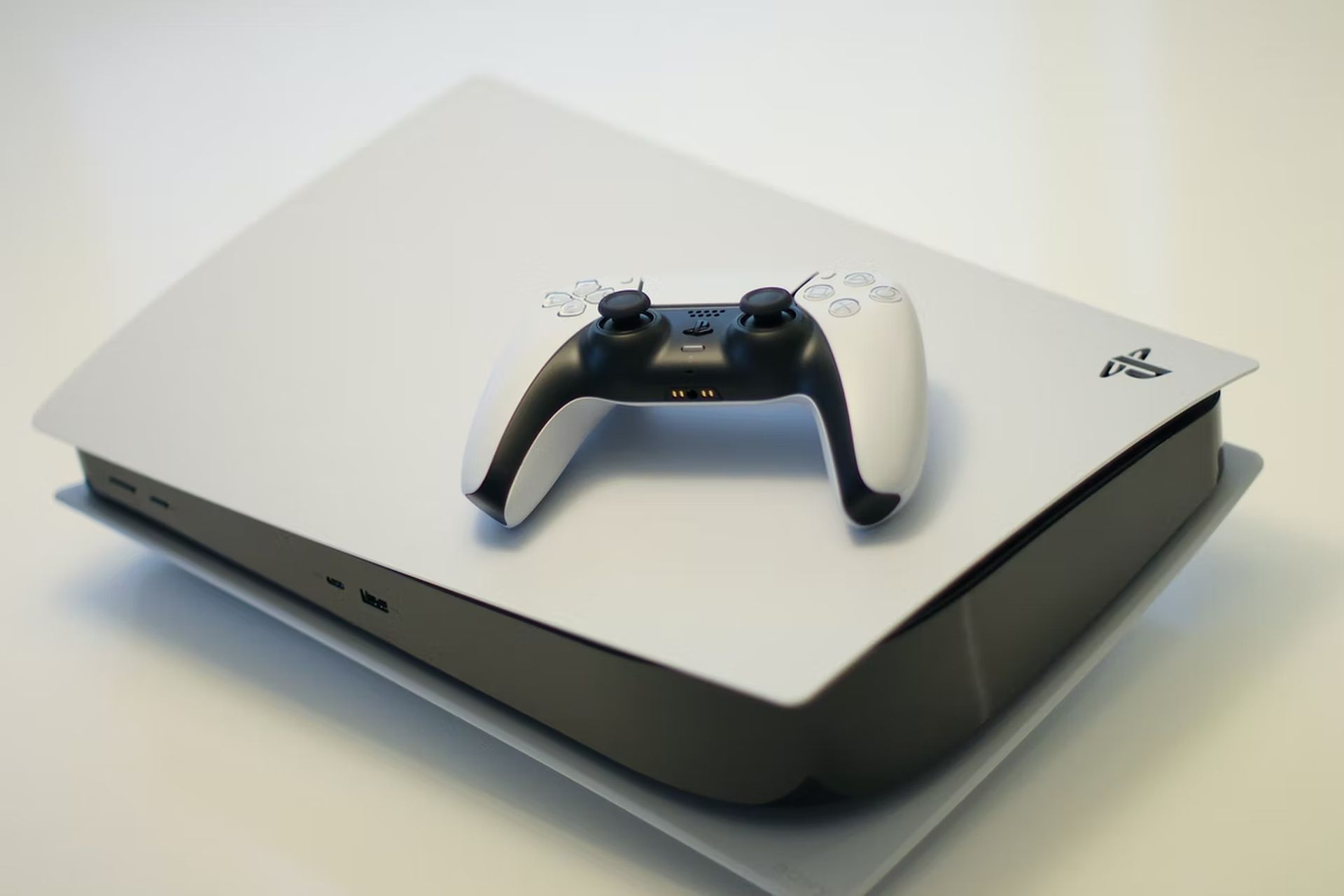
Is there a Discord app on PlayStation 5?
No, the Discord app is not available on the PlayStation 5. You can link your PlayStation Network account to Discord as part of Discord’s cooperation with Sony. It allows you to show off your game activity to your chat app pals.
When is Discord coming to PS5?
At the time, there is no specific date for when the Discord app will be available on the PS5 and PS4. The business does, however, state that it will “continue [the] partnership with PlayStation and explore how we can collectively create great shared experiences.”
Discord Integration on PlayStation 5 and 4
So that’s how you connect your PlayStation account to Discord to see your gaming activity. While it’s nice that you can now add PlayStation games to your Discord rich presence, we hope that the relationship delivers stronger results in the coming months, such as a dedicated Discord PS5 app. In the meantime, you can utilize this Discord integration to keep your pals up to date on your gaming exploits. And if you don’t mind jumping through hoops to utilize the chat app while gaming on your PS4 or PS5, you can attempt one of the aforementioned solutions. This concludes our “How to use Discord on PlayStation” guide.
Conclusion
In this article we’ve discussed how to use Discord on PlayStation (PS4/PS5). Following headlines are discussed above:
- How to use Discord on PlayStation?
- Use Discord on PS4 and PS5 (2022)
- Read Discord messages on Your PS4 and PS5
- Tricks to get use Discord on PlayStation
- Connect PlayStation Network account to Discord
- PlayStation status on Discord not working
- Is there a Discord app on PlayStation 5?
- When is Discord coming to PS5?
- Discord Integration on PlayStation 5 and 4
You can also check out the latest video game release dates of 2022 for PC, PS5, Xbox Series X/S!


