

Today we will tell you how to reduce image size directly on the Chrome browser. Nowadays, sharing forms and details online can be a very tedious task. Especially when you have to upload several documents and images.
Heavy picture files are not accepted by the majority of websites connected with educational institutions, government agencies, job searches, or other organizations.
When we receive an online application form that needes our photo and signature to be uploaded, we are frequently irritated when the file we are submitting is not verified by the application’s website. Instead, the website has established restrictions on photos that not only define the file size, but also the height and width of each picture. Paint or some other separate image editor software might be used to customize the file to our requirements, or we may visit an online website that can perform this for us. But, did you know that Google Chrome allows you to alter pictures without going to another site? After installing a one-time extension, you can modify your photos even when you’re offline.
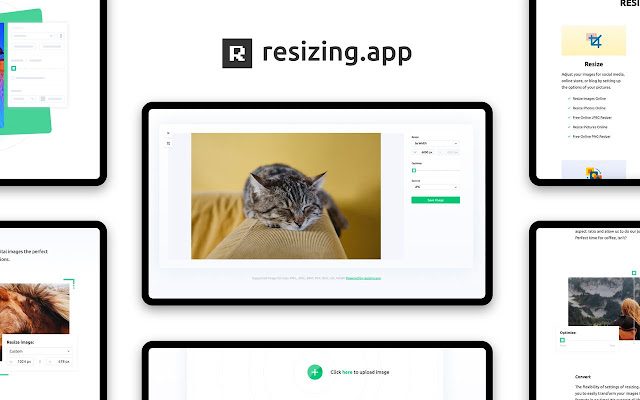 The extension is pretty simple to use. It has a one-click reduce size option, which you can change to reduce in custom sizes. As an alternative to reducing the image’s size, there are other settings that reduce the quality of the picture by removing colors or altering pixel dimensions.
Pixel is a term used to describe an image’s components. When a picture is huge, it may have millions of pixels, which means storing the picture will consume millions of bytes on the server; as a result, many websites select images with lower dimensions.
How to reduce image size on Chrome browser?
There are a variety of strategies to reduce the size of photos, but one of the most straightforward is with the Chrome extension. You may follow these steps to reduce the file size on Google Chrome:
- Open Google Chrome browser on your PC or Mac.
- Go to the Chrome Web Store.
- Look for ‘Resizing App’ in the search bar.
- Tap on ‘Resizing App’ in the result list.
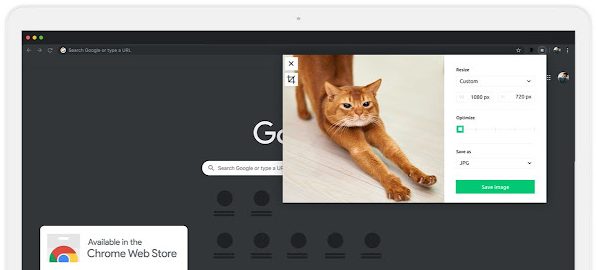
- Click to ‘Add to Chrome’ button which is placed on the right. After downloading the tool, you will see it in Extensions. Now tap on the icon to use the extension whenever you please. We should remind you that the tool can also work when your computer is offline.
- Click on the extension and then the ‘+’ symbol in the small pop-up window.
- Select the image that you want to resize from the File Explorer.
- Click the box below Resize and select by Percentage.
- Enter the percentage you want to reduce the size of the image.
- Click on Save Image and the resized image will be in your Downloads folder.
How to see the image size on Chrome?
To find the size of an image using Chrome:
- Open Chrome and go to the relevant page.
- Right-click the image whose size you want to find out and choose Inspect.
- Chrome DevTools displays the width and height of your image. (The first number is always the width). If your image isn’t highlighted by default, click the inspect element button to enable it. Hover over the picture with the Inspect element button.


