
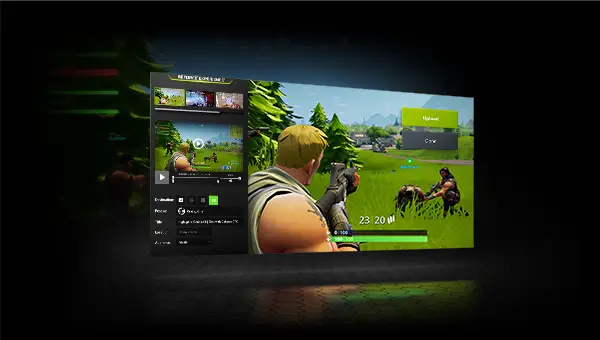

If you don’t know how to record your PC gameplay with NVIDIA ShadowPlay, we are going to help you out. When deciding between one graphics card or another, in addition to performance and price, many users often look for the services, additional programs, and APIs they are offered.
For example, in the case of an NVIDIA graphics card, users have access to PhysX physics, ray tracing APIs and, in addition, a series of programs, tools, and options that are available within the GeForce Experience package. And one of the components that we can find within this package is called ShadowPlay.
NVIDIA ShadowPlay is a simple tool designed to allow all gamers to easily record their games, take screenshots and live stream without the need for additional software. However, before we continue, we should note that ShadowPlay has a negative impact on gaming performance.
What do you need to use NVIDIA ShadowPlay?
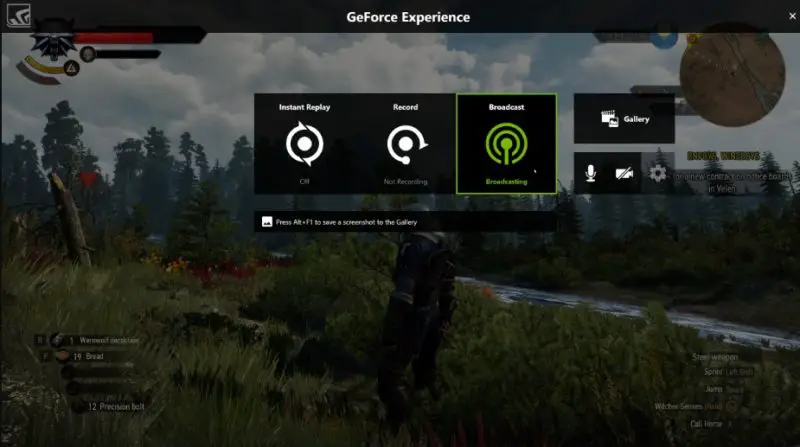
ShadowPlay is an NVIDIA tool that is part of the GeForce Experience package. Therefore, the two essential requirements to be able to use this tool are to have an NVIDIA graphics card (800 series or higher) the latest version of the drivers and GeForce Experience software.
As for the computer requirements, NVIDIA indicates that we need an operating system with Windows 7, 8.1 or Windows 10, plus 4GB RAM for everything to work smoothly. As for the CPU, it doesn’t specify minimum requirements, but it recommends an Intel Pentium G or core i3 or higher, or an AMD FX or Ryzen 3 or higher.
How to check if your PC is compatible with NVIDIA ShadowPlay?
GeForce Experience allows us to easily find out if our computer is compatible with these features or not. To do this, what we must do is open the Experience menu, enter the Experience settings (from the gear-shaped button) and check if the “over position in game” section appears as “Ready”. If so, we can use ShadowPlay.
How to record your PC gameplay with NVIDIA ShadowPlay?
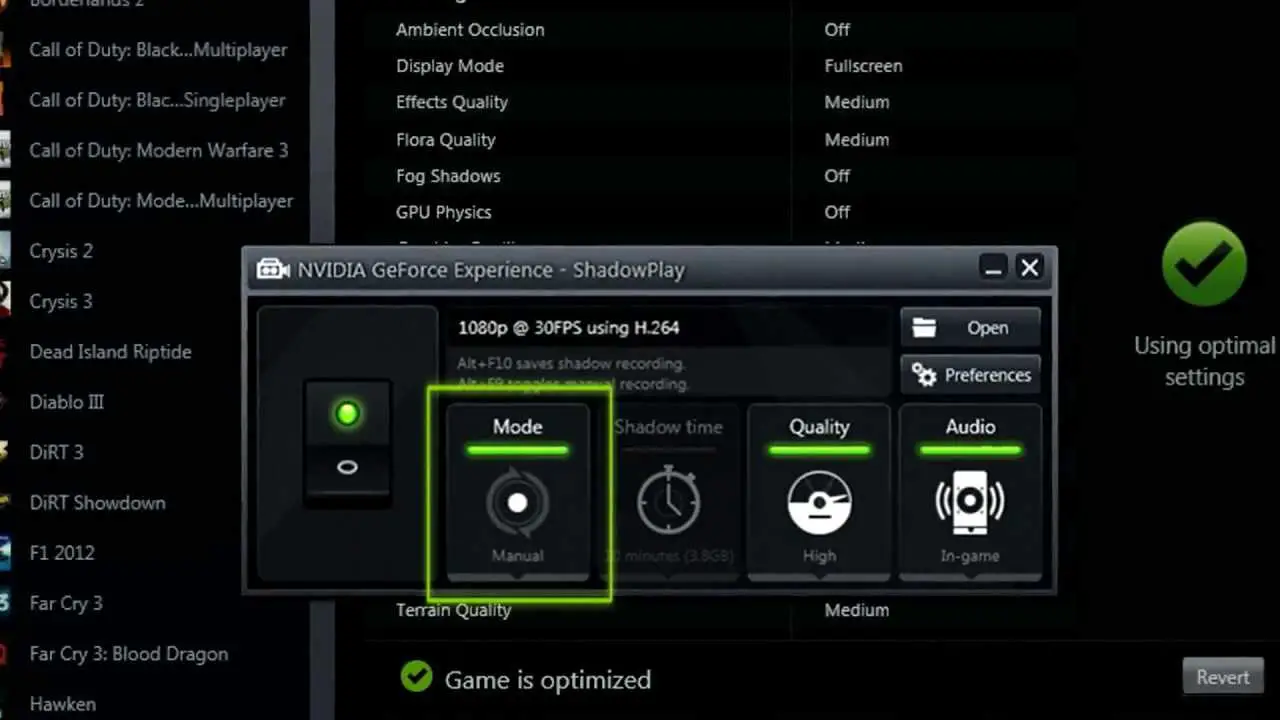
If our computer supports ShadowPlay, we must enable the NVIDIA panel overlay in games. You can enable it from the section called “In-Game Overlay.” If the switch is activated, we can start using this overlay without any problems.
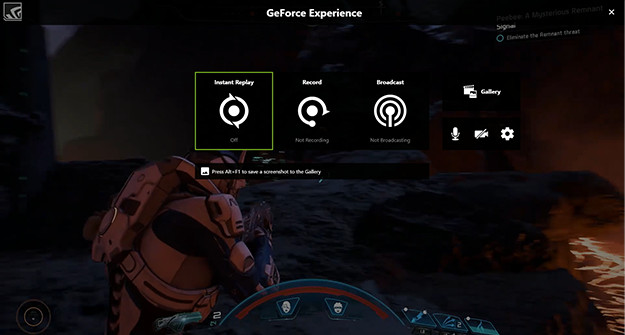
If we already have our computer ready and GeForce Experience configured, we can start recording. To do this, what we need to do is to open the GeForce Experience overlay panel with the keyboard shortcut Alt + Z and we will be able to see the NVIDIA Share menu.
We will be able to choose 3 different actions:
- Instant Replay: NVIDIA will constantly record and save the last 5 minutes of our game. If we get an exploit, we will be able to use the keyboard shortcut Alt + F10 to save these 5 minutes directly to our computer to share it on social networks. All the parts of the videos that we do not save will be deleted.
- Record: The standard option. Clicking on this button will start recording our screen. Everything we do will be recorded and saved by ShadowPlay. We can start recording at any time with the keyboard shortcut Alt + F9, and stop recording with the same keyboard shortcut.
- LIVE Broadcasting: We can broadcast our games live through social networks with this option, without using any additional software.
The recordings will be saved directly in the “Videos” folder of our personal directory in Windows 10.
How to configure the quality of NVIDIA ShadowPlay recordings?
By default, NVIDIA usually configures parameters according to the hardware of our PC to get the best quality with the least impact on performance. But, if we want, we can customize it. To do this, we just have to open the NVIDIA overlay panel (Alt + Z, remember) and go to the options section by clicking on the gear.
The first thing we will be able to see here is the possibility of changing the default directory. This way, if we want to have the videos more at hand, we will be able to do it.
We will also be able to configure the quality, resolution, etc. We will also be able to customize the quality of the recording. From here we will be able to configure the time we want to record the instant replay (from 15 seconds to 20 minutes), the quality, the resolution of the game, the FPS, and the bit rate of the recording.
And finally, NVIDIA will also allow us to customize the shortcuts we want to use to configure this feature of the GeForce Experience software. We have shown the keyboard shortcuts that come by default. However, if we have dedicated keys on our keyboard, or we like to have our own keyboard shortcuts, we can change them.


