
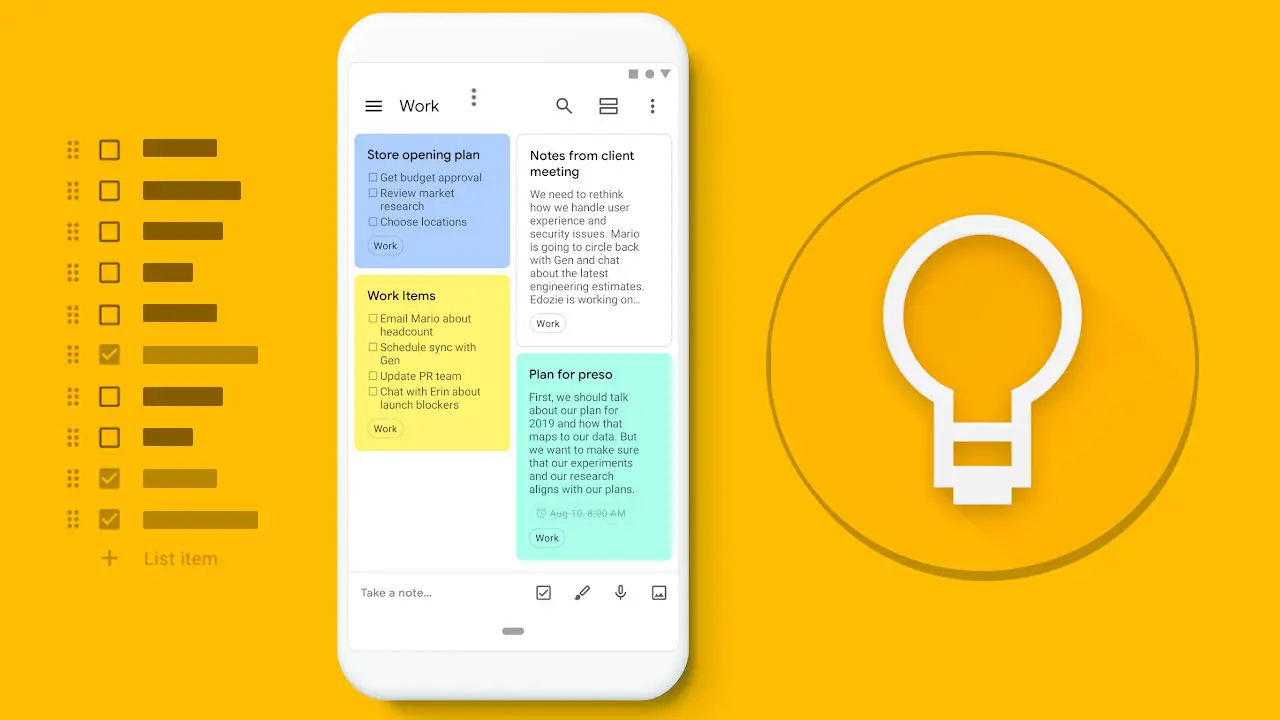

If you don’t know how to recover deleted notes in Google Keep, we are going to help you out. Google Keep is one of the best productivity tools you can have on your phone today. More than an app for notes, it is a kind of Swiss army knife that will help you in multiple situations.
Creating notes, lists and reminders, sharing them with other collaborators or working with other people, multi-device synchronization and offline availability are just some of its great attributes.
Now, it is possible that among so much information you store in your Google Keep, you have deleted some of your notes or lists by mistake and want to recover them. Well, that’s precisely what we want to talk to you about today.
If you want to know how to recover deleted Google Keep notes, we leave you with a small and simple tutorial.
How to archive a note in Google Keep?
Archiving your notes in Google Keep is one of the most practical functions of this platform. Thanks to this option, you will be able to hide your notes from the main page and achieve a cleaner and clearer view of your information.
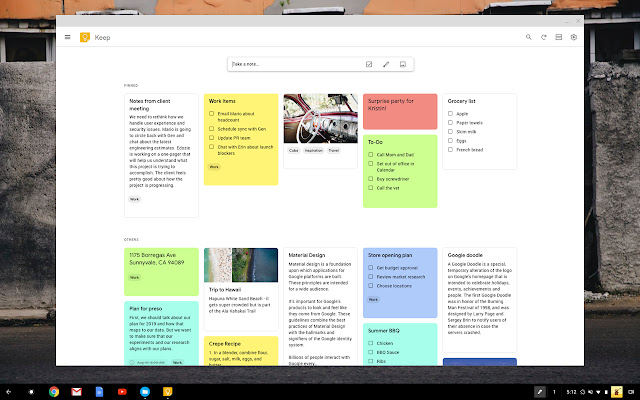
Of course, don’t worry about losing them, since all the notes you archive are not deleted or sent to the trash, they are still in your account so you can access them whenever you want and continue receiving reminders if necessary. Now, to archive a note you must do the following:
- Log in to Google Keep from the mobile app or web version.
- Select the note you want to archive. You can choose one or several at a time.
- Perform a long press on each note. If it is from the mobile app, press the three dots shown on the top right and then the “Archive” option.
- In the web version, place the cursor over the note and click on the “Archive” icon located at the bottom of each note.
How to restore archived notes in Google Keep?
If you want to recover a note that you had archived, it is very easy. All you have to do is:
- Go to “Menu” by clicking on the three horizontal stripes shown on the top left.
- Go to the “Archive” section.
- Select the notes you want to recover, press the three dots that appear at the top right and go directly to the “Unarchive” option.
When you complete this process, your notes will return to the main page, ready for when you need them again.
How to recover deleted notes in Google Keep?
Now, assuming you need more space inside your Google Keep, you can delete the notes you don’t need. This way, they will no longer show up on your home page, in the archives, or in the search results.
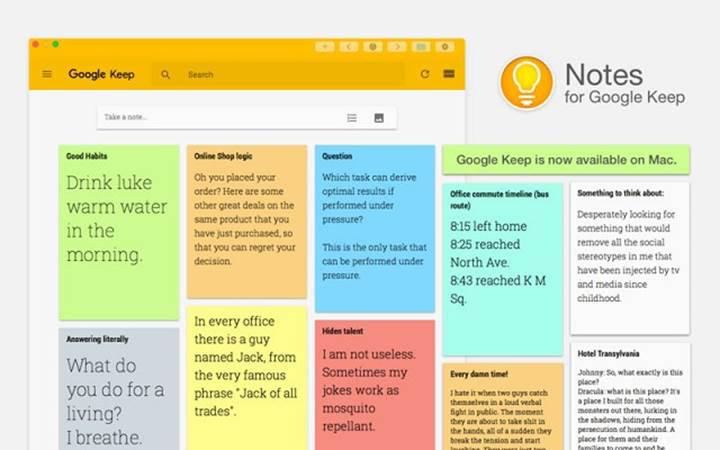
Similarly, if any of these notes had collaborators, they will automatically no longer be available to them. Remember that when you delete a note in Keep, it is sent directly to the “Trash” and will remain there for a period of 7 days. Once this period has elapsed, it will be permanently deleted.
If you want to know how to delete your notes, follow these steps:
- Enter your Google Keep app, either from the mobile or web version.
- Select the note and go to the three dots on the top right and look for the “Delete” option.
- If it is from the web version, make a long press on each note and press the three dots located at the bottom right and then “Delete note”.
If for some reason you deleted or erased a note in Google Keep by mistake, we told you that you have 7 days to recover it from the trash. To do this, follow these steps:
- Go to “Menu” by clicking on the three horizontal stripes shown on the top left.
- Then look for the “Trash” option.
- If it is from the cell phone, select the deleted note that you want to recover and press the three dots that appear in the lower right part and then click on the “Restore” option.
- If it is from the web version, select the note you want to recover and click on the “Restore” icon.
- Once you have completed these steps, your note will be removed from the trash and will return to the home page for you to continue editing or display until you wish.

How to delete a note from Google Keep?
We told you that after 7 days, the notes are automatically deleted from the trash. However, you can permanently delete a file too.
- Go to “Menu” by clicking on the three horizontal stripes shown at the top left.
- Then, choose the “Trash” section.
- In this option, go to the three dots on the top right and click on “Empty Trash”. And if it is from the web version you will see the word “Empty Trash” directly in blue color.


