
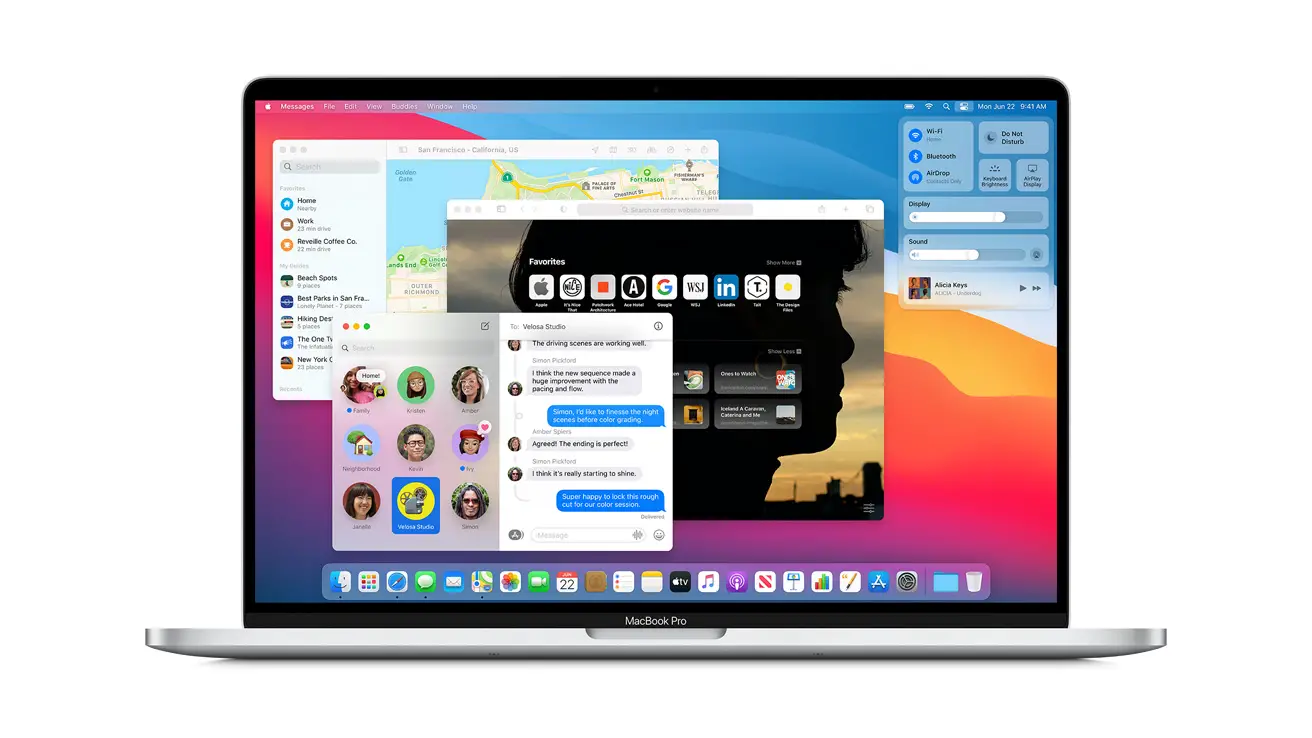

Today we are going to show you how to delete system storage on Mac. If your MacBook or iMac has relatively small storage space, the giant system storage of those Apple devices can be a big headache. This article will help you to free some space on your computer.
What is system storage on Mac?
Before we see the solution, it is better to have a good understanding of system storage on Mac. We can see Mac storage characterized into different groups: Photos, Apps, iOS Files, Music Creation, System, and so on. The system storage is complicated, which makes it harder to know what’s inside. Generally, the files in the system storage can be anything that cannot be categorized into app, movie, image, music or document, for example:
- The Mac operating system (macOS) is used to start the computer and run applications.
- Files that are important for the macOS operating system to function properly.
- System log files and cache.
- Cache of browsers, emails, photos and third-party applications.
- Data and junk files.
How to delete system storage on Mac?
To make sure the system runs properly on the computer, macOS system files MUST NOT be deleted, but the rest of the list can be deleted to free up system storage. Most of the files in the system storage can be difficult to find. So here we recommend Macube Cleaner for the job.
Clear system cache and log files
System logs record the activity of applications and services, which take up a lot of space on your Mac. They are useful for developers for debugging purposes but usually useless for users.
To delete system log files on macOS, you first need to access them. To achieve this, we usually as developers type some codes in Terminal, then manually delete those files to the trash. However, that can be tricky for users who are not familiar with the macOS system. Using a cleaner like Macube Cleaner (opens new window) can be a quick solution. Macuble is able to clean the registry files as well as to clean the system cache. See the steps below:
- Download Macube on your MacBook or iMac, the program is easy to use and totally free to download.
- Open the program, select System Trash and click Scan.
- Select System Logs and System Cache, whose files are shown in the right column.
- Click Clean to selectively delete some of the log or cache files or you can delete them all at once.
Delete email attachments
Every email and its attachment is cached on your Mac when you receive them for offline viewing. The accumulation of email attachments can put a lot of pressure on the system storage. To decrease system storage on Mac, you need to get rid of attachments that you no longer need. If there are a lot of attachments you need to delete as well as the cache generated by Mail, Macube Cleaner is very useful to speed up the process.
After the scan in the program, select the Mail Cache or Mail Attachment that will be presented in the right column. You can delete some of the attachments or delete them all at once by clicking the Clean button.
We remind you that mail attachments deleted by Macube Cleaner will not be permanently deleted. You can still re-download them from the Mail server if you wish.
Delete useless files from iTunes
MacBook or iMac users often back up iPhone or iPad data via iTunes. Updates to the iOS system can also be performed in this way. Both updated files and iTunes backups can make the system storage huge and reach up to more than 10GB on Mac without one knowing it. So deleting files from iTunes is a good way to clean up system storage on Mac.
In Macube Cleaner, choose to scan “iTunes Trash” to scan for unnecessary backups and updates. The filtered files will be displayed in the right column. Click Clean to delete them easily.
Empty the Recycle Bin
Dragging unnecessary files to the Trash does not mean that they are completely removed from your Mac, but emptying the Trash does. Files in the Trash usually accumulate very easily, so they become a big part of the system storage. So, if you want to clean up the system storage, follow the steps we will mention below:
- Click and hold on the Trash icon in the Dock (or press your right mouse button).
- A pop-up window will appear saying Empty Trash. Choose it.
- Or you can also empty the Trash by opening “Finder” by pressing Command-Shift-Delete, then select Empty Trash.
Manage Time Machine backups
Time Machine works by using both remote storage devices and the local disk for backups if you are backing up over Wi-Fi. And local backups will increase your computer’s system storage anyway. Although macOS automatically clears the local Time Machine backup in case of “not enough disk storage” on the Mac, the deletion sometimes lags behind in the storage change.
- Open Terminal from Spotlight. In Terminal, type tmutil listlocalsnapshotdates. And then press the Enter key.
- Here you can check the list of all Time Machine backups stored on the local disk. You are free to delete some of them according to the date.
- Go back to terminal and type tmutil deletelocalsnapshots. The backups will be displayed by their capture dates. Delete them using the Enter key.
- Repeat the same steps until the system storage space is acceptable to you. (Tip: During the process, you can check the change of storage space with the System Information app).
This way you’ve learned how to delete system storage on Mac, as you can see the process is not complicated at all. Why don’t you try it out now?


