TechBriefly
  • Tech
  • Business
  • Crypto
  • Science
  • Geek
  • How to
  • About
    • About TechBriefly
    • Terms and Conditions
    • Privacy Policy
    • Contact Us
    • Languages
      • 中文 (Chinese)
      • Dansk
      • Deutsch
      • Español
      • English
      • Français
      • Nederlands
      • Italiano
      • 日本语 (Japanese)
      • 한국인 (Korean)
      • Norsk
      • Polski
      • Português
      • Pусский (Russian)
      • Suomalainen
      • Svenska
No Result
View All Result
TechBriefly
Home How to
How to install and test Windows 11 before anyone else?

How to install and test Windows 11 before anyone else?

Barış SelmanbyBarış Selman
25 June 2021
in How to
Reading Time: 2 mins read
Share on FacebookShare on Twitter

Do you want to install and test Windows 11, because we will explain you how to get the latest version of Windows on your PC before anyone else.

Windows 11 is now official, and among its many new features, it includes the possibility of installing and running Android applications on the PC, thanks to the integration of the Amazon App Store in the Microsoft Store, and emulation technology provided by Intel.

Although Windows 11 will begin to reach the first computers at the end of the year, before that time arrives, all those who wish to do so will be able to test Windows 11 on their computers thanks to the Windows Insider program.

How to install and test Windows 11 before anyone else?

If you are willing to try the latest Windows features before anyone else, we are going to explain how you can prepare your computer to receive the update to Windows 11.
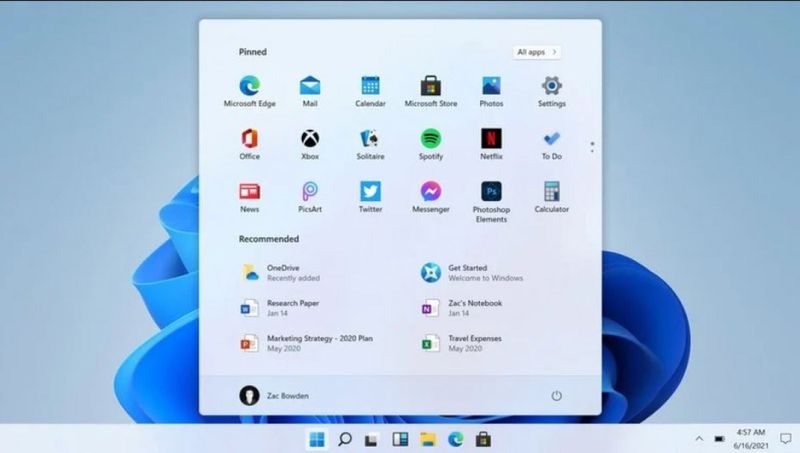
How to test Windows 11 before anyone else?

Register to the Windows Insider program

The first step is extremely simple. The only thing you need to do is to access the Windows Insider program website and register with your Microsoft email address.

Note that you must use the same Microsoft email account that you have associated with your computer.

If you want, you can also sign up for the Windows Insider program from your computer, by going to “Settings” > “Updates and Security” > “Windows Insider Program”.

Check if your PC meets the system requirements of Windows 11

Like every Windows update, Windows 11 imposes a series of requirements that your computer must meet to be able to install the latest version of the operating system.

To check if your computer is compatible with Windows 11, you can download the free Health Check app.

Once you have downloaded it, just run it and it will tell you whether or not your device is compatible with the new version of Windows.

If you do not have your computer at hand, you can find out if it is compatible simply by taking a look at the requirements table provided by Microsoft:

Minimum system requirements
Graphics cardDirectX 12 / WDDM 2.x compatible graphics
Screen> 9 ″ with HD resolution (720p)
Internet connectionWindows 11 Home requires a Microsoft account and Internet connectivity

On the other hand, it is worth mentioning that, in case your PC is not compatible, Microsoft has confirmed that those people who are already part of the Insider program and have installed previous test versions will be able to try Windows 11 even though its proper functioning is not entirely assured.

How to install Windows 11?

The Insider version of Windows 11 will be available later this summer. Once it can be downloaded, if you have registered your computer in the program, the update will arrive automatically and will be downloaded as a normal update.

Tags: how tosoftwaretestwindows 11
ShareTweet
Barış Selman

Barış Selman

A technology and gaming enthusiast by day, Barış is a passionate composer and black/death metal guitarist by night. He keeps his finger on the pulse of the intersection of art and technology whenever he can from his tours worldwide.

Related Posts

Simple ways to install and remove programs on Ubuntu

Simple ways to install and remove programs on Ubuntu

12 January 2026
A guide to preventing accidental typing on Windows and Mac

A guide to preventing accidental typing on Windows and Mac

12 January 2026
Accessing your Google Chrome bookmarks

Accessing your Google Chrome bookmarks

12 January 2026
A guide to installing restricted extensions in Google Chrome

A guide to installing restricted extensions in Google Chrome

12 January 2026
Please login to join discussion

LATEST

Xiaomi to launch fully self-developed smartphone in 2026

New WhatsApp parental controls will block strangers

Galaxy Unpacked 2026: S26 Ultra arrives just before MWC

Meta purges 550,000 Australian accounts to comply with under-16 ban

Simple ways to install and remove programs on Ubuntu

A guide to preventing accidental typing on Windows and Mac

Accessing your Google Chrome bookmarks

A guide to installing restricted extensions in Google Chrome

Anthropic launches health features for Claude

Google removes AI Overviews from medical queries

TechBriefly

© 2021 TechBriefly is a Linkmedya brand.

  • Tech
  • Business
  • Science
  • Geek
  • How to
  • About
  • Privacy
  • Terms
  • Contact
  • | Network Sites |
  • Digital Report
  • LeaderGamer

Follow Us

No Result
View All Result
  • Tech
  • Business
  • Crypto
  • Science
  • Geek
  • How to
  • About
    • About TechBriefly
    • Terms and Conditions
    • Privacy Policy
    • Contact Us
    • Languages
      • 中文 (Chinese)
      • Dansk
      • Deutsch
      • Español
      • English
      • Français
      • Nederlands
      • Italiano
      • 日本语 (Japanese)
      • 한국인 (Korean)
      • Norsk
      • Polski
      • Português
      • Pусский (Russian)
      • Suomalainen
      • Svenska