
TechBriefly
  • Tech
  • Business
  • Crypto
  • Science
  • Geek
  • How to
  • About
    • About TechBriefly
    • Terms and Conditions
    • Privacy Policy
    • Contact Us
    • Languages
      • 中文 (Chinese)
      • Dansk
      • Deutsch
      • Español
      • English
      • Français
      • Nederlands
      • Italiano
      • 日本语 (Japanese)
      • 한국인 (Korean)
      • Norsk
      • Polski
      • Português
      • Pусский (Russian)
      • Suomalainen
      • Svenska
No Result
View All Result
TechBriefly
Home How to
How to download music to iPhone for offline playback?

How to download music to iPhone for offline playback?

Barış SelmanbyBarış Selman
25 May 2021
in How to
Reading Time: 2 mins read
Share on FacebookShare on Twitter

We are going to show you how to download music on iPhone, a process somewhat different from downloading music from Android. File management on the iPhone is always a bit complicated, but it is not impossible to have local libraries to be able to play them offline.

How to download music to iPhone for offline playback?

The methods we are going to tell you are completely legal, without applications or services outside App Store that, although they promise to download songs from different websites, may involve risks to your safety.

Download music to iPhone from your streaming service

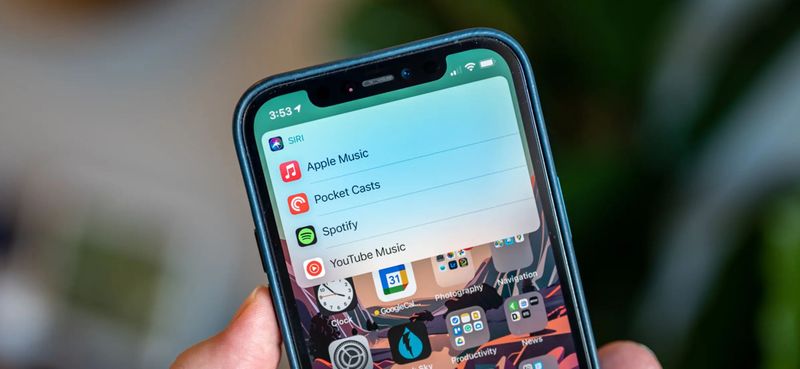
Although the most common is to use Spotify, Apple Music, Tidal, or any other streaming service with an internet connection, we can create local libraries with these services. The method of downloading the song may vary depending on the app we use but, in general, there is usually a download button quite visible.

The most popular streaming apps allow you to download music locally so that you have an offline library.
How to download music to iPhone for offline playback?

As an example, we will use the Spotify app, although Apple Music also has such a button. Once the song is downloaded, we can listen to it offline whenever we want. Simply create a playlist (or download it directly) to start having our library offline.

The files we download will take up local space on our iPhone since the playback will be done from the phone itself and not from the servers of the streaming service.

AppCloud Music

If you have multiple songs in mp3, wav, or other formats on your PC or other devices, there is a way to play them offline and completely legal. AppCloud Music is a service that allows us to play audio files that we have stored in the cloud, such as Drive, Dropbox, or OneDrive.

All we have to do is download the application on our iPhone, select the song that is in the cloud and play it directly from the app. An extra point of the app is that we can download the songs from the cloud and access them offline. That is: you can create a folder with multiple songs and play them offline.

In addition to this, from AppCloud Music we can create our playlists, as well as sort them by artists, albums, genres, and folders. The app is free, but depending on the service we use we will have to pay $2.29 to unlock access to a certain number of songs.

Synchronize your iPhone with your Mac or PC

Using iTunes on PC or Finder on macOS, we can synchronize the local library of the computer on our iPhone. We will have to connect it by cable and activate the option to synchronize music with our iPhone. In this menu, we will be able to select the files that we have in local to pass them to our iPhone and to be able to reproduce them in the Music app.

Tags: downloadhow toiPhonemusicofflineplaybacksoftwaretechnology
ShareTweet
Barış Selman

Barış Selman

A technology and gaming enthusiast by day, Barış is a passionate composer and black/death metal guitarist by night. He keeps his finger on the pulse of the intersection of art and technology whenever he can from his tours worldwide.

Related Posts

How to tell if your iPhone or Android phone is carrier unlocked

How to tell if your iPhone or Android phone is carrier unlocked

16 January 2026
How to apply screen protectors without air bubbles

How to apply screen protectors without air bubbles

16 January 2026
How to check if someone read your message on iPhone or iPad

How to check if someone read your message on iPhone or iPad

16 January 2026
A guide to viewing calculation history on iOS 18

A guide to viewing calculation history on iOS 18

16 January 2026
Please login to join discussion

LATEST

OpenAI rockets $250 million into Altman’s Merge Labs brain-AI bridge

Bluesky opens “Live Now” badges to all users to lure Twitch creators

Capcom reveals Resident Evil: Requiem classic mode and ink ribbons

How to tell if your iPhone or Android phone is carrier unlocked

Paramount+ slams subscribers with first price hike since 2024

Ashley St. Clair sues xAI over Grok deepfakes

Samsung launches instant-play cloud streaming in Mobile Gaming Hub update

Netflix secures Sony Pictures first-to-stream rights

How to apply screen protectors without air bubbles

How to check if someone read your message on iPhone or iPad

TechBriefly

© 2021 TechBriefly is a Linkmedya brand.

  • Tech
  • Business
  • Science
  • Geek
  • How to
  • About
  • Privacy
  • Terms
  • Contact
  • | Network Sites |
  • Digital Report
  • LeaderGamer

Follow Us

No Result
View All Result
  • Tech
  • Business
  • Crypto
  • Science
  • Geek
  • How to
  • About
    • About TechBriefly
    • Terms and Conditions
    • Privacy Policy
    • Contact Us
    • Languages
      • 中文 (Chinese)
      • Dansk
      • Deutsch
      • Español
      • English
      • Français
      • Nederlands
      • Italiano
      • 日本语 (Japanese)
      • 한국인 (Korean)
      • Norsk
      • Polski
      • Português
      • Pусский (Russian)
      • Suomalainen
      • Svenska