

TechBriefly
  • Tech
  • Business
  • Crypto
  • Science
  • Geek
  • How to
  • About
    • About TechBriefly
    • Terms and Conditions
    • Privacy Policy
    • Contact Us
    • Languages
      • 中文 (Chinese)
      • Dansk
      • Deutsch
      • Español
      • English
      • Français
      • Nederlands
      • Italiano
      • 日本语 (Japanese)
      • 한국인 (Korean)
      • Norsk
      • Polski
      • Português
      • Pусский (Russian)
      • Suomalainen
      • Svenska
No Result
View All Result
TechBriefly
Home How to
How to find the QR code to enter WhatsApp Web?

How to find the QR code to enter WhatsApp Web?

Kerem GülenbyKerem Gülen
20 April 2021
in How to
Reading Time: 2 mins read
Share on FacebookShare on Twitter

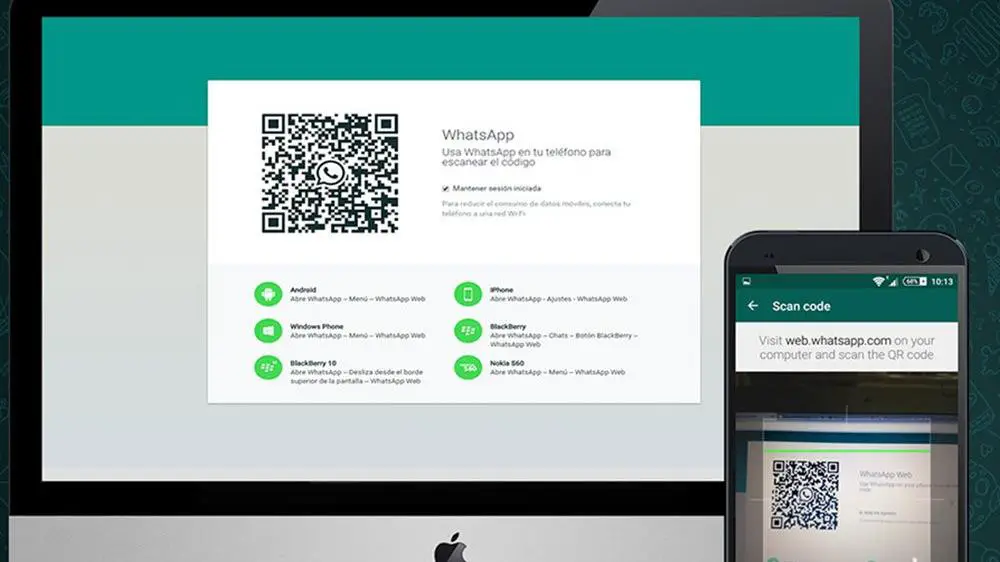
If you don’t know how to find the QR code to enter WhatsApp Web, we are going to help you out. Whatsapp Web is a way to chat with WhatsApp comfortably from a PC, using a web page instead of an application. After logging in, it works more or less like WhatsApp on a mobile phone, but with the advantage of being able to use the PC keyboard. To start using it, you need to scan a QR code. Where is it?

Why do you need a QR code for WhatsApp Web?

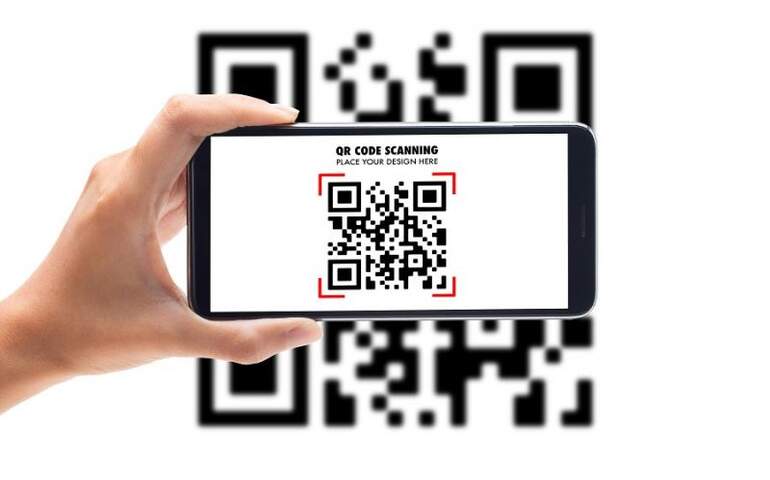
First of all, what is a QR code? A good way to define them is that they are kind of like barcodes, but with more information. Instead of having lines that turn into numbers, they have a multitude of pixels and include enough information to contain text, links, contacts, and other types of content.

To use WhatsApp Web, you need to sign in with your WhatsApp account, and the app provides an easy way to do this, without having to verify your account using an SMS code.
How to find the QR code to enter WhatsApp Web?

The way to sign in to WhatsApp Web is to use a QR code that you must scan with the WhatsApp app. The QR code itself includes a unique code or password that WhatsApp uses to associate your mobile phone with that session. You do not need to see this key, but it is processed internally by WhatsApp.

If you scan this QR code with any QR code app other than WhatsApp, you won’t see anything. You must use the WhatsApp code scanner to use it to log in to WhatsApp Web.

How to find the QR code to enter WhatsApp Web?

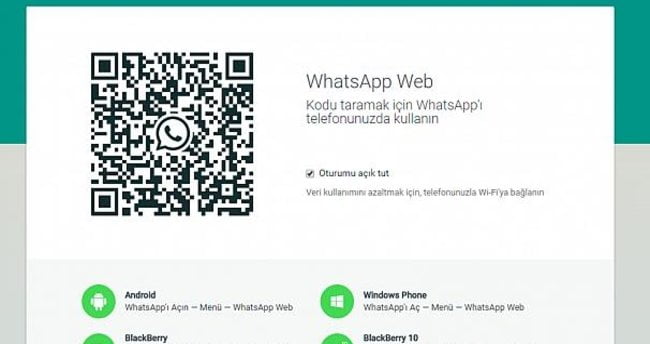
Now that we know why WhatsApp uses a QR code for its web version, the next question will be where is the QR code. It is not in the WhatsApp application, but it is on the official WhatsApp Web website.

Open a browser such as Google Chrome, Firefox, Safari and enter the official website. You should see the QR code unless there is some error with WhatsApp Web. It should appear on the right side of the page.
How to find the QR code to enter WhatsApp Web?

Note that the code changes automatically after a certain amount of time and will sometimes change to a green circle with the text Click to update QR code. If this is the case, you must click on the circle to regenerate the code.

Once you find the QR code, the next step is to scan it with WhatsApp instead of any other method or application. To do this, you must open the WhatsApp menu and choose the WhatsApp Web option. Then click on Link a device.

Next, you may need to verify your identity using mobile biometrics (touch fingerprint recognition or Face ID), and then the QR code scanner will be displayed. Point the camera to display the QR code inside the highlighted square and, if all goes well, you will be logged into WhatsApp Web in a second.

Tags: chatguidehow toPCQR codestep by steptutorialWhatsAppwhatsapp web
ShareTweet
Kerem Gülen

Kerem Gülen

Kerem from Turkey has an insatiable curiosity for the latest advancements in tech gadgets and a knack for innovative thinking.With 3 years of experience in editorship and a childhood dream of becoming a journalist, Kerem has always been curious about the latest tech gadgets and is constantly seeking new ways to create.As a Master's student in Strategic Communications, Kerem is eager to learn more about the ever-evolving world of technology. His primary focuses are artificial intelligence and digital inclusion, and he delves into the most current and accurate information on these topics.

Related Posts

How to download free ringtones from Zedge

How to download free ringtones from Zedge

13 January 2026
How to force stop apps and services on Android

How to force stop apps and services on Android

13 January 2026
Simple steps to install the latest Android patches

Simple steps to install the latest Android patches

13 January 2026
Simple ways to install and remove programs on Ubuntu

Simple ways to install and remove programs on Ubuntu

12 January 2026
Please login to join discussion

LATEST

How to download free ringtones from Zedge

How to force stop apps and services on Android

Simple steps to install the latest Android patches

Paramount sues Warner Bros. over Netflix deal disclosures

Apple chose Google Gemini for Siri

Apple paid developers $550B since App Store launch

Amazon reveals 97% of shipped devices support Alexa+

Xiaomi to launch fully self-developed smartphone in 2026

New WhatsApp parental controls will block strangers

Galaxy Unpacked 2026: S26 Ultra arrives just before MWC

TechBriefly

© 2021 TechBriefly is a Linkmedya brand.

  • Tech
  • Business
  • Science
  • Geek
  • How to
  • About
  • Privacy
  • Terms
  • Contact
  • | Network Sites |
  • Digital Report
  • LeaderGamer

Follow Us

No Result
View All Result
  • Tech
  • Business
  • Crypto
  • Science
  • Geek
  • How to
  • About
    • About TechBriefly
    • Terms and Conditions
    • Privacy Policy
    • Contact Us
    • Languages
      • 中文 (Chinese)
      • Dansk
      • Deutsch
      • Español
      • English
      • Français
      • Nederlands
      • Italiano
      • 日本语 (Japanese)
      • 한국인 (Korean)
      • Norsk
      • Polski
      • Português
      • Pусский (Russian)
      • Suomalainen
      • Svenska