

TechBriefly
  • Tech
  • Business
  • Crypto
  • Science
  • Geek
  • How to
  • About
    • About TechBriefly
    • Terms and Conditions
    • Privacy Policy
    • Contact Us
    • Languages
      • 中文 (Chinese)
      • Dansk
      • Deutsch
      • Español
      • English
      • Français
      • Nederlands
      • Italiano
      • 日本语 (Japanese)
      • 한국인 (Korean)
      • Norsk
      • Polski
      • Português
      • Pусский (Russian)
      • Suomalainen
      • Svenska
No Result
View All Result
TechBriefly
Home How to
How to customize a Huawei smartphone lock screen on EMUI?

How to customize a Huawei smartphone lock screen on EMUI?

Kerem GülenbyKerem Gülen
30 March 2021
in How to
Reading Time: 2 mins read
Share on FacebookShare on Twitter

If you don’t know how to customize your Huawei smartphone’s lock screen, EMUI gives us a lot of options. We see our lock screen a lot throughout the day. This makes its aesthetics very important. A very simple way to renew the style of the mobile phone is to customize the lock screen.

EMUI has been working for many years on the customization options of the devices to allow users to choose what they like best. With the steps we are going to show you, surely your mobile will no longer look the same.

How to customize a Huawei smartphone lock screen on EMUI?

We just have to enter the Huawei mobile Settings and then tap on “Main screen and wallpaper”. This will lead us to a variety of options that we will explain one by one, so you are going to know the possibilities offered.

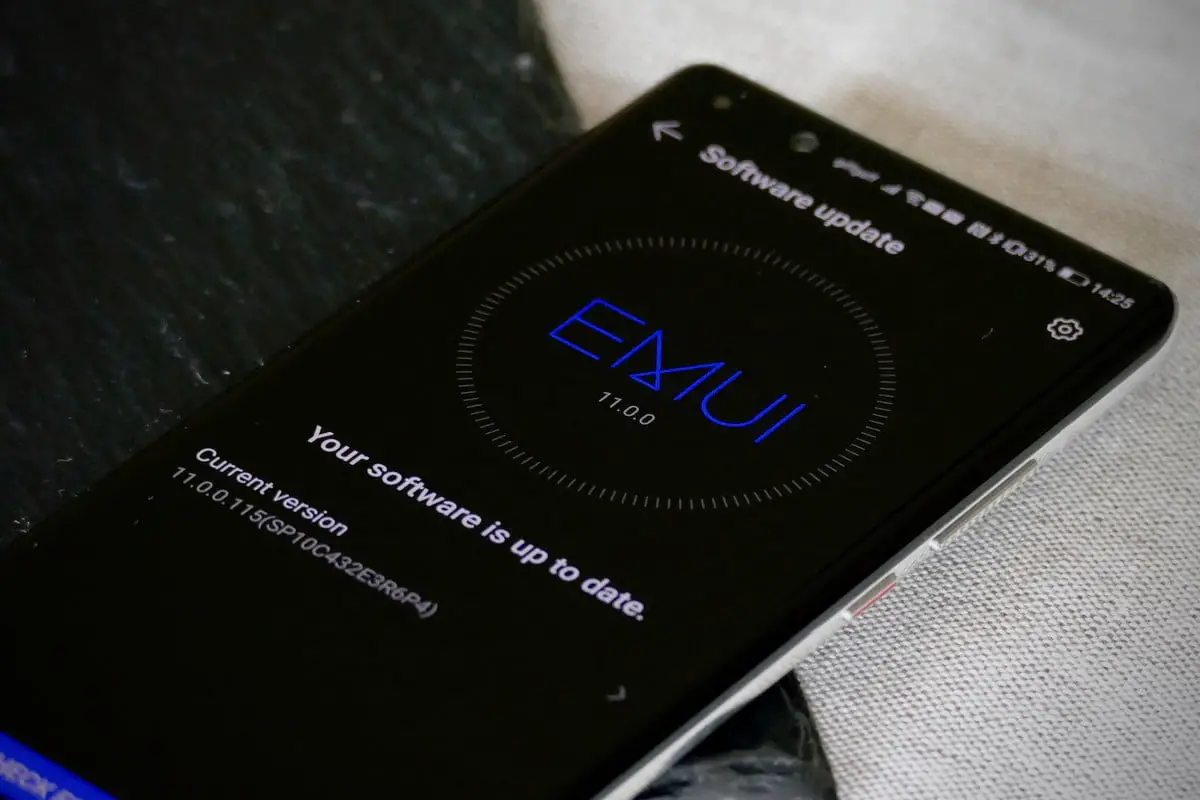
Change the EMUI lock screen with themes

By entering the Themes we can choose a totally different style for our smartphone, which also applies to the lock screen. This allows you to choose a new lock style for Huawei mobile in a matter of seconds.

We can choose from those that are already assigned to our mobile or we can slide to the bottom of the screen and enter “More themes”. This will take us to the app integrated into EMUI where we can choose from a wide variety of free themes. We can choose the one we like the most, see its preview and then download and install it from the bottom button on the screen.
How to customize a Huawei smartphone lock screen on EMUI?

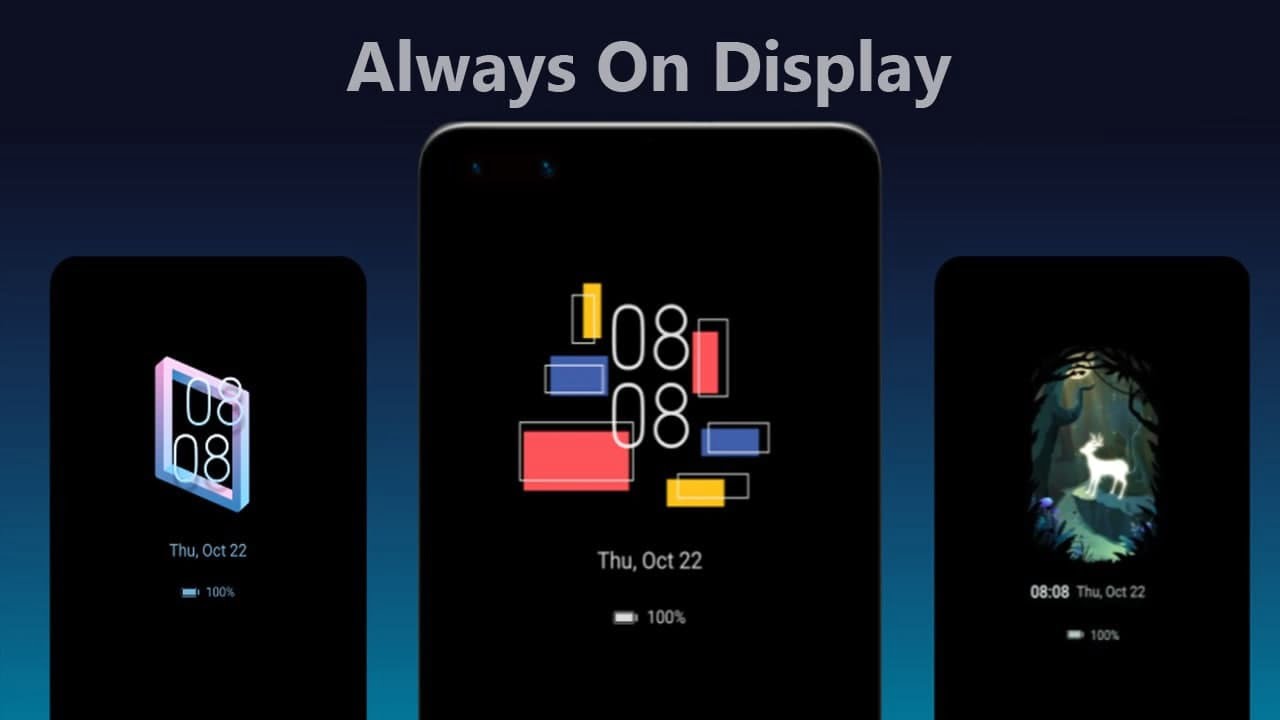
Always-on display

Even though the Always-on display is not the lock screen, it is a concept that can be easily confused. Smartphones with an AMOLED panel can take advantage of this feature. EMUI also offers different styles for this part.

We can decide on one of the styles that come in our mobile phone or tap on “More styles.” There is also the possibility to customize the Always-on display mode of Huawei with a photo or design made by ourselves.

How to change the lock screen covers in Huawei

We can also change the wallpaper automatically in Huawei, this can be done from the “Change covers” section, where we have the option to activate it with a simple button. We can choose where these covers come from by choosing Leica photographs, from our mobile phone, or from predefined styles.

But we can also choose a static cover for our mobile. Choosing the final option “More wallpapers” will take us to many free and other paid options.
How to customize a Huawei smartphone lock screen on EMUI?

Add double clock on the lock screen

The last customization possibility that EMUI 11 offers us for now on Huawei phones is to set a double digital clock on the lock screen. To activate it, we have to head to Settings > System and updates > Date and time. By changing the local city to a different one from the one we are in and we will see both local times on the lock screen.

This is especially useful for those who have family or friends in another part of the world and want to communicate with them without having to make calculations.

Tags: changecustomizeEMUIguidehow tohuaweilock screenstep by stepthemetutorial
ShareTweet
Kerem Gülen

Kerem Gülen

Kerem from Turkey has an insatiable curiosity for the latest advancements in tech gadgets and a knack for innovative thinking.With 3 years of experience in editorship and a childhood dream of becoming a journalist, Kerem has always been curious about the latest tech gadgets and is constantly seeking new ways to create.As a Master's student in Strategic Communications, Kerem is eager to learn more about the ever-evolving world of technology. His primary focuses are artificial intelligence and digital inclusion, and he delves into the most current and accurate information on these topics.

Related Posts

How to install mods and custom content in The Sims 2

How to install mods and custom content in The Sims 2

26 December 2025
Running Python files and fixing path errors on Windows

Running Python files and fixing path errors on Windows

26 December 2025
How to boot your PC into Command Prompt for troubleshooting

How to boot your PC into Command Prompt for troubleshooting

26 December 2025
How to delete a virus using Command Prompt

How to delete a virus using Command Prompt

26 December 2025
Please login to join discussion

LATEST

ASUS to launch new AI PCs at CES 2026

GameSir announces CES 2026 participation

LG Electronics announces LG CLOiD home robot

LG revives Wallpaper OLED line with Evo W6 at CES 2026

Samsung Display starts mass production of 34-inch 360Hz QD-OLED

LG Electronics announces 2026 LG gram lineup

Samsung unveils Companion to AI Living at CES 2026

Samsung showcases C-Lab startups at CES 2026

Bosch eBike Systems adds theft protection to eBike Flow app

Bosch unveils AI extension platform, AI-powered cockpit at CES 2026

TechBriefly

© 2021 TechBriefly is a Linkmedya brand.

  • Tech
  • Business
  • Science
  • Geek
  • How to
  • About
  • Privacy
  • Terms
  • Contact
  • | Network Sites |
  • Digital Report
  • LeaderGamer

Follow Us

No Result
View All Result
  • Tech
  • Business
  • Crypto
  • Science
  • Geek
  • How to
  • About
    • About TechBriefly
    • Terms and Conditions
    • Privacy Policy
    • Contact Us
    • Languages
      • 中文 (Chinese)
      • Dansk
      • Deutsch
      • Español
      • English
      • Français
      • Nederlands
      • Italiano
      • 日本语 (Japanese)
      • 한국인 (Korean)
      • Norsk
      • Polski
      • Português
      • Pусский (Russian)
      • Suomalainen
      • Svenska