


Today we show you how to use the Wombo AI app to create funny videos from your photos. We are going to explain how to use the Wombo application, which is becoming very popular by allowing you to upload photos and make them dance to the rhythm of a song and do lip sync.
The process is pretty simple actually, you just upload a picture of you or someone else, and the app makes it move as if it were dancing. The results are pretty badass, it uses a simple algorithm to move the images, but that’s also part of its fun. It doesn’t pretend to be realistic, but simply to amuse.
We are going to explain step by step how to use Wombo. You will be able to use your camera to take a picture of yourself on the fly, but you can also use photos that you have saved on your smartphone, either yours or downloaded from the internet. The app will allow you to download and share the resulting video for you to use as you wish, although in its free version it has a watermark.
How to use Wombo AI to create funny videos from photos, lip sync or dance to music?
The first thing you have to do is download the application on your mobile. It is available for Android and iOS, so you will find it in the Google Play Store and Apple’s App Store. If you go to its official website, wombo.ai, you will see direct links to the applications.
When you open the app for the first time, you have to click on the yellow Let’s Go button to start. When you do so, you will have to give the app two types of permissions: On the one hand, you will have to give it access to your camera to be able to take a picture of you, and on the other hand access to your photos and videos to be able to use photos you already have in your phone’s memory.
You will arrive at the main interface of the photo. Here, you will see a silhouette that tells you how to stand in front of the camera, and all you have to do is stand as indicated facing directly at the camera, and click on the take photo button. To the right of that button, you have the icon of a camera with two arrows, which are used to switch between the front and rear camera.
To the left of the button to take the photo, you have the option to use one of the photos from your cell phone. This option is convenient since after using the browser to choose the photo, you will be able to crop it to match what the app needs. Sometimes, using mobile photos can have better results than using the camera, at least in our tests.
Once you have taken your photo or chosen one from your camera’s memory to use, you will see a preview where you just have to press the W button to start the process. This preview shows the photo wider and somewhat distorted, but don’t worry about that.
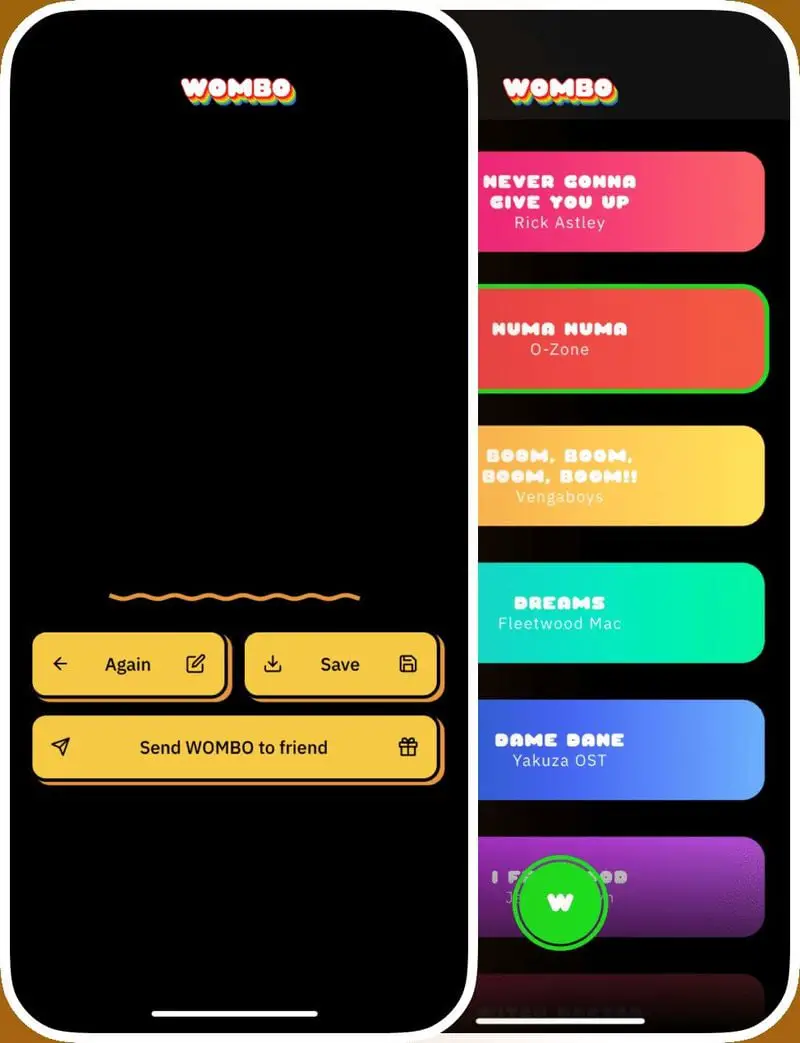
Once you click on the W in the previous step to start transforming the photo, you just need to select the song you want to use to make the photo dance to its rhythm. In the list of songs, click on the one you want to listen to, and then click on the W button to apply it.
Once you select the option, the app will take a few seconds or minutes to apply the effect to the photo. You will see a progress bar while it does it. And when it’s done, you will see the photo dancing. Here, you will have buttons to save the clip on your mobile, the Save button, and another one to send to someone else with the share menu on your mobile. The best result is to download it to your mobile and then share it as you like.
The final result looks like this GIF, which we have used to see how the photo moves and that in addition to people’s faces can also work with animals. Of course, you will need some patience in both cases, since the app is not very accurate and does not analyze much the photo, but only moves certain points in it. But the results are funny.


