

This article explains how to install Chrome extensions to Microsoft’s new Edge browser, which is built with code from the Chromium project. In a standard configuration, extensions are installed exclusively through the Microsoft Store.
After coming out of the beta last week and having a new logo, the new Edge browser will initially be offered to Windows 10 users via a cumulative update. The legacy version based on EdgeHTML will then be replaced by the new Blink-based browser.
If you look at the taskbar you will still see the old blue logo and not the new vortex, unless you have installed it separately.
How to download the new Edge browser?
You can download the browser separately via Microsoft here.
Note: Installing this version overwrites the old browser.
How does Edge perform compared to other browsers?
Even in the first use, you notice the speed of the new Edge browser by Microsoft. Only other Blink-based browsers Opera and Brave are superior to its performance, but Edge is better with battery saving on laptops, because it offers a good balance between performance and system load.
Edge is multi-platform for a while and except the older versions that are prepared for older Windows versions, it has a macOS version, and a Linux in the works. For mobile, you can use the new Edge on Android and iOS too. Edge now has an opportunity for people who are not happy with Chrome especially in terms of performance and privacy.
Is it possible to use Chrome extensions with Edge?
There are various browser extensions available for Edge and you can find them at the Microsoft Store and although there are quite a number of extensions available, the total number is not even close to Google Chrome Web Store .
But you are not limited to these, you can use extensions from the Chrome Web Store, but Microsoft requires that you are aware of the possible issues, but furthermore it is simple to add Chrome extensions.
How to install Chrome extensions to the new Edge browser?
There are two ways to do this.
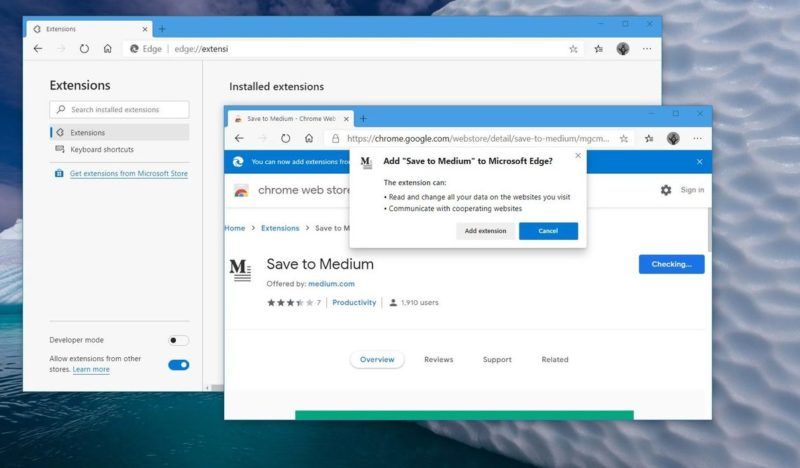
- Open the Edge menu (the three dots at the top right) and click Extensions. Or you can type edge://extensions to the address bar and press Enter.
- In the menu, look below and you will see a slider that says “Allow extensions from other stores”. If you turn this on, you can install extensions from outside the Mirosoft store.
- Once you click Install, the browser will warn you that these extensions have not been verified and may affect your system’s performance. Click Allow to continue. You should note that if you disable this for some reason, you will also disable all the extensions that are installed out of Microsoft Store.
or…
- Navigate to the Chrome Web Store.
- Click “Allow extensions from other stores” in the blue bar.
- Than click Allow on the warning which says these extensions have not been verified by Microsoft.
Now you can add any extension from the Chrome Web Store to Microsoft Edge.


