

In this article we will tell you how to clean WhatsApp on iPhone.
Thanks to the fact that smartphones offer us more internal memory, storage shortage is no longer as widespread a problem as it was a few years ago. For example, in the specific case of the iPhone, the base storage is 64GB, but that does not free us from running short of space and here some apps are more to blame than others, the main suspect in these cases is usually WhatsApp.
WhatsApp sends us messages, photos, videos, GIFs, documents? You name it. If we store everything, in a short time the app can become a real storage-eating monster. In this article, we explain how to free up space on your iPhone by emptying WhatsApp and also how to prevent it from happening again.
Before doing anything it is necessary to evaluate the problem well and see how much is occupying WhatsApp and other applications of the total memory of our iPhone. To do this go to Settings – General – iPhone Storage. At the top, you will see a graphical representation of the occupied and available space and below a list with what occupies the applications, ordered from the one that occupies the most to the least.
If we want more detailed information about the storage that WhatsApp is occupying, in the app we can go to Settings – Storage and data and Manage storage. Here we will see how much of that space is occupied by multimedia files and other items, as well as a breakdown of the chats that weigh the most.
How to clean WhatsApp so that it takes up less space?
We already have the information, now it’s time to do something about it. Here there are several options available and the most practical is to use the tools offered by WhatsApp in the Manage Storage section. Of course, keep in mind that all options to free up space involve deleting files, if you do not want to lose them first make a backup on your computer or a cloud storage service.
In the first block, it suggests deleting items that occupy more than MBs, which will mostly be videos, while in the second section it collects items that have been deleted many times and that are usually files shared in groups. You can also consult and, if you want, delete the files of each chat, accessing from the list that appears at the bottom.
If this is not enough, you can opt for a more drastic option: Empty or delete chats. Whichever option you choose, you should know that all the files and messages will be deleted, the difference is that with Delete everything will disappear and with Empty the chat will still appear in the list (but empty, of course).
You can do this by swiping to the left or by holding down on the chat you want to delete. You can also click on Edit (top left corner), select as many chats as you want, and click on Delete.
How to configure WhatsApp so that it does not fill up again so quickly?
With the previous tips, you can significantly reduce the space occupied by WhatsApp, but now we are interested that it does not happen again or at least not so quickly. Surely you are in several WhatsApp groups in which many files are sent that, in many cases, you may not even see, but occupy space anyway.
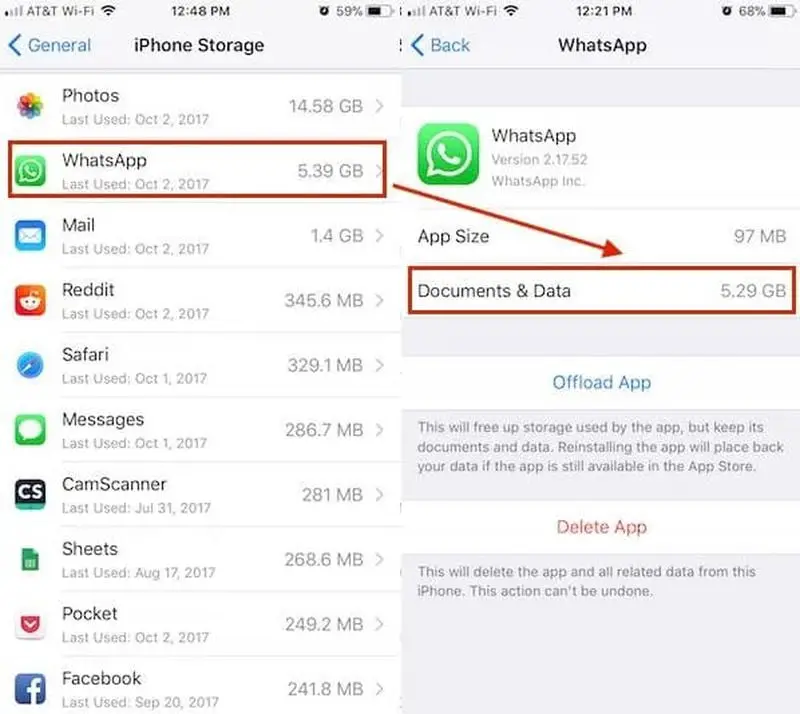
The solution is to disable automatic file downloading. To do this go to Settings – Storage and Data and look at the block highlighted in the image. Here we can choose whether we want files to download automatically when we are connected to the mobile network, only with WiFi or never.
The most drastic (and effective) option is to choose ‘Never’ in all cases. This way the photos or videos will only download when you click on them, so all those photos and videos they send in your childhood friends’ group won’t download by default. If you do not want to limit everything, at least it is advisable to do it with the videos since they are the files that occupy more.


