
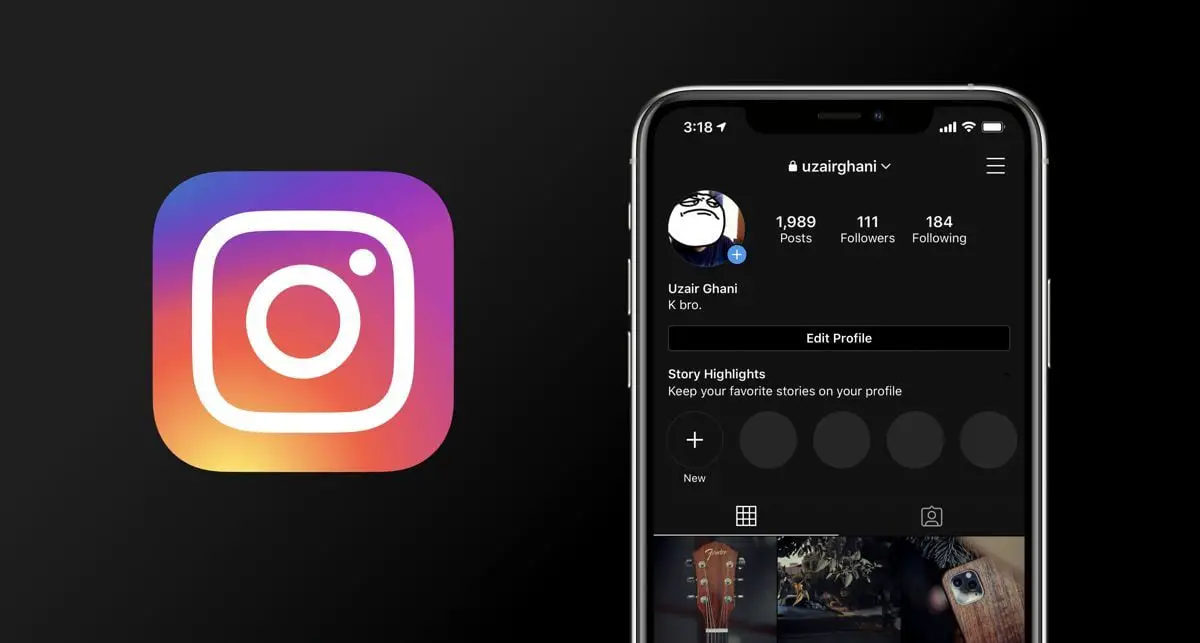

Below you can find all tricks for how you can enable Instagram dark mode. Spending too much time with the mobile can end up damaging our eyesight, especially if we do it at night. Therefore, it is interesting to know how to put Instagram in dark mode, as this mode is less harmful to our eyes. This is a fairly simple process, and the difference is quite noticeable at the level of tiredness.
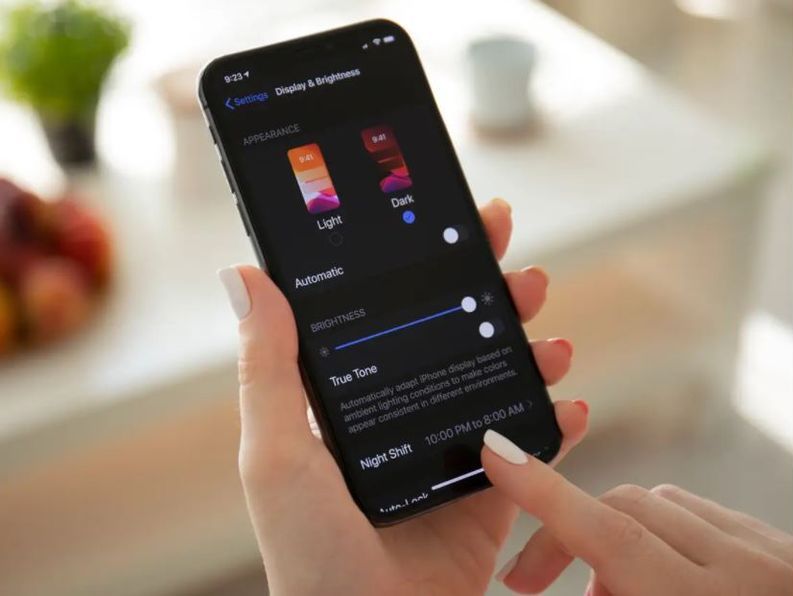
The main catch to all this is that we can’t activate dark mode only on Instagram. For us to be able to use this mode, it is necessary to put it on the entire Android operating system, so that it applies to all applications. To do this, we will have to go to the Settings of our phone. In the Display section, we can find a switch to set the dark mode. By pressing on it, the dark mode will be applied to Instagram as well as to any other compatible app.
The main problem we find with this is that the dark mode is only available for smartphones with Android 10 or higher. Therefore, if you have a slightly older phone, you may not be able to enjoy the dark mode. Although there are some brands like Huawei or Xiaomi that in their customization layers offer this option from Android 9.
How to disable dark mode on Instagram?
If you need to know how to deactivate the dark mode on Instagram you will like to know that the steps to follow are the same as to activate it. That is, you will have to go back to Settings>Display and then press the dark mode switch again. The process is always the same, whether what you want is to activate it or if you prefer to have it blank. In this way, you can put it and remove it to your liking easily.
When we use the mobile at night, having the dark mode activated is usually more beneficial for the view. But, indeed, the white view is usually more attractive if we are not going to be using the mobile for hours. Therefore, it is to be appreciated that the process of how to put on Instagram dark mode and how to remove it is simple.
How to enable dark mode on Instagram PC?
As the dark mode is a function of the operating system, it is easy to wonder how to put dark mode on Instagram PC, since the Windows operating system that is the one we usually use on our computers does not have this model. The answer lies in an extension for Google Chrome. It is Instagram Night Mode. Once we have installed it, every time we enter Instagram we will see a button to access the dark mode.
Of course, it is important to note that to use Instagram’s dark mode from the computer we must use Google Chrome to access the social network. If you enter from another browser, you will not find a way to use the dark mode. This is because it is not a function that has the social network natively.
It is also true that when we use the computer we are usually in a bright room, so it is easy to think that setting the dark mode is not essential. After all, this mode is designed especially for when we are in bed at night looking at the phone in the dark. But if you’ve already gotten used to this black view and want to use it on all your devices, this Chrome extension will be the solution you need.


