

TechBriefly
  • Tech
  • Business
  • Crypto
  • Science
  • Geek
  • How to
  • About
    • About TechBriefly
    • Terms and Conditions
    • Privacy Policy
    • Contact Us
    • Languages
      • 中文 (Chinese)
      • Dansk
      • Deutsch
      • Español
      • English
      • Français
      • Nederlands
      • Italiano
      • 日本语 (Japanese)
      • 한국인 (Korean)
      • Norsk
      • Polski
      • Português
      • Pусский (Russian)
      • Suomalainen
      • Svenska
No Result
View All Result
TechBriefly
Home How to
How to use the shopping button on WhatsApp Business?

How to use the shopping button on WhatsApp Business?

Kerem GülenbyKerem Gülen
30 December 2020
in How to
Reading Time: 2 mins read
Share on FacebookShare on Twitter

If you don’t know how to use the shopping button on WhatsApp Business, we are going to help you out. WhatsApp is the most popular messaging platform currently, but besides being a chatting app, it offers us other features too.

  • How to block calls from a certain prefix on a Huawei smartphone?
  • How to download music from Soundcloud to MP3? (Complete Guide)
  • How to change the country in the Google Play Store?

How to use the shopping button on WhatsApp Business?

Since this is a new feature, you may not be sure how to shop on WhatsApp. To end with all possible doubts, we have prepared this guide.

There have been rumors about this new feature, the tool has now officially arrived on the platform. Specifically, they added a shopping button to WhatsApp Business. Any user can use this app for shopping.

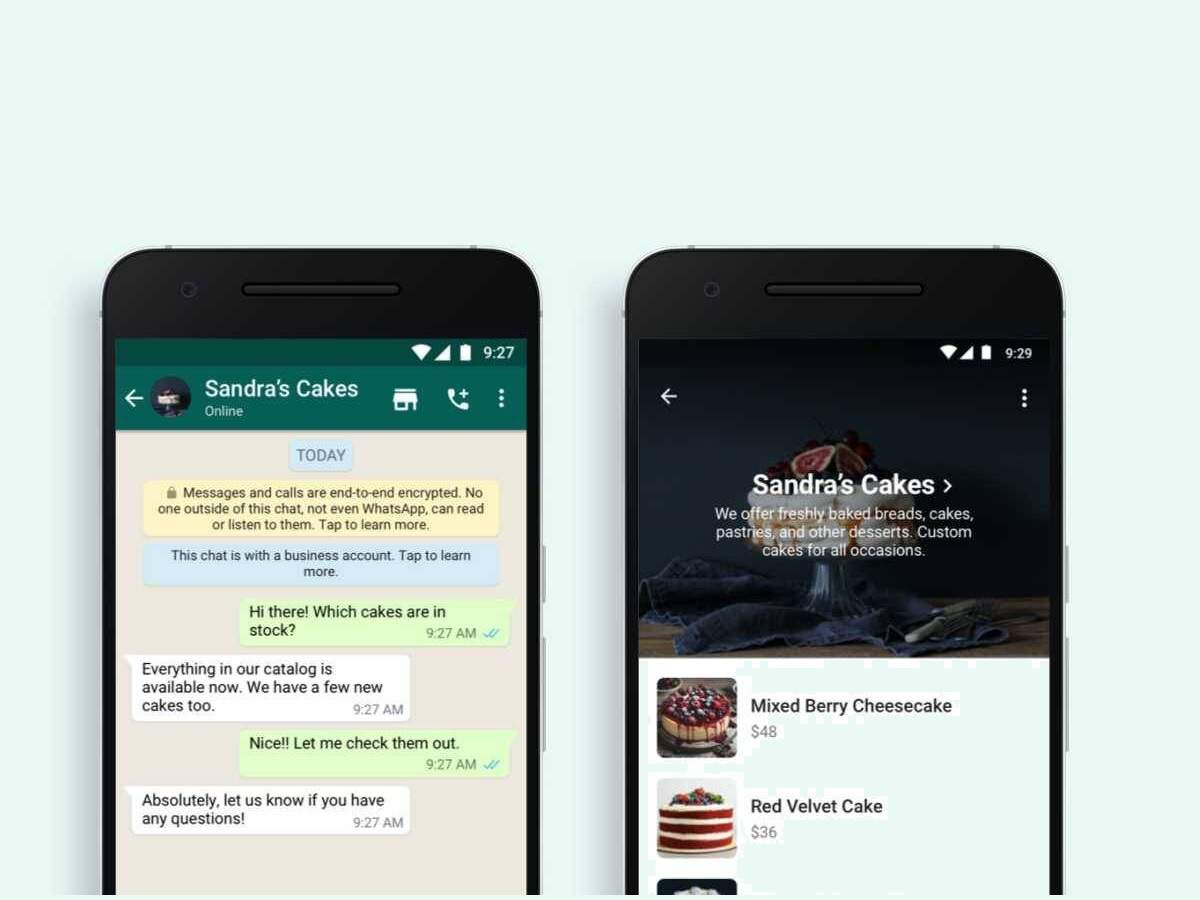
After the introduction of this feature, businesses that want to sell their products through WhatsApp must upload a catalog with all their products and their respective prices, in addition to enabling the shopping cart option in their profiles.

Thus, if you enter the chat of a company and click on the button of the store -top right corner-, you can see all its catalog. If you are interested in a product, just select “Add to Cart” to add it to your shopping cart.

When you have finished adding products to the cart, click on the cart button -top right zone- to see everything you are going to buy. This is a provisional list, you can still add new units or remove items that no longer interest you.

Once you have finished shopping at WhatsApp, click on the Send button -lower right corner- to send all the information about your purchase to the store.

You can still modify your purchase, as you can edit the message that you will send to the store. As you can chat with the seller, take advantage of this opportunity to ask him any questions you may have about products.
How to use the shopping button on WhatsApp Business?

As you can see in the previous video, the process consists of simply choosing the products from a store, adding them to your cart, and sending a message to the company with the details of your purchase.

While we wait for the arrival of the payments in WhatsApp to all users, the payment method for purchases in the application must be agreed with the seller. Using the shopping button is that easy!

Tags: buttonchatguidehow toshoppingstep by steptutorialWhatsApp
ShareTweet
Kerem Gülen

Kerem Gülen

Kerem from Turkey has an insatiable curiosity for the latest advancements in tech gadgets and a knack for innovative thinking.With 3 years of experience in editorship and a childhood dream of becoming a journalist, Kerem has always been curious about the latest tech gadgets and is constantly seeking new ways to create.As a Master's student in Strategic Communications, Kerem is eager to learn more about the ever-evolving world of technology. His primary focuses are artificial intelligence and digital inclusion, and he delves into the most current and accurate information on these topics.

Related Posts

How to download free ringtones from Zedge

How to download free ringtones from Zedge

13 January 2026
How to force stop apps and services on Android

How to force stop apps and services on Android

13 January 2026
Simple steps to install the latest Android patches

Simple steps to install the latest Android patches

13 January 2026
Simple ways to install and remove programs on Ubuntu

Simple ways to install and remove programs on Ubuntu

12 January 2026
Please login to join discussion

LATEST

How to download free ringtones from Zedge

How to force stop apps and services on Android

Simple steps to install the latest Android patches

Paramount sues Warner Bros. over Netflix deal disclosures

Apple chose Google Gemini for Siri

Apple paid developers $550B since App Store launch

Amazon reveals 97% of shipped devices support Alexa+

Xiaomi to launch fully self-developed smartphone in 2026

New WhatsApp parental controls will block strangers

Galaxy Unpacked 2026: S26 Ultra arrives just before MWC

TechBriefly

© 2021 TechBriefly is a Linkmedya brand.

  • Tech
  • Business
  • Science
  • Geek
  • How to
  • About
  • Privacy
  • Terms
  • Contact
  • | Network Sites |
  • Digital Report
  • LeaderGamer

Follow Us

No Result
View All Result
  • Tech
  • Business
  • Crypto
  • Science
  • Geek
  • How to
  • About
    • About TechBriefly
    • Terms and Conditions
    • Privacy Policy
    • Contact Us
    • Languages
      • 中文 (Chinese)
      • Dansk
      • Deutsch
      • Español
      • English
      • Français
      • Nederlands
      • Italiano
      • 日本语 (Japanese)
      • 한국인 (Korean)
      • Norsk
      • Polski
      • Português
      • Pусский (Russian)
      • Suomalainen
      • Svenska