
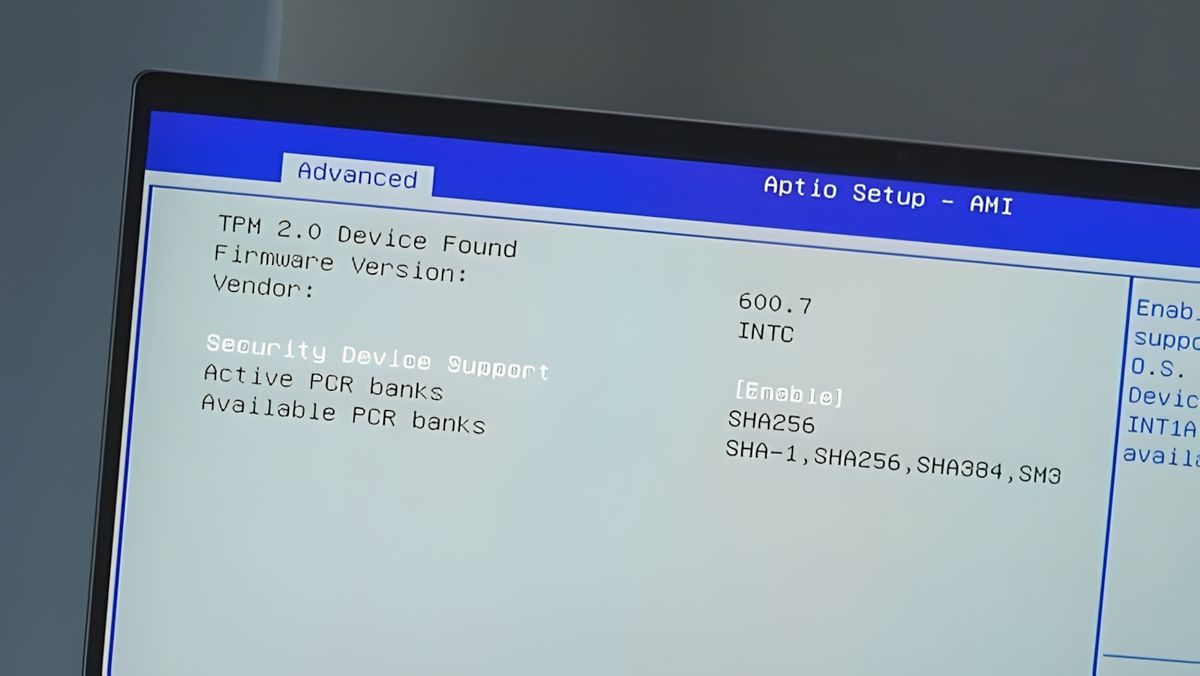

Accessing the BIOS (or UEFI) on your Windows 11 PC is useful for troubleshooting and adjusting low-level settings. While modern computers use UEFI, it’s still commonly referred to as BIOS. This guide will show you multiple ways to enter your Windows 11 PC’s BIOS.
Enter Windows 11’s BIOS by pressing a key
The easiest way to enter BIOS on a Windows 11 PC is by pressing a specific key while powering on the computer. This method works even if your Windows operating system (OS) doesn’t load.
- Identify the BIOS key: when you start your computer, look for a message on the first splash screen (usually showing the manufacturer’s logo). This message typically indicates the key to press to enter BIOS.
- Press the BIOS key during startup: while the computer is powering on, press the indicated key. On most computers, this key is “F2”, but confirm the key shown on your computer’s splash screen.
Enter the BIOS on Windows 11 from Settings
If you can’t find the keyboard key or prefer using graphical options, you can use Windows 11’s Settings app to enter BIOS.
- Open settings: launch the Settings app by pressing the Windows key + i simultaneously.
- Go to system settings: in the Settings app, select “System” from the left sidebar.
- Access recovery options: on the “System” page, click “Recovery”.
- Initiate advanced startup: in the “Recovery” menu, next to “Advanced Startup,” click “Restart Now.”
- Restart your PC: you’ll see a “We’ll restart your device so save your work” prompt. Click “Restart Now” to proceed. Ensure you save any unsaved work beforehand.
- Navigate to UEFI firmware settings: after restart, a “Choose an option” screen will appear. From this screen, navigate to Troubleshoot > Advanced options > UEFI Firmware Settings.
- Restart to BIOS: click “Restart” on the “UEFI Firmware Settings” screen. Your PC will now boot into BIOS mode, where you can configure various settings.
Enter Windows 11’s BIOS using Windows Terminal
You can also use a command in Windows Terminal to boot your PC directly into BIOS. This method works with both PowerShell and Command Prompt.
- Open Windows Terminal: open the “Start” menu and search for “Windows Terminal.” Click “Windows Terminal” in the search results to launch the app.
- Execute shutdown command: in Windows Terminal, type the following command and press Enter:
shutdown /r /o /f /t 00 - Navigate to UEFI firmware settings: on the “Choose an option” screen that appears after executing the command, navigate to Troubleshoot > Advanced options > UEFI Firmware Settings.
- Restart to BIOS: click “Restart.” Your PC will now restart and boot directly into the BIOS.
Now you can access and modify your PC’s BIOS settings using any of these methods.


