

Delta Force Hawk Ops is here, and players are jumping into settings to optimize their experience for the perfect balance between performance and visuals. Whether you’re an AMD or NVIDIA user, customizing your settings can make a big difference. Here’s a detailed guide to help both types of users get the most out of their gaming experience.
How to optimize Delta Force Hawk Ops settings for the best experience?
For NVIDIA users, head to the NVIDIA Control Panel and adjust Display settings. In Adjust desktop color settings, ensure you select your primary gaming monitor. Many gamers tweak the Digital Vibrance setting. Raising it slightly—say 65%—can make colors pop, but don’t overdo it, as it can look unnatural.
For AMD users, go to the Radeon Software panel. Under the Display tab, you can adjust Color Temperature and Saturation to achieve similar results. Increasing Saturation by 10-15% will give a richer color palette without sacrificing image quality. You can also enable Radeon Image Sharpening for crisper details, setting it between 50-60%.
Customize in-game combat settings
In-game settings remain the same for both NVIDIA and AMD users. Head to the Combat tab to adjust preferences like hit color. Many players switch from red to yellow or aqua for better visibility, particularly in snowy or desert terrains. These colors stand out more when sniping or using long-range weapons.
A sensitivity between 1.4 and 2 for vehicle controls will give better handling, especially when gunning.
Mouse sensitivity: Optimizing for precision
Whether you’re on AMD or NVIDIA, mouse sensitivity plays a key role in your gameplay. Most players stick to an 800 DPI setting, with in-game sensitivity adjusted around 2.5. If you struggle with recoil control, adjust your vertical sensitivity slightly higher than horizontal—around 1.2 or 1.3. This helps reduce the need for excessive dragging on your mousepad.
Keybinds: Streamlining gameplay
Delta Force Hawk Ops allows for a lot of customization in keybinds. Many players prefer to use toggle crouch instead of hold while aiming is typically set to hold for better control.
- Pro tip: disable scroll wheel weapon switching to avoid accidental weapon changes. Instead, assign specific keys to switch weapons and use the scroll wheel for functions like zoom or switching optics.
Graphics settings: Performance vs. visual quality (NVIDIA and AMD)
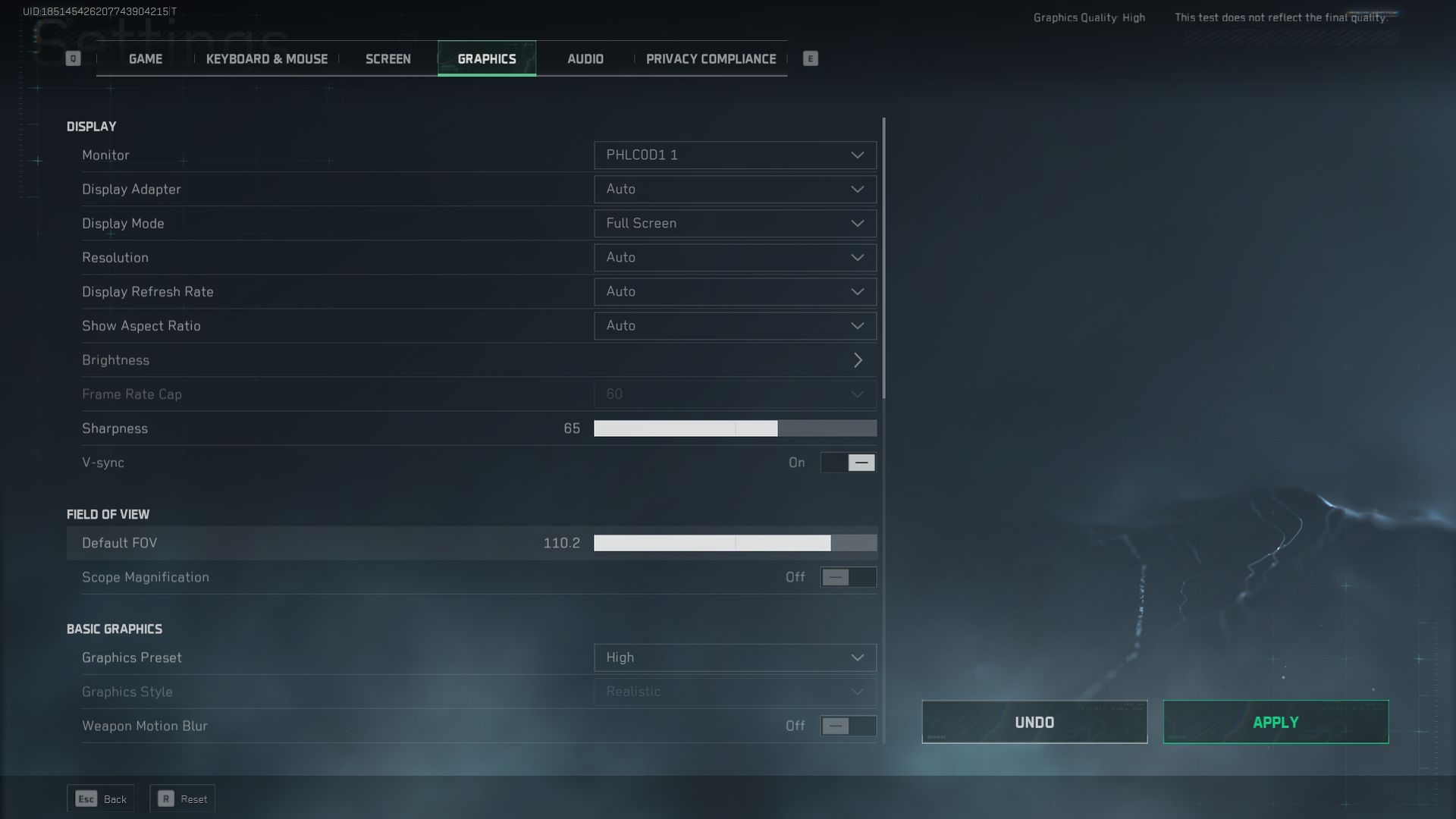
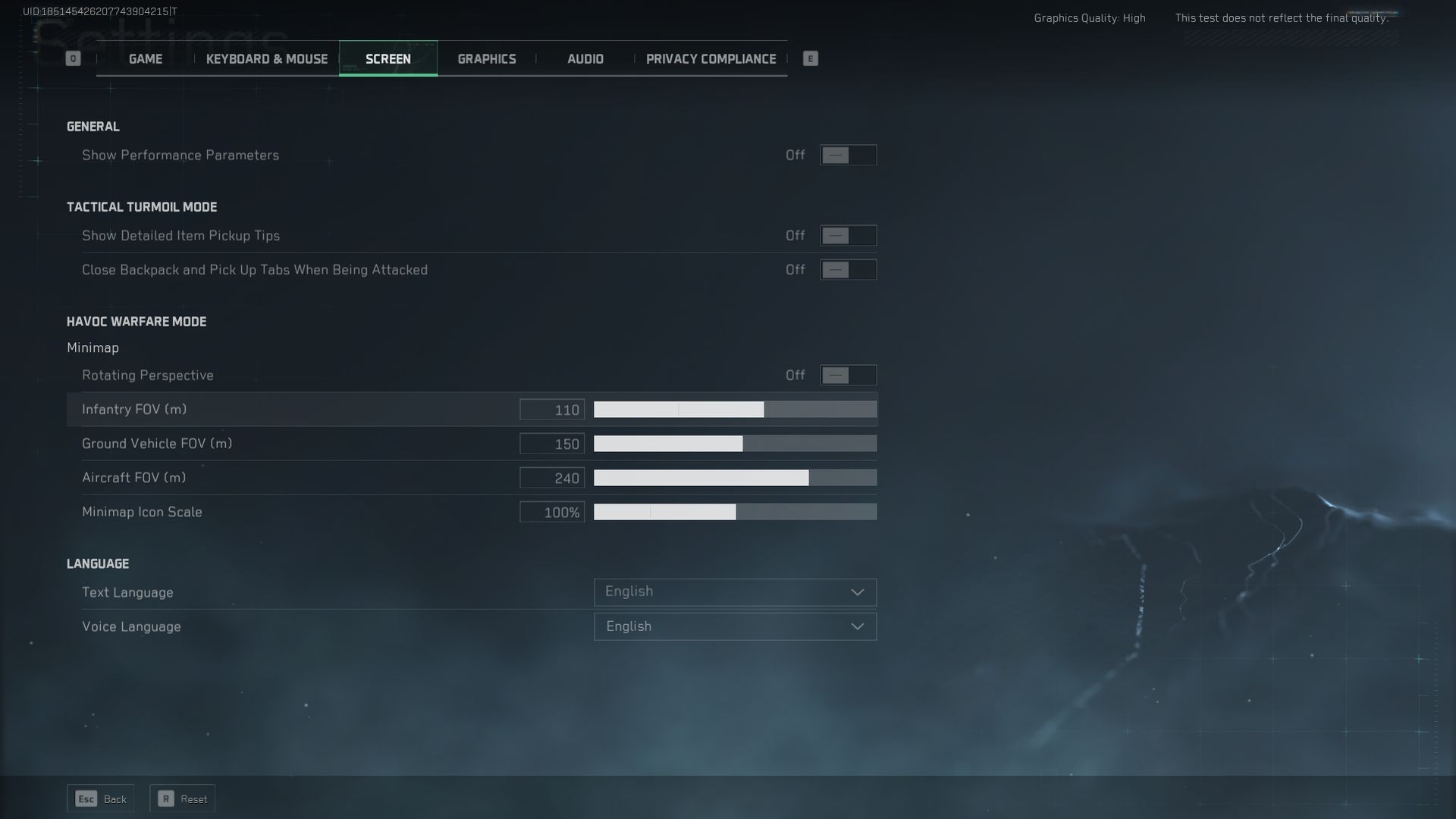
NVIDIA users with cards like the RTX 3070 will want to set the resolution to match their monitor’s default and the Display Refresh Rate to match the monitor’s maximum refresh rate. Sharpness should be around 65%, and it’s best to keep VSync off unless experiencing screen tearing. Field of View (FOV) should be increased from the default 90 to around 100-110, though keep in mind that higher FOVs can slightly reduce performance.
The process is similar for AMD users with equivalent cards like the Radeon RX 6800. Set the Resolution to your monitor’s native setting and match the Refresh Rate. Turn on Radeon Anti-Lag for reduced input lag, and use FidelityFX Super Resolution (FSR) if you’re looking for performance boosts without sacrificing visual quality. FSR helps maintain high frame rates even on demanding settings, similar to NVIDIA’s DLSS.
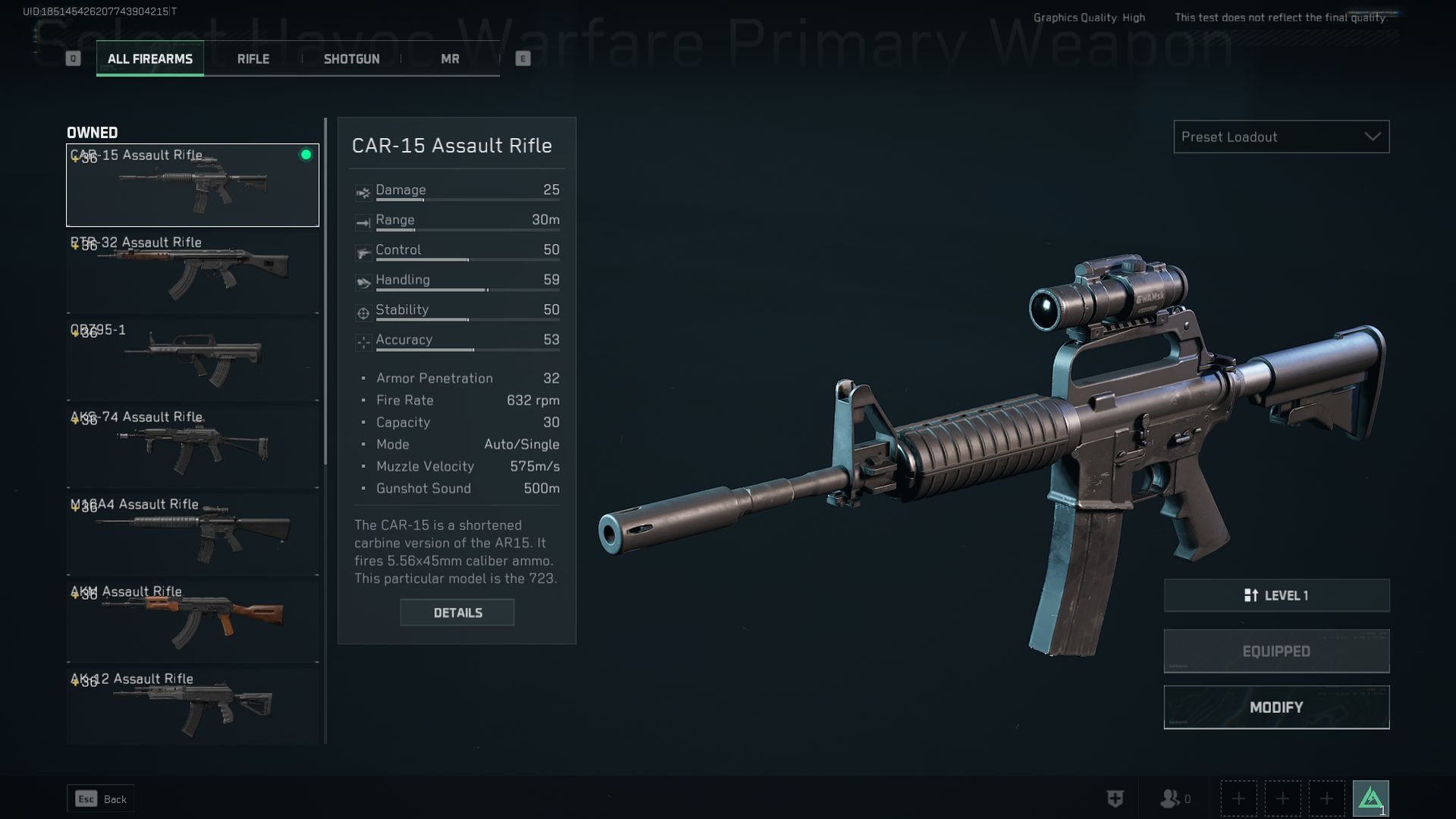
As for graphical settings:
- Resolution: Set to monitor’s native.
- Display refresh rate: Match your monitor’s refresh rate.
- Sharpness: Around 65% for a crisp image.
- VSync: Off unless screen tearing occurs.
- FOV: Increase to 100-110 for better visibility.
- Texture Quality: Medium for smoother performance, especially on mid-range GPUs.
AMD and NVIDIA players can keep settings like reflections, ambient occlusion, and particle effects on low or medium for a good balance between visuals and performance.
Audio tweaks: Clearer communication
Audio settings work the same across all platforms. Lowering voice volume to about 30% ensures important callouts are still audible without being too loud. Many players reduce music volume to 25% or even mute it entirely for better focus.
Enabling HRTF can help users of 3D audio hear enemy movements more clearly. Test this setting on and off to find what works best for you.
Final tips for a balanced experience
Whether you’re on an NVIDIA RTX 3070 or an AMD RX 6800, optimizing Delta Force Hawk Ops’s settings is all about balance. Start with low to medium settings and adjust based on your system’s performance. Delta Force Hawk Ops still looks great and runs smoothly, even with lower graphical settings.
Is your Windows 11 24H2 hogging 8.63 GB?
Google pulling the plug on uBlock Origin
How can you get more USB Type-C ports on your motherboard?
Amazon Prime Gaming’s spooky October giveaways
How to complete Metaphor: ReFantazio’s quests and collectibles
By following these steps, you’ll be ready to experience the Delta Force Hawk Ops in the best possible way, no matter your hardware.
Image credit: Delta Force Hawk Ops


