
TechBriefly
  • Tech
  • Business
  • Crypto
  • Science
  • Geek
  • How to
  • About
    • About TechBriefly
    • Terms and Conditions
    • Privacy Policy
    • Contact Us
    • Languages
      • 中文 (Chinese)
      • Dansk
      • Deutsch
      • Español
      • English
      • Français
      • Nederlands
      • Italiano
      • 日本语 (Japanese)
      • 한국인 (Korean)
      • Norsk
      • Polski
      • Português
      • Pусский (Russian)
      • Suomalainen
      • Svenska
No Result
View All Result
TechBriefly
Home How to
Why Gmail started hiding your emails and how to fix it

Why Gmail started hiding your emails and how to fix it

Bünyamin Furkan DemirkayabyBünyamin Furkan Demirkaya
23 September 2024
in How to
Reading Time: 3 mins read
Share on FacebookShare on Twitter

Have you ever been in a situation where you were looking for an email you were certain you hadn’t deleted, only to realize it had been covertly hidden? Gmail may be secretly organizing emails without your consent. It’s not because your emails are being filtered into the spam folder or disappearing into thin air. Gmail’s Categories feature has been playing hide-and-seek digitally, proving to be a challenging culprit.

This configuration could have organized your crucial emails into unknown folders. Fortunately, there is a method to prevent Gmail from performing this action. Let’s review the situation and learn how to manage your inbox effectively.

How to stop Gmail from sorting your emails

If you’ve been scratching your head, wondering where your emails went, there’s a chance Gmail’s Categories feature has swooped in. Now, Gmail isn’t outright deleting or archiving these messages. Instead, it’s moving them into neatly organized subfolders outside of your main inbox. Sounds helpful, right? Except for one small problem: it’s easy to miss new messages when they’re automatically categorized without your knowledge.
Why Gmail started hiding your emails and how to fix it
So, whether you’re using Gmail for personal or professional purposes, turning off Categories ensures your messages stay front and center

This feature divides incoming messages into tabs like Promotions, Social, and more. While it might sound like a tidy solution for keeping your inbox uncluttered, it often leaves you unaware of important emails that are sitting in a separate folder.

Luckily, once you figure out what’s going on, it’s easy to revert everything to a single inbox.

Once you’re in the know, fixing this issue is surprisingly straightforward. Let’s start with the steps on your web browser, followed by the smartphone app:
Why Gmail started hiding your emails and how to fix it
Fixing Gmail categories in a web browser
  1. Fixing Gmail categories in a web browser:
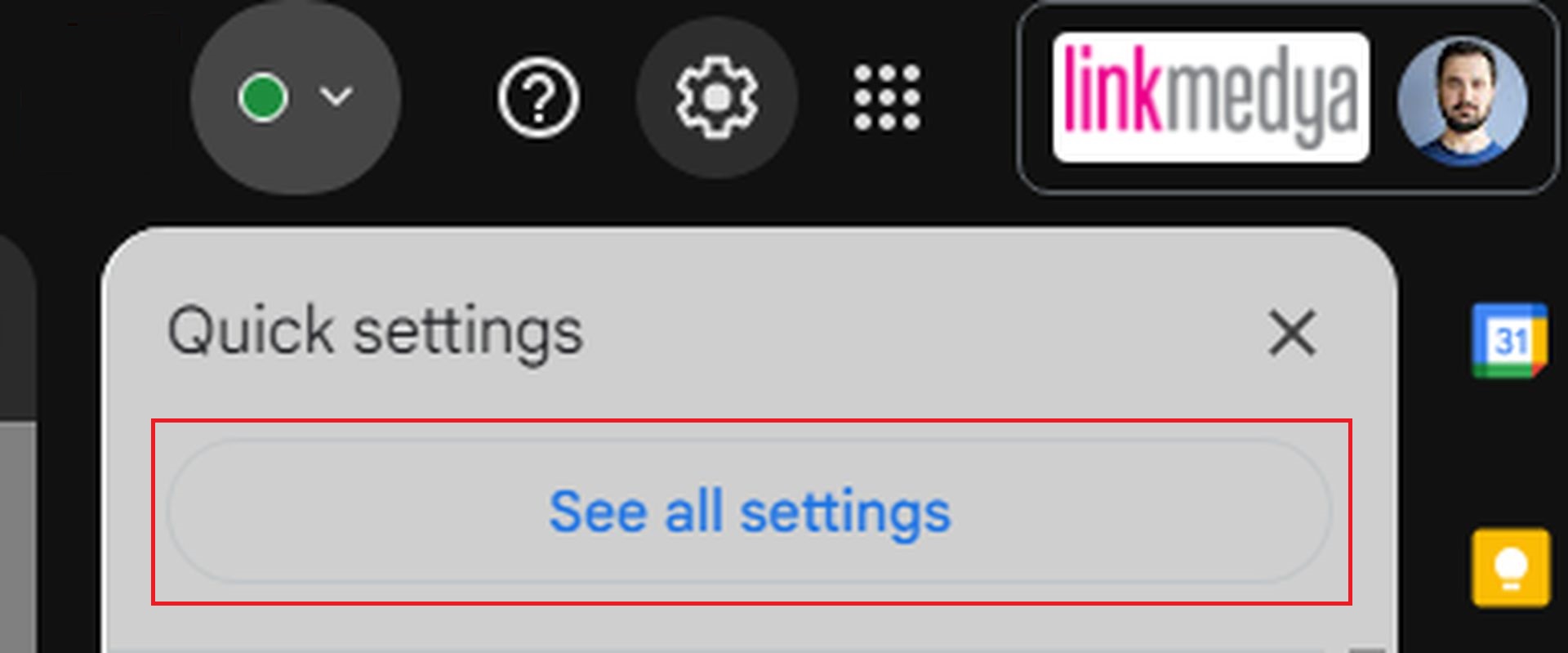
    • Open Gmail in your browser and click on the Settings icon. It’s the one shaped like a gear, up in the top right corner.
    • From there, choose See All Settings to reveal more options.
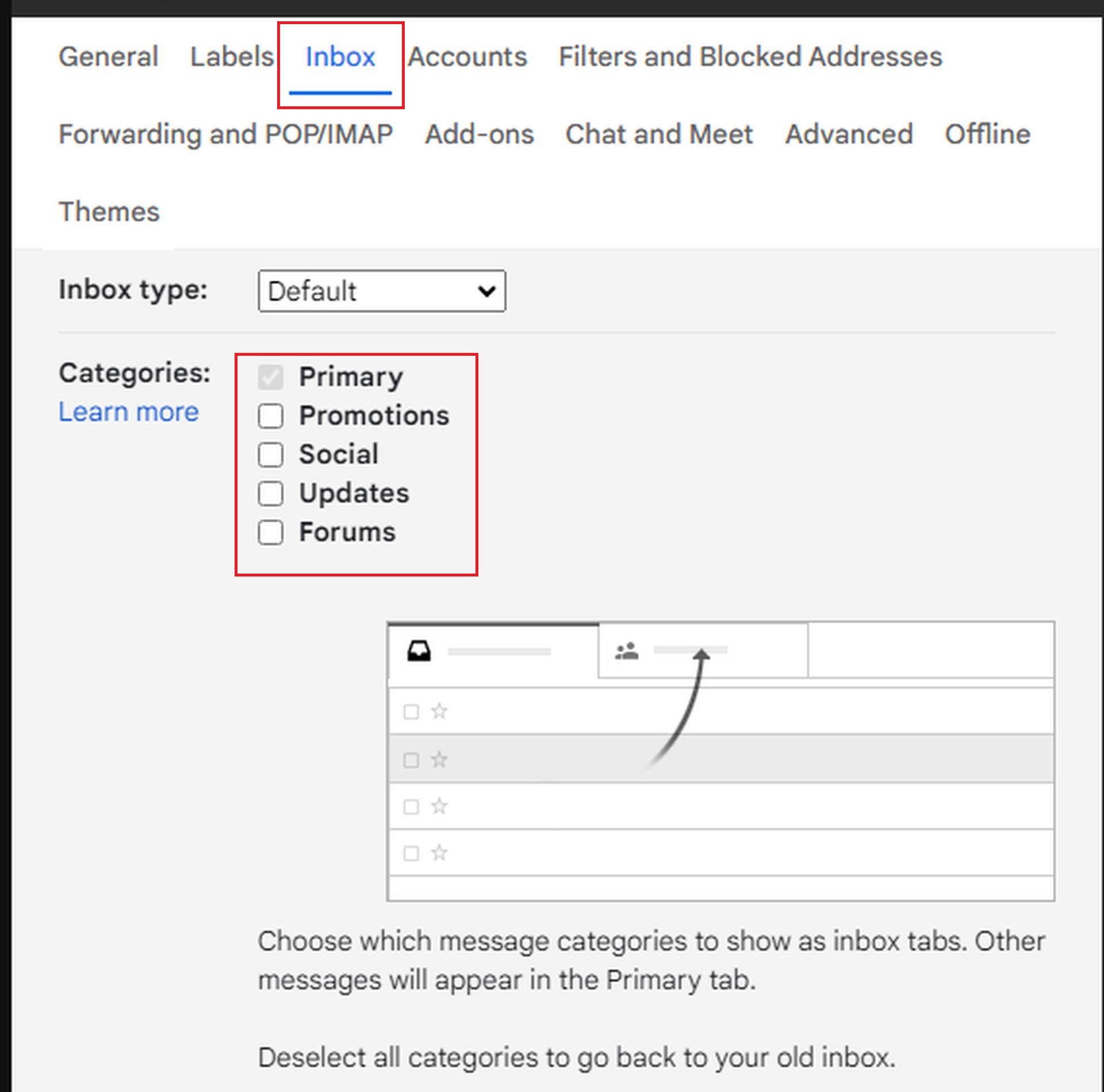
    • Next, head over to the Inbox tab.
    • Under Categories, you’ll find boxes checked for tabs like Social, Promotions, and more. Simply un-check all of these options to bring your inbox back to normal.
    • Don’t forget to scroll down and hit Save Changes. This step ensures Gmail won’t continue sorting your emails.
  2. Disabling categories in the Gmail smartphone app:
    • Open the Gmail app on your phone and tap the Menu icon (those three horizontal lines in the top left).
    • Scroll down to Settings, then tap on your email account.
    • From there, select Inbox Customizations and tap Inbox Categories.
    • Turn off the toggles next to each category, then tap Done to confirm the changes.

Once you’ve gone through these steps, you should start seeing all your emails back in your main inbox.

Why Gmail started hiding your emails and how to fix it
One thing to keep in mind is that Gmail doesn’t sync these changes between platforms

Different devices, different settings

One thing to keep in mind is that Gmail doesn’t sync these changes between platforms. If you disabled Categories on your laptop, it won’t automatically carry over to the app on your phone. You’ll need to repeat the process on each device you use Gmail with. It might take a few extra clicks, but it’s worth it to avoid missing important emails.

Another thing you should pay attention to is the Spam box: Even if you have turned off Gmail’s Categories feature, there is still a chance that important emails may end up in the Spam folder. Since the Spam folder is usually managed by automatic filtering, some of your valuable mail may also end up there. Regularly checking the Spam folder can help you find emails that have been accidentally overlooked.

So, whether you’re using Gmail for personal or professional purposes, turning off Categories ensures your messages stay front and center.


Featured image credit: Solen Feyissa/Unsplash

Tags: emailgmailhow to
ShareTweet
Bünyamin Furkan Demirkaya

Bünyamin Furkan Demirkaya

Related Posts

How to choose the right reset method for Samsung Galaxy devices

How to choose the right reset method for Samsung Galaxy devices

9 January 2026
What resetting end-to-end encryption does on iPhone, iPad or Mac

What resetting end-to-end encryption does on iPhone, iPad or Mac

9 January 2026
How to easily monitor your AT&T data usage and avoid overages

How to easily monitor your AT&T data usage and avoid overages

9 January 2026
How to reset your Bosch dishwasher when buttons won’t respond

How to reset your Bosch dishwasher when buttons won’t respond

9 January 2026

LATEST

How to choose the right reset method for Samsung Galaxy devices

What resetting end-to-end encryption does on iPhone, iPad or Mac

How to easily monitor your AT&T data usage and avoid overages

How to reset your Bosch dishwasher when buttons won’t respond

Disney+ brings TikTok-style scrolling to its streaming app

Xbox reveals lineup for next Developer Direct: Fable, Forza and more

FIFA and TikTok partner to stream live World Cup clips

YouTube updates search filters to separate Shorts from long videos

Google introduces AI Inbox to organize Gmail tasks and updates

Announcements made by Samsung Display at CES 2026

TechBriefly

© 2021 TechBriefly is a Linkmedya brand.

  • Tech
  • Business
  • Science
  • Geek
  • How to
  • About
  • Privacy
  • Terms
  • Contact
  • | Network Sites |
  • Digital Report
  • LeaderGamer

Follow Us

No Result
View All Result
  • Tech
  • Business
  • Crypto
  • Science
  • Geek
  • How to
  • About
    • About TechBriefly
    • Terms and Conditions
    • Privacy Policy
    • Contact Us
    • Languages
      • 中文 (Chinese)
      • Dansk
      • Deutsch
      • Español
      • English
      • Français
      • Nederlands
      • Italiano
      • 日本语 (Japanese)
      • 한국인 (Korean)
      • Norsk
      • Polski
      • Português
      • Pусский (Russian)
      • Suomalainen
      • Svenska