
Are you finding that other apps on your Windows computer get quieter when you’re on Discord? This could be due to a feature called automatic Discord ducking. It’s designed to reduce the volume of other applications when you or someone else is talking, but it can sometimes be more of a hassle than a help.
Fortunately, there are simple ways to adjust or disable automatic Discord ducking so that your volume stays consistent. In this guide, you’ll learn how to make these adjustments in Discord and through a few other Windows settings.
Automatic Discord ducking and simple solutions
We have 3 different ways to turn off automatic Discord ducking. This feature is not exclusive to Discord, but those who used Skype in the past may know that Windows also has such a feature and that the volume is muted because of the decisions it makes without asking the user. Let’s move on to solutions:
Adjusting Discord’s attenuation setting to control automatic Discord ducking
The first step to stopping automatic Discord ducking from lowering your volume is to change the attenuation setting. Here’s how:
- Open Discord: Find the Discord app icon on your desktop or in your start menu, and click to open it.
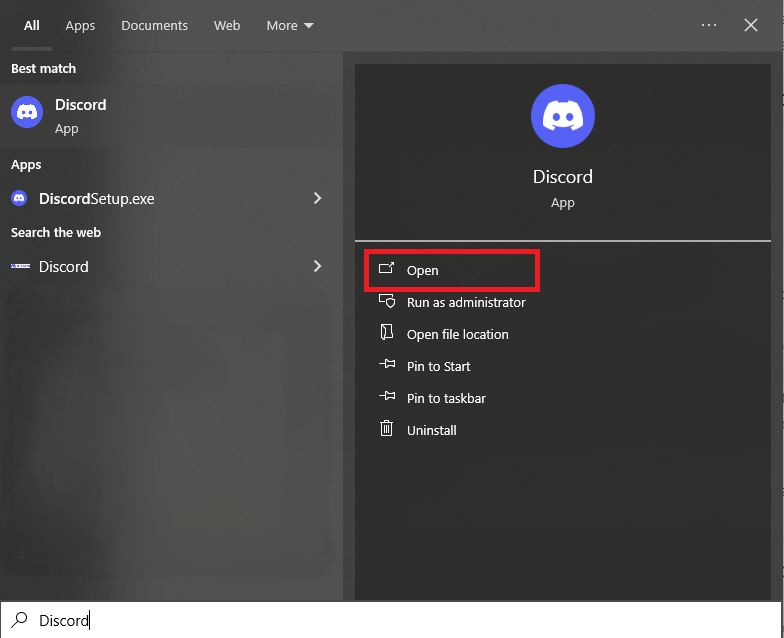
- Access Settings: Look for the gear icon at the bottom of the Discord window, next to your profile picture, and click on it.
- Navigate to Voice & Video: On the left side of the settings menu, find and click on “Voice & Video.”
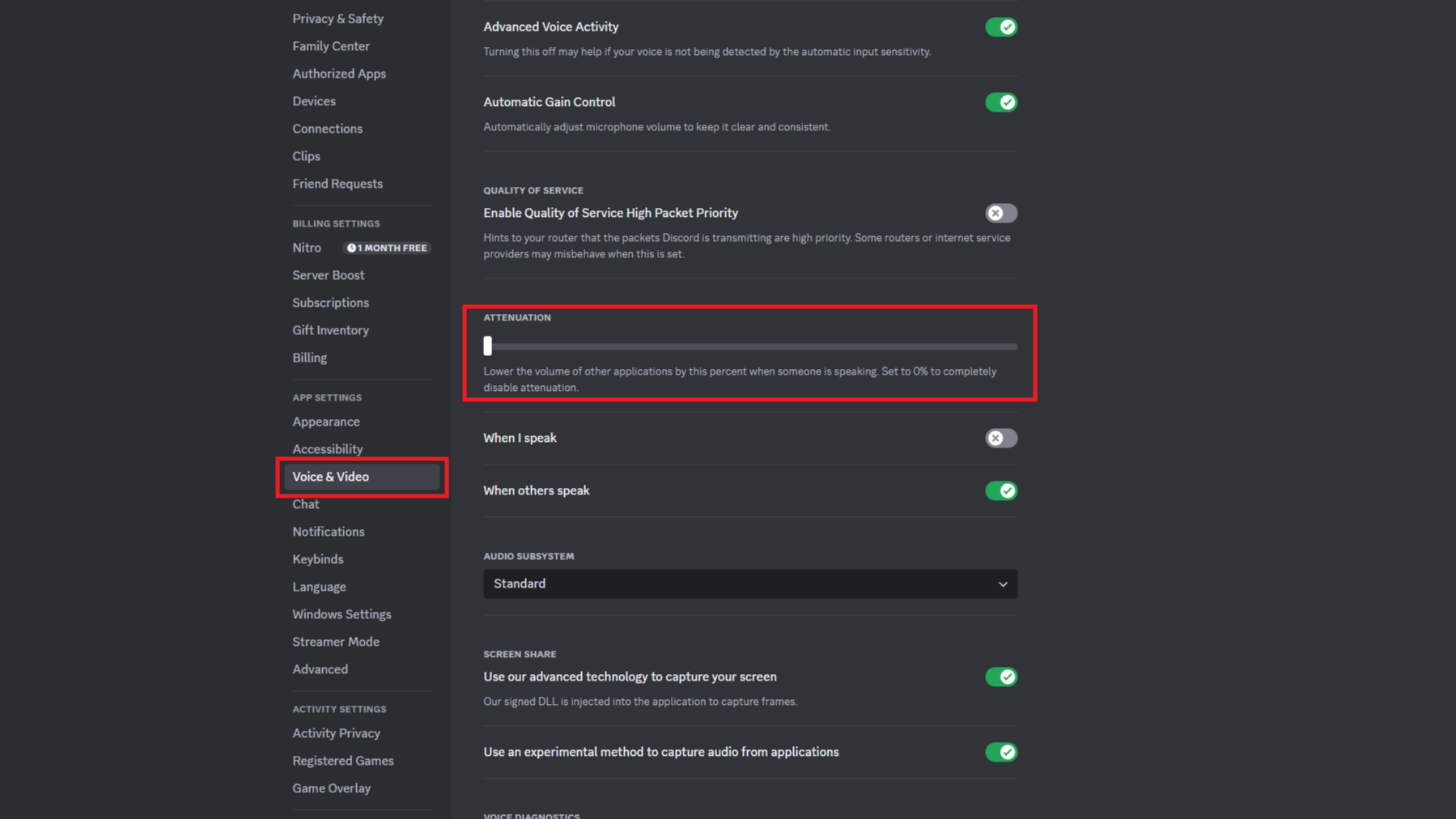
- Lower Attenuation: Scroll down until you find the “Attenuation” slider. Drag the slider to the left, setting it to 0%. This will stop automatic Discord ducking from lowering the volume of other apps when you or someone else speaks.
Adjusting this setting should help manage automatic Discord ducking, but if the problem persists, there are other steps you can take.
Turning off exclusive control to improve automatic Discord ducking
Sometimes, the issue of automatic Discord ducking continues even after adjusting the attenuation setting. If that’s the case, you can disable a feature in Windows that allows apps to take exclusive control of your audio devices. Here’s what you need to do:
- Open Windows Settings: Press the Windows key + I to open the Settings menu.
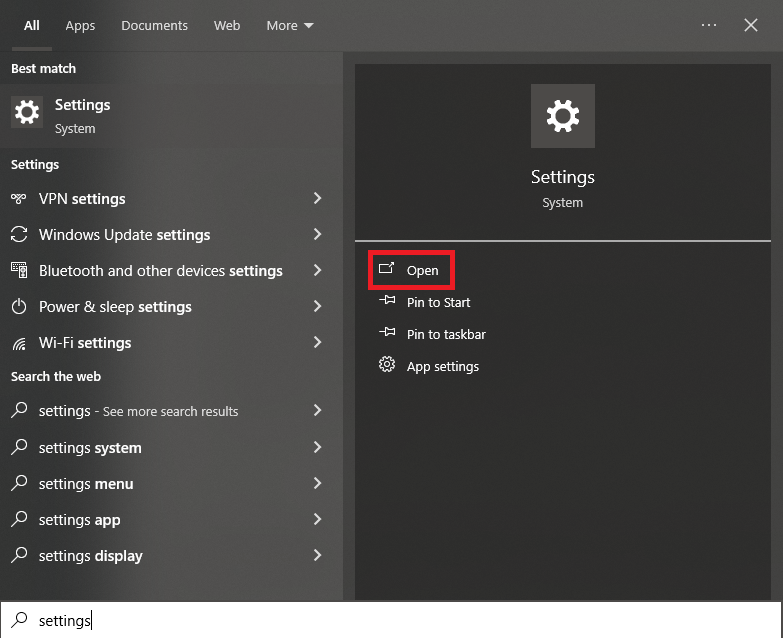
- Go to Sound Settings: Click on “System” and then select “Sound” from the menu.
- Open Sound Control Panel: In the Sound settings, scroll down until you find the “Related Settings” section. Click on “Sound Control Panel” in Windows 10 or “More sound settings” in Windows 11.
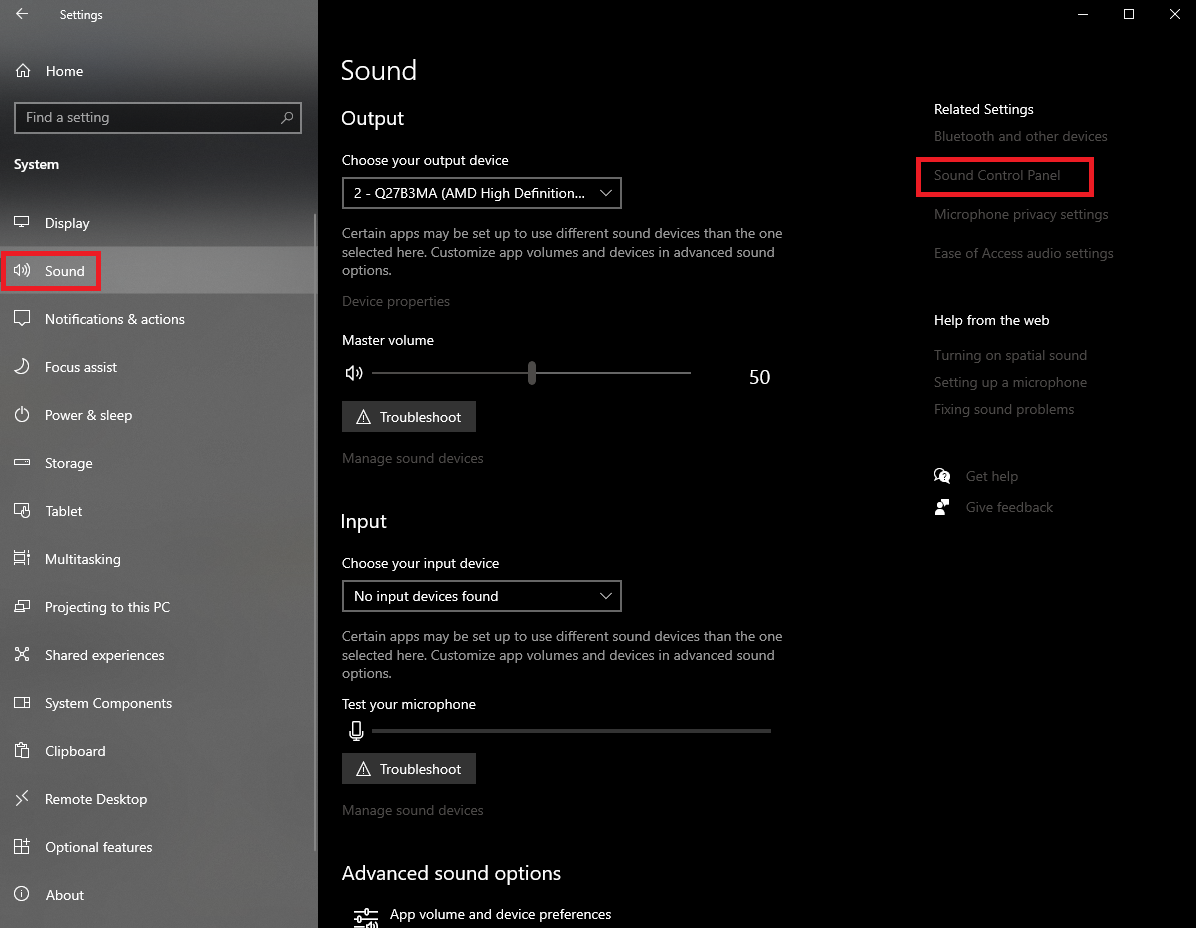
- Access device properties: In the Sound Control Panel, find the device that’s giving you trouble (like your headphones or speakers), right-click on it, and select “Properties.”
- Disable exclusive control: Click on the “Advanced” tab and uncheck the box labeled “Allow applications to take exclusive control of this device.”
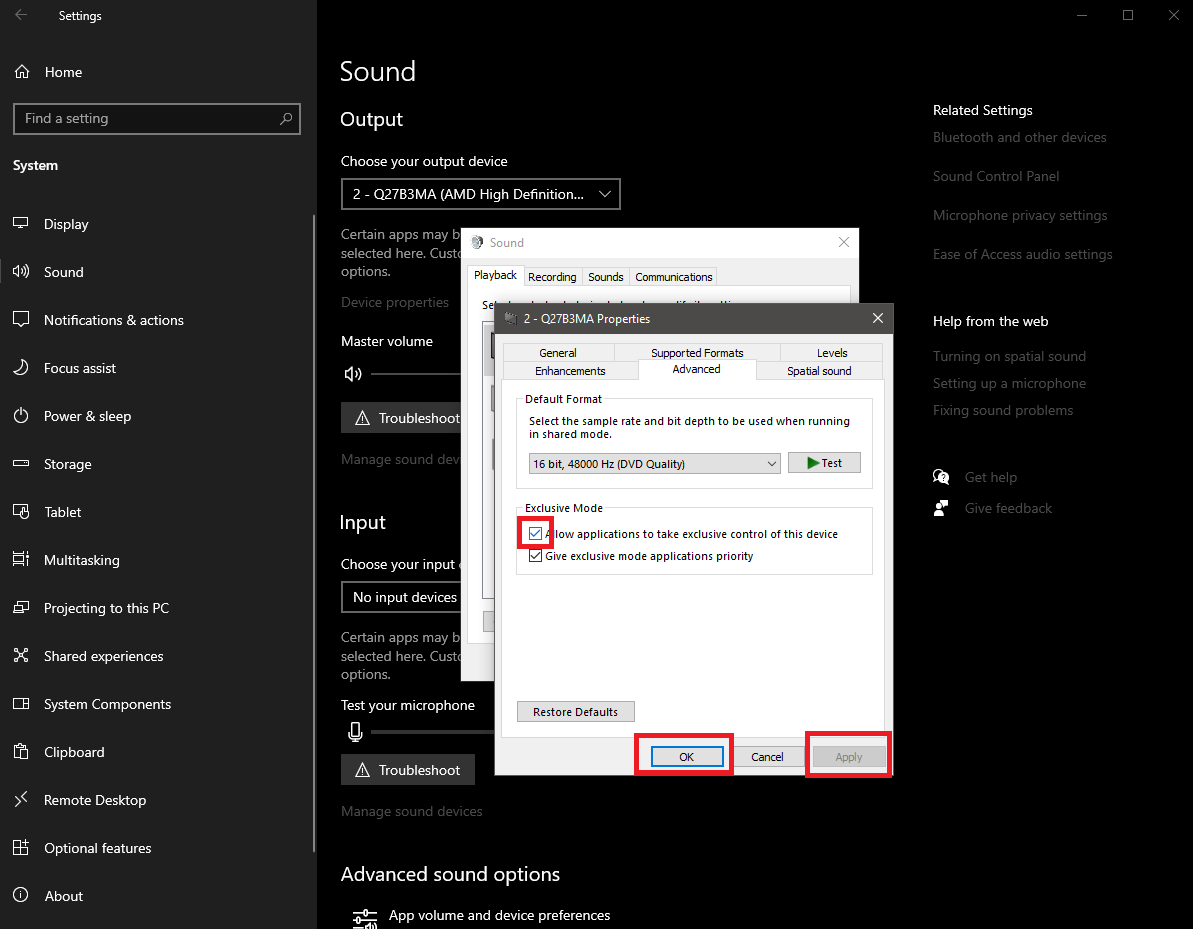
- Apply changes: Click “Apply” and then “OK” to save your changes. Repeat this process for any other audio devices you use.
Disabling exclusive control can help improve the effects of automatic Discord ducking and keep your volume levels stable.
Disable Windows communication activity to manage automatic Discord ducking
If you’re still facing issues after trying the above methods, there’s one last setting you can adjust. Windows sometimes lowers the volume of other applications when it detects you’re using a communication app like Discord. This is another form of automatic Discord ducking that can interfere with your audio experience. Here’s how to disable this feature:
- Open Windows Settings: Again, press the Windows key + I to bring up the Settings menu.
- Navigate to Sound Settings: Go to “System” and then “Sound.”
- Access communication settings: In the Sound settings, click on “Sound Control Panel” (Windows 10) or “More sound settings” (Windows 11).
- Disable communication activity: Click on the “Communications” tab at the top of the window. Select “Do nothing” under the section labeled “When Windows detects communication activity.”
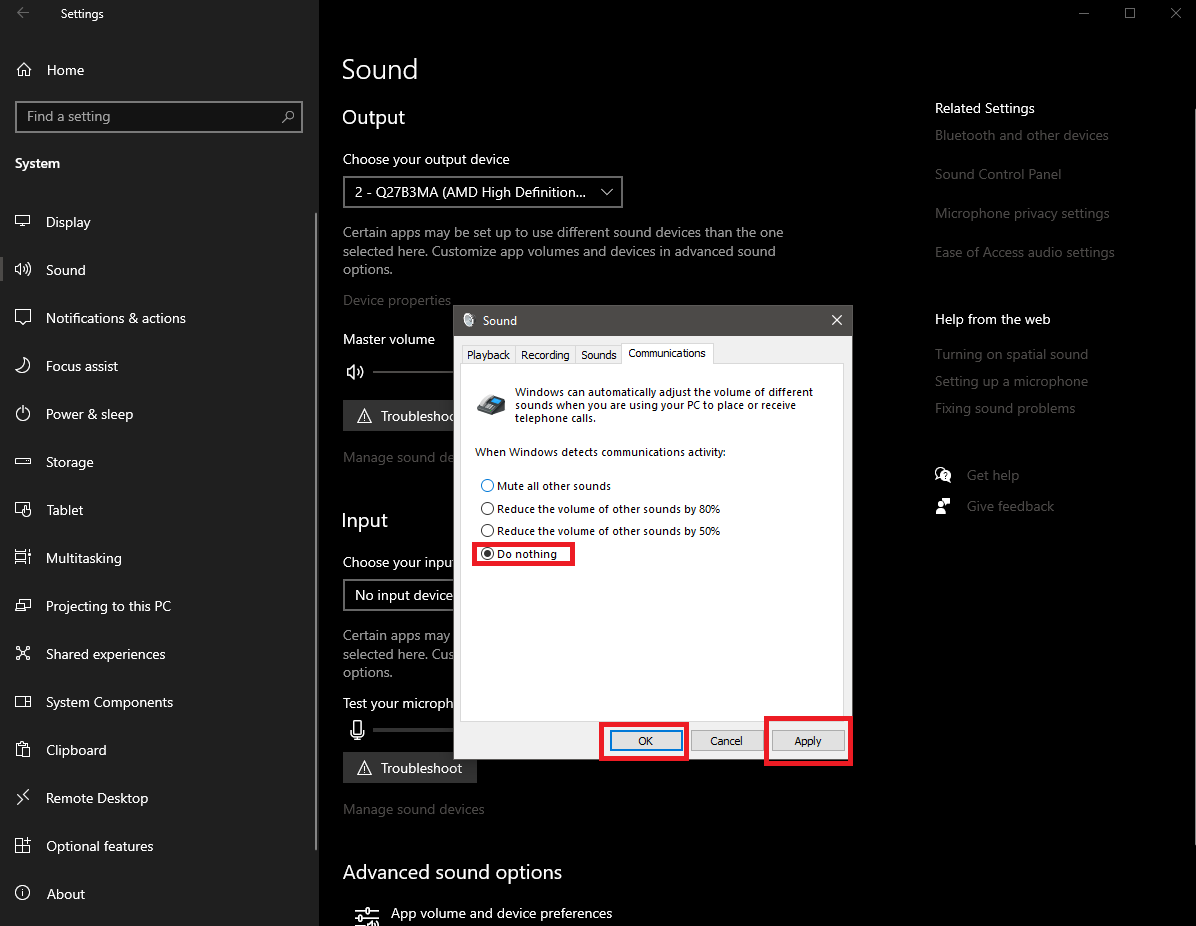
- Apply and confirm: Click “Apply” and then “OK” to save the changes.
By disabling this feature, you can manage automatic Discord ducking more effectively and prevent Windows from lowering the volume of other apps.
Wrapping Up
By following these steps, you should be able to control automatic Discord ducking and enjoy a consistent volume level across all your apps, even while using Discord. Whether it’s adjusting Discord’s attenuation, tweaking Windows’ exclusive control, or disabling communication activity, these solutions are easy to implement and should help you avoid further interruptions. Remember, it’s all about finding the right balance in your settings to make your experience smoother and more enjoyable.
Featured image credit: ELLA DON / Unsplash