
TechBriefly
  • Tech
  • Business
  • Crypto
  • Science
  • Geek
  • How to
  • About
    • About TechBriefly
    • Terms and Conditions
    • Privacy Policy
    • Contact Us
    • Languages
      • 中文 (Chinese)
      • Dansk
      • Deutsch
      • Español
      • English
      • Français
      • Nederlands
      • Italiano
      • 日本语 (Japanese)
      • 한국인 (Korean)
      • Norsk
      • Polski
      • Português
      • Pусский (Russian)
      • Suomalainen
      • Svenska
No Result
View All Result
TechBriefly
Home How to
Start menu ads in Windows 11: How to turn it off?

Start menu ads in Windows 11: How to turn it off?

Barış SelmanbyBarış Selman
25 April 2024
in How to
Reading Time: 2 mins read
Share on FacebookShare on Twitter

Microsoft recently started showing ads in the Start menu of Windows 11. While some users frowned upon this, others argued that it was a way to monetize the operating system.

So what are these ads in Windows 11, and how do users react to them?

The ads appear as recommendations for apps from the Microsoft Store in the “Recommended” section of the Start menu. These ads are designed to be tailored to users’ interests.

However, some users argue that these ads are unwanted and attention-grabbing. They say they detract from the Start menu’s simple and useful interface and negatively impact the user experience.

Microsoft emphasizes that these ads are optional and that users can easily disable them.

How to disable ads in Windows 11?

To do this, you can follow the steps below:

  • Go to Settings.
  • Select Personalization.
  • Click Start.
  • Turn off “Show suggestions for tips, shortcuts, new apps and more”.
  • Turn off this option, and you won’t see any ads in the Start menu.
Start menu ads in Windows 11: How to turn it off?
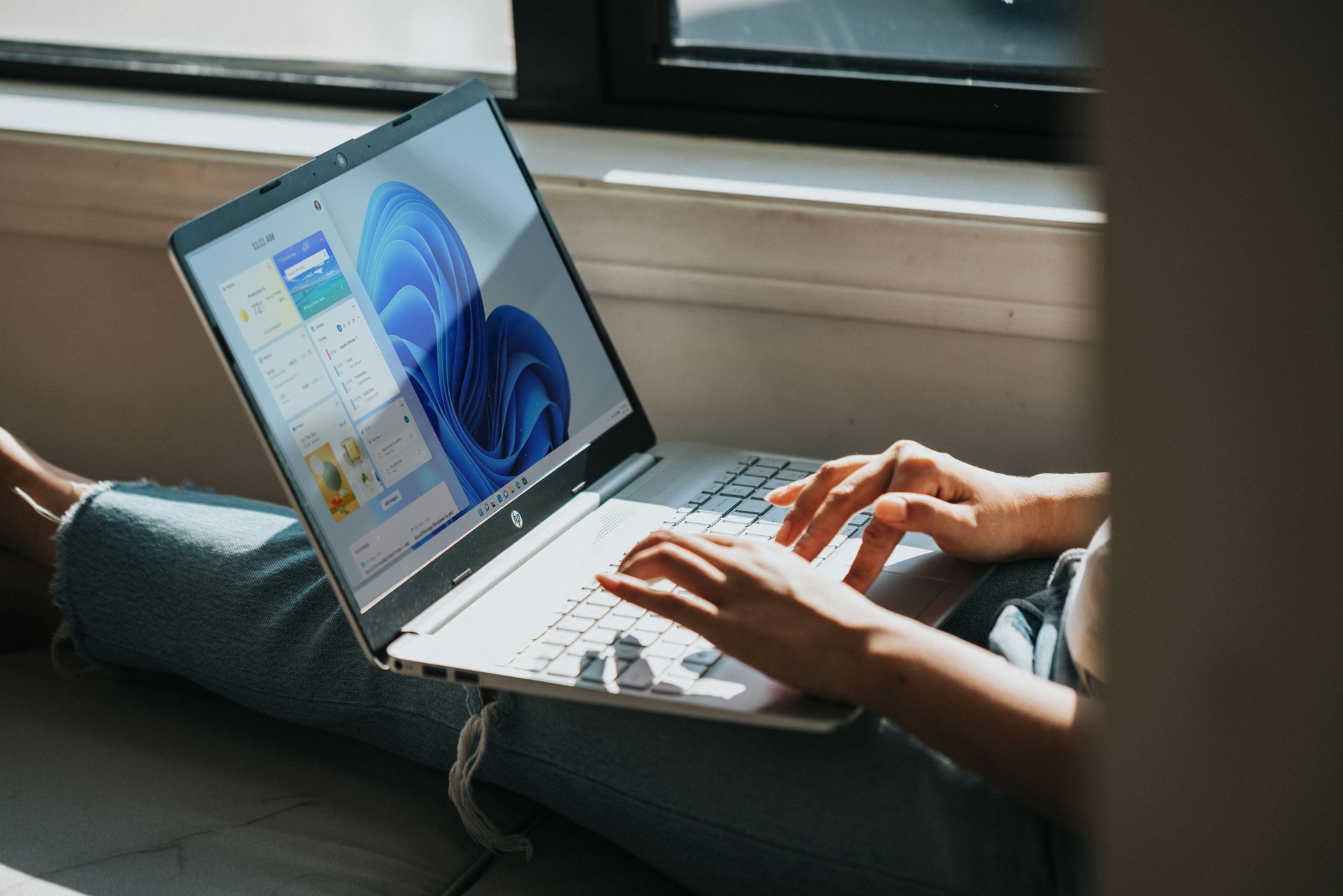
Microsoft introduced ads in the Windows 11 Start menu (Image credit)

When is the Start menu ad update coming?

KB5036980 is currently available as an optional update in Windows Update. Microsoft has announced that this update, which is listed as an April release, will begin rolling out to everyone over the next few weeks.

Some users reported that the update was automatically installed on Wednesday, April 24. This does not necessarily mean the update is automatically rolling out to all users.

Installation check:

You can check if you have installed update KB5036980 by opening Windows Update and checking the “Update history”. If KB5036980 appears in the update list, you have installed the update.

If you want to install it yourself, you can check if the update is available by going to Windows Update > Advanced options > Optional updates.

Microsoft’s addition of ads to the Start menu in Windows 11 has caused mixed reactions among users. Some argue that the ads are unwanted and attention-grabbing, and others argue that they are a way to monetize the operating system and that users can disable them.

Featured image credit: Алекс Арцибашев / Unsplash

ShareTweet
Barış Selman

Barış Selman

A technology and gaming enthusiast by day, Barış is a passionate composer and black/death metal guitarist by night. He keeps his finger on the pulse of the intersection of art and technology whenever he can from his tours worldwide.

Related Posts

How to choose the right reset method for Samsung Galaxy devices

How to choose the right reset method for Samsung Galaxy devices

9 January 2026
What resetting end-to-end encryption does on iPhone, iPad or Mac

What resetting end-to-end encryption does on iPhone, iPad or Mac

9 January 2026
How to easily monitor your AT&T data usage and avoid overages

How to easily monitor your AT&T data usage and avoid overages

9 January 2026
How to reset your Bosch dishwasher when buttons won’t respond

How to reset your Bosch dishwasher when buttons won’t respond

9 January 2026

LATEST

How to choose the right reset method for Samsung Galaxy devices

What resetting end-to-end encryption does on iPhone, iPad or Mac

How to easily monitor your AT&T data usage and avoid overages

How to reset your Bosch dishwasher when buttons won’t respond

Disney+ brings TikTok-style scrolling to its streaming app

Xbox reveals lineup for next Developer Direct: Fable, Forza and more

FIFA and TikTok partner to stream live World Cup clips

YouTube updates search filters to separate Shorts from long videos

Google introduces AI Inbox to organize Gmail tasks and updates

Announcements made by Samsung Display at CES 2026

TechBriefly

© 2021 TechBriefly is a Linkmedya brand.

  • Tech
  • Business
  • Science
  • Geek
  • How to
  • About
  • Privacy
  • Terms
  • Contact
  • | Network Sites |
  • Digital Report
  • LeaderGamer

Follow Us

No Result
View All Result
  • Tech
  • Business
  • Crypto
  • Science
  • Geek
  • How to
  • About
    • About TechBriefly
    • Terms and Conditions
    • Privacy Policy
    • Contact Us
    • Languages
      • 中文 (Chinese)
      • Dansk
      • Deutsch
      • Español
      • English
      • Français
      • Nederlands
      • Italiano
      • 日本语 (Japanese)
      • 한국인 (Korean)
      • Norsk
      • Polski
      • Português
      • Pусский (Russian)
      • Suomalainen
      • Svenska