
Adobe AI Assistant has finally been introduced! PDFs will become more useful with the new artificial intelligence assistant. Adobe and Reader users can easily find and summarize the information they want in their documents by chatting with Adobe AI Assistant.
So what is the new Adobe AI Assistant, and what will it offer? Let’s take a closer look.
What is Adobe AI Assistant, and what does it do?
Adobe‘s new AI Assistant turns PDFs into much more than simple text files. Now, users can chat with their documents to get instant summaries and insights, find answers to questions, and even create content ready for email, reports, and presentations.

Smart summaries and quick search
AI Assistant has the ability to summarize long documents in seconds. This allows users to quickly grasp the main ideas and important information without reading the entire text. AI Assistant also allows you to quickly navigate the document by directing you directly to relevant information when searching for specific words or concepts.
Powerful features and easy operation
Here are other important features AI Assistant offers:
- Citations: This makes it easy to cite from the document and correctly show your sources.
- Clickable links: Automatically turns keywords and concepts in the document into clickable links, providing quick access to related information.
- Formatted outputs: Can transform summaries, key takeaways, and citations into email, presentation, and report formats.
- Multi-file support: Works with PDFs and files in Word, PowerPoint, and other formats.
How to use Adobe AI Assistant
Here’s what you need to do to use Adobe AI Assistant:
- To get started, open a PDF document in Adobe Acrobat or Reader.
- You can find Adobe AI Assistant in the general toolbar or by going to the “All Tools” section.
- Click on “AI Assistant” to access the interface.
Once you have access to AI Assistant, there are two main ways to use it. First, you can ask specific questions about the content of the PDF. For example, “What are the main benefits of this technology?“, “Summarize the main points of this document” or “Can you format this information for a presentation?“.
Alternatively, the AI assistant can suggest questions based on the content of the PDF. Click on any of these suggested questions to get a quick answer or summary.
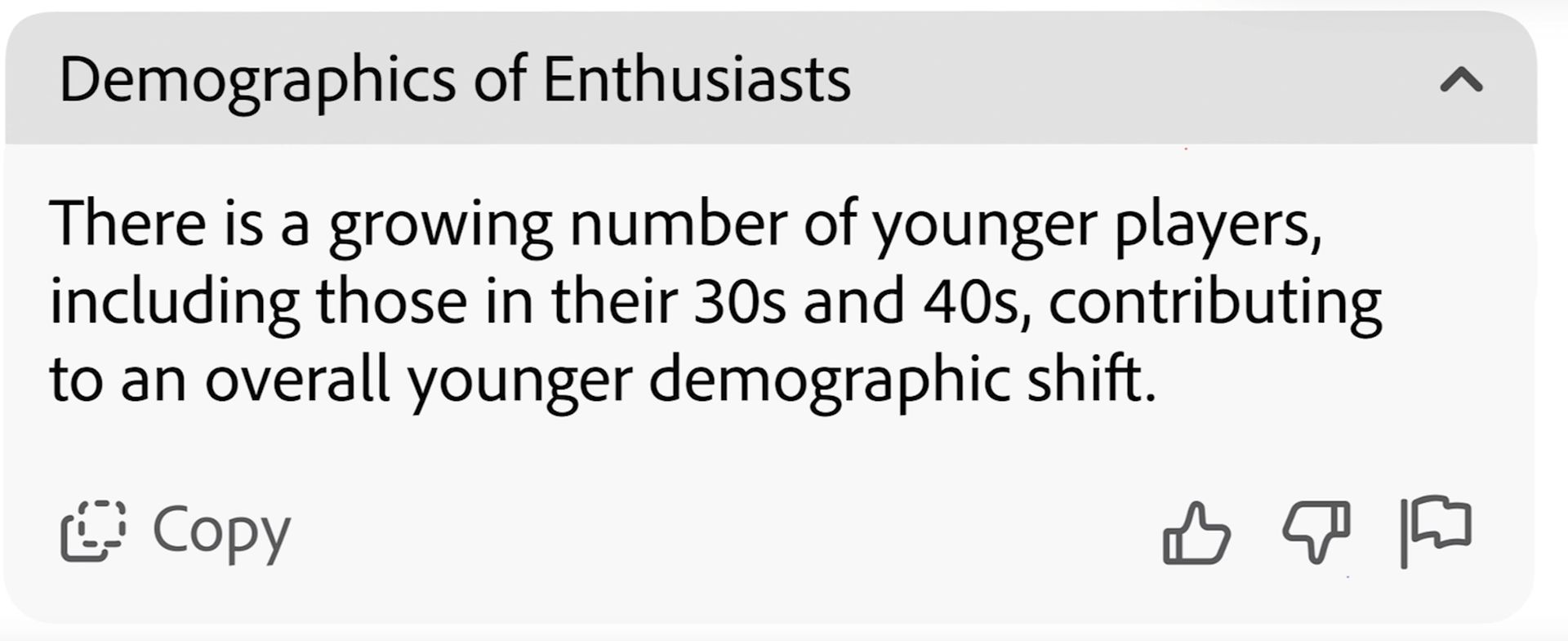
The AI Assistant will provide answers and insights right in its interface. If you ask for citations, it will give you clearly attributed sources. Also, if you want formatted text suitable for different purposes (like emails or presentations), AI Assistant can generate it for you. A simple “Copy” button allows you to use the formatted output easily.
Additional tips
Remember, the more specific your questions, the more precise the AI Assistant’s answers will be. Feel free to experiment with different question phrases to explore the tool’s capabilities. Also, be sure to take advantage of the suggested questions, as they can be a great shortcut to extract important information from your PDF quickly.

Adobe’s vision for artificial intelligence
Adobe says AI Assistant is the first step in converting PDFs and improving users’ document experience. The company predicts that in the future, AI will be used in areas such as document creation and editing and that creative AI models such as Firefly will be integrated into Acrobat and Reader.
Beta release and future plans
The beta version of AI Assistant is currently available to all Acrobat Individual, Pro, and Teams customers at no additional cost. Trial users can also take advantage of the feature. After the beta phase, Adobe will offer access to AI Assistant with an additional subscription plan.
Adobe’s new AI Assistant has the potential to significantly improve users’ document experience by making PDFs more useful and functional. This innovation reinforces Adobe’s leadership in AI and represents an exciting development for the future of PDFs.
Featured image credit: Adobe